
1. Sarrera
Thank you for choosing the VYVIYON CH-13 Wireless Camera Remote. This device is designed to enhance your smartphone photography, videography, and digital content consumption experience by providing convenient remote control. It is compatible with both iOS and Android smartphones, offering functions such as camera control, video scrolling for social media, and page turning for e-books.

Image 1.1: VYVIYON CH-13 Wireless Camera Remote and included USB-C charging cable and wrist strap.
2. Produktua amaitu daview
2.1 Ezaugarri nagusiak
- Hands-Free Camera Control: Capture photos and videos, switch between front/rear cameras, and zoom in/out on your smartphone.
- TikTok Scrolling: Play/pause videos, swipe between clips, adjust volume, and "like" content without touching your screen.
- E-Book Navigation: Effortlessly turn pages in e-book applications on your smartphone.
- Bateria kargagarria: Built-in battery with USB-C charging for extended use and environmental friendliness.
- Bateragarritasun Unibertsala: Pairs with iOS and Android smartphones via Bluetooth 5.0.
2.2 Components and Button Descriptions
Familiarize yourself with the remote's buttons and their functions:

2.1 irudia: Xehetasun zehatza view of the remote control with numbered button descriptions.
- GORA botoia: Previous video (short press).
- BEHERA botoia: Next video (short press).
- LEFT Button: Screen swipe left (short press), Volume decrease (long press).
- RIGHT Button: Screen swipe right (short press), Volume increase (long press).
- MIDDLE Button: Play/Pause (short press for short video scrolling), Double click to "like", Long press continuously for continuous action.
- SIDE Button: Camera switch (switches between front and rear cameras).
- SLIDE Switch: Piztu/Itzali.
- SHOOTING Button: Argazki bat ateratzen du.
- ZOOM - Key: Txikiagotu.
- ZOOM + Key: Handitu.
- C motako kargatzeko ataka: Gailua kargatzeko.
3. Konfigurazioa
3.1 Urrutiko agintea kargatzea
Before first use, ensure the remote is fully charged. Connect the included USB-C cable to the charging port (11) on the remote and to a USB power source (e.g., wall adapter, power bank, computer USB port).

Image 3.1: The remote connected to a USB-C charging cable, illustrating various charging methods.
3.2 Bluetooth parekatzea
To connect the remote to your smartphone:
- Ziurtatu urrutiko agintea kargatuta dagoela.
- Slide the power switch (7) on the side of the remote to the "ON" position. The indicator light will flash, indicating it is in pairing mode.
- On your smartphone, go to Ezarpenak > Bluetootha.
- Turn on Bluetooth. Your phone will search for available devices.
- Select "BLE-M9" from the list of available devices to pair. Once connected, the indicator light on the remote will stop flashing.

Image 3.2: Visual guide for Bluetooth pairing on both iOS and Android devices.
3.3 iOS Specific Settings for Zoom Functionality
For the zoom function to work correctly on iOS devices, you may need to enable specific accessibility settings:
- Joan zaitez Ezarpenak > Irisgarritasuna.
- Hautatu Zoomatu.
- Txandakatu Zoomatu "ON" posiziora.
- After enabling, if the screen appears magnified, tap the screen twice with three fingers to restore the normal view.
Oharra: The zoom function is only available for the smartphone's original rear camera and does not work with the front camera or iPad/tablet devices.
4. Funtzionamendu-argibideak
4.1 Kameraren kontrola
- Argazkiak/Bideoak ateratzea: Open your smartphone's native camera app. Press the SHOOTING Button (8) to capture a photo or start/stop video recording.
- Kamerak aldatzea: Sakatu SIDE Button (6) to switch between your phone's front and rear cameras. This function is only for the original phone camera app.
- Handiagotu/Umindu: Erabili ZOOM + Key (10) to zoom in and the ZOOM - Key (9) to zoom out. This feature is exclusively for the original rear camera of your smartphone.

Image 4.1: Demonstrating the camera switch function between front and rear cameras.
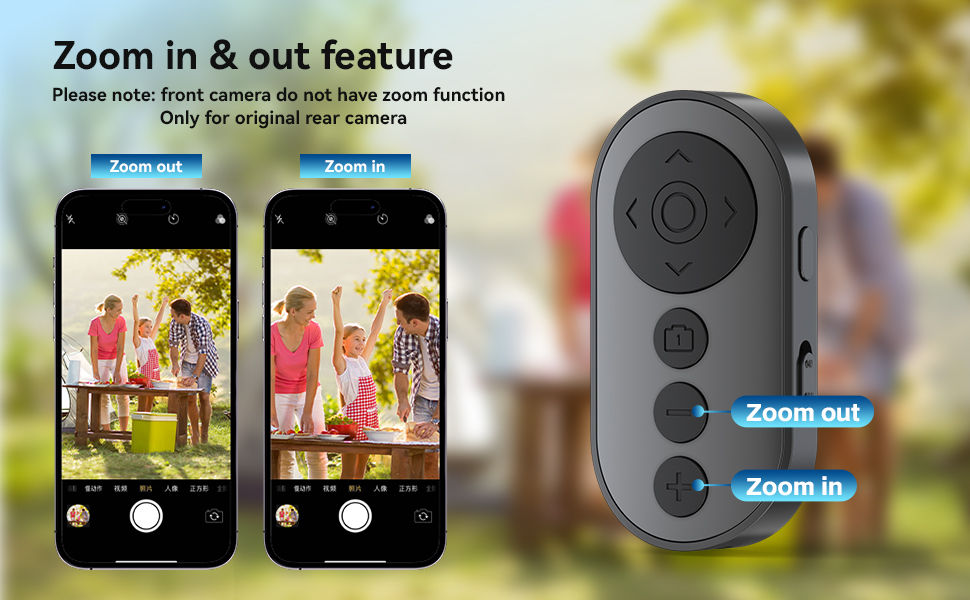
Image 4.2: Illustrating the zoom in and zoom out functionality with the remote.
4.2 TikTok Scrolling and Interaction
When using the TikTok application:
- Scroll Up/Down: Erabili UP Button (1) for previous videos and the DOWN Button (2) for next videos.
- Irristatu ezkerrera/eskuinera: Erabili LEFT Button (3) to swipe left and the RIGHT Button (4) to swipe right.
- Erreproduzitu/Pausatu: Sakatu MIDDLE Button (5) to play or pause a video.
- Atsegin dut: Egin klik bikoitza MIDDLE Button (5) to "like" a video.
- Bolumenaren doikuntza: Luze sakatu LEFT Button (3) to decrease volume and the RIGHT Button (4) bolumena handitzeko.
Oharra: These functions are optimized for TikTok and may not work consistently with other short video applications.

Image 4.3: The remote being used for TikTok scrolling and interaction.
4.3 E-Book Page Turning
For e-book applications on your smartphone:
- Erabili UP Button (1) or LEFT Button (3) to turn to the previous page.
- Erabili DOWN Button (2) or RIGHT Button (4) to turn to the next page.
Oharra: This function is compatible with e-reading apps on smartphones only and is not compatible with Kindle devices or other dedicated e-readers.

Image 4.4: The remote used for turning pages in a smartphone e-book application.
5. Mantentzea
- Keep the remote clean by wiping it with a soft, dry cloth.
- Saihestu gailua tenperatura altuen, eguzki-argiaren eraginpean edo hezetasunean jartzea.
- Do not attempt to disassemble or repair the remote yourself, as this will void the warranty.
- Gorde urruneko gailua leku fresko eta lehor batean erabiltzen ez duzunean.
6. Arazoak
| Arazoa | Irtenbide posiblea |
|---|---|
| Remote does not power on. | Ensure the power switch is in the "ON" position. Charge the remote fully using the provided USB-C cable. |
| Ezin da telefonoarekin parekatu. | Make sure Bluetooth is enabled on your phone. Ensure the remote is in pairing mode (flashing indicator light). Forget "BLE-M9" from your phone's Bluetooth settings and try pairing again. Restart both the remote and your smartphone. |
| Camera functions (zoom/switch) not working. | Ensure you are using the smartphone's original camera application. For iOS, verify that Accessibility > Zoom is enabled (refer to Section 3.3). Zoom is only for the rear camera. |
| TikTok scrolling not working. | Ensure the remote is successfully paired. These functions are optimized for TikTok and may not work with other apps. |
| E-book page turning not working. | Confirm you are using an e-reading application on a smartphone, not a dedicated e-reader like Kindle. |
| Volume control is too sensitive on iOS. | This can be a characteristic of iOS volume control with external devices. There is no direct setting on the remote to adjust sensitivity. |
7. Zehaztapenak
| Ezaugarri | Xehetasuna |
|---|---|
| Modelo zenbakia | CH-13 |
| Konektibitatea | Bluetooth 5.0 |
| Bateragarritasuna | iOS & Android Smartphones |
| Energia iturria | Rechargeable Battery (1 A battery included) |
| Kargatzeko ataka | USB C motakoa |
| Neurriak | 4.76 x 2.01 x 0.87 hazbete |
| Elementuaren pisua | 1.76 ontza |
| Fabrikatzailea | VYVIYON |
8. Bermea eta Laguntza
VYVIYON products are designed for reliability and performance. For warranty information, technical support, or customer service inquiries, please refer to the contact information provided with your purchase or visit the official VYVIYON webgunea. Gorde erosketaren egiaztagiria bermearen erreklamazioetarako.