
1. Sarrera
The MEETION DirectorD-KB is a wireless ergonomic keyboard designed for comfortable and natural typing. It features a scientific wave key design and a built-in firm wrist rest to support your hands during extended use. This keyboard offers broad compatibility with Windows and macOS devices through a 2.4GHz wireless connection.

Image: The MEETION DirectorD-KB Wireless Ergonomic Keyboard positioned on a wooden desk, showcasing its wave-curved design and integrated wrist rest.
2. Paketearen edukia
Ziurtatu elementu guztiak paketean daudela:
- 1 x MEETION DirectorD-KB Wireless Ergonomic Keyboard
- 1 x Erabiltzailearen eskuliburua
- 1 x USB-A 2.4GHz Wireless Receiver
- 1 x USB-C egokigailua
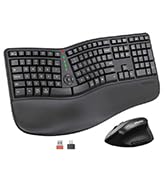
Image: Contents of the MEETION DirectorD-KB package, including the keyboard, user manual, USB-A receiver, and USB-C adapter.
3. Konfiguratzeko argibideak
3.1. Bateriaren instalazioa
- Bilatu bateriaren konpartimentua teklatuaren azpialdean.
- Ireki bateriaren konpartimenduaren estalkia.
- Insert two AAA batteries (not included) into the compartment, ensuring correct polarity.
- Itxi bateriaren konpartimenduaren estalkia ondo.

Image: The underside of the keyboard showing the battery compartment for two AAA batteries and details on power saving features.
3.2. Hargailua konektatzea
- Locate the USB-A 2.4GHz wireless receiver, typically found in the slot inside the keyboard's battery compartment or in the accessory pouch.
- For devices with a USB-A port: Plug the USB-A receiver directly into an available USB-A port on your computer.
- For devices with a USB-C port: Attach the provided USB-C adapter to the USB-A receiver, then plug the combined unit into an available USB-C port on your computer.
- The keyboard is plug-and-play and should connect automatically.
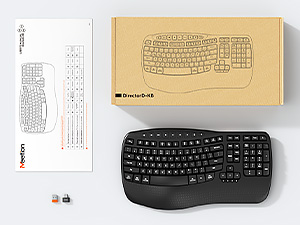
Image: Step-by-step guide on connecting the USB-A receiver with the USB-C adapter to a computer's USB-C port.
3.3. Piztea
After installing batteries and connecting the receiver, slide the power switch on the keyboard to the 'ON' position. The keyboard is now ready for use.
4. Funtzionamendu-argibideak
4.1. Ergonomic Design and Wrist Rest
The keyboard features a wave-shaped key layout and a firm, integrated wrist rest. This design guides your hands and wrists into a natural, relaxed typing position, reducing strain during long typing sessions.

Image: A user's hands resting comfortably on the integrated wrist rest while typing on the ergonomic keyboard.
4.2. Adjustable Tilt
Utilize the adjustable tilt legs on the underside of the keyboard to find your preferred typing angle. Different angles can further enhance comfort and reduce wrist fatigue.

Irudia: Alboko profesionalafiles of the keyboard demonstrating three different adjustable tilt angles for personalized comfort.
4.3. Dual System Layout (Windows/macOS)
The keyboard supports both Windows and macOS layouts. To switch between operating systems:
- Sakatu FN + Q Windows diseinurako.
- Sakatu FN + W macOS diseinurako.
4.4. Multimedia teklak
The keyboard includes dedicated and combined multimedia keys for quick access to functions like volume control, media playback, and more.
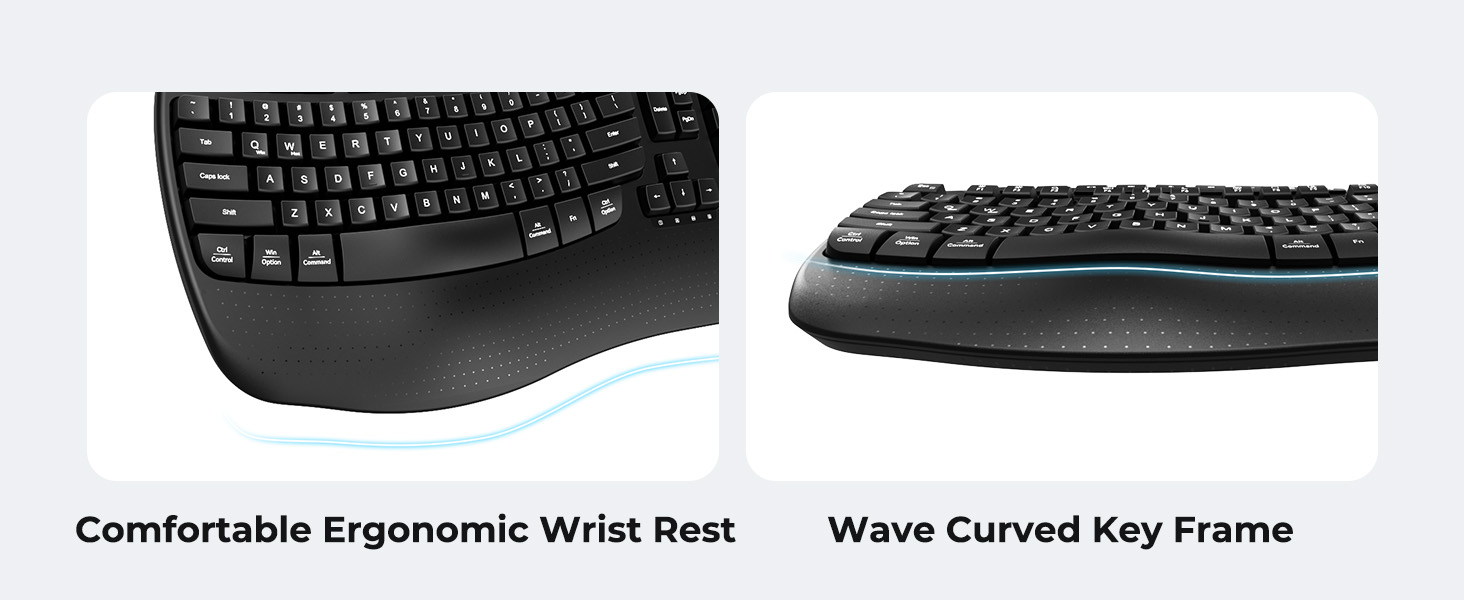
Image: A visual representation of the independent and combined multimedia keys available on the keyboard.
4.5. Energia Aurrezteko Sistema Adimenduna
The keyboard features an auto-sleep mode to conserve battery life. After 20 minutes of inactivity, it will enter hibernation. To wake it up, simply press any key.

Image: Close-up of the keyboard's indicator lights, showing status for Num Lock, Caps Lock, FN Lock, and low battery warning.
5. Mantentzea
Zure teklatuaren iraupena eta errendimendu optimoa bermatzeko, jarraitu mantentze-jarraibide hauek:
- Garbiketa: Erabili zapi leun eta lehor bat teklatuaren gainazala garbitzeko. Garbiketa sakonago bat egiteko, garbitu zapi pixka bat.amp cloth with mild soap can be used, ensuring no liquid enters the keycaps or internal components.
- Saihestu likidoak: Do not expose the keyboard to excessive moisture or spill liquids on it.
- Biltegiratzea: Gorde teklatua leku fresko eta lehor batean, eguzki-argitik eta muturreko tenperaturetatik babestuta.
- Bateria ordezkatzea: Replace batteries promptly when the low battery indicator appears to maintain consistent performance.
6. Arazoak
If you encounter issues with your MEETION DirectorD-KB keyboard, refer to the following common solutions:
- Teklatuak ez du erantzuten:
- Check if the keyboard is powered on.
- Ziurtatu bateriak behar bezala instalatuta daudela eta ez daudela agortuta. Ordeztu itzazu beharrezkoa bada.
- Verify that the USB receiver is securely plugged into your computer's USB port (or via the USB-C adapter).
- Saiatu hartzailea beste USB ataka batera konektatzen.
- Berrabiarazi ordenagailua.
- Konexio atzeratua edo etengabekoa:
- Ensure the keyboard is within the effective range of the receiver (typically up to 10 meters).
- Gutxitu beste haririk gabeko gailuen interferentziak urrunago mugituz.
- Avoid placing the receiver near large metal objects.
- Giltzak ez dira behar bezala funtzionatzen:
- Egiaztatu tekla-tapen azpian oztopo fisikorik dagoen.
- Ensure the correct operating system layout (Windows/macOS) is selected using FN+Q or FN+W.
7. Zehaztapenak
| Ezaugarri | Xehetasuna |
|---|---|
| Marka | BILERA |
| Modelo zenbakia | DirectorD-KB |
| Konektibitate Teknologia | 2.4G Wireless (USB-A, USB-C Adapter) |
| Gailu bateragarriak | Laptop, PC (Windows XP/7/8/10/11 & macOS X 10.6 or later) |
| Teklatuaren diseinua | QWERTY |
| Gako kopurua | 113 |
| Ezaugarri bereziak | Ergonomic, Hotkeys and Media Keys, Integrated Stand, Wave Keys, Wrist Rest |
| Produktuaren neurriak (L x W x H) | 17.39" x 9.43" x 1.81" |
| Materiala | Plastikoa |
| Energia iturria | Pilaz elikatzen da (2 x AAA, ez daude barne) |
8. Produktuaren bideo ofiziala
Bideoa: Produktu ofizial baten bideo-erakustaldiaasing the features and ergonomic design of the MEETION DirectorD-KB Wave Ergonomic Wireless Keyboard. (Duration: 0:39)
9. Bermea eta Laguntza
This MEETION DirectorD-KB Wireless Ergonomic Keyboard comes with a 1-year manufacturer's warranty.
For further assistance, troubleshooting, or warranty claims, please visit the official MEETION store or contact customer support.
Official MEETION Store: MEETION Store on Amazon