
Sarrera
This manual provides essential information for the setup, operation, maintenance, and troubleshooting of your BOOX Tablet Note MAX 13.3-inch E-Ink Tablet. Please read these instructions carefully to ensure optimal performance and longevity of your device.
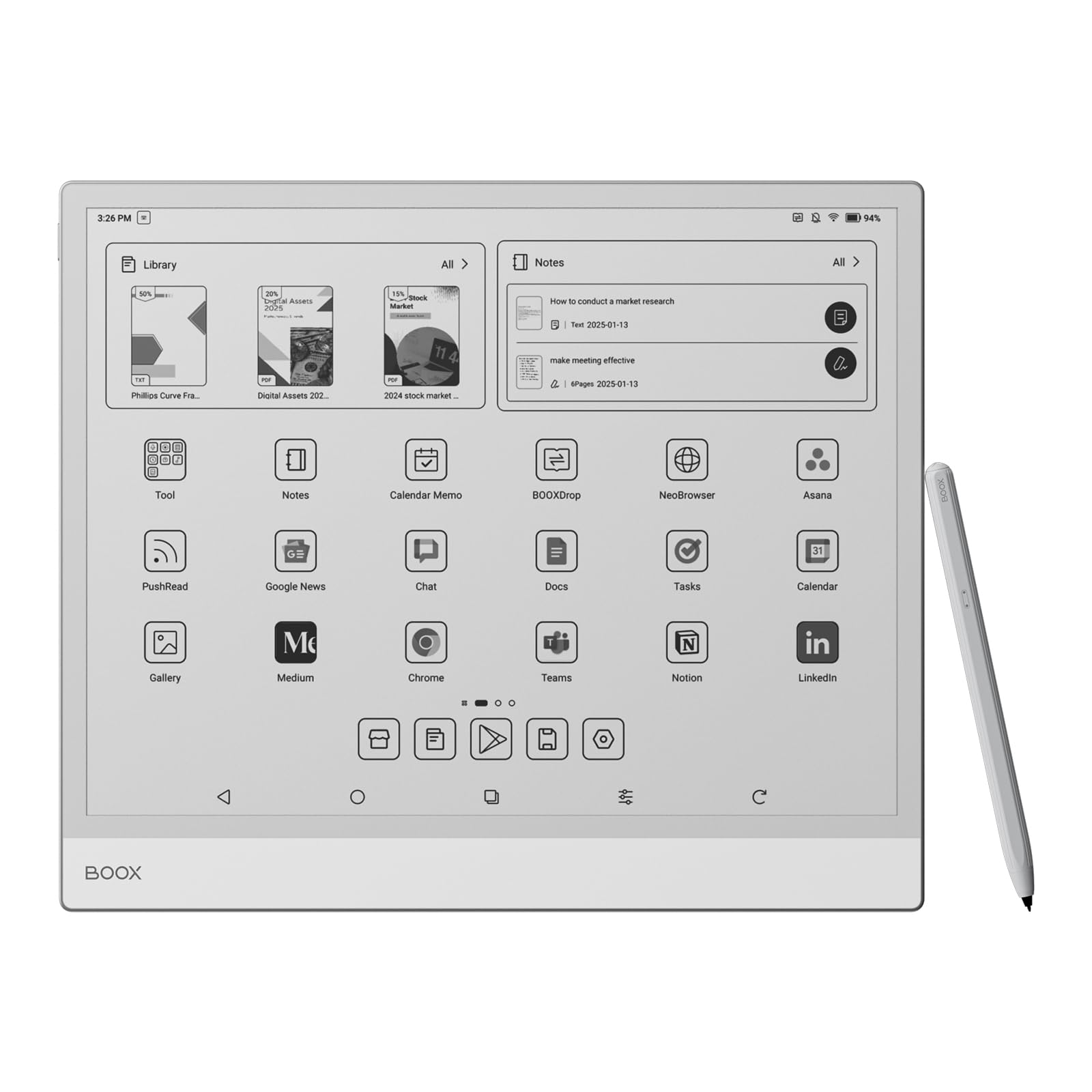
Image: The BOOX Tablet Note MAX, showcasing its large E-Ink display.
1. Konfigurazioa
1.1 Kutxatik ateratzea eta hasierako kargatzea
Upon unboxing your BOOX Tablet Note MAX, it is recommended to fully charge the device before first use. Connect the tablet to a power source using the provided USB cable. The battery indicator will show charging status.
1.2 Piztu/Itzaltzea
- To power on: Press and hold the power button located on the side of the device until the BOOX logo appears.
- To power off: Press and hold the power button, then select "Power Off" from the on-screen options.
1.3 Hasierako konfigurazioa
Follow the on-screen prompts to complete the initial setup, including language selection, Wi-Fi network connection, and Google account login. The device runs on Android 13, providing access to various applications.
1.4 Pen Plus Usage
The included Pen Plus is an EMR (Electro-Magnetic Resonance) stylus that does not require batteries or charging. It is designed for a natural writing experience on the E-Ink screen.

Image: The BOOX Tablet Note MAX with the Pen Plus stylus, ready for use.
2. Funtzionamendu-argibideak
2.1 Bistaratzeko Ezaugarriak
The BOOX Tablet Note MAX features a 13.3-inch Carta 1300 E-Ink display with 300 ppi resolution. This display is designed to mimic the appearance of paper, offering high readability without a front light. It supports BOOX Super Refresh Technology for smooth screen updates.
2.2 Oharrak hartzea eta idaztea
Utilize the Pen Plus for a natural writing experience. The note-taking application offers various tools:
- Txantiloiak: Choose from a variety of pre-installed templates for different purposes (e.g., lined, grid, calendar).
- Geruzak: Organize your notes by using multiple layers.
- Shapes and Fill: Draw geometric shapes and fill them.
- AI Ezaugarriak: Access AI-powered tools for enhanced note-taking.
- Insert Options: Embed images, attachments, links to notes, files, edo websites, and timestamps into your notes.
- Lazo tresna: Select and manipulate sections of your notes.
- Zoom and Text Box: Magnify areas or add typed text.
- Freskatu: Manually refresh the screen to clear any ghosting effects.

Image: The note-taking interface displaying a story structure diagram, demonstrating the tablet's writing capabilities.

Irudia: Xehetasun zehatza view of the note-taking interface, highlighting options to insert images, attachments, and links.

Image: A user writing on the BOOX Tablet Note MAX, illustrating the natural writing experience.
2.3 Reading Documents and Books
The tablet supports various document formats including PDF, CAJ, EPUB, MOBI, and DOCX. Customize your reading experience with options for text size, font, margins, and reading modes (Original, Relaxed, Bold, Vertical, Night).
- Oharrak: Highlight text, add notes, and draw directly on documents.
- Hiperestekak: Navigate through documents using embedded hyperlinks.
- Hiztegia: Look up words directly from the text.

Image: A document displayed on the tablet, showing selected text and available options for annotation or dictionary lookup.
2.4 Application Usage and Split Screen
Running Android 13, the tablet allows installation of various applications from the Google Play Store. It supports a split-screen mode, enabling you to use two applications simultaneously, such as reading a document while taking notes.

Image: The tablet in split-screen mode, showing a web browser on one side and an application launcher on the other.

Image: The tablet demonstrating split-screen functionality, with a document open on one side and a note-taking application on the other.
2.5 Connectivity and Storage
The device supports Wi-Fi and Bluetooth for wireless connectivity. It also features USB OTG (On-The-Go) for connecting external devices. Internal storage capacity is 128 GB, with 6 GB of RAM.
2.6 Bateriaren iraupena
The BOOX Tablet Note MAX is equipped with a Lithium-Ion battery (14.3 Watt-hours). Under typical usage of approximately 2 hours per day, the battery can last over one week. Charging is fast and the device does not typically overheat.
3. Mantentzea
3.1 Pantailaren garbiketa
To clean the E-Ink screen, use a soft, lint-free cloth. For stubborn smudges, slightly dampGarbitu zapia urarekin edo pantailarentzat segurua den garbiketa-soluzio batekin. Saihestu produktu kimiko gogorrak edo material urratzaileak.
3.2 Software eguneraketak
BOOX provides at least 3 years of firmware updates for its products. Regularly check for and install software updates to ensure optimal performance, security, and access to new features. Updates can typically be found in the device's settings menu.
3.3 Hodeiko biltegiratzea
Each user is provided with 10 GB of cloud storage. Utilize this feature to back up your notes and documents, ensuring your data is safe and accessible across devices.

Image: The BOOX Tablet Note MAX demonstrating synchronization of content across a laptop and a smartphone.
4. Arazoak
4.1 Screen Ghosting
E-Ink displays may occasionally exhibit "ghosting," where faint remnants of previous images remain. This is a normal characteristic of E-Ink technology. To resolve this, manually refresh the screen using the dedicated refresh option in the quick settings or application menu. Configuring the refresh mode in settings can also help minimize its occurrence.
4.2 Screen Visibility
The BOOX Tablet Note MAX does not feature a front light. For optimal readability, use the device in well-lit environments, similar to reading a physical book. In low-light conditions, an external light source is recommended.
4.3 Gailuak ez du erantzuten
If the device becomes unresponsive, perform a forced restart by pressing and holding the power button for approximately 10-15 seconds until the device powers off and then restarts.
4.4 Physical Defects or Damage
In case of any physical defects or damage, refer to the warranty information and contact customer support immediately. Do not attempt to repair the device yourself, as this may void the warranty.
5. Zehaztapenak
| Ezaugarri | Xehetasuna |
|---|---|
| Ereduaren izena | 133. oharra |
| Bistaratzeko tamaina | 13.3 hazbetekoa |
| Bistaratzeko mota | Electronic Ink (Carta 1300) |
| Gehienezko pantailaren bereizmena | 2400x1600 pixel |
| Berezko Ebazpena | 2400 x 1600 pixel |
| Aspektu-erlazioa | 16:10 |
| Sistema eragilea | Android 13 |
| Prozesadorea | Qualcomm Snapdragon 8 2. belaunaldia |
| CPU Abiadura | 2.8 GHz |
| RAM | 6 GB |
| Biltegiratze Ahalmena | 128 GB |
| Haririk gabeko Teknologia | Bluetooth, Wi-Fi (802.11g standard) |
| Interfaze mota | Touchscreen with stylus support, USB |
| Ezaugarri Berezia | USB OTG compatible |
| Bateria mota | Litio ioia |
| Bateriaren energia-edukia | 14.3 watt-ordu |
| Produktuaren neurriak | 28.7 x 0.5 x 24.3 cm |
| Produktuaren pisua | 615 gramo |
| Dakarten osagaiak | Pen Plus |
| Eredu Urtea | 2025 |
| Jatorrizko Herrialdea | Txina |
6. Bermea eta Laguntza
6.1 Produktuaren bermea
All BOOX tablets come with an official two-year warranty. This warranty covers manufacturing defects and ensures product reliability. Please retain your purchase invoice for warranty claims.
6.2 Bezeroarentzako laguntza
For any issues or inquiries regarding your BOOX Tablet Note MAX, please visit the official BOOX Help Center. Customer support aims to provide a response within 24 hours. An invoice with VAT is available for all purchases.
BOOX Help Center: https://www.boox.com/support


