
LAMTTO DC21B
LAMTTO 360-Degree 4-Channel Dash Cam User Manual
Model: DC21B | Brand: LAMTTO
Sarrera
This user manual provides comprehensive instructions for the installation, operation, and maintenance of your LAMTTO 4-Channel Dash Cam. Designed to capture every angle of your journey, this dash cam features 1080P recording across four channels, 360-degree coverage, 5G WiFi app control, infrared night vision, and advanced parking monitoring. Please read this manual thoroughly before using the device to ensure proper functionality and safety.
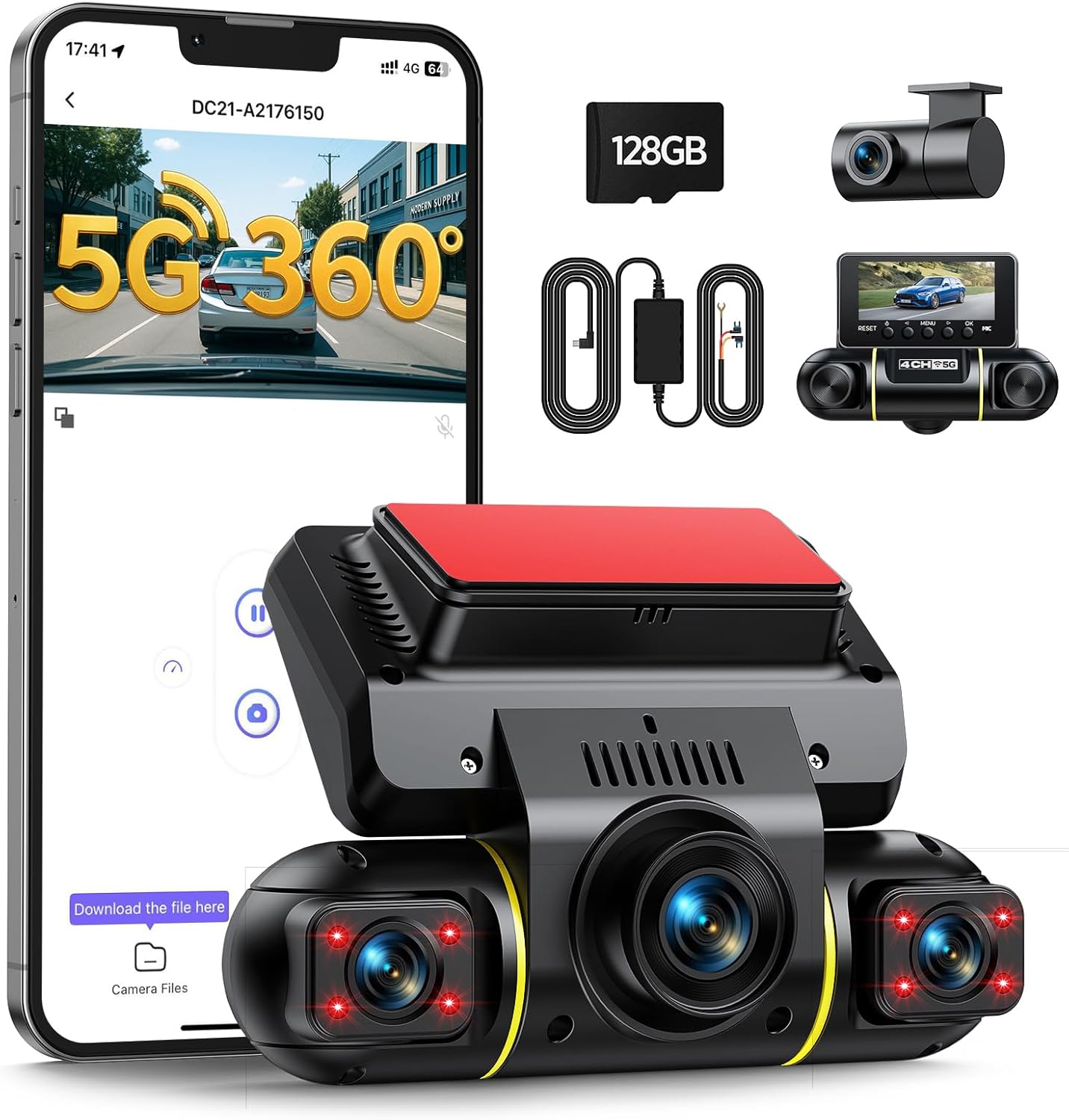
Image: The LAMTTO 4-Channel Dash Cam, showcasing its compact design, multiple lenses, and the accompanying mobile application interface. Included accessories like the 128GB SD card and wiring kit are also visible.
Paketearen edukia
Mesedez, egiaztatu behean zerrendatutako elementu guztiak zure paketean sartuta daudela:
- LAMTTO 3-Channel Front Dash Cam (with 128GB TF Card included)
- 1080P Atzeko Kamera
- Hardwire Kit
- Kotxe kargagailua
- USB C motako datu kablea
- Instalazio tresna
- Gida Azkarra
- Erabiltzailearen eskuliburua (dokumentu hau)

Image: A visual representation of the package contents, including the main dash cam unit, rear camera, car charger, hardwire kit, USB-C cable, 128GB SD card, installation tools, and user manual.
Produktuaren Ezaugarriak
- 4-Channel 1080P Recording: Captures front, rear, and both internal side views simultaneously, providing a comprehensive 360-degree recording of your vehicle's surroundings and interior.
- 24H Parking Monitoring: Utilizes the included hardwire kit to enable continuous monitoring. Detects movements or impacts and automatically saves a 15-second emergency clip to protect against theft or hit-and-runs.
- 5G WiFi & App Control: Connect your smartphone wirelessly via 5G WiFi to the dash cam. Use the free app (iOS/Android) to instantly view, download, or share footage, and manage settings directly from your phone.
- Gaueko ikusmen infragorria (IR): Both internal and side cameras feature F2.0 aperture and 8 infrared lights, ensuring clear black-and-white footage even in low-light conditions or during night driving.
- Loop grabaketa: Automatically overwrites the oldest, non-important footage when the memory card is full, ensuring continuous recording without interruption.
- G-Sensor Emergency Lock: Built-in G-sensor automatically locks emergency videos triggered by sudden braking or collisions, preventing them from being overwritten.
- Dual Power Methods: Can be powered via the car cigarette lighter (for basic operation) or the included hardwire kit (for 24H parking monitoring).

Irudia: Gehiagoview of the dash cam's key features, including 5G WiFi, 4-channel 1080P recording, 360-degree coverage, IR night vision, WDR, parking monitoring, G-sensor, loop recording, 128GB SD card, and hardwire kit.

Image: A diagram demonstrating the comprehensive 360-degree coverage provided by the four cameras: front, rear, left, and right views, ensuring no blind spots.
Konfigurazioa eta Instalazioa
1. Dash Cam-aren muntaketa
Ensure the windshield surface where you plan to mount the dash cam is clean and free of dust or grease. The dash cam comes with adhesive pads for secure mounting.
- Attach the front dash cam to the windshield, ideally behind the rearview mirror, to avoid obstructing your view.
- Mount the rear camera on the rear windshield. Route the cable neatly along the vehicle's interior trim.
- Adjust the camera lenses to ensure optimal viewing angles for front, rear, and internal coverage. The side cameras are adjustable up to 180 degrees.

Image: An illustration demonstrating the easy installation process for the front and rear dash cameras, highlighting the adjustable angles of the front unit's side cameras.
2. Energia-konexioa
You have two options for powering your dash cam:
- Using the Car Charger (Cigarette Lighter):
Connect the provided car charger to your vehicle's cigarette lighter socket and the dash cam's USB Type-C port. This method is quick and easy for basic recording during driving. Note: Parking monitoring will not function with this method unless the cigarette lighter port is continuously powered when the car is off.
- Using the Hardwire Kit (for 24H Parking Monitoring):
For continuous 24-hour parking monitoring, use the included hardwire kit. Connect the hardwire kit to your car's fuse box (ACC for switched power, BAT+ for constant power, and GND for ground). This ensures the dash cam receives power even when the vehicle is turned off, enabling parking surveillance. Professional installation is recommended for hardwiring if you are unfamiliar with car electrical systems.

Image: A diagram illustrating the two power supply options: connecting via the car charger for standard use, and connecting via the hardwire kit to the fuse box for 24-hour parking monitoring.
3. SD txartela sartzea
The dash cam comes with a 128GB TF (MicroSD) card. Insert the card into the designated slot on the dash cam. It is highly recommended to format the SD card immediately after insertion for optimal performance. Refer to the "Maintenance" section for formatting instructions.
4. Connecting via WiFi and App
The integrated 5GHz WiFi module allows for easy connection to your smartphone via the dedicated app.
- Download the free "Vidure" app from your smartphone's app store (iOS/Android).
- Turn on the Wi-Fi on your dash cam (refer to the dash cam's on-screen menu or quick guide for specific steps).
- Open the "Vidure" app on your phone.
- Tap "Add Camera" or similar option within the app.
- Go to your phone's Wi-Fi settings and connect to the dash cam's Wi-Fi network (e.g., "DC21-xxxx").
- Enter the default password (usually "12345678").
- Return to the app; your dash cam should now be connected.

Image: A step-by-step visual guide on how to connect the dash cam to your smartphone via WiFi using the "Vidure" application.
Funtzionamendu-argibideak
1. Grabaketa automatikoa
Once powered on, the dash cam will automatically start recording. The display will show the live view from the cameras. Recording will stop automatically when the power is disconnected.
2. Mugikorretarako aplikazioa erabiltzea
The "Vidure" app provides full control over your dash cam:
- Zuzenean View: Erreproduzitu janaria denbora errealeantage from all connected cameras.
- Erreprodukzioa: Review recorded videos directly on your phone.
- Deskargatu: Save important video clips to your phone's gallery.
- Partekatu: Easily share footage besteekin.
- Ezarpenak: Adjust dash cam settings such as resolution, G-sensor sensitivity, loop recording duration, and more.

Image: A smartphone displaying the dash cam's app interface, highlighting the 5GHz WiFi connection for fast data transfer and easy access to recorded footage.
3. G-sentsorea eta larrialdiko blokeoa
The built-in G-sensor detects sudden impacts or rapid acceleration/deceleration. When an event is detected, the current video segment is automatically locked and saved to a separate "Event" folder on the SD card, preventing it from being overwritten by loop recording. You can adjust the G-sensor sensitivity in the app settings (Low, Medium, High). It is recommended to set the sensitivity to "Medium" to avoid losing important scenes or filling the SD card too quickly with unnecessary videos.

Image: A visual explanation of the G-sensor function, showing how it detects collisions and automatically locks the corresponding video footage ezabatzea ekiditeko.
4. Loop grabazioa
The dash cam records video in continuous loops. When the memory card is full, the oldest unlocked video files will be automatically overwritten by new recordings. This ensures that you always have the most recent footage without manually managing storage. Emergency locked videos are protected from being overwritten.

Image: An illustration of the loop recording feature, demonstrating how the dash cam continuously records and overwrites older files when the 128GB SD card is full.
5. Aparkalekuen jarraipena
When the hardwire kit is installed and parking monitoring is enabled in the settings, the dash cam will automatically detect impacts or movements around your parked vehicle. It will then record a short emergency video clip and save it. The system is designed to protect your car battery from draining by automatically shutting down if the voltage baxuegi jaisten da.

Image: A scenario illustrating the 24-hour parking monitoring feature, where the dash cam detects an impact (like a baseball hitting the windshield) and automatically records an emergency clip.
Mantentzea
1. SD txartela formateatzea
Regularly formatting the SD card (e.g., once a month) is crucial for maintaining optimal recording performance and preventing data corruption. You can format the SD card through the dash cam's menu settings or via the mobile app.
- Navigate to "System Settings" or "Storage Settings" on the dash cam or in the app.
- Select "Format SD Card" or "Format Storage".
- Confirm the action. All data on the card will be erased.
2. Lenteak garbitzea
To ensure clear video quality, periodically clean the dash cam lenses with a soft, lint-free cloth. Avoid using abrasive cleaners that could scratch the lens surface.
Arazoak konpontzea
| Arazoa | Balizko Kausa / Irtenbidea |
|---|---|
| Auto-kamerak ez du pizten. |
|
| Grabaketa ustekabean gelditu da. |
|
| Bideoa footage lausoa edo argi ez dagoena. |
|
| Ezin da Wi-Fi/Aplikaziora konektatu. |
|
| Aparkalekuaren monitorizazioa ez dabil. |
|
Zehaztapenak
| Ezaugarri | Xehetasuna |
|---|---|
| Marka | LAMTTO |
| Eredua | DC21B |
| Produktuaren neurriak | 3.5 x 14 x 11 cm |
| Elementuaren pisua | 710 gramo |
| Pantailaren tamaina | 3.16 hazbete |
| Bistaratzeko mota | LCDa |
| Bideo Ebazpena | 1080p (HD osoa) |
| Viewangelua | 360 Degrees (4-channel coverage) |
| Memoria txartela barne | 128 GB-ko TF txartela |
| Konektibitate Teknologia | USB Type-C, 5G WiFi |
| Ezaugarri bereziak | App Control, 24H Parking Monitor with Hardwire Kit, Automatic Incident Detection, Built-in WiFi, IR Night Vision, Loop Recording, G-Sensor |
| Onartutako estandarra | MOV |
| Muntatze Mota | Arbelaren mendia |
Bermea eta Laguntza
LAMTTO dash cams come with a lifetime warranty, a 30-day money-back guarantee, and 24/7 customer support in the United States. For technical assistance, installation guidance, or any other inquiries, please contact our support team through Amazon or refer to the contact information provided in your quick guide.
We are committed to providing reliable assistance and ensuring your satisfaction with your LAMTTO product.
Erlazionatutako dokumentuak - DC21B
 |
ROVE R2-4K PRO Dash Cam-aren erabiltzailearen eskuliburua: Ezaugarriak, konfigurazioa eta laguntza ROVE R2-4K PRO Dash Cam-erako erabiltzailearen eskuliburu osoa. Ikasi zure ibilgailuaren gidatze-grabagailu aurreratuaren instalazioari, funtzioei, ezarpenei, Wi-Fi konexioari, aparkaleku moduei, arazoak konpontzeari eta bermeari buruzko informazioa. |
 |
4Lens Car DVR 360 Degrees Video Recorder Installation and User Guide Comprehensive installation and operation instructions for the 4Lens 360-degree car DVR video recorder. Learn how to mount, power, and configure your dash cam for optimal performance. |
 |
TIESFONG ON DASH A7-WB User Manual - Your Guide to Advanced Vehicle Recording Comprehensive user manual for the TIESFONG ON DASH A7-WB Multi-Channel Dash Cam. Learn about installation, features, operation, and specifications for optimal vehicle monitoring. |
 |
S29 4-Channel Dash Cam User Manual Comprehensive user manual for the S29 4-Channel Dash Cam. Includes installation instructions, operation guide, troubleshooting, and maintenance tips for your 360° vehicle recording system. |
 |
Vantrue Nexus 5S Dash Cam User Manual: Installation, Features, and Operation Comprehensive user manual for the Vantrue Nexus 5S 4-channel dash cam. Learn about installation, features like 360° recording, STARVIS 2 night vision, buffered parking mode, WiFi, voice control, and GPS. Includes technical specifications and troubleshooting. |
 |
TiESFONG RX4C-WB User Manual: Multi-Channel Dash Cam Guide Download the TiESFONG RX4C-WB user manual for detailed instructions on setup, operation, and features of this multi-channel dash cam. Learn about installation, basic functions, and specifications. |
Ask a question about this manual
Ask about setup, troubleshooting, compatibility, parts, safety, or missing instructions. Manuals+ will review the question and use this page’s manual context to help answer it.