
1. Sarrera
This manual provides essential information for the safe and efficient use of your BOOX Go 7 ePaper Tablet. Please read it thoroughly before operating the device and retain it for future reference.

Figure 1.1: BOOX Go 7 ePaper Tablet
2. Segurtasun informazioa
- Ez jarri gailua tenperatura altuen, eguzki-argiaren eraginpean edo hezetasun handiaren eraginpean.
- Saihestu gailua kolpe gogorrak erortzea edo jasaten.
- Erabili emandako USB kablea soilik kargatzeko.
- Keep the device away from water and liquids, despite its water-repellent features.
- Ez saiatu gailua zeuk desmuntatzen edo konpontzen. Jarri harremanetan baimendutako zerbitzu-langileekin.
3. Paketearen edukia
Egiaztatu elementu guztiak paketean daudela:
- BOOX Go 7 ePaper Tablet
- USB kablea
- Hasiera Azkarreko Gida (eskualdearen arabera alda daiteke)

Figure 3.1: BOOX Go 7 Package Contents
4. Gailua amaitu daview
4.1 Osagai fisikoak
Familiarize yourself with the main components of your BOOX Go 7 tablet:
- E Ink Screen: 7-inch monochrome display with 300 ppi resolution.
- Aurrealdeko argia: Adjustable illumination for reading in various lighting conditions.
- Page-Turn Buttons: Ergonomically designed buttons for easy navigation.
- USB-C ataka: Kargatzeko eta datuak transferitzeko.
- Pizteko botoia: Goiko ertzean kokatua.
- Mikrofono integratua: Audio sarrerarako.
- Barneko bozgorailu bikoitzak: Audio irteerarako.

Figure 4.1: Page-Turn Buttons and Water-Repellent Protection
5. Konfigurazioa
5.1 Hasierako karga
Before first use, fully charge your BOOX Go 7 tablet. Connect the provided USB-C cable to the device and a compatible power adapter (not included) or a computer's USB port. The charging indicator will show the charging status.
5.2 Piztu/Itzali
- Pizteko: Press and hold the Power button until the BOOX logo appears.
- Itzaltzeko: Sakatu eta eutsi pizteko botoiari, eta ondoren hautatu "Itzali" pantailan agertzen diren aukeren artean.
- Lo egiteko/esnatzeko: Sakatu labur pizteko botoia.
5.3 Sare konexioa (Wi-Fi)
- Hasierako pantailatik, irristatu hatza goitik behera Ezarpen Azkarrak panelera sartzeko.
- Sakatu Wi-Fi ikonoa Wi-Fi gaitzeko.
- Sakatu eta eutsi Wi-Fi ikonoari Wi-Fi ezarpenak irekitzeko.
- Hautatu nahi duzun sarea zerrendatik eta idatzi pasahitza eskatzen bazaizu.
- Once connected, the Wi-Fi icon will indicate a successful connection.
6. Funtzionamendu-argibideak
6.1 Oinarrizko nabigazioa
- Ukipen-pantaila: Tap, swipe, and pinch to navigate menus, open applications, and interact with content.
- Page-Turn Buttons: Use the physical buttons on the side to turn pages in documents and books.
6.2 Reading Documents and Books
The BOOX Go 7 supports various document formats. Open your desired file from the library. Use the page-turn buttons or swipe gestures to navigate through pages. Adjust font size, contrast, and frontlight settings for optimal reading comfort.
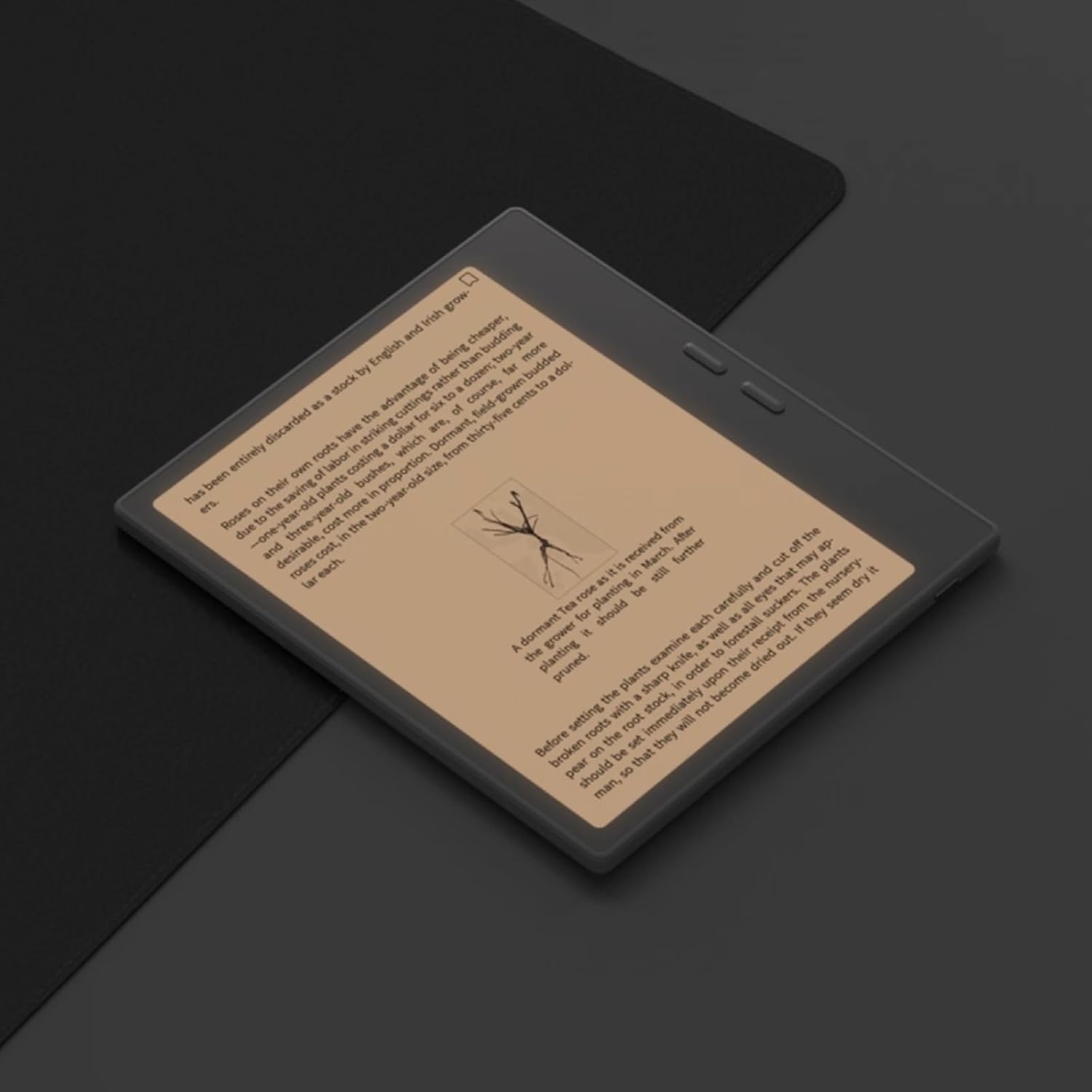
Figure 6.1: Reading with Frontlight
6.3 Using Android Applications
As an Android 13 device, the BOOX Go 7 allows installation of various applications from the Google Play Store. Navigate to the App Store, search for your desired application, and install it. Note that some applications may not be fully optimized for ePaper displays.

Figure 6.2: Various Android Applications on BOOX Go 7
6.4 Note-Taking and Drawing
Utilize the stylus (if included or purchased separately) for note-taking, sketching, and annotating documents. The device offers various templates and tools for creative and organizational tasks.

Figure 6.3: Stylus Use for Note-Taking

Figure 6.4: Handwriting to Text Conversion
7. Mantentzea
7.1 Gailua garbitzea
Use a soft, lint-free cloth to gently wipe the screen and body of the device. Do not use harsh chemicals, abrasive cleaners, or excessive moisture.
7.2 Software eguneraketak
Regularly check for and install software updates to ensure optimal performance and access to new features. Connect to Wi-Fi and navigate to Ezarpenak > Sistema > Sistemaren eguneratzea eskuragarri dauden eguneratzeak egiaztatzeko.
8. Arazoak
- Gailua ez da pizten: Ziurtatu gailua kargatuta dagoela. Konektatu energia-iturri batera eta saiatu berriro.
- Pantailak ez du erantzuten: Perform a soft reset by holding the Power button for 10-15 seconds.
- Wi-Fi konexio arazoak: Verify your Wi-Fi password and router settings. Try restarting your router and the device.
- Aplikazioak kraskatzen ari dira: Ensure applications are updated to their latest versions. Clear the app's cache or reinstall if issues persist.
9. Zehaztapenak
| Marka | BOX |
| Ereduaren izena | Joan 7 |
| Biltegiratze Ahalmena | 64 GB |
| Pantailaren tamaina | 7 hazbete |
| Gehienezko pantailaren bereizmena | 300 Pixels per inch |
| Sistema eragilea | Android 13 |
| Kolorea | Noir (Beltza) |
| Instalatutako RAM tamaina | 4 GB |
| Ezaugarri bereziak | USB OTG support, Expandable storage, Stylus support |
| Eredu Urtea | 2025 |
| Bateria mota | Litio-ioi |
| Bateriaren energia-edukia | 8.8 watt-ordu |
| Prozesadorearen marka | Qualcomm |
| Prozesadorearen deskribapena | Qualcomm Snapdragon |
| Kamera | Kamerarik ez |
| Sentsore mota | Giroskopioa |
| Item Dimensions (LxWxT) | 15.6L x 0.6W x 13.7T centimeters |
| Sarrera-metodoa | Touchscreen with stylus |
| Txartel grafikoaren deskribapena | Integratua |
| Gailu bateragarriak | Estilista |
| Bistaratzeko mota | Tinta Elektronikoa |
| Pantailaren bereizmena | 1280 x 800 pixel |
| Aspektu-erlazioa | 16:10 |
| Hardware Konektibitatea | USBa |
| Haririk gabeko Teknologia | Bluetooth, Wi-Fi (802.11ax) |
| USB portuak guztira | 1 |

Figure 9.1: BOOX Go 7 Energy Label (EPREL esteka)
10. Bermearen informazioa
The BOOX Go 7 ePaper Tablet comes with a 2 urteko berme mugatua. This warranty covers manufacturing defects under normal use. For specific terms and conditions, please refer to the warranty card included in your package or contact customer support.
The standard return policy allows for returns within 30 days of purchase for refund or replacement.
11. Laguntza
For technical assistance, troubleshooting, or warranty claims, please contact BOOX customer service. You can find support resources and submit inquiries through the official BOOX help center.
- Firmware eguneraketak: BOOX commits to at least 3 years of firmware updates for each product.
- Hodeiko biltegiratzea: 10 GB of free cloud storage is provided for each user.
- Erantzun denbora: Bezeroen kontsultei normalean 24 orduko epean erantzuten zaie.
Informazio gehiagorako, bisitatu BOOX Brand Store on Amazon.