
1. Sarrera
This user manual provides comprehensive instructions for the setup, operation, and maintenance of your Mortal Q8 Android 14 4K TV Stick. The Mortal Q8 transforms any television with an HDMI port into a smart entertainment system, offering access to a wide range of streaming services and applications in 4K Ultra HD resolution. Please read this manual carefully before using the device to ensure optimal performance and safety.
2. Paketearen edukia
Egiaztatu elementu guztiak zure paketean daudela:
- Mortal Q8 Android 14 4K TV Stick
- Remote Control with Voice Command
- USB energia kablea
- HDMI Extension Cable (if included)
- Erabiltzailearen eskuliburua (dokumentu hau)
3. Produktua amaitu daview
The Mortal Q8 TV Stick is a compact device designed for seamless streaming. It features an HDMI connector for direct plug-in to your TV and is controlled by an ergonomic remote with integrated voice command capabilities.

Figure 3.1: Mortal Q8 Android TV Stick and its accompanying remote control. The stick is black with a blue indicator light, and the remote is black with dedicated buttons for popular streaming services and a Google Assistant button.
3.1 Ezaugarri nagusiak
- Android 14 sistema eragilea: Provides a fluid and modern user interface with access to the Google Play Store.
- 4K Ultra HD Streaming: Supports high-resolution video playback for a detailed viewesperientzia.
- WiFi 6 konexioa: Offers faster speeds and improved network stability for uninterrupted streaming.
- Chromecast integratua: Allows easy casting of content from mobile devices to your television.
- Voice Control Remote: Ergonomic remote with a dedicated voice command button for intuitive navigation and search.
- Aurrez instalatutako aplikazioak: Direct access to popular streaming platforms such as Netflix, Prime Video, and YouTube.

Figure 3.2: The Mortal Q8 TV Stick and remote, highlighting key features like Android 14, 4K video decoding, WiFi 6, and Bluetooth 5.0. Icons for Netflix, YouTube, Google Play, Prime Video, and TikTok are also shown.
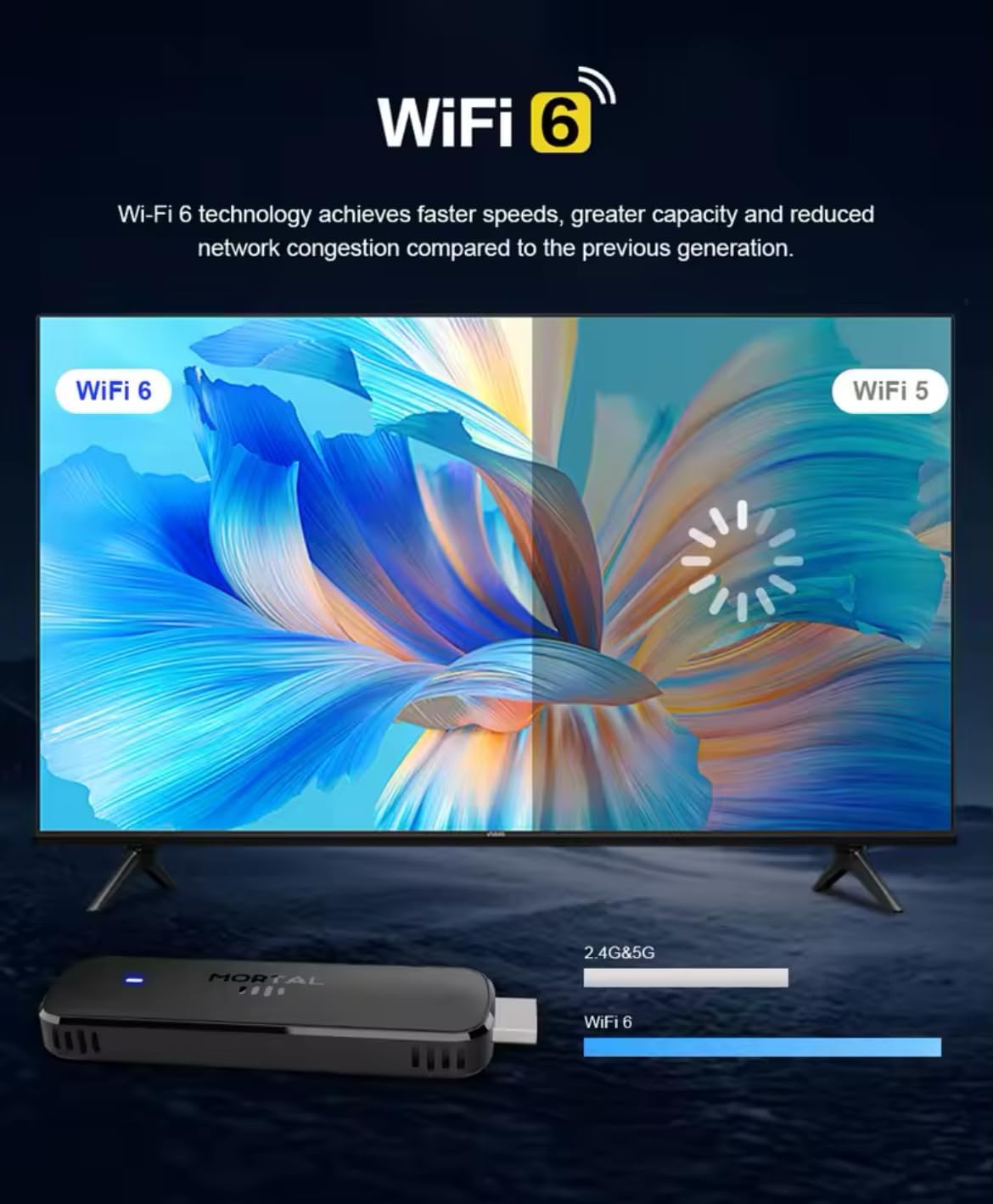
Figure 3.3: Illustration demonstrating the enhanced speed and stability of WiFi 6 technology compared to WiFi 5, with the Mortal Q8 TV Stick supporting dual-band 2.4G/5G connectivity.
4. Konfigurazio gida
Follow these steps to set up your Mortal Q8 TV Stick:
- Konektatu telebistako makiltxoa: Plug the Mortal Q8 TV Stick directly into an available HDMI port on your television. If space is limited, use the HDMI extension cable (if provided).
- Gailua piztu: Connect the USB power cable to the TV Stick and then to a USB port on your TV or a wall adapter (not always included). Ensure the device receives sufficient power.
- Hautatu HDMI Sarrera: Turn on your television and use your TV remote to select the correct HDMI input source where the Mortal Q8 is connected.
- Parekatu urrutiko agintea:
- Sartu bi AAA pila (ez daude barne) urrutiko agintean.
- Follow the on-screen instructions to pair the remote with your TV Stick. This usually involves holding down specific buttons on the remote until a pairing confirmation appears.
- Sare-konexioa:
- Once the device boots up, navigate to the Wi-Fi settings.
- Select your home Wi-Fi network from the list and enter the password. The Mortal Q8 supports WiFi 6 for optimal performance.
- Google kontuaren saioa hasteko: Sign in with your Google account to access the Google Play Store and synchronize your settings and applications.
- Sistemaren eguneraketak: Check for and install any available system updates to ensure your device has the latest features and security patches.
5. Funtzionamendu-argibideak
5.1 Interfazean nabigatzea
Use the directional pad and select button on your remote control to navigate through the Android TV interface. The home button will always return you to the main screen.

Figure 5.1: The Mortal Q8 TV Stick connected to a television, showing the Android TV home screen with various streaming applications like Kodi, HBO Go, Hulu, Netflix, Prime Video, and YouTube.
5.2 Using Voice Control (Google Assistant)
The remote control features a dedicated button for Google Assistant. Press this button and speak into the remote to:
- Bilatu movies, TV shows, or videos.
- Open applications (e.g., "Open YouTube").
- Control playback (e.g., "Pause," "Play," "Fast forward").
- Ask questions or get information.

Figure 5.2: An illustration of using the "Ok Google" voice command feature on the Mortal Q8 TV Stick remote to open applications like YouTube, with the response displayed on the TV screen.
5.3 Edukia erreproduzitzea
Access your favorite streaming services directly from the home screen or by downloading new apps from the Google Play Store. The Mortal Q8 supports 4K Ultra HD resolution for compatible content.

Figure 5.3: The Mortal Q8 TV Stick and remote in front of a television displaying vibrant 4K Ultra HD content, emphasizing the device's capability to deliver high-resolution visuals.
5.4 Using Chromecast Built-in
The integrated Chromecast feature allows you to cast content from your compatible mobile devices (phones, tablets) or computers directly to your television screen. Look for the Cast icon ▶ in supported applications on your mobile device.

Figure 5.4: An image illustrating the Chromecast built-in feature of the Mortal Q8 TV Stick, showing content being streamed from a smartphone to the television screen.
6. Mantentzea
- Garbiketa: Use a soft, dry cloth to clean the TV Stick and remote control. Do not use liquid cleaners or abrasive materials.
- Biltegiratzea: Denbora luzez erabiltzen ez baduzu, gorde gailua leku fresko eta lehor batean, eguzki-argitik eta muturreko tenperaturetatik babestuta.
- Software eguneraketak: Egiaztatu eta instalatu sistemaren eguneraketak aldizka, errendimendu eta segurtasun optimoa bermatzeko.
7. Arazoak
| Arazoa | Irtenbide posiblea |
|---|---|
| Argindarrik ez / Gailua ez da pizten | Ensure the USB power cable is securely connected to both the TV Stick and a power source. Try a different USB port or wall adapter. |
| Ez dago seinalerik telebistako pantailan | Verify the TV Stick is fully inserted into the HDMI port. Select the correct HDMI input source on your television. Try a different HDMI port. |
| Urruneko kontrolak ez du erantzuten | Check the batteries and replace them if necessary. Ensure the remote is paired with the TV Stick (refer to setup instructions). Remove any obstructions between the remote and the device. |
| Wi-Fi konexio arazoak | Restart your Wi-Fi router. Re-enter the Wi-Fi password on the TV Stick. Ensure the device is within range of your router. |
| Applications are slow or crashing | Close unused applications. Clear the cache of the problematic app in settings. Restart the TV Stick. Ensure sufficient storage space is available. |
8. Zehaztapenak
| Ezaugarri | Xehetasuna |
|---|---|
| Ereduaren izena | Q8 |
| Sistema eragilea | Android 14.0 |
| Ebazpena | 4K Ultra HD |
| Konektibitatea | WiFi 6 (2.4G/5G Dual-band), Bluetooth 5.0, HDMI, USB |
| Ezaugarri bereziak | Chromecast Built-in, Voice Control (Google Assistant) |
| Onartutako Interneteko zerbitzuak | Google Play, HBO Go, Hulu, Kodi, Netflix, Prime Video, YouTube |
| Kontrolagailu mota | Urruneko Kontrola |
| Forma-faktorea | Makila |
| Kolorea | Beltza |
| Gailu bateragarriak | Monitor, Projector, Television, HDMI Screen |

Figure 8.1: A visual summary of the Mortal Q8 TV Stick's specifications, including 2GB+8GB memory, 4K video decoding, Allwinner H313 Quadcore processor, Android 14, and 2.4G/5.8G Dual WiFi.
9. Bermea eta Laguntza
For warranty information and technical support, please refer to the documentation provided with your purchase or contact the retailer. Keep your proof of purchase for warranty claims.