
Sarrera
This manual provides comprehensive instructions for the setup, operation, maintenance, and troubleshooting of your KOORUI GN10 27-inch QHD 240Hz Mini-LED Gaming Monitor. Please read this manual thoroughly before using the product to ensure proper functionality and to prevent damage.
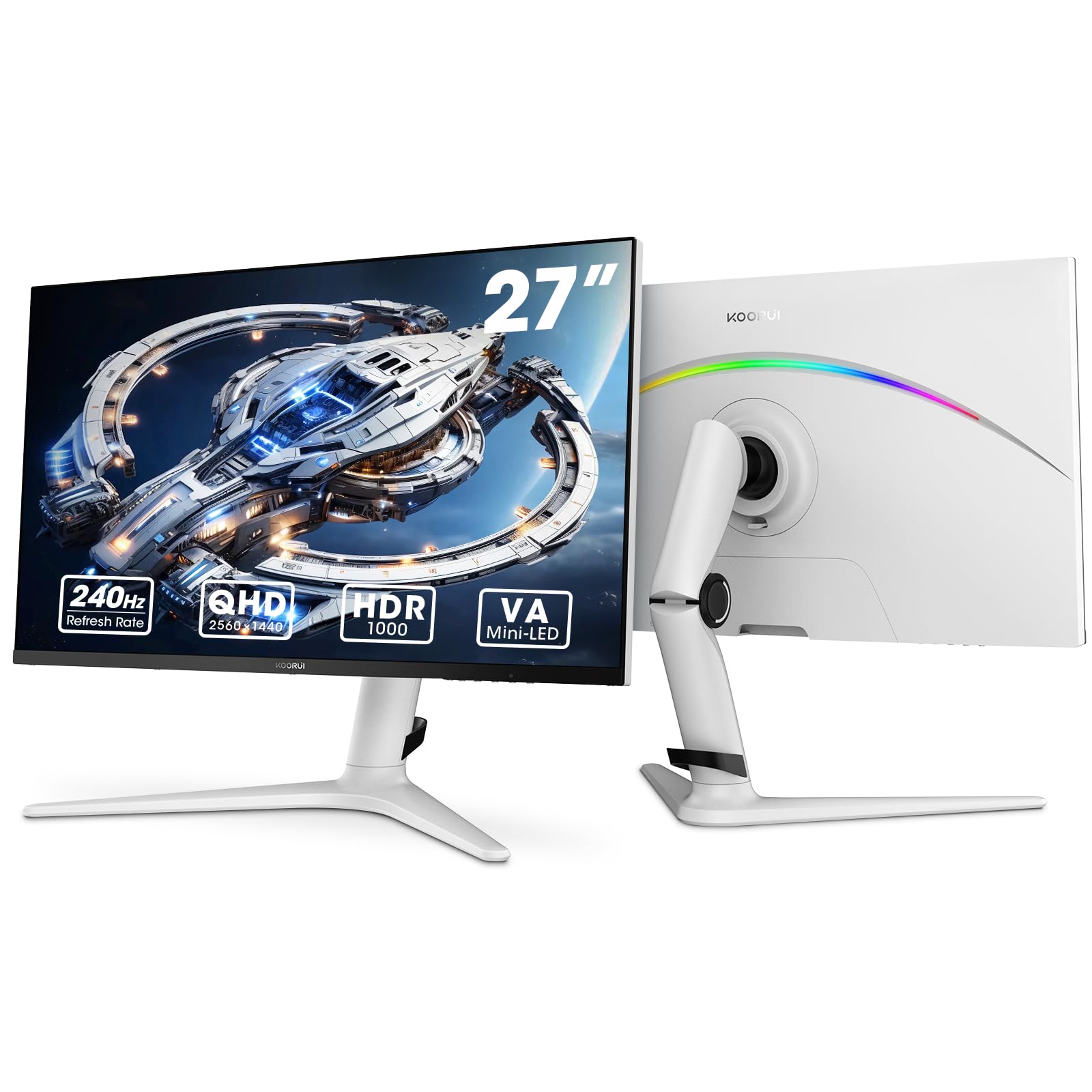
Figure 1: KOORUI GN10 27-inch QHD 240Hz Mini-LED Gaming Monitor.
1. Konfigurazioa
1.1 Kutxa irekitzea eta paketearen edukia
Kontu handiz atera osagai guztiak paketetik. Egiaztatu behean zerrendatutako elementu guztiak daudela:
- KOORUI GN10 Monitor
- Monitorearen euskarria (oinarria eta besoa)
- Elikatze-kablea
- HDMI kablea (x2)
- DisplayPort (DP) kablea
- Erabiltzailearen eskuliburua (dokumentu hau)
1.2 Euskarriko muntaketa
Jarraitu urrats hauek monitorearen euskarria muntatzeko:
- Attach the stand arm to the monitor panel. Ensure it clicks securely into place or is fastened with screws if provided.
- Connect the stand base to the stand arm. Tighten any screws to secure the base.
- Jarri muntatutako monitorea gainazal egonkor eta lau batean.

Figure 2: Monitor stand showing height, tilt, swivel, and pivot adjustments.
The ergonomic stand allows for height, tilt, swivel, and pivot adjustments to optimize your viewangelua.

Figure 3: Monitor dimensions for placement planning.
1.3 Gailuetara konektatzea
The monitor supports multiple input sources. Connect your computer or gaming console using the provided cables.
- DisplayPort (DP): For optimal performance, especially at 240Hz refresh rate and QHD resolution, use the DisplayPort cable.
- HDMI: Two HDMI 2.0 ports are available for connecting other devices such as gaming consoles (PS5, Xbox, Switch) or additional computers.
- Audio irteera: Connect external speakers or headphones to the 3.5mm audio output jack.

4. Irudia: Atzealdea view of the monitor showing available ports (Audio Out, DP 1.4, HDMI 2.0 x2) and VESA mount points.
1.4 Hasierako piztea
- Konektatu elikatze-kablea monitoreari eta gero entxufe batera.
- Press the power button, usually located on the back or bottom of the monitor, to turn it on.
- The monitor will automatically detect the input source. If not, use the OSD menu to select the correct input.
2. Funtzionamendu-argibideak
2.1 Pantailan bistaratzeko (OSD) menua
The OSD menu allows you to adjust various monitor settings. Access the OSD menu using the joystick or buttons typically located on the back or bottom of the monitor.
Common OSD menu options include:
- Irudiaren ezarpenak: Brightness, Contrast, Sharpness, Gamma.
- Kolore ezarpenak: Color Temperature, Hue, Saturation, Color Space (sRGB, DCI-P3).
- Sarrera hautatzea: Manually switch between DisplayPort and HDMI inputs.
- Audioa: Volume control for the audio output.
- Jokoen Ezaugarriak: Adaptive Sync, Response Time (Overdrive), Game Modes.
- OSD ezarpenak: Language, OSD Timeout, Transparency.
2.2 Pantailaren ezarpenak
The KOORUI GN10 monitor offers advanced display features for an enhanced visual experience.
- Ebazpena: The native resolution is QHD (2560 x 1440). Ensure your connected device is set to this resolution for optimal clarity.
- Freskatze-tasa: Supports up to 240Hz. Configure your graphics card settings to utilize this high refresh rate for smoother motion.
- Erantzun denbora: Features a 1ms (GtG) response time, reducing motion blur and ghosting in fast-paced content.
- HDR 1000: High Dynamic Range 1000 provides superior contrast and color depth. Enable HDR in your operating system and monitor settings for compatible content.

Figure 5: Visual comparison illustrating the enhanced contrast and detail with HDR 1000 enabled.

Figure 6: Comparison of QHD (2560x1440) and FHD (1920x1080) resolutions, highlighting increased detail with QHD.
2.3 Jokoen Ezaugarriak
The monitor includes features designed to enhance your gaming experience:
- Adaptive Sync (G-Sync Compatible): Synchronizes the monitor's refresh rate with your GPU's frame rate to eliminate screen tearing and stuttering. Ensure this feature is enabled in both the monitor OSD and your graphics card control panel.
- Game Display Modes: Access specific on-screen overlays via the OSD menu, such as:
- Gurutzea: Provides an on-screen crosshair for improved aiming.
- Tenporizadorea: Displays a countdown timer.
- FPS kontagailua: Shows your current frames per second.
- RTS Counter: A specific counter for Real-Time Strategy games.

Figure 7: Illustration of various exclusive game display modes and Adaptive Sync functionality.

Figure 8: Visual representation of smooth gaming experience with 240Hz refresh rate and 1ms response time.
2.4 RGB argiztapena
The monitor features a crescent RGB light strip on the back. This lighting can be customized through the OSD menu to match your preference or gaming setup.

9. Irudia: Atzealdea view of the monitor highlighting the customizable RGB light strip.
3. Mantentzea
3.1 Monitorea garbitzea
Monitorearen itxura eta errendimendua mantentzeko, jarraitu garbiketa-jarraibide hauek:
- Itzali beti monitorearen energia eta deskonektatu elikatze-kablea garbitu aurretik.
- Erabili lipurrik gabeko zapi leun bat dampUrarekin edo pantaila-garbitzaile ez-urratzaile batekin garbitu.
- Ez ihinztatu garbitzailea zuzenean pantailan. Aplikatu lehenik oihalaren gainean.
- Avoid using alcohol, ammonia, or abrasive cleaners, as these can damage the screen surface.
- Garbitu pantaila astiro hautsa eta orbanak kentzeko.
- Garbitu monitore c.asinoihal leun eta lehor batekin garbitu.
3.2 Arreta orokorra
- Saihestu objektu astunak monitorearen edo haren kableen gainean jartzea.
- Ez jarri monitoreari eguzki-argia zuzenean, bero gehiegi edo hotz handia eraginez.
- Keep the monitor away from liquids and high humidity environments.
- Ziurtatu monitorearen inguruan aireztapen egokia dagoela gehiegi berotzea saihesteko.
4. Arazoak
Monitorearekin arazoak badituzu, jo ezazu honako arazo eta irtenbide ohikoenei:
| Arazoa | Kausa posiblea | Irtenbidea |
|---|---|---|
| Ez dago irudirik pantailan |
|
|
| Irudi keinukaria edo desitxuratua |
|
|
| No sound from audio out |
|
|
| Adaptive Sync not working |
|
|
Irtenbide hauek probatu ondoren arazoa konpontzen ez bada, jarri harremanetan bezeroarentzako arreta-zerbitzuarekin.
5. Zehaztapenak
| Ezaugarri | Xehetasuna |
|---|---|
| Marka | KOORUI |
| Modelo zenbakia | GN10 |
| Pantailaren tamaina | 27 hazbete |
| Ebazpena | QHD Wide 1440p (2560 x 1440) |
| Aspektu-erlazioa | 16:9 |
| Pantailaren gainazala | Matea |
| Kontraste-erlazioa | 20,000,000:1 |
| Freskatze tasa | 240 Hz |
| Bistaratzeko Teknologia | Mini-LED |
| Viewangelua | 178 gradu |
| Distira | 350 Kandela |
| Kolore gama | % 100 sRGB, % 95 DCI-P3 |
| Erantzun Denbora | 1 Millisecond (GtG) |
| HDMI atakak | 2 (HDMI 2.0) |
| DisplayPort | 1 (DP 1.4) |
| Audio Irteera | Bai |
| Sinkronizazio egokitzailea | G-Sync bateragarria |
| Ezaugarri gehigarriak | Flicker-Free, Frameless, Height Adjustable, Tilt Adjustable, Swivel Adjustable, Rotatable |
| Kolorea | Zuria/Grisa |
| Muntatze Mota | Desk Mount, VESA 75x75mm compatible |
6. Bermea eta Laguntza
6.1 Bermearen informazioa
The KOORUI GN10 monitor comes with a 3 urteko berme mugatua. The display screen is backed for 1 year, and other accessories for 3 years. A 12-month replacement service is also provided for eligible issues.
This warranty covers manufacturing defects and malfunctions under normal use. It does not cover damage caused by misuse, accidents, unauthorized modifications, or external factors.
6.2 Bezeroarentzako laguntza
For technical assistance, warranty claims, or inquiries regarding missing accessories, please contact KOORUI customer support. Have your product model (GN10) and purchase information ready when contacting support.
Contact information can typically be found on the KOORUI official webgunea edo zure dendariaren laguntza-kanalen bidez.
7. Produktuaren bideo erakustaldia
1. bideoa: Produktu ofizialaren bideo-erakustaldiaasing the KOORUI GN10 Gaming Monitor's features and design.