
1. Sarrera
This user manual provides essential information for the proper setup, operation, maintenance, and troubleshooting of your new acer Aspire Laptop. Please read this manual thoroughly before using your device to ensure optimal performance and longevity. Keep this manual for future reference.

Image 1.1: The acer Aspire Laptop, showcasinbere diseinu dotorea eta pantaila g.
2. Paketearen edukia
Verify that all items listed below are included in your product package. If any items are missing or damaged, please contact your retailer or acer support.
- acer Aspire Laptop
- USB C motako korronte egokitzailea
- Elikatze kablea
- TWE Mouse Pad (bundled accessory)
3. Konfigurazioa
3.1 Hasierako piztea eta kargatzea
- Atera ordenagailu eramangarria eta osagarri guztiak kaxatik.
- Connect the USB Type-C Power Adapter to the laptop's USB Type-C port (which supports Power Delivery) and then plug the power cord into an electrical outlet.
- Utzi ordenagailu eramangarria gutxienez 30 minutuz kargatzen lehenengo aldiz erabili aurretik, edo bateriaren adierazleak karga nahikoa erakutsi arte.
- Ireki ordenagailu eramangarriaren tapa. Baliteke ordenagailu eramangarria automatikoki piztea, edo pizteko botoia sakatu behar izatea.
3.2 Hasierako Windows 11 konfigurazioa
Follow the on-screen instructions to complete the Windows 11 Home setup process. This typically includes:
- Zure eskualdea eta teklatuaren diseinua hautatzea.
- Connecting to a Wi-Fi network (IEEE 802.11ax, Wi-Fi 6E supported).
- Accepting the license agreement.
- Microsoft kontu bat sortzea edo saioa hastea.
- Setting up security features like Windows Hello (if applicable).
3.3 Periferikoak konektatzea
Your acer Aspire Laptop offers various ports for connecting external devices:
- USB 3.2 1. belaunaldiko atakak: USB gailuak konektatzeko, hala nola saguak, teklatuak edo kanpoko biltegiratzea.
- USB Type-C Ports (USB4, Thunderbolt 4): Versatile ports for data transfer (up to 40 Gbps), video output, and power delivery.
- HDMI 2.1 ataka: Kanpoko pantailetara edo proiektoreetara konektatzeko.
- 3.5 mm Headphone/Microphone Combo Jack: Audio sarrera/irteerarako.
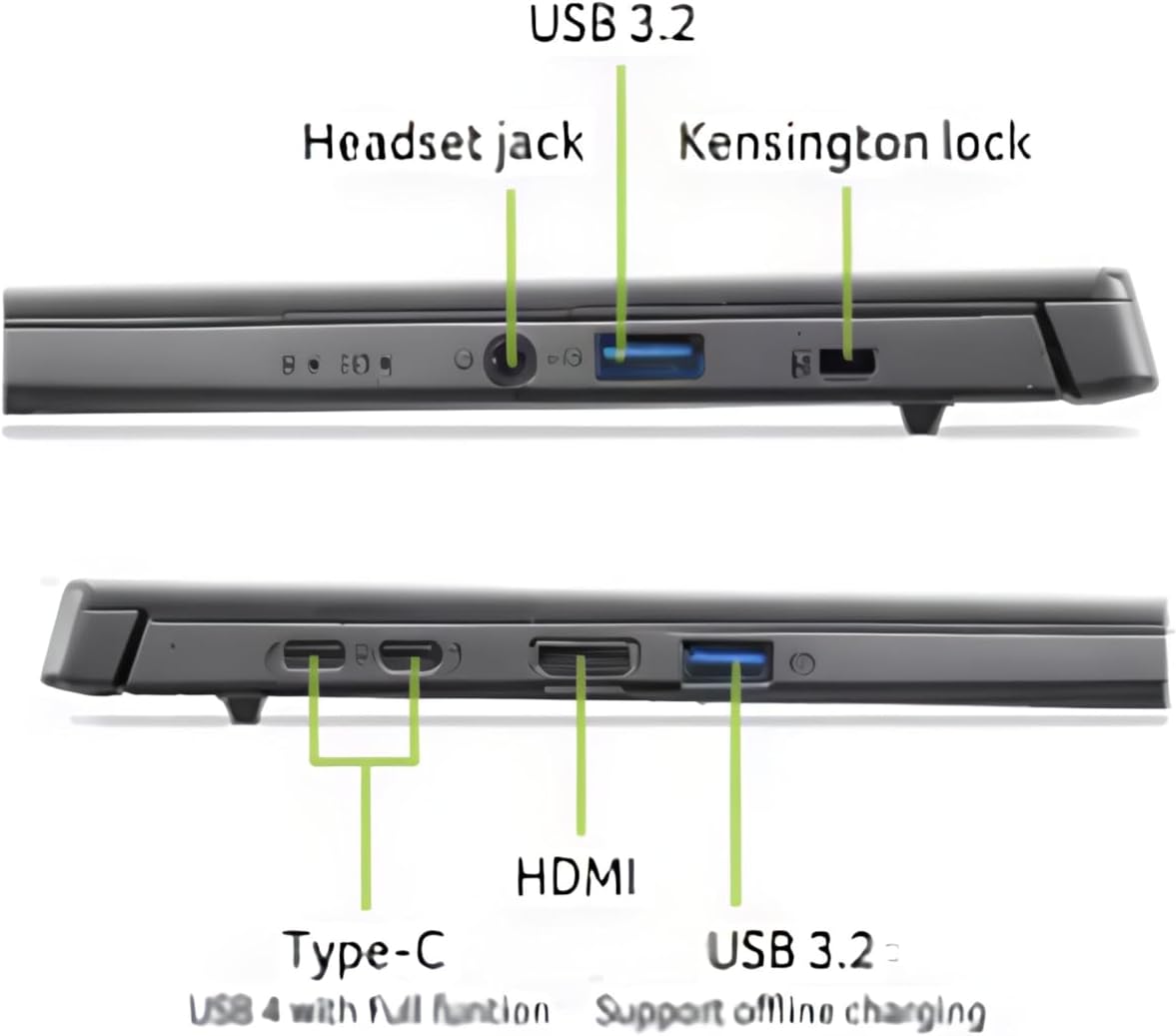
3.1. irudia: Amaituview ordenagailu eramangarriaren konexio-portuak.
4. Zure ordenagailu eramangarria erabiltzea
4.1 Display and Touchscreen
The laptop features a 14-inch WUXGA (1920 x 1200) IPS LED Backlit TFT LCD Touchscreen display. This display supports touch input for intuitive interaction with Windows 11. Use gestures similar to a smartphone or tablet for navigation.
4.2 Teklatua eta ukipen-panela
The integrated keyboard is backlit, allowing for comfortable typing in various lighting conditions. The touchpad supports multi-touch gestures for navigation and control. Refer to Windows settings for customizing touchpad gestures.

4.1. irudia: Goian view teklatuaren eta ukipen-paneleko.
4.3 Energiaren kudeaketa
Your laptop is equipped with a battery providing approximately 8 hours of usage. To optimize battery life, adjust power settings in Windows 11. Always use the provided USB Type-C Power Adapter for charging.
4.4 AI Copilot+PC Features
This laptop is an AI Copilot+PC, integrating advanced AI capabilities through its Intel Core Ultra 5 processor with CPU, GPU, and NPU. Key AI features include:
- Kopilotua: An AI-powered assistant in Windows 11 for productivity, creativity, and information retrieval.
- AcerSense: Acer's experience zone for managing system performance and features.
- AcerLiveArt & Acer AlterView: Tools for creative applications.
- Acer Assist: Your smart AI assistant for system optimization and support.
- Acer PurifikatuaView™ 2.0 & Acer PurifiedVoice™: Enhanced video call and audio quality.

Image 4.2: The Copilot+PC branding on the laptop screen, indicating advanced AI capabilities.

Image 4.3: Users interacting with the laptop, demonstrating features like Acer PurifiedView and PurifiedVoice for enhanced communication.
5. Mantentzea
5.1 Ordenagailu eramangarria garbitzea
- Erabili lipurrik gabeko zapi leun bat dampened with water or a screen cleaner to clean the display. Do not spray liquid directly onto the screen.
- Teklatuarentzat eta xasisarentzat, erabili oihal leun eta lehor bat. Aire konprimituzko lata batek teklen arteko hautsa kentzen lagun dezake.
- Ziurtatu ordenagailu eramangarria itzalita eta deskonektatuta dagoela garbitu aurretik.
5.2 Software eguneraketak
Regularly check for and install Windows updates to ensure your system has the latest security patches and performance improvements. Acer may also provide driver and firmware updates through AcerSense or their official support webgunea.
5.3 Biltegiratzea eta manipulazioa
- Saihestu ordenagailu eramangarria tenperatura altuetan, eguzki-argia zuzenean edo hezetasun handian jartzea.
- Ez jarri objektu astunak ordenagailu eramangarriaren gainean.
- Transport the laptop in a protective sleeve or bag to prevent scratches and impacts.

Image 5.1: The laptop's 180-degree hinge design and durable aluminum chassis.
6. Arazoak
This section addresses common issues you might encounter with your acer Aspire Laptop.
6.1 Energia arazoak
- Ordenagailu eramangarria ez da pizten: Ensure the power adapter is securely connected to both the laptop and a working electrical outlet. Check if the battery is charged. Try holding the power button for 10-15 seconds to perform a hard reset.
- Bateria ez da kargatzen: Verify the power adapter and cable are not damaged. Try a different outlet. Ensure the USB Type-C port used for charging is functional.
6.2 Bistaratzeko arazoak
- Ez da pantailan agertzen: Connect an external monitor via the HDMI port to check if the issue is with the laptop's internal display. If the external monitor works, the internal display may require service.
- Pantaila keinuka edo desitxuratuta: Eguneratu grafikoen kontrolatzaileak. Doitu pantailaren bereizmena eta freskatze-tasa Windows ezarpenetan.
6.3 Konexio arazoak
- Wi-Fia ez da konektatzen: Ziurtatu Wi-Fi gaituta dagoela Windows ezarpenetan. Berrabiarazi zure bideratzailea eta ordenagailu eramangarria. Egiaztatu haririk gabeko kontrolatzaile eguneratuak dauden.
- Bluetooth gailua ez da parekatzen: Ziurtatu Bluetooth-a gaituta dagoela bai ordenagailu eramangarrian bai gailuan. Jarri gailuak elkarrengandik gertu. Kendu eta gehitu berriro gailua Bluetooth ezarpenetan.
6.4 Errendimendu arazoak
- Ordenagailu eramangarria motela da: Close unnecessary applications. Check Task Manager for processes consuming high CPU or RAM. Ensure sufficient free space on the 512GB PCIe Gen 4 SSD. Run a malware scan.
7. Zehaztapenak
| Ezaugarri | Zehaztapena |
|---|---|
| Marka | acer |
| Ereduaren izena | Acer Aspire ordenagailu eramangarria |
| Pantailaren tamaina | 14 hazbete |
| Bistaratzeko ebazpena | 1920 x 1200 (WUXGA) |
| Bistaratzeko mota | IPS LED Backlit TFT LCD, Touchscreen |
| Prozesadorea | 2nd Gen Intel Ultra 5-226V (8 Cores, 2.1GHz ~ 4.5 GHz) |
| Grafikoak | Intel ARC 130V Integrated Graphics |
| RAM | 16 GB LPDDR5X RAM |
| Biltegiratzea | 512 GB-ko PCIe 4. belaunaldiko SSDa |
| Sistema eragilea | Windows 11 Home |
| Haririk gabeko konexioa | IEEE 802.11ax (Wi-Fi 6E), Bluetooth 5.3 |
| Portuak | 1x HDMI 2.1, 2x USB 3.2 Gen 1, 2x USB Type-C (USB4, Thunderbolt 4, Power Delivery), 1x 3.5mm Headphone/Mic Combo Jack |
| Webkamara | 1080p FHD |
| Teklatua | Atzeko argia |
| Bateriaren iraupena | Gehienez 8 ordu |
| Neurriak (L x W x H) | 12.56" x 8.86" x 0.46"-0.67" |
| Pisua | 3.04 lb (1.38 kg) |
8. Bermearen informazioa
Your acer Aspire Laptop comes with a Berme mugatua. The specific terms and duration of the warranty may vary by region and retailer. Please refer to the warranty card included in your product packaging or visit the official acer support website for detailed warranty information, including coverage, limitations, and how to make a claim.
Gorde erosketaren frogagiria (ordainagiria edo faktura), berme-zerbitzu orotarako beharrezkoa izango baita.
9. Laguntza
For further assistance, technical support, or to download updated drivers and manuals, please visit the official acer support webgunea:
You may also contact acer customer service directly through the contact information provided on their webzure eskualde zehatzerako gunea.