
1. Segurtasun informazio garrantzitsua
Please read this section carefully before using your Veidoo W40 tablet to ensure safe and proper operation. Keep this manual for future reference.
Neurri orokorrak
- Saihestu tableta tenperatura altuetan, eguzki-argitan edo hezetasun handietan jartzea.
- Do not drop, bend, or puncture the tablet.
- Keep the tablet away from water and other liquids. If it gets wet, power it off immediately and allow it to dry completely before use.
- Use only accessories approved by Veidoo. Unauthorized accessories may damage the tablet or pose safety risks.
- Do not attempt to disassemble, repair, or modify the tablet yourself. Contact customer support for assistance.
Bateria Segurtasuna
- The tablet contains a non-removable lithium-ion battery. Do not attempt to replace it yourself.
- Ez jarri bateria sutara edo muturreko berora.
- Dispose of the tablet and its battery responsibly, following local regulations.
Kargatzeko Segurtasuna
- Charge the tablet using the provided USB-C cable and a compatible power adapter.
- Do not charge the tablet in damp baldintzak.
- Unplug the charger when the tablet is fully charged or not in use.
2. Produktua amaitu daview
The Veidoo W40 is an 11-inch Android tablet designed for versatile use, featuring an Octa-Core processor, ample storage, and modern connectivity options.
Ezaugarri nagusiak
- Pantaila: 11-inch In-Cell HD Touch Screen with 1280x800 resolution.
- Prozesadorea: 2.0 GHz Octa-Core processor for smooth performance.
- Memoria eta biltegiratzea: 8GB RAM (4GB + 4GB expandable) and 128GB internal storage, expandable up to 1TB via MicroSD card.
- Sistema eragilea: Android 14.
- Kamerak: 2MP-ko aurrealdeko kamera eta 5MP-ko atzeko kamera.
- Konektibitatea: WiFi 6 (802.11ax) and Bluetooth 5.0.
- Bateria: 5000mAh edukiera.

Image: Veidoo W40 Tablet configuration summary, highlighting key features like Android 14, 11-inch In-Cell display, 1280x800 resolution, Octa-Core processor, 8GB RAM, 128GB ROM, 5000mAh battery, WiFi 6, Bluetooth 5.0, and dual cameras.
3. Zer dago kutxan
The standard package for your Veidoo W40 tablet typically includes the following items:
- Veidoo W40 11-inch Android Tablet
- USB-C kargatzeko kablea
- Elikatze-moldagailua
- Erabiltzailearen eskuliburua
Oharra: Edukia apur bat alda daiteke eskualdearen edo dendariaren arabera.
4. Hasteko urratsak (konfigurazioa)
4.1 Tableta kargatzea
- Connect the USB-C cable to the tablet's charging port.
- Connect the other end of the USB-C cable to the power adapter.
- Entxufatu korronte-egokigailua hormako entxufe batera.
- Utzi tableta guztiz kargatzen lehen aldiz erabili aurretik. Pantailan dagoen bateriaren adierazleak kargatze-egoera erakutsiko du.
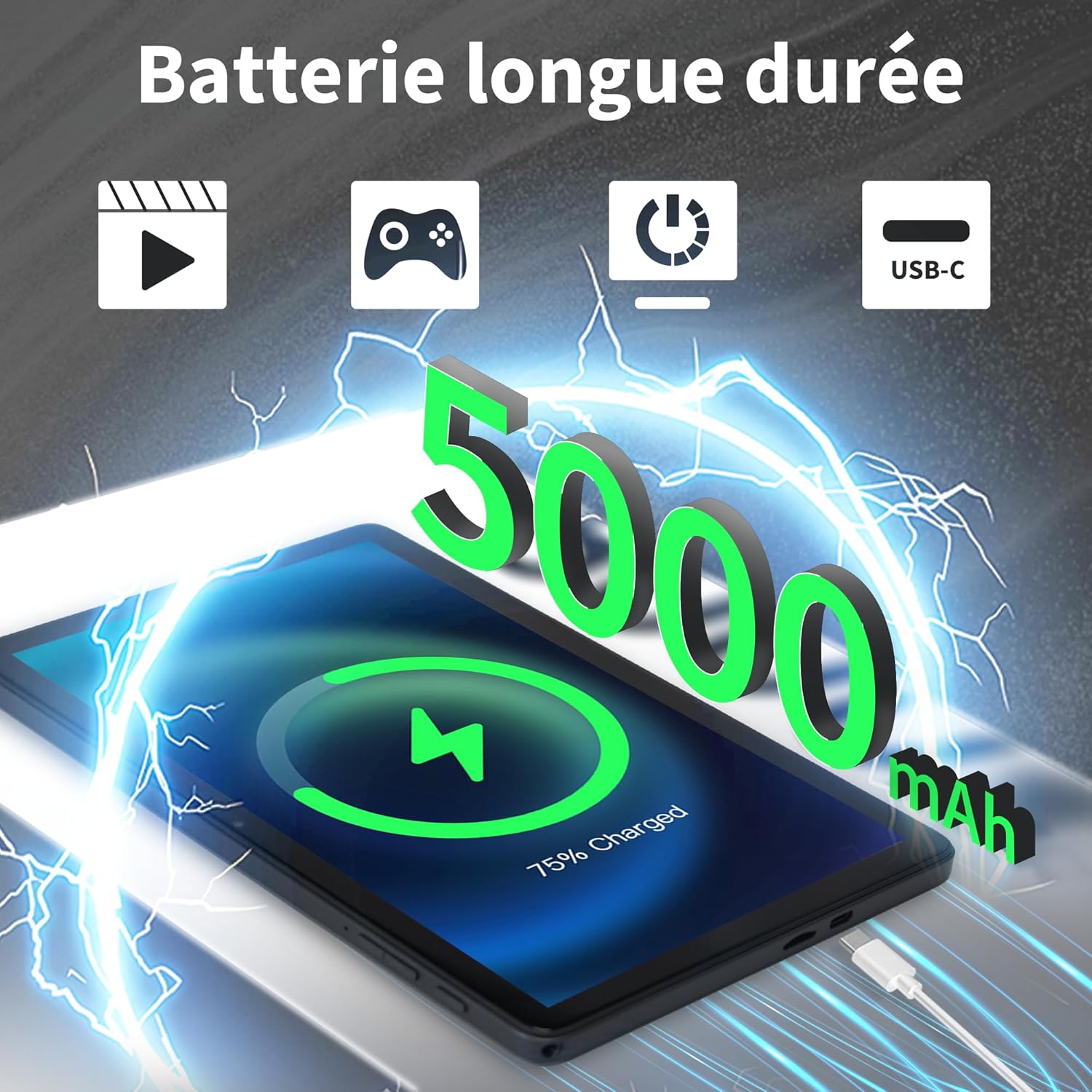
Image: Veidoo W40 Tablet connected to a USB-C charger, showing the battery icon and 5000mAh capacity.
4.2 Piztu/Itzaltzea
- Pizteko: Press and hold the Power button until the Veidoo logo appears on the screen.
- Itzaltzeko: Sakatu eta eutsi pizteko botoia energia aukeren menua agertu arte. Hautatu "Itzali" eta baieztatu.
- Berrabiarazteko: Energia aukeren menuan, hautatu "Berrabiarazi" eta baieztatu.
4.3 Hasierako konfigurazio-morroia
Upon first power-on, the tablet will guide you through an initial setup process:
- Aukeratu nahi duzun hizkuntza.
- Konektatu Wi-Fi sare batera.
- Onartu zehaztapenak eta baldintzak.
- Sign in with your Google account or create a new one. This is necessary to download apps from the Google Play Store.
- Set up screen lock (PIN, pattern, or password) and other security features.
- Review and adjust other settings as prompted.
4.4 MicroSD txartel bat sartzea
The tablet supports expandable storage up to 1TB using a MicroSD card.
- Bilatu MicroSD txartelaren zirrikitua tabletaren alboan.
- Sartu MicroSD txartela zirrikituan astiro, urrezko kontaktuak behera begira dituela, klik egin arte.
- The tablet will detect the card and may prompt you to format it for use as portable or internal storage. Follow the on-screen instructions.
5. Oinarrizko Funtzionamendua
5.1 Ukipen-keinuak
- Sakatu: Ukitu pantaila behin elementu bat hautatzeko edo aplikazio bat irekitzeko.
- Eduki sakatuta: Press and hold an item to access contextual menus or drag items.
- Pasatu hatza: Arrastatu hatza pantailan zehar orrialdeetan edo zerrendetan zehar mugitzeko.
- Pixka bat: Erabili bi hatz argazkiak handitu edo txikitzeko eta web orrialdeak.
5.2 Wi-Fira konektatzea
- Joan zaitez Ezarpenak > Sarea eta Internet > Wi-Fi.
- Wi-Fia aktibatu/desaktibatu On.
- Hautatu nahi duzun Wi-Fi sarea zerrendatik.
- Eskatzen bazaizu, idatzi pasahitza eta sakatu Konektatu.
5.3 Bluetooth gailuetara konektatzea
- Joan zaitez Ezarpenak > Konektatutako gailuak > Konexio-hobespenak > Bluetootha.
- Aktibatu Bluetooth-a On.
- Ziurtatu zure Bluetooth gailua parekatze moduan dagoela.
- Hautatu gailua eskuragarri dauden gailuen zerrendatik eta jarraitu pantailan agertzen diren argibideei parekatzea osatzeko.
5.4 Kamerak erabiltzea
Tabletak 2MP-ko aurrealdeko kamera eta 5MP-ko atzeko kamera ditu.
- Ireki Kamera aplikazioa.
- Sakatu kameraren ikonoa aurreko eta atzeko kameren artean aldatzeko.
- Sakatu obturadorearen botoia argazki bat ateratzeko edo bideo grabaketa hasteko/gelditzeko.
- Access photos and videos in the Gallery app.

Image: Tablet cameras (2MP front, 5MP rear) with example photos, demonstrating its capability to capture moments.
5.5 Biltegiratzea kudeatzea
The tablet comes with 128GB of internal storage and supports up to 1TB expandable storage.
- Joan zaitez Ezarpenak > Biltegiratzea to view biltegiratze erabilera.
- You can free up space by uninstalling unused apps, deleting old photos/videos, or moving files to a MicroSD card.

Image: Tablet storage illustration, showing how photos, videos, and music can be stored on the 128GB ROM and expanded with 8GB RAM.
5.6 Installing/Uninstalling Apps
- Instalatu aplikazioak: Ireki Google Play Store app, search for your desired app, and tap Instalatu.
- Desinstalatu aplikazioak: Touch and hold the app icon on the home screen or app drawer, then drag it to "Uninstall" or select "App info" and tap "Uninstall". Alternatively, go to Ezarpenak > Aplikazioak > select the app > Desinstalatu.

Image: Tablet in use for various activities such as watching movies, playing games, working, and video calls, demonstrating its versatility.
6. Mantentzea eta Zainketa
6.1 Tableta garbitzea
- Erabili zapi leun eta lihorik gabeko bat tabletaren pantaila eta gorputza garbitzeko.
- Orban egoskorretarako, apur bat dampGarbitu oihal bat urarekin edo elektronikarako diseinatutako pantaila-garbitzaile batekin.
- Saihestu produktu kimiko gogorrak, garbitzaile urratzaileak edo aerosolak erabiltzea.
6.2 Bateriaren optimizazioa
To maximize battery life (5000mAh):
- Murriztu pantailaren distira.
- Itzali Wi-Fia eta Bluetooth erabiltzen ez dituzunean.
- Itxi atzeko planoan dauden aplikazioak.
- Enable battery saver mode in Settings.
- Saihestu tenperatura altuegiak kargatzen eta erabiltzen ari zaren bitartean.
6.3 Software eguneraketak
Egiaztatu eta instalatu software eguneraketak aldizka, errendimendu eta segurtasun optimoa bermatzeko.
- Joan zaitez Ezarpenak > Sistema > Sistema eguneratzea.
- Jarraitu pantailan agertzen diren argibideei eskuragarri dauden eguneratzeak egiaztatu eta instalatzeko.
6.4 Fabrika berrezarri
A factory reset will erase all data from your tablet and restore it to its original factory settings. Back up important data before proceeding.
- Joan zaitez Ezarpenak > Sistema > Berrezarri aukerak.
- Hautatu Ezabatu datu guztiak (fabrika berrezarri).
- Berretsi erabakia eta idatzi zure PINa/eredua/pasahitza eskatzen bazaizu.
7. Arazoak
If you encounter issues with your Veidoo W40 tablet, try the following solutions:
Tableta ez da pizten
- Ensure the tablet is sufficiently charged. Connect it to a power source and wait a few minutes before attempting to power on.
- Berrabiarazteko, sakatu eta eutsi pizteko botoia 10-15 segundoz.
Wi-Fi konexio-arazoak
- Ziurtatu Wi-Fia gaituta dagoela Ezarpenetan.
- Berrabiarazi zure Wi-Fi bideratzailea.
- Ahaztu sarea tabletaren ezarpenetan eta konektatu berriro.
- Ziurtatu Wi-Fi seinalearen eremuan zaudela.
Slow Performance or App Crashes
- Itxi erabiltzen ez diren atzeko planoan dauden aplikazioak.
- Clear the cache of problematic apps (Settings > Apps > [App Name] > Storage & cache > Clear cache).
- Berrabiarazi tableta.
- Ziurtatu biltegiratze leku nahikoa dagoela eskuragarri.
- Check for system and app updates.
Pantailak ez du erantzuten
- Berrabiarazi tableta pizteko botoia sakatuta edukiz.
- Ziurtatu pantaila garbi eta hondakinik gabe dagoela.
8. Zehaztapenak
Below are the technical specifications for the Veidoo W40 11-inch Android Tablet:
| Ezaugarri | Zehaztapena |
|---|---|
| Eredua | W40 |
| Bistaratzeko tamaina | 11 hazbete |
| Pantailaren bereizmena | 1280 x 800 pixels (In-Cell HD Touch Screen) |
| Prozesadorea | 2.0 GHz Octa-Core (Allwinner) |
| RAM | 8GB (4GB + 4GB Expand) |
| Barne biltegiratzea (ROM) | 128 GB |
| Biltegiratze zabalgarria | Gehienez 1 TB MicroSD txartelaren bidez |
| Sistema eragilea | Android 14 |
| Aurrealdeko kamera | 2MP |
| Atzeko kamera | 5MP |
| Wi-Fi | WiFi 6 (802.11ax) |
| Bluetootha | Bluetooth 5.0 |
| Bateria Edukiera | 5000mAh |
| Neurriak (LxWxH) | 9.57 x 6.34 x 0.31 hazbete |
| Pisua | 1.13 kilo |
| Kolorea | Grisa |

Image: Octa-Core processor illustration, highlighting the 2.0 GHz speed and performance benefits.
9. Bermea eta Laguntza
Bermearen informazioa
Your Veidoo W40 tablet is covered by a standard manufacturer's warranty. Please refer to the warranty card included in your package or visit the official Veidoo webwebgunean bermearen estaldurari, iraupenari eta erreklamazio-prozesuari buruzko baldintza zehatzak ikusteko.
Bezeroarentzako Arreta
If you require technical assistance, have questions about your product, or need to report an issue, please contact Veidoo customer support. For inquiries, you may consult via email. Contact details are typically available on the official Veidoo webgunea edo zure erosketa plataformaren bidez.