
1. Sarrera
Thank you for choosing the NIMO 17.3" IPS FHD Laptop. This manual provides essential information for setting up, operating, maintaining, and troubleshooting your device. Please read it carefully to ensure optimal performance and longevity of your laptop.
The NIMO N171 laptop features a 17.3-inch Full HD IPS display, powered by an Intel Core i3-1215U processor, 8GB of DDR4 RAM, and a 256GB PCIe SSD. It comes pre-installed with Windows 11 Home and includes a backlit keyboard with a fingerprint reader for enhanced security and convenience.

Image: NIMO 17.3 inch IPS FHD Laptop, showcasinbere pantaila handia eta diseinu dotorea.
2. Konfigurazioa
2.1 Kutxatik ateratzea eta hasierako ikuskapena
Kontu handiz atera osagai guztiak paketetik. Ziurtatu elementu hauek daudela:
- 1 x Nimo N171 Laptop
- 1 x Type-C 65W PD Fast Charger
- 1 x Erabiltzailearen eskuliburua (dokumentu hau)
- Windows 11 Home (pre-installed)
Egiaztatu ordenagailu eramangarria kalterik duen. Kalterik aurkitzen baduzu, jarri harremanetan bezeroarentzako arreta-zerbitzuarekin berehala.
2.2 Charging the Laptop
Before first use, fully charge the laptop battery. Connect the provided 65W Type-C PD Fast Charger to the laptop's Type-C charging port and then to a power outlet. The charging indicator light will illuminate.

Image: The 65W Type-C PD Charger, illustrating its compact design and compatibility with various devices.
2.3 Hasierako piztea eta Windows konfigurazioa
Press the power button located on the laptop. The laptop will boot up and guide you through the Windows 11 Home setup process. Follow the on-screen instructions to configure language, region, network, and user accounts.
3. Funtzionamendu-argibideak
3.1 Pantaila eta irudiak
The NIMO N171 features a 17.3-inch Full HD (1920x1080) IPS anti-glare display, offering wide viewing angles and vibrant colors. Adjust brightness using the function keys (Fn + Fx keys, refer to keyboard layout for specific keys).

Image: The 17.3-inch FHD IPS display, highlighting its immersive viewing experience with narrow bezels.
3.2 Teklatua eta sarrera
The laptop is equipped with a full-size backlit keyboard and a numeric keypad. The backlight can be toggled or adjusted using dedicated function keys. The touchpad supports multi-touch gestures for navigation.

Image: Close-up of the backlit keyboard and integrated fingerprint reader on the touchpad.
3.3 hatz-marken irakurgailua
For secure and quick login, utilize the built-in fingerprint reader located on the touchpad. Configure your fingerprint in Windows Settings > Accounts > Sign-in options.
3.4 Webcam Privacy Shield
Integratua webcam features a physical privacy shield. Slide the cover to the left to open the camera and to the right to close it, ensuring your privacy when the camera is not in use.
3.5 Konexio-ataka
Ordenagailu eramangarriak hainbat ataka eskaintzen ditu periferikoak eta kanpoko pantailak konektatzeko:
- USB 3.2 1. belaunaldia: Abiadura handiko datu-transferentzia.
- USB 2.0: Standard USB connectivity.
- USB C mota: For data transfer and charging (65W PD).
- Standard HDMI 1.4: Kanpoko monitore edo telebistetara konektatu.
- Mikro SD txartelaren zirrikitua: Expand storage or transfer files memoria-txarteletatik.
- Audio Jack: Konektatu entzungailuak edo kanpoko bozgorailuak.
- Kensington blokeoaren zirrikitua: Segurtasun fisikoagatik.

Image: Diagram illustrating the various connectivity ports on the NIMO laptop.
3.6 Bateriaren kudeaketa
The laptop is equipped with a large capacity battery, providing up to 7 hours of usage. For optimal battery health, avoid frequently draining the battery completely and store the laptop in a cool, dry place.

Image: Visual representation of the laptop's battery capacity and typical usage scenarios.
4. Mantentzea
4.1 Garbiketa
Erabili zapi leun eta lihorik gabeko bat pantaila eta kanpoko gainazalak garbitzeko. Orban egoskorren kasuan, dampen the cloth slightly with water or a screen-safe cleaner. Avoid harsh chemicals or abrasive materials.
4.2 Software eguneraketak
Regularly check for and install Windows updates to ensure your system has the latest security patches and performance improvements. You can find updates in Windows Settings > Windows Update.
4.3 Biltegiratze kudeaketa
Aldian behin berriroview eta kudeatu zure 256GB SSD biltegiratzea. Ezabatu beharrezkoak ez diren gauzak filedesinstalatu erabiltzen ez diren aplikazioak eta kontuan hartu hodeiko biltegiratzea tamaina handikoentzat files to maintain optimal system performance.
5. Arazoak
This section addresses common issues you might encounter with your NIMO laptop.
- Ordenagailu eramangarria ez da pizten: Ensure the charger is properly connected and the battery has sufficient charge. Try holding the power button for 10-15 seconds to perform a hard reset.
- Pantaila hutsik dago edo keinuka ari da: Restart the laptop. If connected to an external display, try disconnecting and reconnecting the HDMI cable.
- Wi-Fi or Bluetooth connectivity issues: Check if Wi-Fi/Bluetooth is enabled in Windows settings. Restart your router or the laptop. Update network drivers if necessary.
- Errendimendu motela: Close unnecessary applications. Check for background processes consuming high resources (Task Manager). Ensure sufficient free storage space on the SSD.
- Teklatuak edo ukipen-panelak ez du erantzuten: Restart the laptop. Ensure no external devices are interfering.
If you encounter persistent issues not covered here, please refer to the Warranty and Support section for assistance.
6. Zehaztapenak
Detailed technical specifications for the NIMO N171 Laptop:
| Ezaugarri | Zehaztapena |
|---|---|
| Marka | NIMO |
| Ereduaren izena | Nimo N171G |
| Pantailaren tamaina | 17.3 hazbete |
| Pantailaren bereizmena | 1920 x 1080 pixel (FHD) |
| Prozesadorea | Intel Core i3-1215U (6 nukleo, 4.4 GHz arte) |
| RAM | 8 GB DDR4 (3200 MHz) |
| Disko gogorra | 256 GB PCIe SSDa |
| Koprozesadore grafikoa | Grafiko integratuak (Intel) |
| Sistema eragilea | Windows 11 Home |
| Haririk gabeko mota | 802.11a/b/g/n/ac (Wi-Fi 6) |
| Bluetootha | Bluetooth 5.2 |
| USB atakak | 1x USB 2.0, 3x USB 3.0, 2x USB Type-C (1 for PD charging) |
| HDMI ataka | HDMI 2.1 |
| Webkamara | 2 MP Atzekoa Webcam Resolution (with privacy shield) |
| Ezaugarri bereziak | Fingerprint Reader, Backlit Keyboard, HD Audio, Memory Card Slot, Numeric Keypad |
| Bateriaren batez besteko iraupena | 5-7 ordu |
| Elementuaren pisua | 4.6 kilo |
| Produktuaren neurriak | 15.66 x 9.99 x 0.74 hazbete |
7. Bermea eta Laguntza
NIMO is committed to providing high-quality products and customer satisfaction.
7.1 Fabrikatzailearen bermea
Your NIMO laptop is covered by a comprehensive 2 urteko fabrikatzailearen bermea from Nimo Direct Inc. This warranty covers defects in materials and workmanship under normal use. Please retain your proof of purchase for warranty claims.

Image: Illustration of NIMO's 2-year support commitment.
7.2 90-Day Hassle-Free Returns
Nimo Direct Inc. offers a 90 Eguneko Itzulketa Politika. If you are not satisfied with your purchase, you may return the product within 90 days from the date of purchase. Please refer to the return policy details provided at the time of purchase or contact customer support.
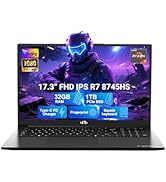
Image: Visual representation of the 90-day return policy.
7.3 Bezeroentzako Arreta
For any product-related questions, technical support, or warranty claims, please contact our professional customer service team:
- Posta elektronikoa: service@nimopc.com
- Telefonoa: Refer to your product packaging or NIMO's official website for current phone support numbers.
- Sarean: Visit the official NIMO webmaiz egiten diren galderen eta laguntza-baliabide gehigarrien gunea.
Our dedicated support team is available to assist you and resolve any issues promptly.

Image: Depiction of NIMO's professional customer assistance team.