
ARCCTV P2
ARCCTV 2K Security Camera Outdoor P2 User Manual
Eredua: P2
1. Sarrera
This manual provides detailed instructions for the installation, operation, and maintenance of your ARCCTV 2K Security Camera Outdoor P2. Please read this manual thoroughly before using the product to ensure correct usage and optimal performance. Keep this manual for future reference.

1.1. irudia: Aurrealdea view of the ARCCTV 2K Security Camera Outdoor P2.
2. Zer dago kutxan
Egiaztatu osagai guztiak paketean daudela:
- Kameraren gorputza
- 5V1A korronte egokitzailea
- Mounting Screws (set)
- Screw Positioning Sticker
- Abisuzko eranskailua
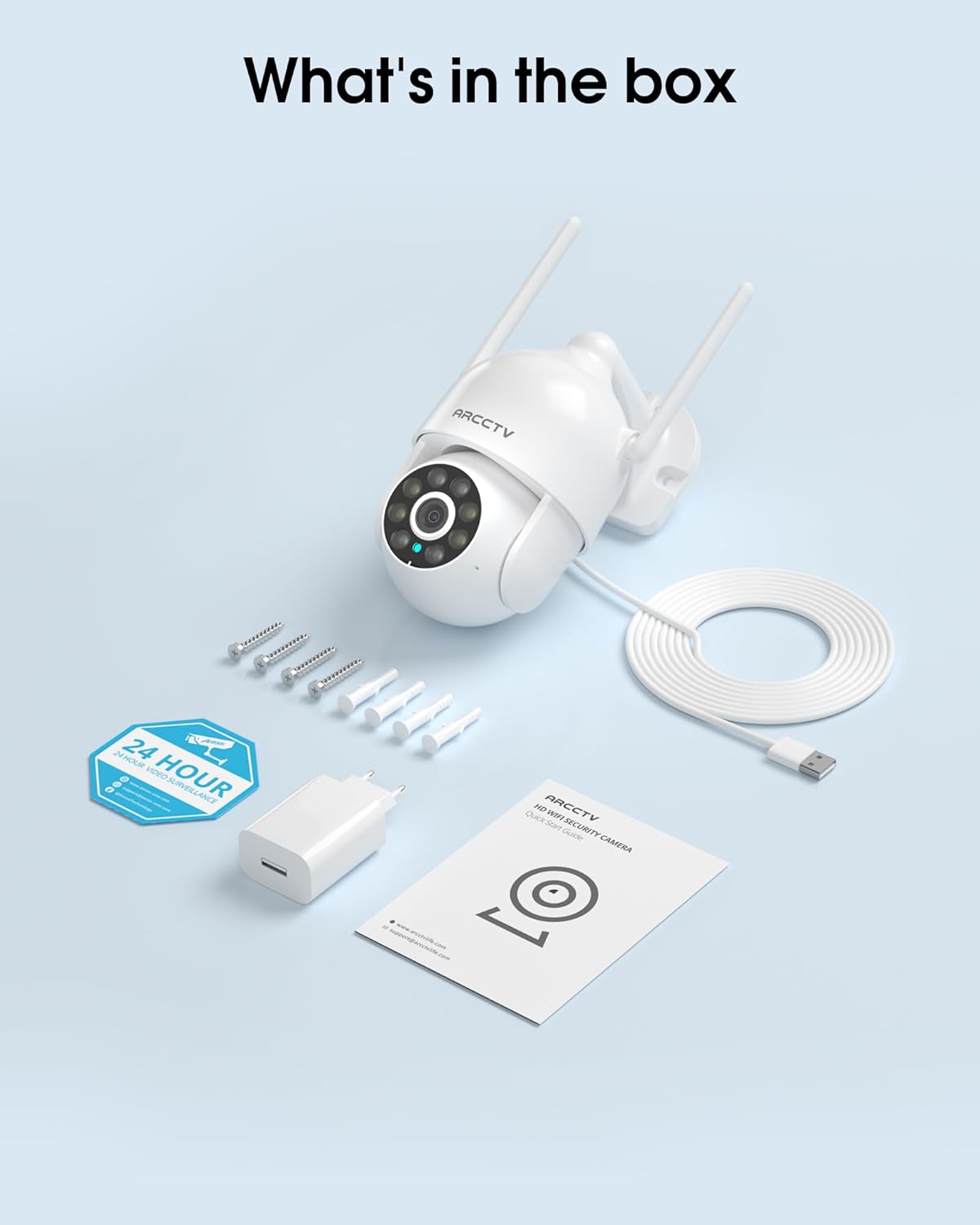
Image 2.1: All items included in the ARCCTV 2K Security Camera package.
3. Produktuaren ezaugarriak
- 2K Ultra HD bereizmena: Provides clear 2304x1296p video.
- Gaueko ikusmen osoa koloretan: Built-in spotlight enables vivid color monitoring in low light.
- 360° Pan-Tilt-Zoom (PTZ): Remotely control 355° horizontal and 90° vertical rotation.
- Mugimendu Automatikoaren Jarraipena: Smart AI automatically follows and records detected movement.
- Banda bikoitzeko WiFi: Supports both 2.4G and 5G WiFi for stable connectivity.
- Bi norabideko audioa: Komunikatzeko mikrofono eta bozgorailu integratuak.
- IP66 Eguraldiarekiko erresistentea: Durable design for outdoor use in various weather conditions (-4°F ~ 122°F).
- Biltegiratze malgua: Tokiko microSD txartelaren biltegiratzea onartzen du (128 GB arte, ez dago barne) eta aukerako hodeiko biltegiratzea.
- 24/7 Grabaketa: Continuous recording capability with stable power supply.
4. Konfigurazioa
4.1 Instalazioa
- Aukeratu kokapena: Aukeratu kanpoko leku garbi bat view of the area you wish to monitor. Ensure it is within range of your Wi-Fi network and a power outlet.
- Muntatu kamera: Use the provided screw positioning sticker to mark drill holes. Drill holes, insert wall anchors, and secure the camera body to the wall using the mounting screws.
- Konektatu energia: Plug the 5V1A power adapter into the camera and then into a power outlet. The camera will power on and begin its startup sequence.
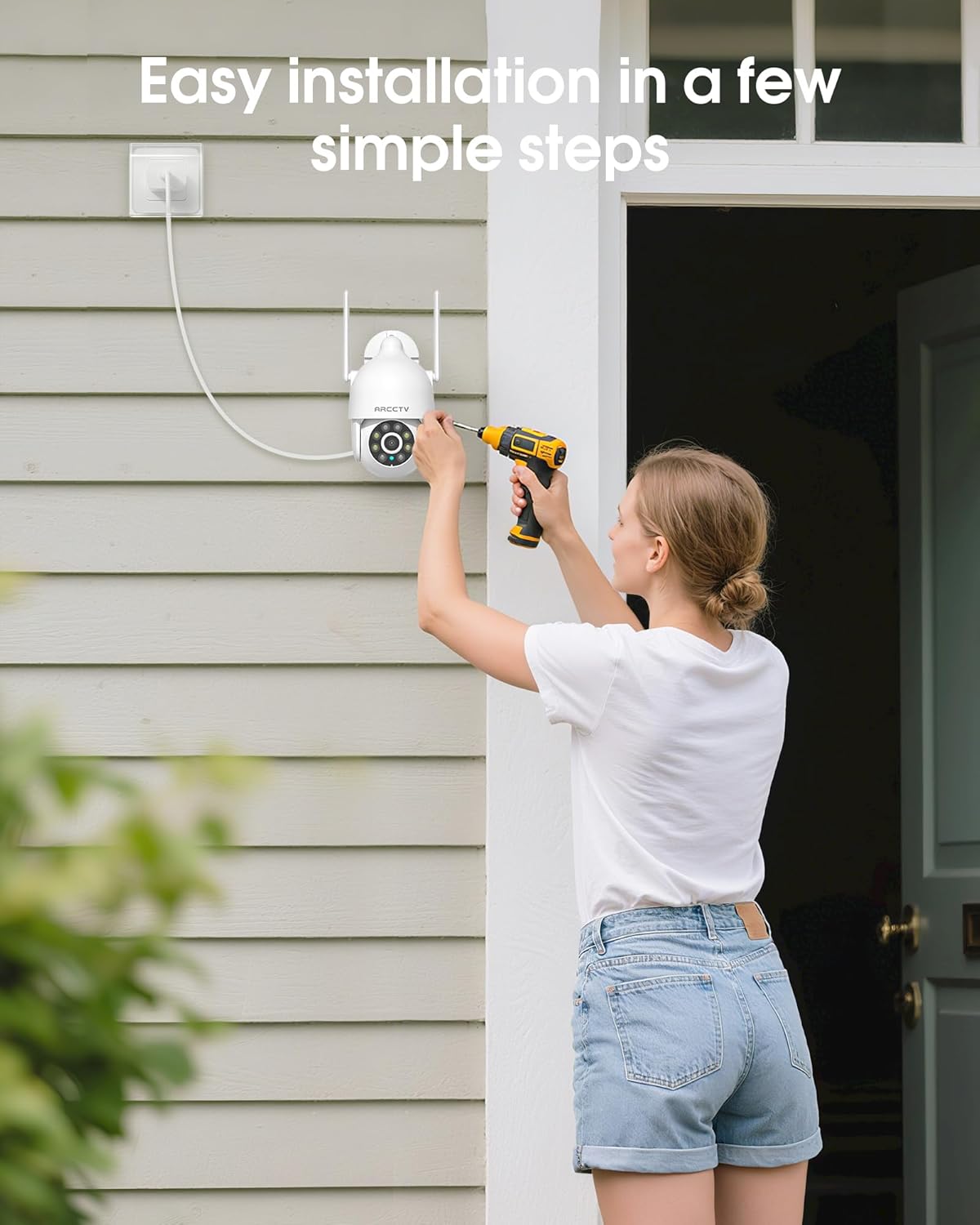
Image 4.1: Illustration of easy camera installation steps.
4.2 Aplikazioaren deskarga eta kontuaren sorrera
- Download the official ARCCTV app from your smartphone's app store (iOS or Android).
- Ireki aplikazioa eta jarraitu pantailan agertzen diren argibideei kontu berri bat sortzeko edo saioa hasteko, dagoeneko baduzu.
4.3 Wi-Fi konexioa
- In the app, tap the "Add Device" or "+" icon.
- Select your camera model and follow the prompts to connect it to your Wi-Fi network. The camera supports both 2.4GHz and 5GHz bands for stable connectivity.
- Ensure your smartphone is connected to the same Wi-Fi network during the setup process.
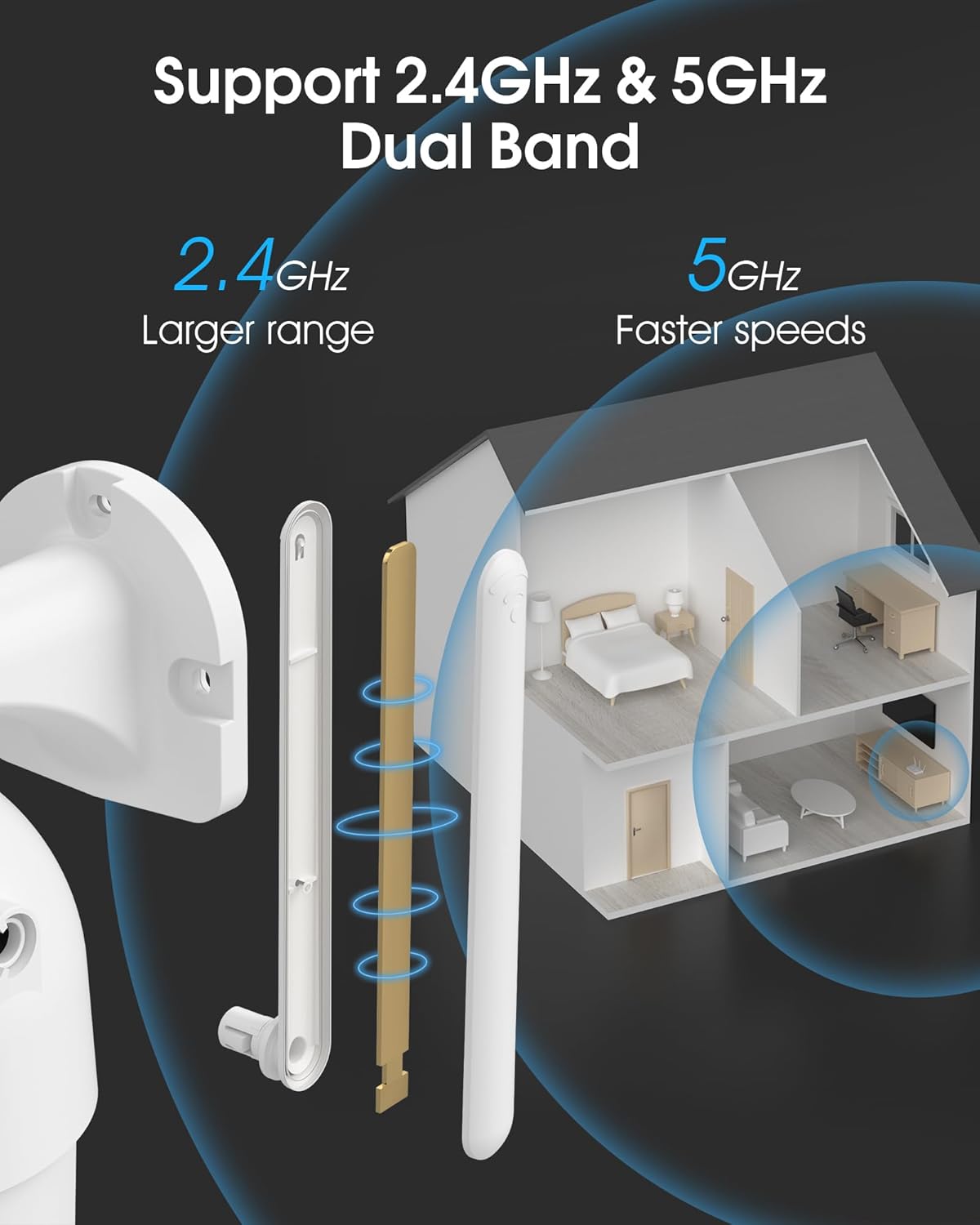
Image 4.2: The camera supports both 2.4GHz (larger range) and 5GHz (faster speeds) Wi-Fi bands.
4.4 MicroSD txartelaren instalazioa (aukerakoa)
For local storage, install a microSD card (up to 128GB, not included) into the designated slot on the camera. Ensure the camera is powered off before inserting or removing the card.
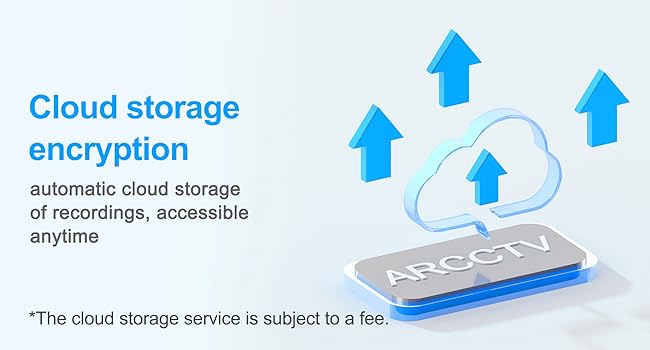
Image 4.3: Location of the microSD card slot on the camera.
5. Kameraren funtzionamendua
5.1 Bizi View
Open the ARCCTV app and select your camera to view the live feed. You can monitor your property in real-time.
5.2 Pan-Tilt-Zoom (PTZ) kontrola
Zuzenean view screen, use the directional controls to rotate the camera horizontally (Pan: 355°) and vertically (Tilt: 90°) to adjust the viewing angle. You can also set preset points for quick navigation.
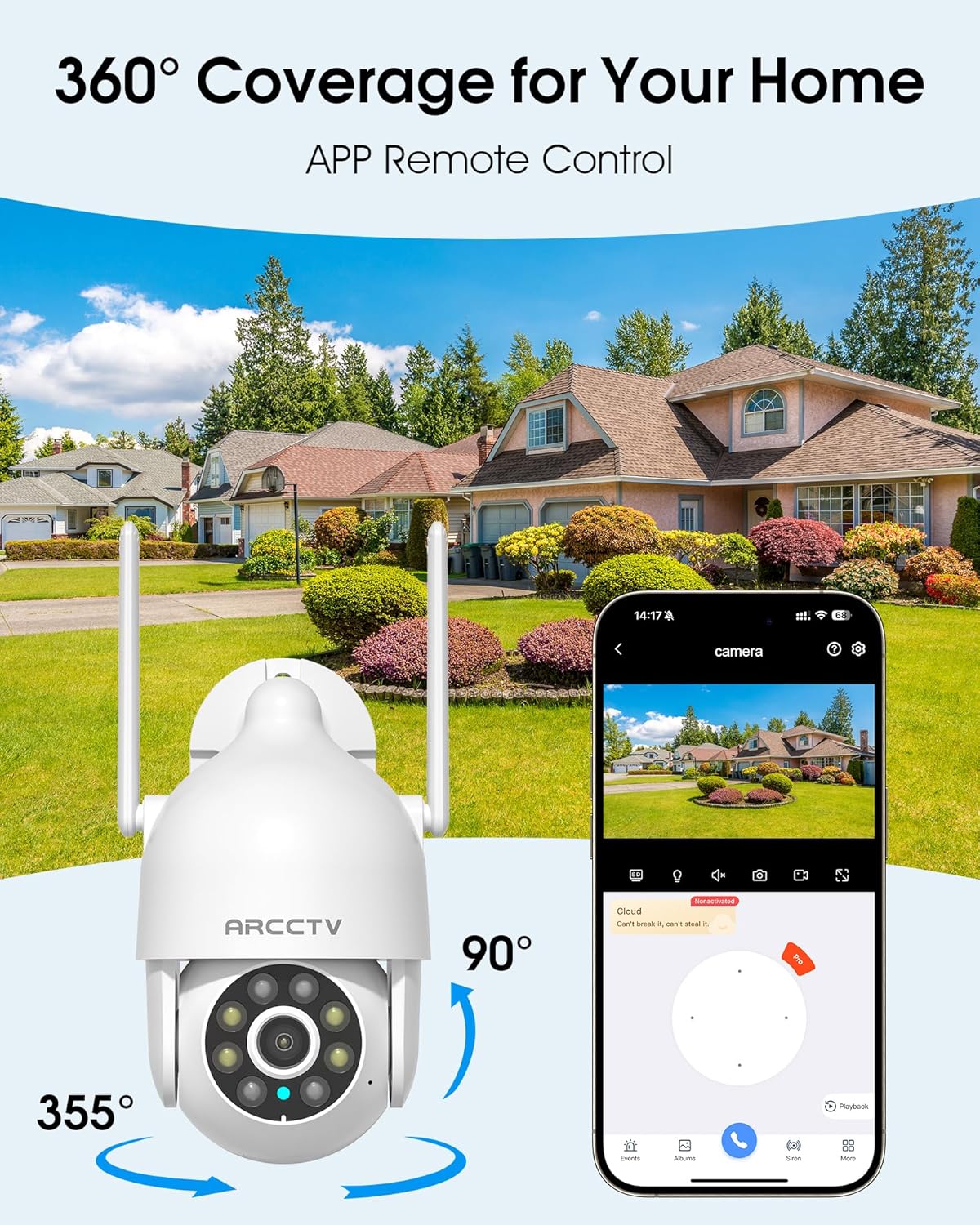
Image 5.1: The camera offers 360° coverage through remote pan and tilt controls.
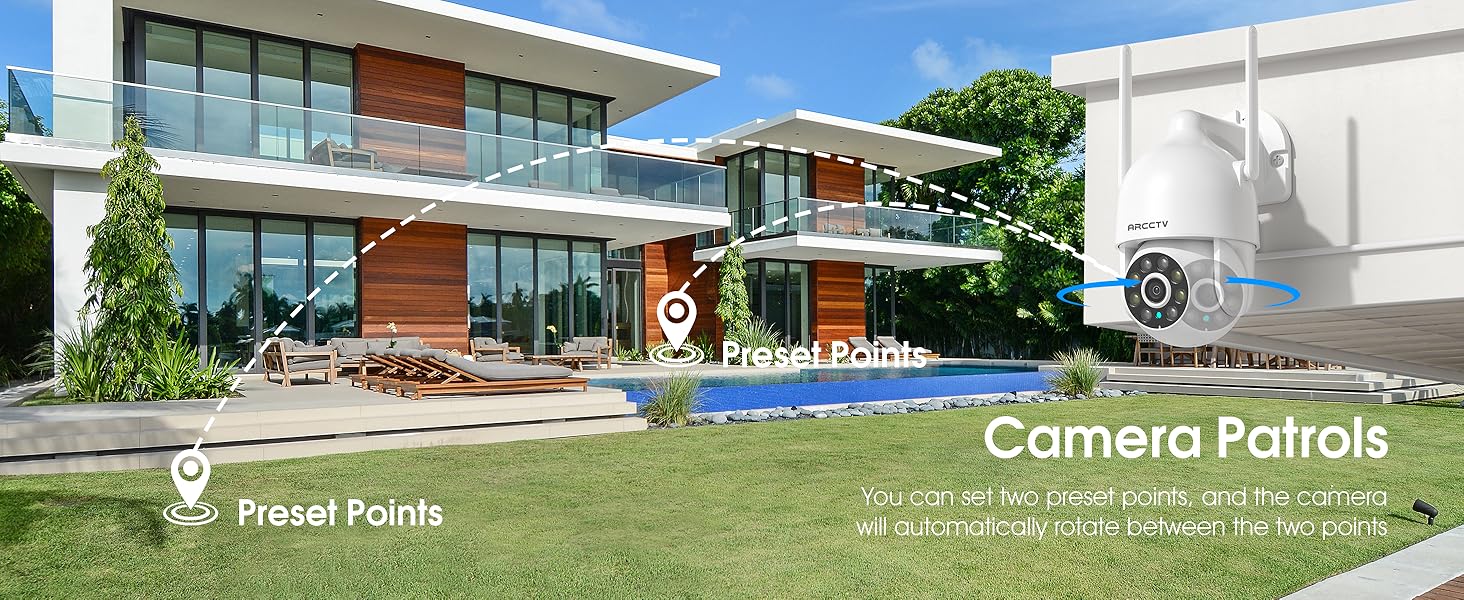
Image 5.2: Setting up camera patrol routes between preset points.
5.3 Motion Tracking and Alerts
The camera features smart AI motion tracking that automatically follows detected movement. You can customize alert zones and receive instant notifications on your smartphone when motion is detected.

Image 5.3: The camera's smart motion tracking feature in action.

Image 5.4: Instant alerts with customizable settings, including spotlight, siren, and two-way audio.
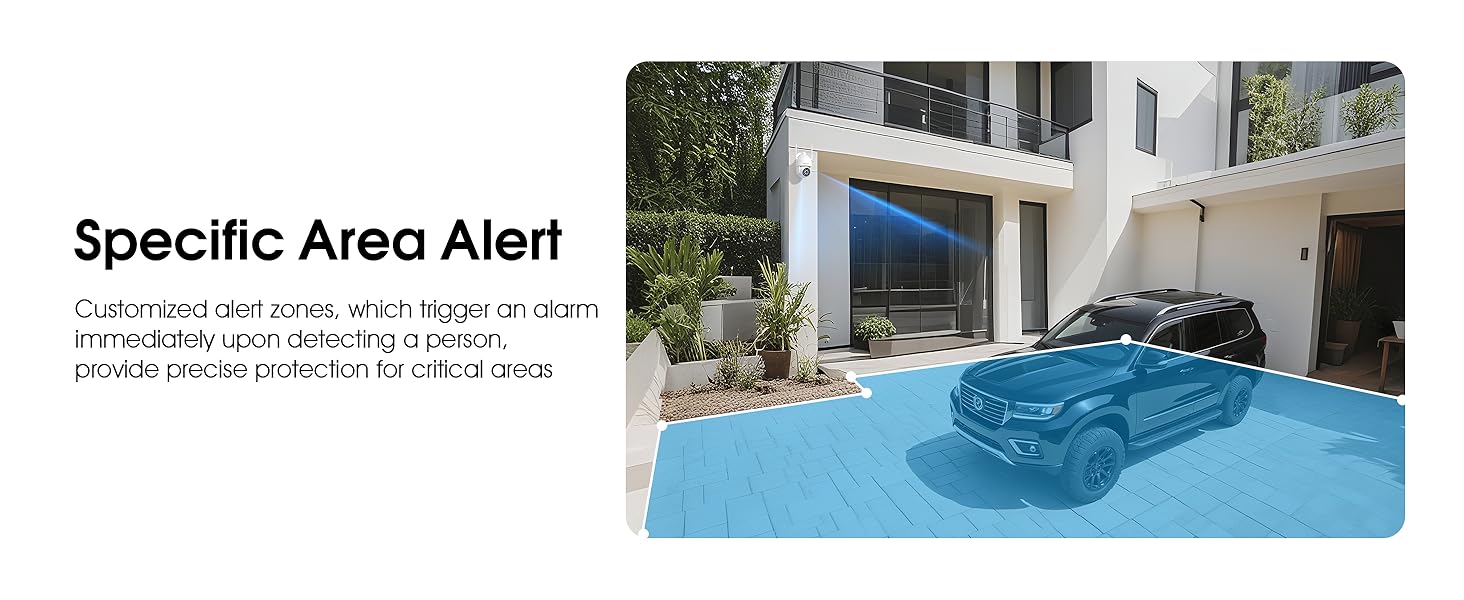
Image 5.5: Setting up specific area alerts for precise protection.
5.4 Gaueko ikusmen moduak
The camera offers both full-color night vision (activated by the built-in spotlight) and infrared night vision for clear monitoring in various low-light conditions.

Image 5.6: Comparison of Color Night Vision and Infrared Night Vision.
5.5 Bi norabideko audioa
Use the two-way audio feature to communicate with visitors or deter unwanted guests directly through the camera's built-in microphone and speaker.
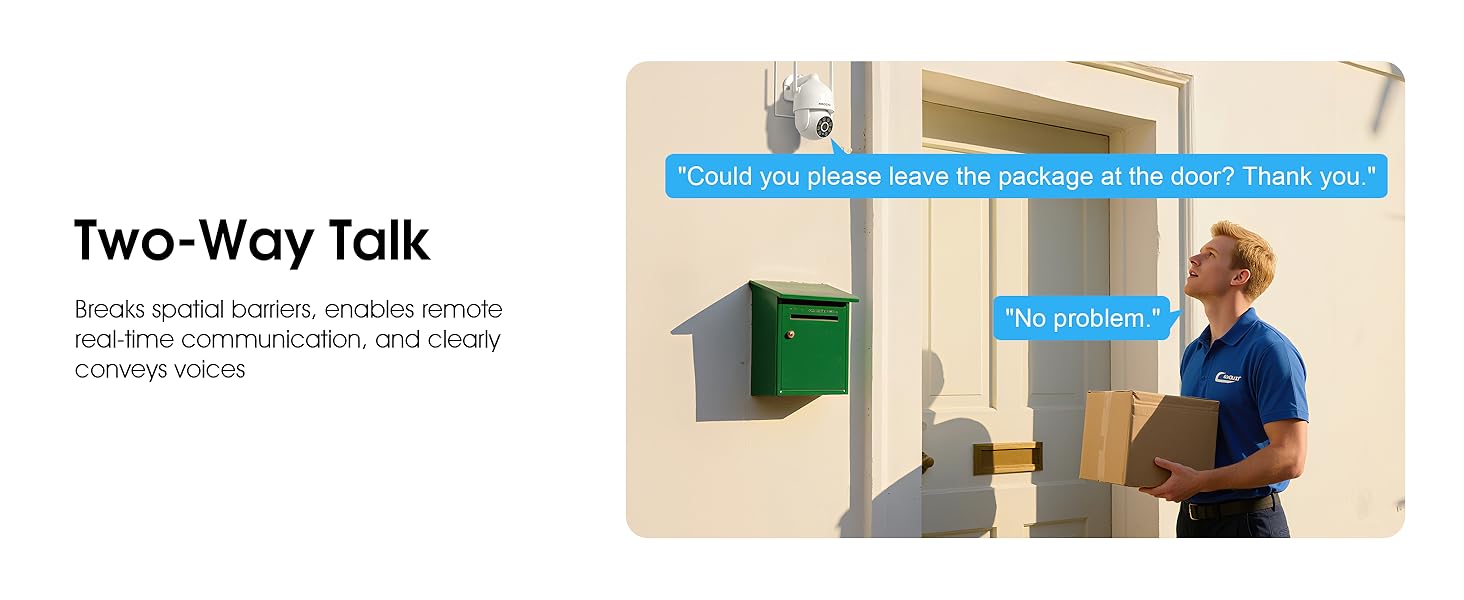
Image 5.7: Utilizing two-way talk for remote communication.
5.6 Grabaketa eta erreprodukzioa
The camera supports 24/7 continuous recording. Footage can be saved to a local microSD card (up to 128GB) or to optional cloud storage. Access recorded videos through the app's playback function.

Image 5.8: The camera provides 24/7 recording capabilities.
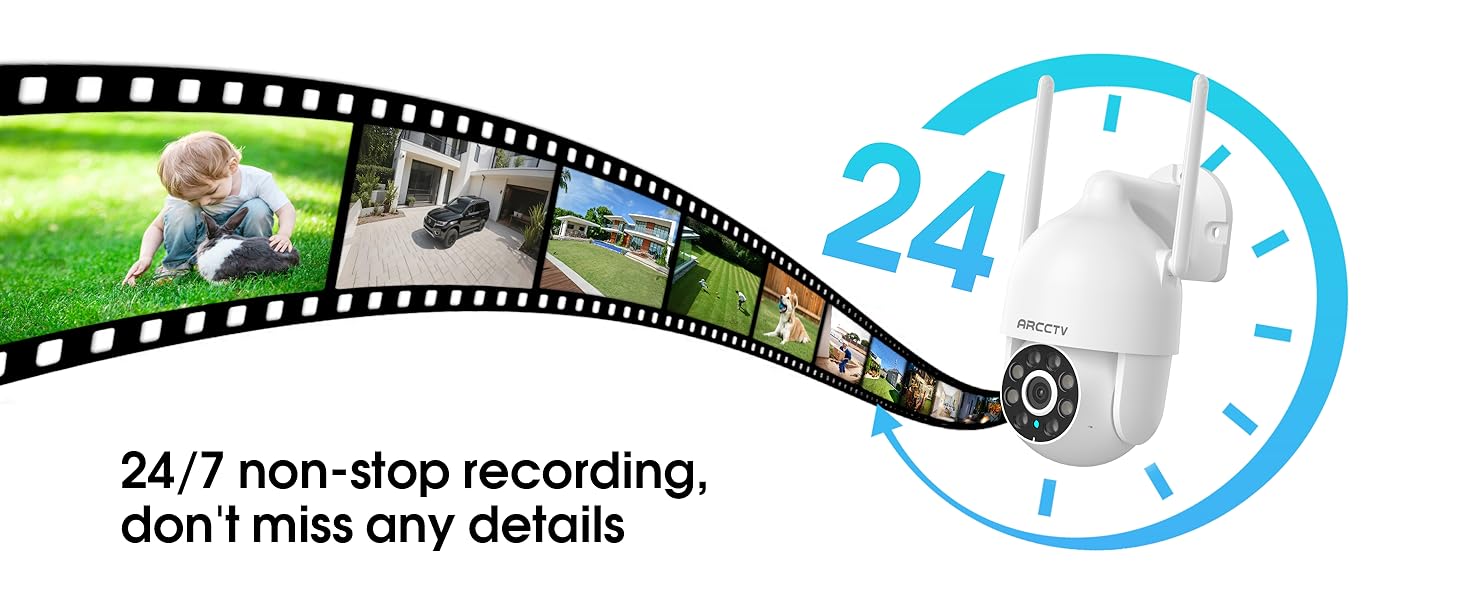
Image 5.9: Continuous 24/7 recording ensures no details are missed.
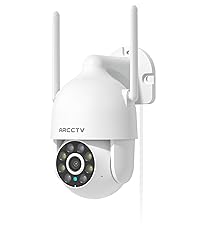
Image 5.10: Cloud storage encryption for secure and accessible recordings (subscription may apply).
5.7 Familia partekatzea
The app supports multi-member sharing, allowing family members to view the camera feed and collaborate on security monitoring.
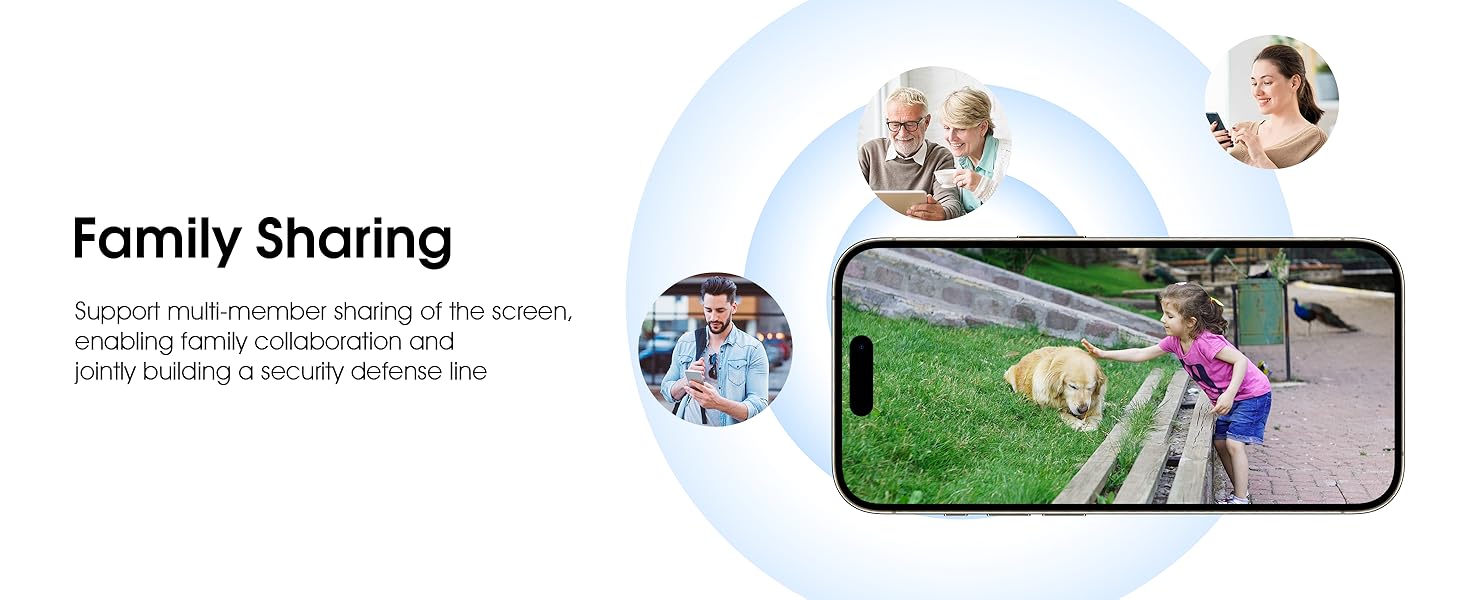
Image 5.11: The family sharing feature allows multiple users to access the camera feed.
5.8 Alexaren bateragarritasuna
The camera is compatible with Alexa, allowing you to check the monitoring screen using voice commands.
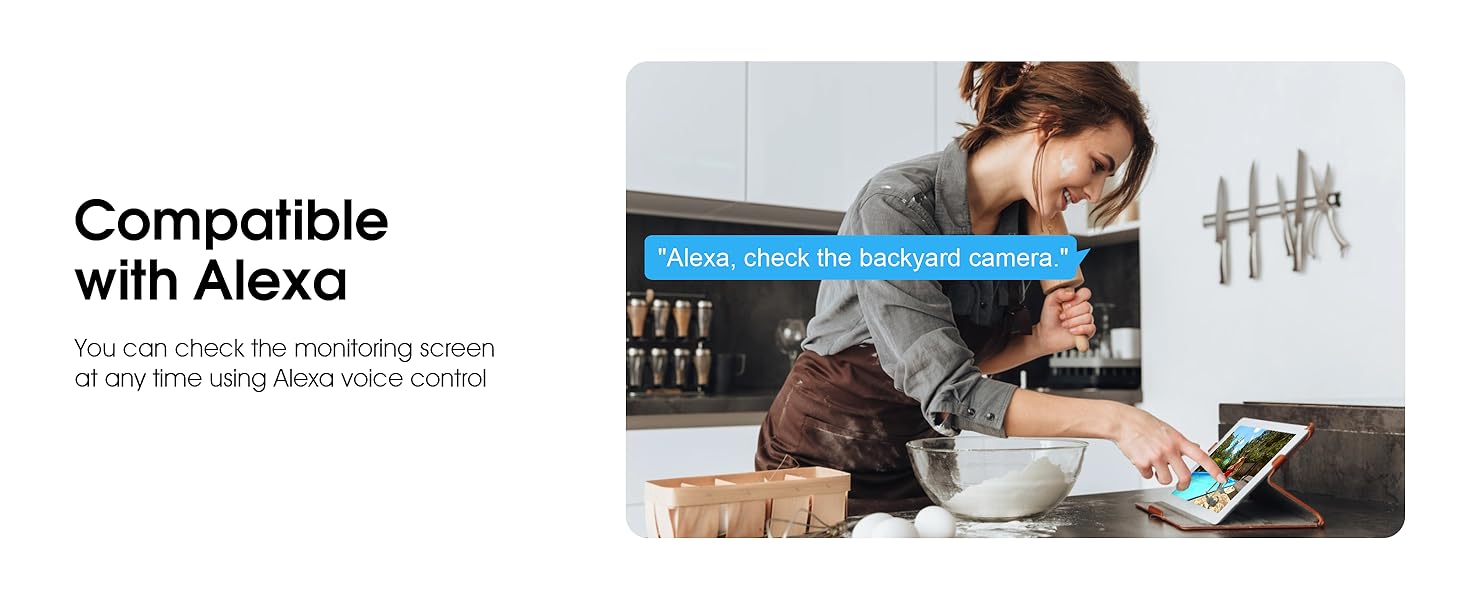
Image 5.12: Voice control via Alexa for convenient monitoring.
6. Mantentzea
6.1 Kamera garbitzea
Aldian-aldian garbitu kameraren lentea eta karkasa zapi leun eta lehor batekinamp zapi bat hautsa eta hondakinak kentzeko. Ez erabili produktu kimiko gogorrik edo garbitzaile urratzailerik.
6.2 Firmware eguneraketak
Ensure your camera's firmware is up to date for optimal performance and security. Check for updates within the ARCCTV app and follow the instructions to install them.
6.3 Biltegiratze kudeaketa
If using a microSD card, regularly check its status in the app. Format the card periodically to maintain performance. For cloud storage, manage your subscription and storage space through the app.
7. Arazoak
- Kamera ez da wifira konektatzen:
- Ensure your Wi-Fi network is 2.4GHz or 5GHz and has a strong signal at the camera's location.
- Egiaztatu Wi-Fi pasahitza behar bezala sartu dela.
- Berrabiarazi zure bideratzailea eta kamera.
- Irudiaren kalitate eskasa:
- Garbitu kameraren lentea.
- Ziurtatu argiztapen egokia gaueko ikusmenaren errendimendu optimoa lortzeko.
- Egiaztatu zure Interneteko konexioaren abiadura.
- Mugimendu-detekzioa ez dabil:
- Egiaztatu mugimenduaren detekzioa gaituta dagoela aplikazioaren ezarpenetan.
- Doitu sentsibilitatearen ezarpenak.
- Ziurtatu kameraren eremuan oztoporik ez dagoela view.
- No Recording to MicroSD Card:
- Ensure a microSD card is properly inserted and formatted in the app.
- Check if the card is full; consider formatting or replacing it.
- Egiaztatu grabazio ezarpenak aplikazioan.
8. Zehaztapenak
| Ezaugarri | Zehaztapena |
|---|---|
| Ereduaren izena | P2 |
| Barruko/Kanpoko erabilera | Kanpoan |
| Bideo Harrapaketa Ebazpena | 2K (2304x1296p) |
| Konektibitate Teknologia | Haririk gabeko (WiFi) |
| Haririk gabeko Komunikazio Teknologia | Wi-Fi (2.4G/5G Dual-Band) |
| Viewangelua | 360 gradu (355°-ko panoramika, 90°-ko inklinazioa) |
| Gaueko Ikusmenaren barrutia | 50 Oin |
| Uraren Erresistentzia Maila | IP66 Iragazgaitza |
| Energia iturria | 5V1A korronte egokitzailea |
| Onartutako Flash memoria Gehienezko tamaina | 128 GB (MicroSD) |
| Audio Visual Recording Capabilities | Bideoa eta Audioa |
| Ezaugarri Berezia | 2-Way Audio, Motion Tracking, Full Color Night Vision |
| Elementuaren neurriak L x W x H | 7.8 x 6.6 x 5.3 hazbete |
| Elementuaren pisua | 1.39 kilo |
9. Bermea eta Laguntza
For warranty information and technical support, please refer to the official ARCCTV website or contact their customer service directly. Contact details are typically provided on the product packaging or within the mobile application.
Ask a question about this manual
Ask about setup, troubleshooting, compatibility, parts, safety, or missing instructions. Manuals+ will review the question and use this page’s manual context to help answer it.