
Sarrera
This manual provides essential information for setting up, operating, maintaining, and troubleshooting your Acer AL15-33P laptop. Please read this guide thoroughly to ensure proper use and to maximize the lifespan of your device.
Konfigurazioa
1. Unboxing eta Hasierako Ikuskapena
Carefully remove the laptop and all accessories from the packaging. Check for any visible damage. The package should include the laptop, power adapter, and this user manual.

Aurrealdea view of the Acer AL15-33P laptop with the screen displaying the Windows desktop.
2. Potentzia konektatzea
- Connect the AC adapter cable to the power adapter.
- Plug the DC output connector of the power adapter into the power input port on the side of your laptop.
- Sartu korronte alternoko kablea entxufe batera.
Bateria automatikoki kargatzen hasiko da. Gomendagarria da bateria guztiz kargatzea lehenengo aldiz erabili aurretik.
3. Hasierako abiarazpena eta Windows konfigurazioa
- Ireki ordenagailu eramangarriaren estalkia.
- Press the power button, typically located on the keyboard deck or side, to turn on the laptop.
- Follow the on-screen instructions to complete the Windows 11 setup process. This includes selecting your region, language, accepting terms, and setting up a user account.
Zure ordenagailu eramangarria erabiltzea
1. Teklatua eta ukipen-panela erabiltzea
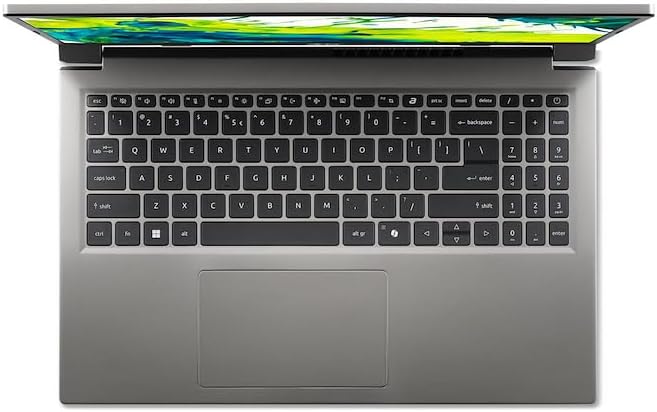
Goitik behera view ordenagailu eramangarriaren teklatuaren eta ukipen-paneleko.
- Teklatua: The laptop features a full-size keyboard. Use the function (Fn) key in combination with F-keys for special functions like adjusting brightness, volume, or enabling/disabling Wi-Fi.
- Ukipen-panela: The integrated touchpad supports multi-touch gestures. Tap to click, use two fingers to scroll, and pinch to zoom.
2. Periferikoak konektatzea
Your Acer AL15-33P laptop is equipped with various ports for connecting external devices.

Right side of the laptop showing ports including USB and audio jack.

Left side of the laptop showing ports including power, USB-C, HDMI, and USB-A.
- USB atakak: Konektatu USB gailuak, hala nola kanpoko disko gogorrak, saguak edo teklatuak.
- HDMI ataka: Connect an external monitor or TV for a larger display.
- Audio Jack: Konektatu entzungailuak edo kanpoko bozgorailuak.
- USB-C ataka: For data transfer and potentially display output or charging, depending on the specific model configuration.
3. Haririk gabeko konexioa
- Wi-Fi: To connect to a wireless network, click the Wi-Fi icon in the taskbar, select your network, and enter the password if required.
- Bluetootha: To pair Bluetooth devices, go to Windows Settings > Bluetooth & devices, and turn on Bluetooth.
4. Energiaren kudeaketa
- Lo egiteko modua: Close the lid or select 'Sleep' from the Start menu to put the laptop into a low-power state.
- Itzaltzea: To turn off the laptop completely, go to the Start menu, click the Power icon, and select 'Shut down'.
- Berrabiarazi: To restart the laptop, go to the Start menu, click the Power icon, and select 'Restart'.
Mantentzea
1. Ordenagailu eramangarria garbitzea
- Erabili lipurrik gabeko zapi leun bat dampPantaila garbitzeko, urarekin edo pantaila-garbitzaile batekin garbitu.
- Teklatuarentzat eta xasisarentzat, erabili oihal leun bat. Saihestu produktu kimiko gogorrak edo material urratzaileak.
- Periodically use compressed air to clear dust from the cooling vents to prevent overheating.
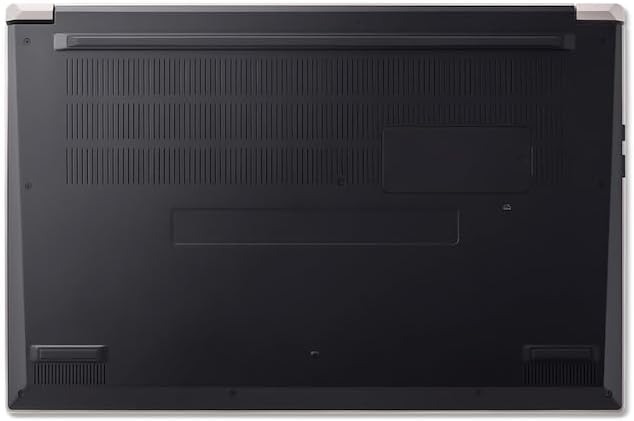
Behean view of the laptop, highlighting the ventilation grilles.
2. Bateria zaintzea
- Saihestu bateria maiz erabat deskargatzea.
- Ordenagailu eramangarria denbora luzez gordetzen baduzu, ziurtatu bateria % 50-70 inguru kargatuta dagoela.
- Operate the laptop in a moderate temperature environment.
3. Software eguneraketak
Regularly update your operating system and drivers to ensure optimal performance and security. Windows Update can be accessed via Settings > Windows Update.
4. Biltegiratze kudeaketa
Aldian behin berriroview eta beharrezkoak ez direnak ezabatu files to free up storage space. Utilize cloud storage or external drives for backups of important data.
Arazoak konpontzea
This section addresses common issues you might encounter with your Acer AL15-33P laptop.
| Arazoa | Irtenbide posiblea |
|---|---|
| Ordenagailu eramangarria ez da pizten. | Ensure the power adapter is securely connected and the outlet is working. Try a different outlet. If the battery is completely drained, it may take a few minutes to show signs of life after plugging in. |
| Pantaila hutsik edo beltzez dago. | Check if the laptop is powered on. Try pressing Fn + F6 (or the corresponding display toggle key) to cycle through display modes. Connect an external monitor to check if the issue is with the laptop's screen. |
| Wi-Fi konexio arazoak. | Ensure Wi-Fi is enabled (Fn + F3 or check Windows settings). Restart your router and modem. Check if other devices can connect to the Wi-Fi network. Update Wi-Fi drivers. |
| Ordenagailu eramangarria motel dabil. | Close unnecessary applications. Check Task Manager for processes consuming high CPU or memory. Run a disk cleanup. Ensure Windows and drivers are up to date. |
Zehaztapenak
The following are key specifications for the Acer AL15-33P model. Note that specific configurations may vary.
- Eredua: Acer AL15-33P
- Prozesadorea: Intel Core i3-N355
- RAM: 8 GB
- Biltegiratzea: 512 GB SSDa
- Pantaila: 15.6 hazbetekoa
- Sistema eragilea: Windows 11
- Marka: Acer
Bermea eta Laguntza
Your Acer AL15-33P laptop comes with a standard manufacturer's warranty. Please refer to the warranty card included with your product for specific terms and conditions, including the warranty period and coverage details.
Laguntza teknikoa, kontrolatzaileak deskargatzeko edo zerbitzu-kontsultak egiteko, bisitatu Acerren laguntza ofiziala. website or contact Acer customer service directly. Have your laptop's serial number ready when contacting support.
Acer laguntza Webgunea: www.acer.com/support