
1. Sarrera
This manual provides comprehensive instructions for the setup, operation, maintenance, and troubleshooting of your TECURS 75% Mechanical Keyboard. Please read this manual thoroughly before using the product to ensure optimal performance and longevity.
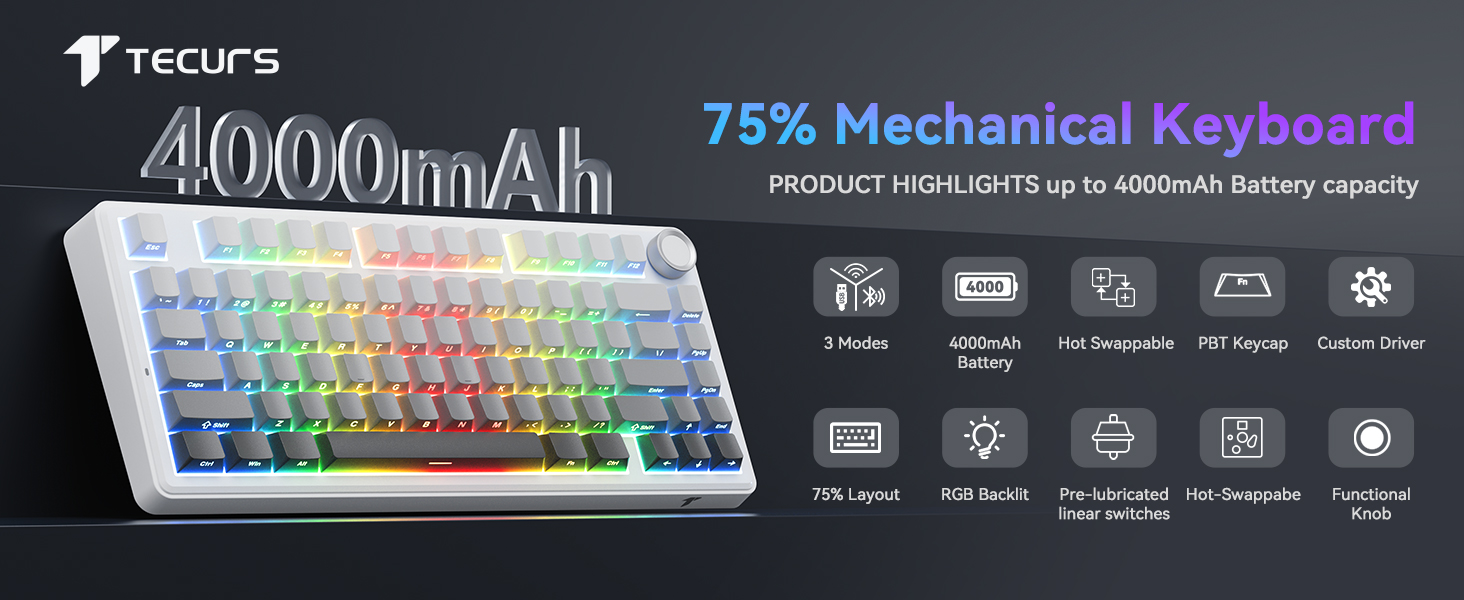
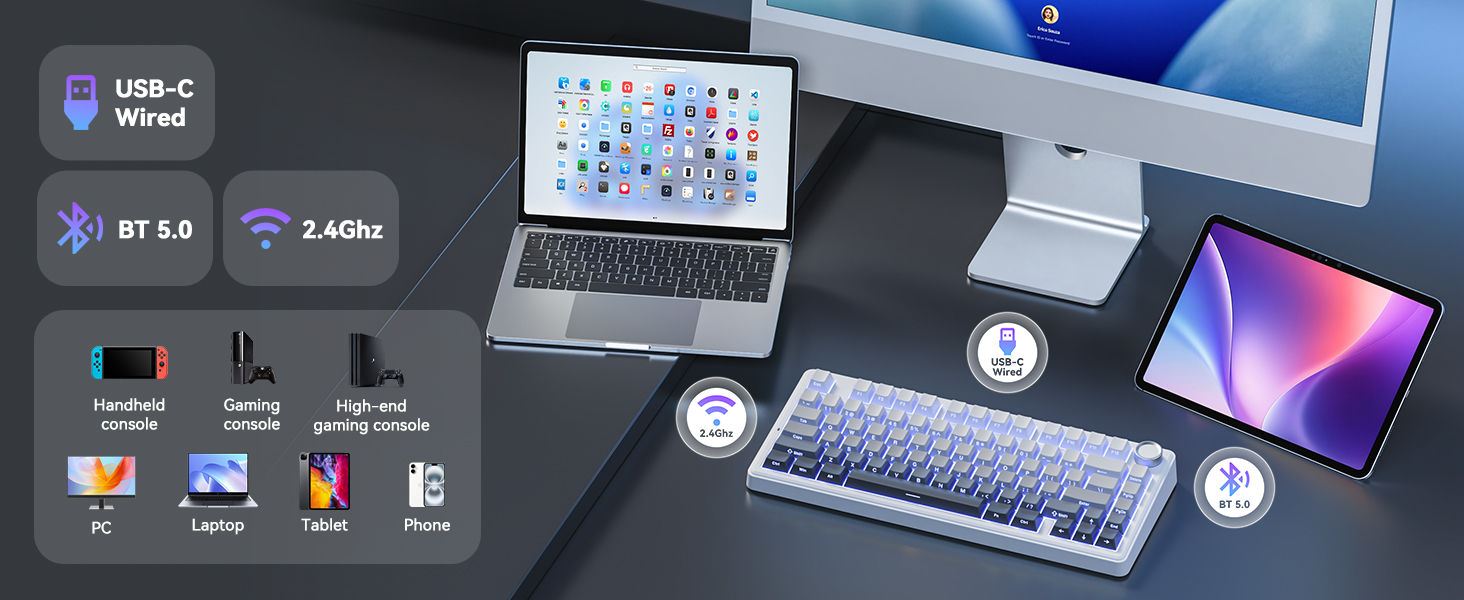
The TECURS 75% Mechanical Keyboard is designed for both gaming and office use, featuring a compact 81-key layout, Gasket Mount construction for enhanced typing feel, hot-swappable switches, and versatile tri-mode connectivity (2.4G wireless, Bluetooth 5.0, and wired USB-C).
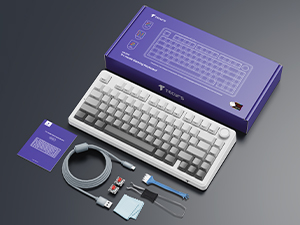
2. Paketearen edukia
Egiaztatu elementu guztiak paketean daudela:
- TECURS 75% Mechanical Keyboard
- USB-C kablea
- 2.4GHz Haririk gabeko Hargailua
- Switch Puller
- Keycap tiratzailea
- Extra Switches (2 units)
- Erabiltzailearen eskuliburua
3. Produktua amaitu daview
3.1 Ezaugarri nagusiak
- Junta muntatzeko diseinua: Incorporates 5-layer dampening for reduced noise and a consistent typing feel.
- PCB bero-trukagarria: Compatible with 3-pin and 5-pin mechanical switches, allowing for easy switch customization without soldering.
- Hiru moduko konexioa: Supports 2.4GHz wireless, Bluetooth 5.0, and wired USB-C connections for broad compatibility.
- RGB atzeko argiztapena: Customizable RGB lighting with various effects and brightness levels.
- Funtzio anitzeko botoia: Controls volume in office mode and RGB brightness/effects in gaming mode.
- Tekla programagarriak: Macro recording and key remapping available via software (Windows only, wired mode).
- 4000 mAh bateria: Haririk gabeko erabilera luzatua eskaintzen du.
- Ghostingaren aurkakoa: Ensures accurate registration of multiple simultaneous key presses.
- Alboan inprimatutako PBT teklak: Durable keycaps with legends printed on the side for longevity and shine-through visibility.

3.2 Keyboard Layout and Indicators
- 2.4G Mode Indicator: Lights up when in 2.4GHz wireless mode.
- Android Mode Indicator: Lights up when connected to an Android device.
- Windows Mode Indicator: Lights up when connected to a Windows device.
- MacOS Mode Indicator: Lights up when connected to a macOS device.
- Maiuskulak blokeatzeko adierazlea: Indicates Caps Lock status.
- Irabazi blokeoaren adierazlea: Indicates Windows key lock status.
- Kargatze egoeraren adierazlea: Bateriaren kargatze egoera erakusten du.
4. Konfigurazioa
4.1 Teklatua kargatzea
Before first use, fully charge the keyboard. Connect the provided USB-C cable to the keyboard's USB-C port and the other end to a USB power source (e.g., computer, wall adapter). The charging indicator will show the charging status.
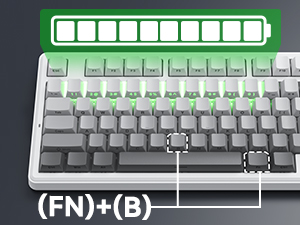
Bateriaren maila egiaztatzeko, sakatu Fn+B. The corresponding number row keys will light up to indicate the battery percentage (e.g., keys 1-0 for 10%-100%).
4.2 Teklatua konektatzea
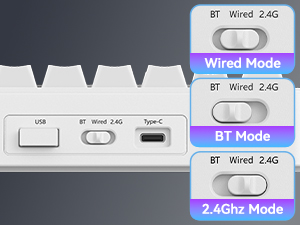
The keyboard supports three connection modes: 2.4GHz Wireless, Bluetooth 5.0, and Wired USB-C. Use the switch located on the back of the keyboard to select your desired mode.
4.2.1 Kable bidezko modua (USB-C)
- Set the mode switch to "Wired".
- Connect the USB-C cable to the keyboard and your computer's USB port.
- Zure sistemak teklatua automatikoki ezagutuko du.
4.2.2 2.4GHz Haririk gabeko Modua
- Set the mode switch to "2.4G".
- Sartu 2.4 GHz-ko USB hartzailea zure gailuko USB ataka libre batean.
- The keyboard will automatically connect. The 2.4G indicator light on the keyboard will illuminate.
4.2.3 Bluetooth modua
- Set the mode switch to "BT".
- Luze sakatu fn+1, fn+2, edo fn+3 for 3-5 seconds to enter pairing mode. The corresponding key (1, 2, or 3) will flash rapidly.
- Zure gailuan (ordenagailua, ordenagailu eramangarria, tableta, telefono adimenduna), gaitu Bluetooth-a eta bilatu gailu berriak.
- Select "TECURS Keyboard" from the list of available devices.
- Once paired, the indicator light for the selected Bluetooth channel will stop flashing and remain solid.
- Bluetooth gailu parekatutakoen artean aldatzeko, sakatu fn+1, fn+2, edo fn+3.

4.3 Sistemaren bateragarritasun aldaketa
The keyboard supports Windows, macOS, and Android operating systems. To switch between system layouts:
- Sakatu Fn + W for Windows mode.
- Sakatu fn + A for Android mode.
- Sakatu Fn + S for macOS mode.
The corresponding indicator light (Windows, Android, or MacOS) will illuminate.
5. Funtzionamendu-argibideak
5.1 RGB atzeko argiztapenaren kontrola
Teklatuak RGB atzeko argiztapen pertsonalizagarria du. Erabili tekla konbinazio hauek argiztapen efektuak doitzeko:
- Fn + \ |: Toggle Light Mode (cycle through various lighting effects).
- Fn + Tab: Toggle Light Color (change static backlight color).
- Fn + ↑: Increase Lighting Brightness.
- Fn + ↓: Decrease Lighting Brightness.
- Fn + ←: Decrease Lighting Speed.
- Fn + →: Increase Lighting Speed.

5.2 Funtzio anitzeko botoia
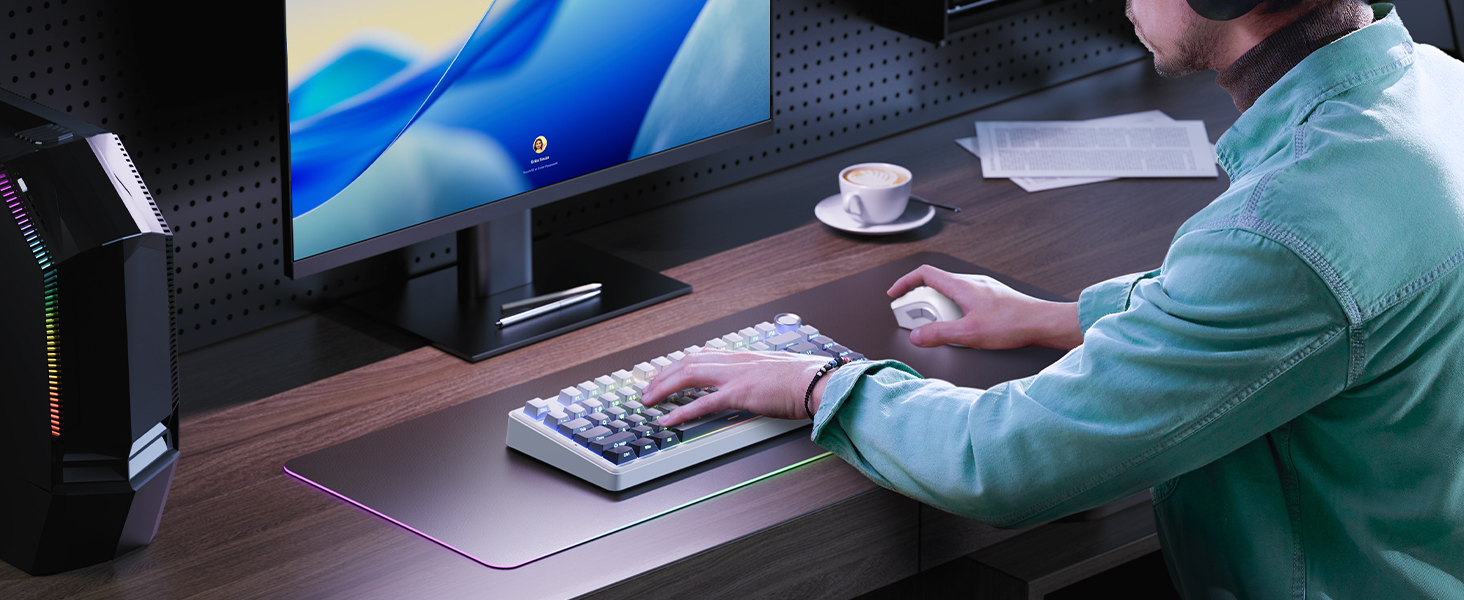
The knob on the top right of the keyboard has dual functionality, depending on the active mode:
| Modua | Ekintza | Funtzioa |
|---|---|---|
| Bulego modua | Biratu erlojuaren orratzen norantz | Bolumena igo |
| Biratu erlojuaren norantzan | Bolumena jaitsi | |
| Sakatu | Desaktibatu/Desaktibatu audioa | |
| Joko modua | Biratu erlojuaren orratzen norantz | Increase RGB Brightness (CAPS blinks at max) |
| Biratu erlojuaren norantzan | Decrease RGB Brightness (CAPS blinks at min) | |
| Sakatu | Cycle 17 Lighting Effects |

5.3 Programmable Keys and Custom Software
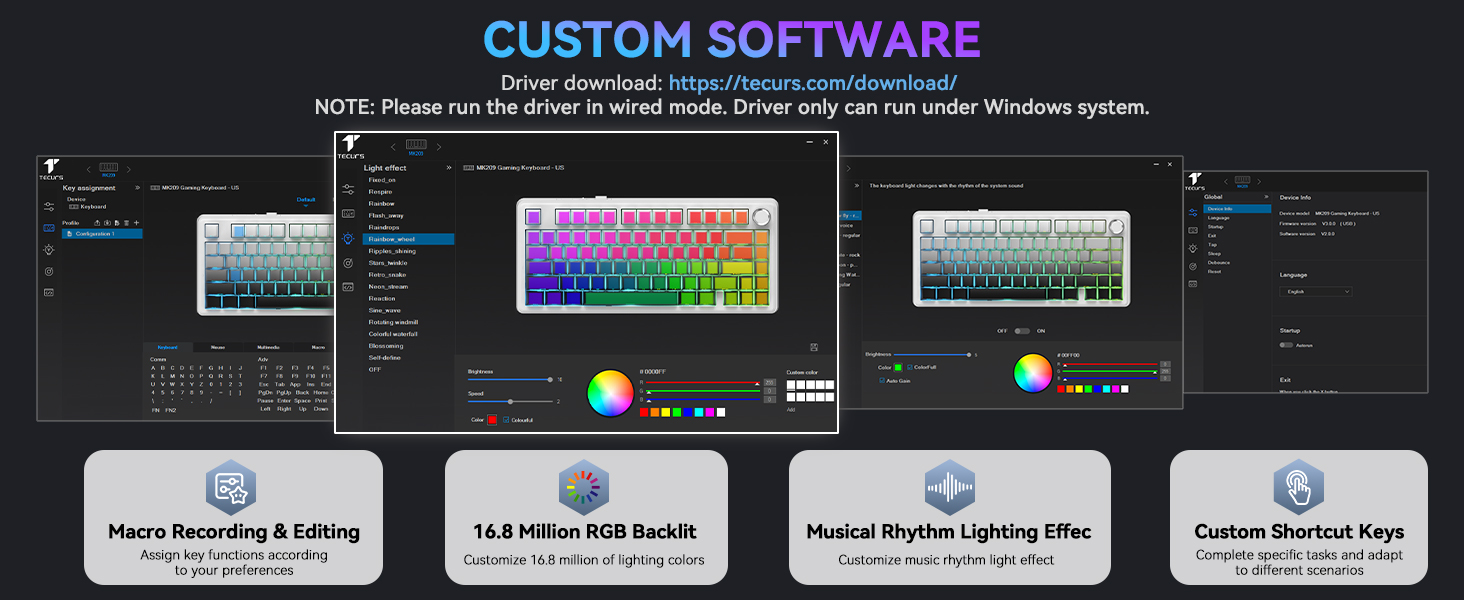
The keyboard supports macro recording and key remapping through dedicated software. This functionality is available only when the keyboard is in wired mode and connected to a Windows operating system.
Download the custom software from the official TECURS webgunea: https://www.tecurs.com/download/
Softwareak aukera ematen dizu:
- Assign key functions.
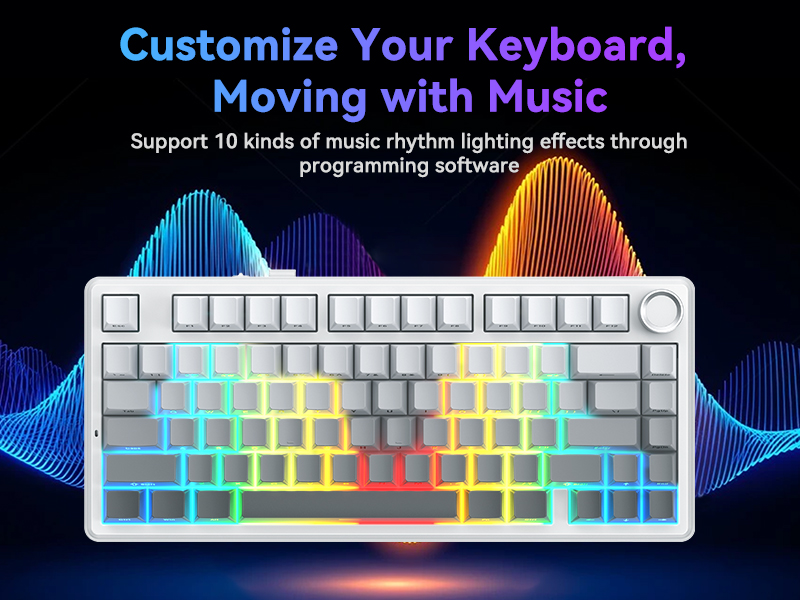
- Customize RGB backlighting with 16.8 million colors.
- Set musical rhythm lighting effects.
- Create custom shortcut keys.
6. Mantentzea
6.1 Garbiketa
- Disconnect the keyboard from all power sources and devices before cleaning.
- Erabili lipurrik gabeko zapi leun bat dampTeklatuaren gainazala urarekin edo garbiketa-soluzio leun batekin garbitu.
- For cleaning between keycaps, use a can of compressed air to remove dust and debris.
- Avoid using harsh chemicals, abrasive cleaners, or solvents, as these can damage the keyboard's finish and keycap legends.
6.2 Bero-trukeko etengailuak
The keyboard features a hot-swappable PCB, allowing you to change switches without soldering. Use the provided switch puller for this process.
- Gently use the switch puller to grip the top and bottom clips of the switch you wish to remove.
- Pull the switch straight up with even pressure until it detaches from the PCB.
- Lerrokatu etengailu berriaren pinak PCBko zuloekin. Ziurtatu pinak zuzen daudela.
- Press the new switch firmly into place until it clicks. Do not force it if there is resistance; check pin alignment.
The keyboard supports both 3-pin and 5-pin mechanical switches.


7. Arazoak
| Arazoa | Kausa posiblea | Irtenbidea |
|---|---|---|
| Teklatuak ez du erantzuten haririk gabeko moduan. | Low battery, incorrect mode selected, receiver not connected, pairing issue. |
|
| Giltzak ez dira erregistratzen edo bi aldiz idazten dira. | Hautsak/hondakinak giltza-tapoiaren/etengailuaren azpian, etengailu akastuna. |
|
| RGB argiztapena ez dabil edo trabatuta dago. | Software glitch, incorrect settings. |
|
| Custom software not detecting keyboard. | Not in wired mode, not on Windows OS. |
|
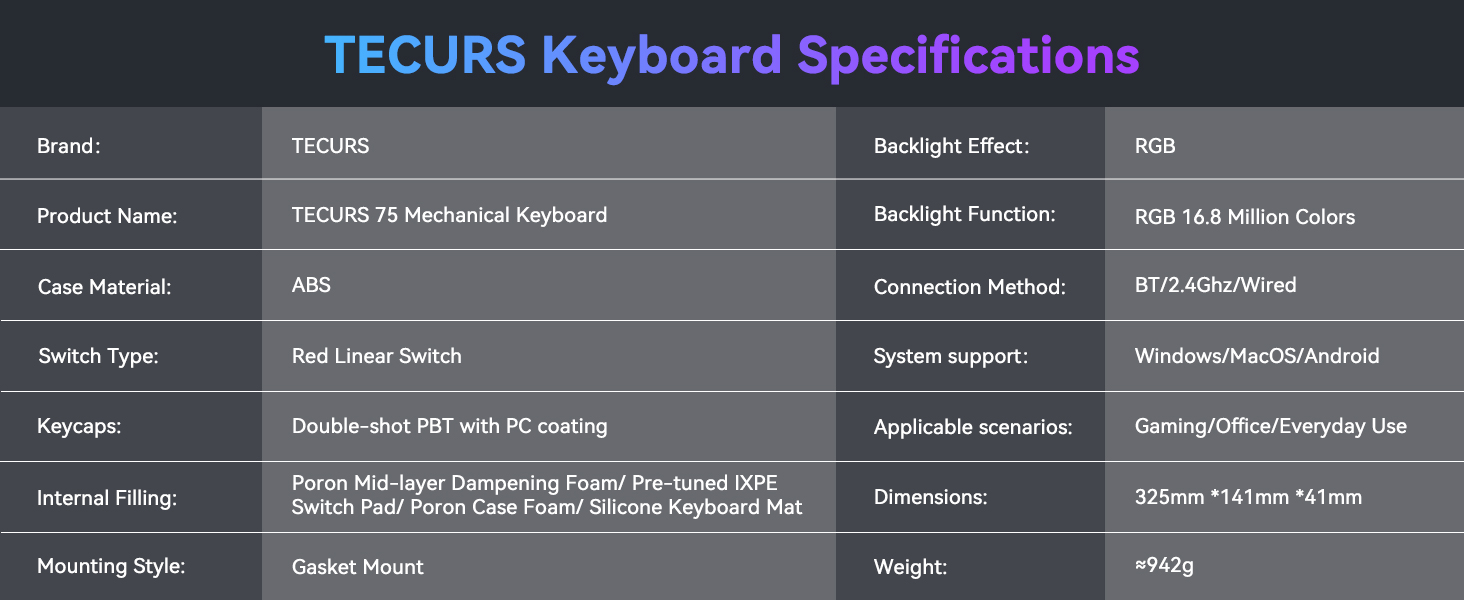
8. Zehaztapenak
| Ezaugarri | Xehetasuna |
|---|---|
| Marka | TECURS |
| Produktuaren izena | TECURS 75 Mechanical Keyboard |
| Eredua | B0FC62VJRB |
| Kasu Materiala | ABS |
| Aldatu mota | Red Linear Switch (Pre-lubed) |
| Giltzak | Double-shot PBT with PC coating (Side-printed) |
| Barneko betegarria | Poron Mid-layer Dampening Foam, Pre-tuned IXPE Switch Pad, Poron Case Foam, Silicone Keyboard Mat |
| Muntatzeko estiloa | Junta Muntaia |
| Atzeko argiaren efektua | RGB |
| Atzeko argiaren funtzioa | RGB 16.8 milioi kolore |
| Konexio-metodoa | Bluetooth 5.0, 2.4 GHz haririk gabekoa, USB-C kable bidezkoa |
| Sistemaren euskarria | Windows, MacOS, Android |
| Gailu bateragarriak | Ordenagailu eramangarria, ordenagailua, joko kontsola, tableta, telefono adimenduna |
| Gomendatutako Erabilerak | Jolasa, Bulegoa |
| Ezaugarri bereziak | Backlit, Hot-Swappable, Mechanical, Programmable Keys |
| Kolorea | Gris gradientea |
| Produktuaren neurriak | 12.8"L x 5.55"Z x 1.6"A (325 mm x 141 mm x 41 mm) |
| Elementuaren pisua | 2.77 pounds (~942g) |
| Pilak | Litio-ioizko bateria 1 (barne), 4000 mAh-ko edukiera |
9. Bermea eta Laguntza
For warranty information and technical support, please refer to the official TECURS website or contact their customer service directly. Details regarding product registration, warranty claims, and support resources can typically be found on the manufacturer's webgunea.
Manufacturer: TECURS
Laguntza gehiago lortzeko, bisitatu TECURS Store on Amazon.