
1. Sarrera
This manual provides detailed instructions for the TECURS Bluetooth Keyboard, designed for use with Microsoft Surface Pro 11, 10, 9, 8, and X (13-inch models). Please read this manual carefully before using the product to ensure proper operation and to maximize its features.
2. Bateragarritasuna
GARRANTZITSUA: Before use, verify your device model. This Bluetooth keyboard is exclusively compatible with Microsoft Surface Pro 11, Surface Pro 10, Surface Pro 9, Surface Pro 8, and Surface Pro X (13-inch models). It is not compatible with other Surface models.
To check your device model, navigate to Settings > System > About on your Surface Pro device.
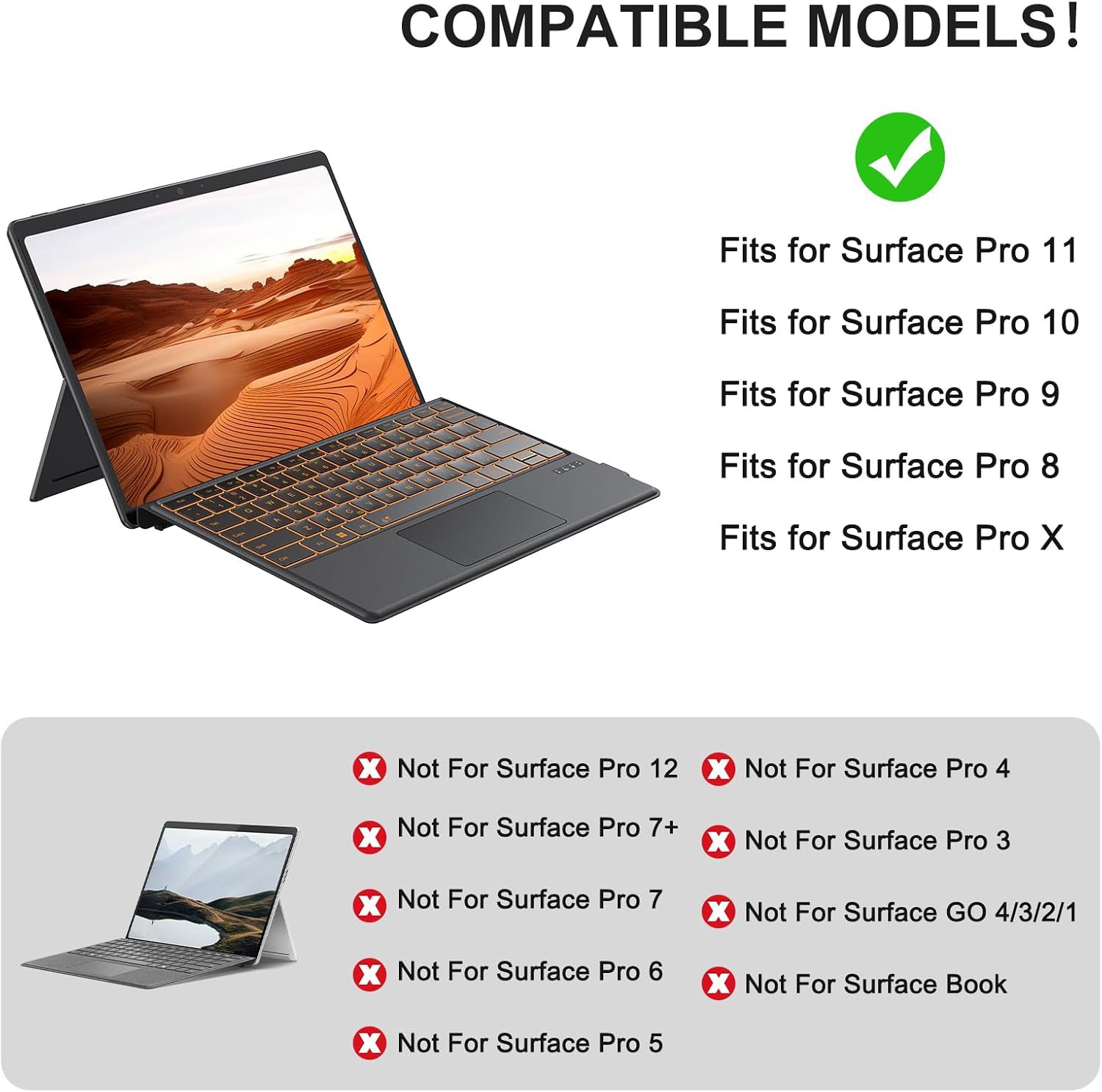
Figure 2.1: Compatible Surface Pro Models. This image illustrates which Surface Pro models are compatible (Surface Pro 11, 10, 9, 8, X) and which are not (e.g., Surface Pro 12, 7+, 7, 6, 5, 4, 3, Go, Book).

Figure 2.2: Steps to check your Surface Pro model. This image displays the steps: 1. Settings, 2. System, 3. About, to confirm your device model.
3. Paketearen edukia
Paketeak honako elementu hauek ditu:
- 1 x TECURS Bluetooth Keyboard
- 1 x C motako kargatzeko kablea
- 1 x Erabiltzailearen eskuliburua
4. Konfigurazioa eta konexioa
4.1 Physical Attachment
The keyboard attaches to your Surface Pro via a magnetic strip. This strip is designed to securely fix the keyboard to the tablet and allows for two different typing angles:
- Fold Magnetic Stripe: Fold the magnetic stripe to elevate the keyboard for a more ergonomic typing position.
- Attach Directly: Attach the keyboard directly to the Surface Pro for a flat typing surface.
Oharra: The magnetic strip is for physical attachment only and does not provide charging or data connection to the tablet.

Figure 4.1: Two typing angles. This image demonstrates how to position the keyboard for an elevated angle by folding the magnetic strip, or for a flat angle by attaching it directly.
4.2 Bluetooth parekatzea
This keyboard supports Bluetooth manual pairing only. Magnetic automatic connection is not supported.
- Piztu etengailua: Locate the power switch on the keyboard and slide it to the ON position.
- Activate Keyboard Bluetooth: Sakatu FN + C keys simultaneously on the keyboard to activate its Bluetooth pairing mode. The Bluetooth indicator light will flash.
- Gaitu Bluetooth gailuan: On your Microsoft Surface Pro, go to Ezarpenak > Bluetooth eta gailuak and ensure Bluetooth is turned ON.
- Select Keyboard for Pairing: In the list of available Bluetooth devices on your Surface Pro, select "Bluetooth Keyboard" to initiate pairing.
- Berretsi konexioa: Once paired, the Bluetooth indicator light on the keyboard will stop flashing and remain solid, and your device will show the keyboard as connected.
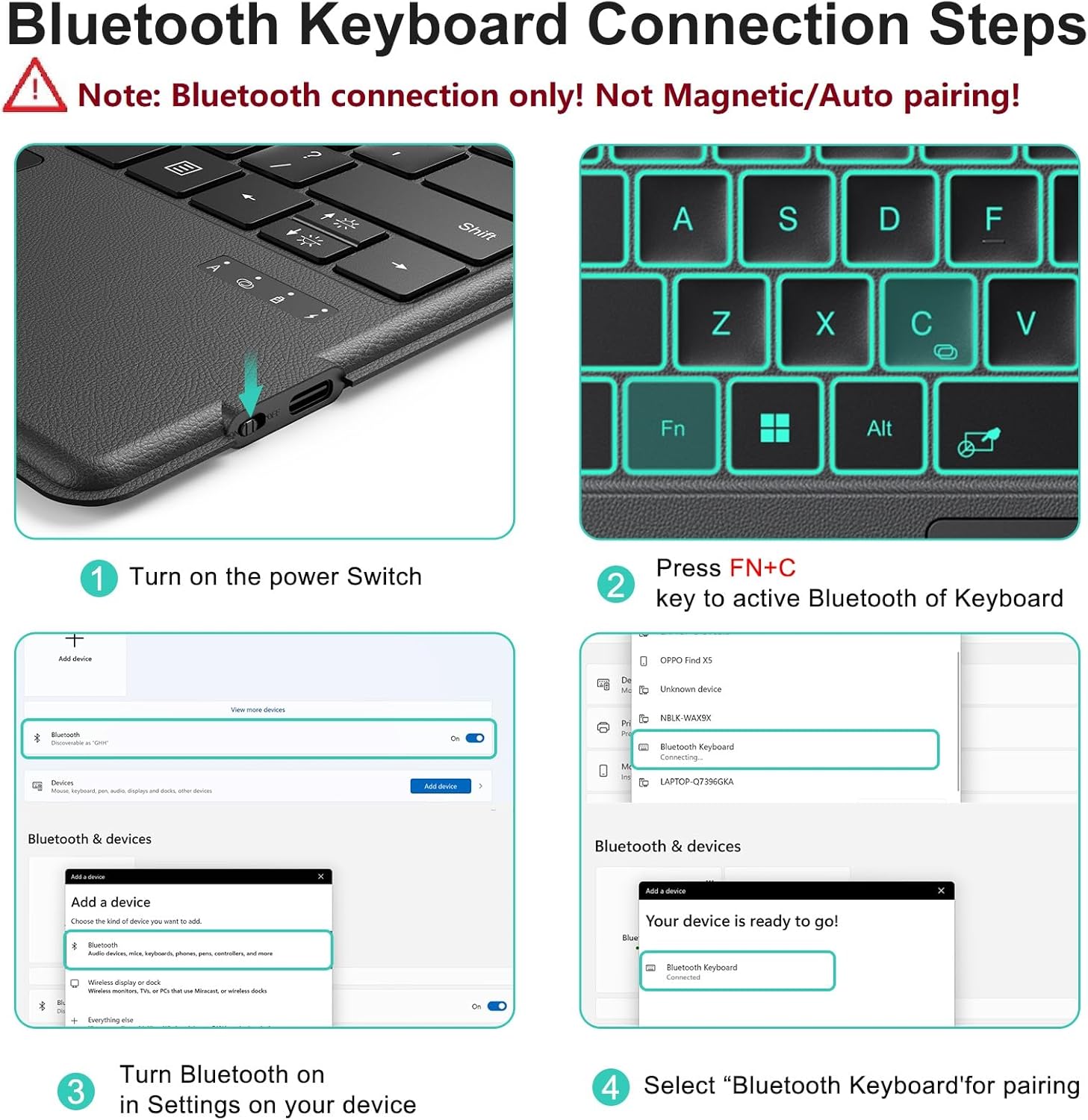
Figure 4.2: Bluetooth Keyboard Connection Steps. This image visually guides through turning on the keyboard, pressing FN+C, enabling Bluetooth on the device, and selecting "Bluetooth Keyboard" for pairing.
5. Kargatzea
The keyboard is equipped with a rechargeable battery. Use the included Type-C charging cable to charge the device.
- Connect the Type-C cable to the charging port on the keyboard and the other end to a USB power source.
- Karga osoak 2-3 ordu behar izaten ditu normalean.
- The keyboard provides approximately 50 hours of continuous operation on a full charge.
Oharra: The keyboard cannot be charged via the magnetic strip; it must be charged using the provided Type-C cable.

Figure 5.1: Keyboard dimensions and charging port. This image highlights the Type-C charging port and indicates the charging time (2 hours) and working time (50 hours).
6. Funtzionamendu-argibideak
6.1 Adjustable Backlight
The keyboard features a 7-color adjustable backlight with 3 brightness levels for comfortable typing in various lighting conditions.
- To change backlight colors, press FN + 💡 (bonbillaren ikonoaren tekla).
- To adjust brightness levels, press FN + ⬆️💡 (up arrow with light bulb) or FN + ⬇️💡 (down arrow with light bulb).

Figure 6.1: Backlight adjustment. This image displays the keyboard with different backlight colors and illustrates the three brightness levels.
6.2 Precision Touchpad & Media Shortcuts
The responsive touchpad supports multi-touch gestures for effortless navigation. Cursor sensitivity can be adjusted in your device's settings (Settings > Bluetooth & devices > Touchpad > Cursor speed).
Customizable hotkeys allow you to adjust volume, media playback, and screen brightness without interrupting your workflow.

Figure 6.2: Touchpad and Pen Holder. This image highlights the touchpad area, indicating left and right click zones, and the integrated pen holder (non-charging).
6.3 Funtzio teklak
The top row of keys provides various function shortcuts. Press the FN key in combination with the desired function key (F1-F12) to activate its secondary function.
- FN+F1: Decreases or increases keyboard backlight, including off.
- FN+F2: Ezkutatu audioa.
- FN+F3: Bolumena murrizten du.
- FN+F4: Bolumena handitzen du.
- FN+F5: Erreproduzitu/Pausatu multimedia.
- FN+F6: Dims the screen.
- FN+F7: Brightens the screen.
- FN+F8: Inprimatu pantaila.
- FN+F9: Hasiera.
- FN+F10: End of the Line.
- FN+F11: Orria gora.
- FN+F12: Orria behera.
- Del: Ezabatu.
Lagunarteko oroigarria: The first key on the bottom left of the keyboard is the FN key, not the Ktrl key. When using Ktrl + C for copying, ensure you press the correct combination to avoid accidentally triggering FN + C, which initiates Bluetooth reconnection and can cause the keyboard to disconnect.
7. Mantentzea
To ensure the longevity and optimal performance of your TECURS Bluetooth Keyboard, follow these maintenance guidelines:
- Garbiketa: Erabili zapi leun, lehor eta lihorik gabeko bat teklatuaren gainazala garbitzeko. Zikinkeria egoskorra bada, garbitu pixka bat.ampGarbitu zapi bat urarekin edo garbiketa-soluzio leun batekin. Saihestu produktu kimiko gogorrak edo material urratzaileak.
- Biltegiratzea: When not in use, store the keyboard in a clean, dry environment away from extreme temperatures, direct sunlight, and excessive moisture.
- Saihestu isurketak: Mantendu likidoak teklatutik urrun barneko osagaiei kalterik ez egiteko.
- Kontuz maneiatu: Saihestu teklatua erortzea edo kolpe gogorren eraginpean jartzea.
8. Arazoak
If you encounter issues with your keyboard, refer to the following troubleshooting steps:
- Teklatua ez da konektatzen:
- Ziurtatu teklatua piztuta dagoela.
- Confirm Bluetooth is enabled on your Surface Pro.
- Re-initiate pairing mode on the keyboard by pressing FN + C.
- Remove any previously paired
Ask a question about this manual
Ask about setup, troubleshooting, compatibility, parts, safety, or missing instructions. Manuals+ will review the question and use this page’s manual context to help answer it.