
Sarrera
This manual provides essential instructions for the setup, operation, maintenance, and troubleshooting of your Insignia 32-inch 1080p HD HDR LCD Fire TV Smart TV, model NS-32F401CA26. Please read this manual thoroughly before using your television to ensure proper and safe operation.
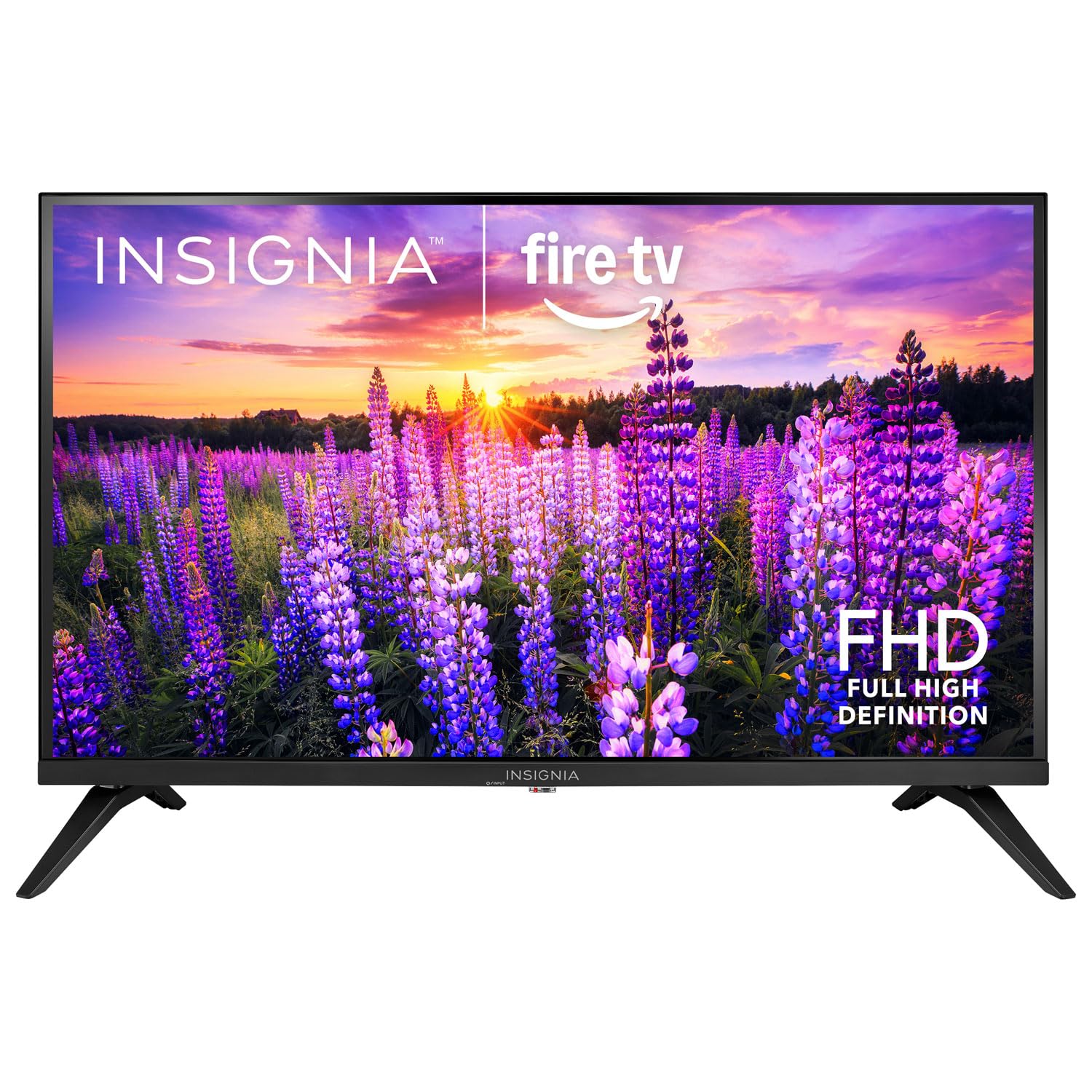
Irudia: Aurrealdea view of the Insignia 32-inch Fire TV Smart TV, showing the screen and a remote control.
1. Konfigurazioa
1.1 Paketatzea
Kontu handiz atera telebista eta osagarri guztiak paketetik. Gorde ontziratzeko materialak etorkizunean garraiatzeko edo biltegiratzeko.
1.2 Euskarria edo hormako muntaketa lotzea
Standaren instalaziorako:
- Jarri telebista aurpegia behera gainazal leun eta garbi batean, pantaila kaltetu ez dadin.
- Lerrokatu euskarriaren oinarriak telebistaren behealdeko torloju-zuloekin.
- Lotu euskarriak emandako torlojuak erabiliz.
Horman muntatzeko:
- This TV supports a VESA Mount Standard of 200 x 200 mm.
- Use a compatible wall mount kit (sold separately) and follow its installation instructions.
- Ensure the wall can support the weight of the TV and the mount.
1.3 Potentzia konektatzea
Plug the power cord into the TV's power input, then plug the other end into a working electrical outlet.
1.4 Kanpoko gailuak konektatzea
Your TV includes multiple ports for external devices:
- HDMI Ports (Total 2): Konektatu Blu-ray erreproduzitzaileak, joko kontsolak, kable/satelite kaxak.
- USB 3.0 Port (Total 1): Konektatu USB biltegiratze gailuak multimedia erreproduzitzeko.
- Antena/kable sarrera: Connect an antenna for over-the-air broadcasts or a cable connection.
1.5 Initial Setup (Fire TV OS)
Upon first power-on, the TV will guide you through the Fire TV setup process:
- Urruneko kontrolaren parekatzea: Insert the included 2 AAA batteries into the remote. Follow on-screen instructions to pair the remote.
- Sare-konexioa: Hautatu zure Wi-Fi sarea eta idatzi pasahitza.
- Amazon kontua: Hasi saioa zure Amazon kontuarekin edo sortu berri bat.
- Kanalen miaketa: If using an antenna, the TV will scan for available channels.
- Software eguneraketak: The TV may download and install the latest software updates.
2. Zure telebista funtzionatzea
2.1 Piztu/Itzali
Sakatu Boterea urrutiko agintearen botoia telebista pizteko edo itzaltzeko.
2.2 Fire TV interfazean nabigatzea
Erabili norabide-panel-a eta Hautatu button on your remote to browse the Fire TV home screen, access apps, and navigate menus.
2.3 Alexa ahots-urrutiko agintea erabiltzea
Eduki sakatuta Alexa button on your remote and speak into the microphone to:
- Bilatu filmak eta telesaioak.
- Launch applications (e.g., "Open Netflix").
- Control playback (e.g., "Pause", "Fast forward").
- Ask questions or get information.
2.4 Aplikazioetara sartzea
Popular streaming services like Amazon Prime Video, Netflix, and YouTube are pre-installed. You can download additional apps from the Amazon Appstore.
2.5 Irudi eta soinu ezarpenak doitzea
Sartu Ezarpenak menu on the Fire TV home screen to adjust:
- Irudia: Brightness, contrast, color, aspect ratio (16:9).
- Soinua: Volume, sound mode, DTS Virtual-X settings.
- Pantaila: Resolution (1080p), refresh rate (120 Hz).
2.6 Gurasoen kontrolak
The TV includes parental control features. Navigate to the Ezarpenak menua, eta gero hautatu Hobespenak, eta gero Gurasoen Kontrolak to set restrictions on content, purchases, and app usage. A PIN is required to enable or disable these controls.
3. Mantentzea
3.1 Telebista garbitzea
- Pantaila: Garbitu pantaila astiro-astiro zapi leun eta pelusik gabeko batekin. Orba egoskorrak izanez gero, garbitu apur batampGarbitu zapi bat urarekin edo telebistetarako bereziki diseinatutako pantaila-garbitzaile batekin. Ez ihinztatu likidoa zuzenean pantailan.
- Gorputza: Garbitu telebistaren markoa eta euskarria zapi leun eta lehor batekin.
- Deskonektatu beti telebista garbitu aurretik.
3.2 Software eguneraketak
Your Fire TV Smart TV automatically checks for and installs software updates when connected to the internet. You can manually check for updates in the Ezarpenak azpian menua Nire Fire TV > Buruz > Egiaztatu eguneratzeak.
3.3 Urrutiko agintearen bateriaren ordezkapena
When the remote control's performance degrades, replace the two AAA batteries. Ensure correct polarity when inserting new batteries.
4. Arazoak
| Arazoa | Kausa posiblea | Irtenbidea |
|---|---|---|
| Botererik ez | Kable elektrikoa ez dago konektatuta; entxufea ez dabil. | Ensure power cord is securely plugged into TV and a live outlet. Test outlet with another device. |
| Ez dago irudi edo soinurik | Incorrect input source; external device off or disconnected. | Sakatu Sarrera button on the remote to select the correct source. Check connections of external devices. Ensure devices are powered on. |
| Urruneko kontrola ez dabil | Pilak agortuta; urrutiko agintea ez dago parekatuta. | Replace batteries (2 AAA). Re-pair remote by holding the Hasiera button for 10 seconds near the TV. |
| Wi-Fi konexio arazoak | Pasahitz okerra; bideratzailearen arazoak; Telebista bideratzailetik urrunegi. | Verify Wi-Fi password. Restart your router and modem. Move TV closer to router or use a Wi-Fi extender. |
| Apps not loading or crashing | Temporary software glitch; insufficient memory. | Restart the TV. Clear app cache (Settings > Applications > Manage Installed Applications). Ensure sufficient storage. |
5. Zehaztapenak
| Modelo zenbakia | NS-32F401CA26 |
| Pantailaren tamaina | 32 hazbete |
| Bistaratzeko Teknologia | LCDa |
| Ebazpena | 1080p (HD osoa) |
| Freskatze tasa | 120 Hz |
| HDR formatua onartzen da | HDR10 |
| Aspektu-erlazioa | 16:9 |
| Konektibitate Teknologia | Wi-Fi |
| HDMI atakak | 2 |
| USB 3.0 Portuak | 1 |
| Onartutako Interneteko zerbitzuak | Amazon Prime Video, Netflix, YouTube, Alexa |
| Hizlariaren deskribapena | DTS Virtual-X virtual surround sound |
| Integrated Surround Sound Format | DTS Virtual-X |
| Kontrol-metodoa | Remote (with Alexa Voice) |
| Beharrezko bateriak | 2 AAA (barne) |
| Produktuaren neurriak (L x W x H) | 47.3D x 17.1Z x 71.9A zentimetroak |
| VESA muntaketa estandarra | 200 x 200 mm |
| Ezaugarri gehigarriak | Gurasoen Kontrolak |
6. Bermea eta Laguntza
For warranty information, please refer to the warranty card included with your product or visit the official Insignia support website. For technical assistance, product registration, or service inquiries, please contact Insignia customer support through their official channels.
Note: Specific warranty terms and support contact details may vary by region and are subject to change.