
Sarrera
This manual provides essential information for the setup, operation, maintenance, and troubleshooting of your Vibox I-525 Complete Gaming PC. Please read these instructions carefully before using your new system to ensure optimal performance and longevity.
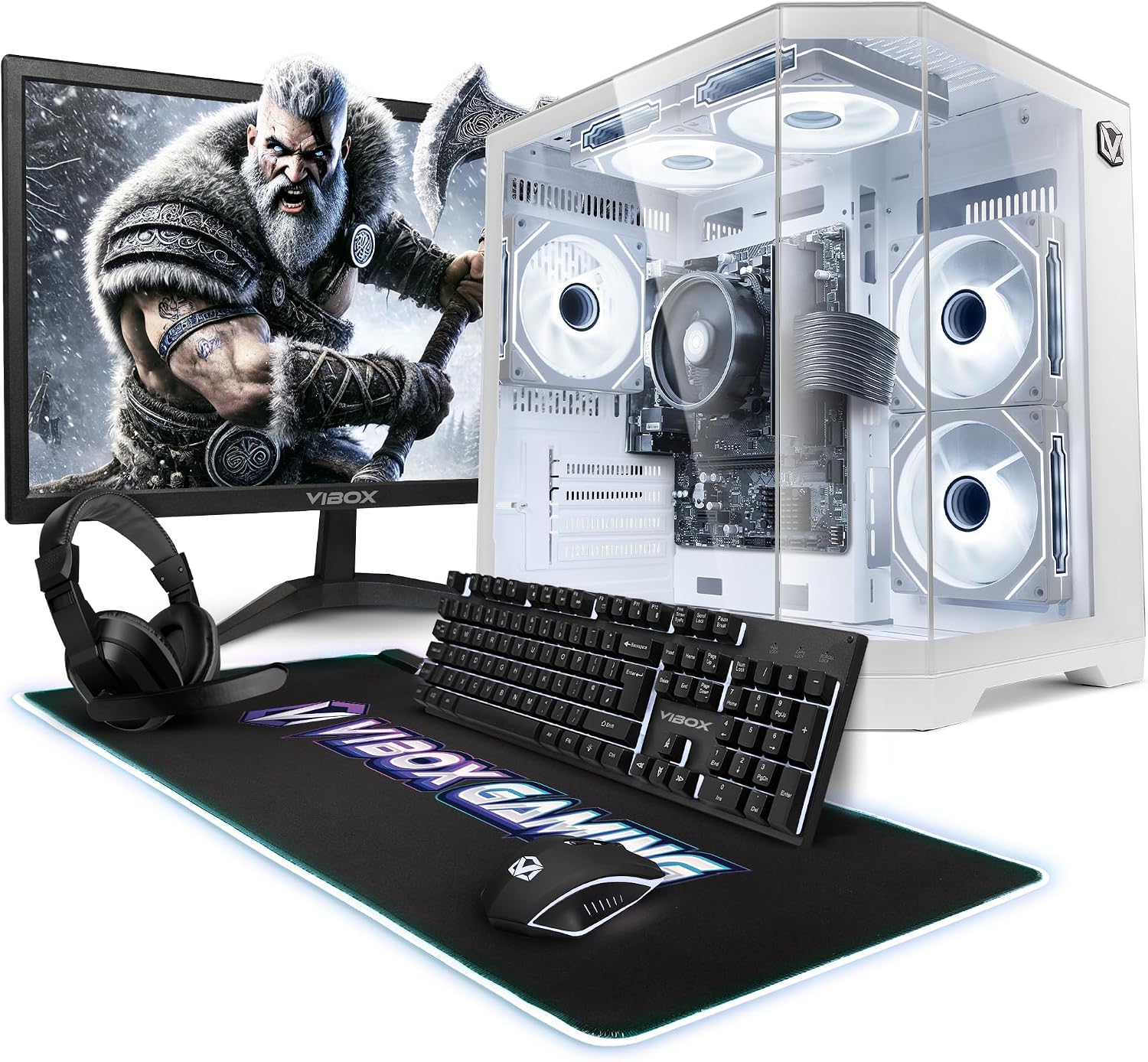
Image: The Vibox I-525 Complete Gaming PC setup, including the tower, 22-inch monitor, gaming keyboard, mouse, and headset.
Paketearen edukia
Egiaztatu elementu guztiak paketean daudela:
- Vibox I-525 PC Tower
- 22 hazbeteko monitorea
- Gaming Keyboard (AZERTY layout)
- Joko-sagua
- Entzungailua
- LED Mouse Pad
- USB Wi-Fi 6 AX900 and Bluetooth 5.4 Adapter
- Elikatze kablea(k)
- HDMI kablea
Konfigurazio Argibideak
1. Kutxa ireki eta kokapena
- Carefully remove all components from their packaging. Retain packaging for future transport or warranty claims.
- Place the PC tower on a stable, flat surface with adequate ventilation. Ensure no vents are obstructed.
- Position the 22-inch monitor on a desk at a comfortable viewing altuera.
2. Periferikoak konektatzea
- Monitorea: Connect one end of the HDMI cable to the HDMI port on the PC tower and the other end to the HDMI input on the monitor. Connect the monitor's power cable to an electrical outlet.
- Teklatua eta sagua: Connect the USB cables of the gaming keyboard and mouse to any available USB ports on the rear of the PC tower.
- Bluetooth: Connect the headset's audio jack(s) to the corresponding audio ports on the PC tower (usually green for audio out, pink for microphone in). USB headsets connect to an available USB port.
- USB Wi-Fi/Bluetooth Adapter: Insert the provided USB Wi-Fi 6 AX900 and Bluetooth 5.4 adapter into an available USB port on the PC tower.
- Potentzia: Connect the PC tower's power cable to the power supply unit (PSU) input on the rear of the tower, then plug it into an electrical outlet.
Irudia: Atzealdea view of the Vibox I-525 PC tower, highlighting the various connectivity ports including USB, HDMI, and Ethernet.
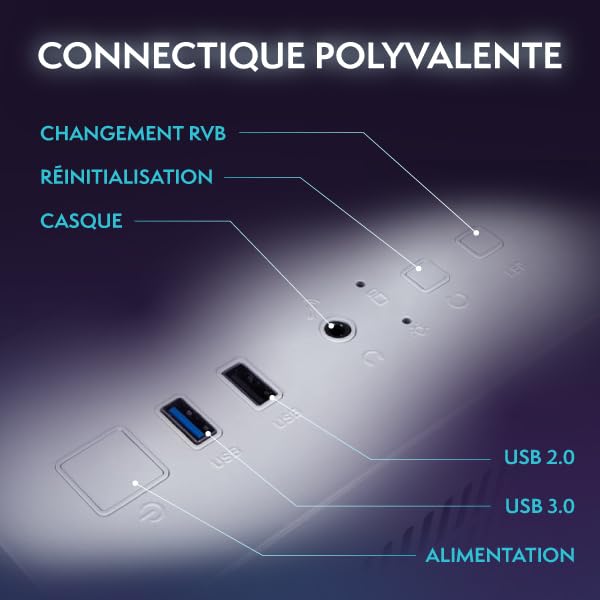
Image: A diagram showing common PC connectivity ports and their functions.
Funtzionamendu-argibideak
1. Piztea
- Ziurtatu kable guztiak ondo konektatuta daudela.
- Press the power button located on the front of the PC tower.
- Press the power button on the monitor. The system will boot into Windows 11 Home.
2. Initial Windows 11 Setup
- Follow the on-screen prompts to complete the Windows 11 initial setup, including language, region, network connection, and user account creation.
- The USB Wi-Fi adapter should automatically be detected. If not, refer to the adapter's specific instructions or Windows device manager.
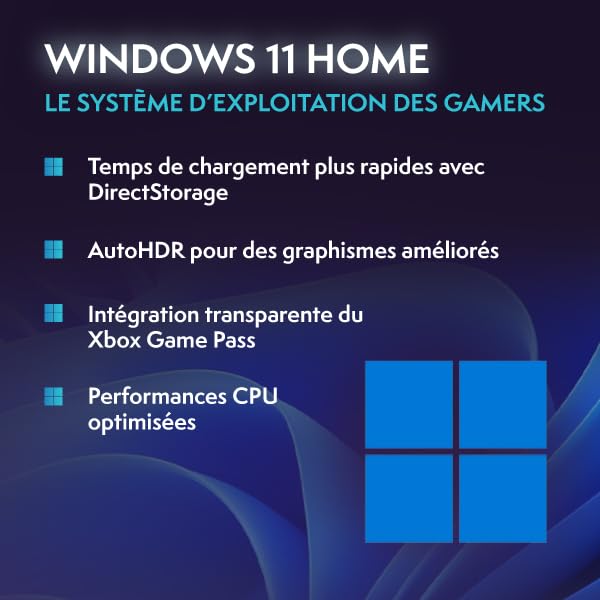
Image: The Windows 11 logo, representing the operating system pre-installed on the PC.
3. Oinarrizko Erabilera
- Jokoa: This PC is designed for casual gaming and less demanding titles, utilizing the integrated Radeon Vega 8 graphics.
- Multiataza: The 16GB DDR4 RAM and AMD Ryzen 3 3200G processor support smooth multitasking for productivity and everyday tasks.
- Biltegiratzea: The 480GB SSD provides fast boot times and quick application loading.
Mantentzea
1. Garbiketa
- Regularly clean the exterior of the PC tower and monitor with a soft, dry cloth.
- Use compressed air to clear dust from the PC's ventilation grilles and internal components (fans, heatsinks) every few months. Ensure the PC is powered off and unplugged before cleaning.
2. Software eguneraketak
- Keep your Windows 11 operating system updated by regularly checking for updates in the Windows Settings.
- Ensure graphics drivers (AMD Radeon Vega 8) are kept up-to-date for optimal gaming performance.
Arazoak konpontzea
Ohiko arazoak eta irtenbideak
- Ez dago pantailan pantailan:
- Check if the monitor is powered on and the power cable is secure.
- Verify the HDMI cable is firmly connected to both the PC and the monitor.
- Ensure the monitor's input source is set to HDMI.
- PCa ez da pizten:
- Check if the power cable is securely connected to the PC and the electrical outlet.
- Ensure the power switch on the PSU (at the back of the PC) is in the 'On' position.
- No Internet Connection (Wi-Fi):
- Ensure the USB Wi-Fi adapter is properly inserted into a USB port.
- Check Windows network settings to ensure Wi-Fi is enabled and you are connected to the correct network.
- Berrabiarazi zure bideratzailea eta modema.
- Errendimendu motela:
- Itxi behar ez diren atzeko planoko aplikazioak.
- Ziurtatu Windows eta kontrolatzaileak eguneratuta daudela.
- Check available storage space on the 480GB SSD.
Zehaztapenak
| Osagaia | Xehetasuna |
|---|---|
| Modelo zenbakia | I-525 |
| Sistema eragilea | Windows 11 Home |
| Prozesadorea (CPU) | AMD Ryzen 3 3200G (4 Cores, 3.6 GHz Base, up to 4.0 GHz Max Boost) |
| Grafikoak (GPU) | Integrated Radeon Vega 8 Graphics (2GB Shared Memory) |
| Sistemaren memoria (RAM) | 16GB DDR4 (2400 MHz), Max 128GB |
| Biltegiratzea | 480 GB SSDa |
| Monitorea | 22-inch LED, 1920x1080 Pixels Resolution, 16:9 Aspect Ratio |
| Konektibitatea | Ethernet, HDMI, USB, Wi-Fi 6 AX900, Bluetooth 5.4 |
| Bideo Irteera | 1 x HDMI |
| Hozteko metodoa | Aire hoztea |
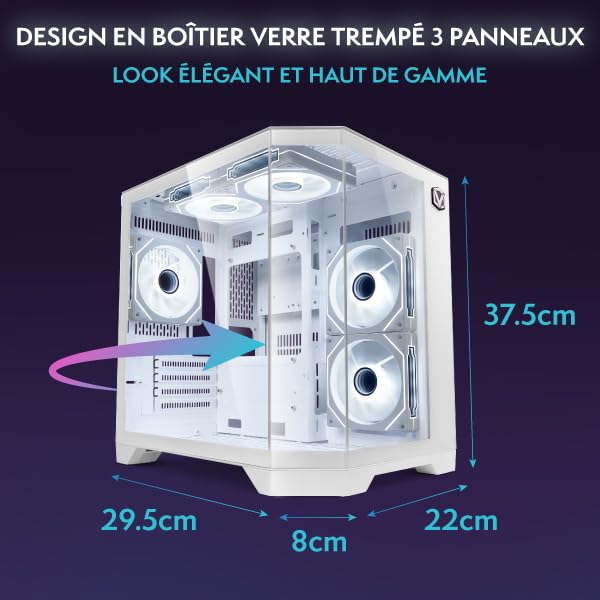
| Neurriak (L x W x H) | 35 x 28 x 38 cm |
| Pisua | 16.59 kg |
| Entxufe mota | Type C/EF (2-pin European/Hybrid FR-DE) |
Bermearen informazioa
Your Vibox I-525 PC comes with a comprehensive warranty:
- Atalak: 2 Urte
- Lana: Bizitza osoan
Please retain your proof of purchase for warranty claims. For detailed terms and conditions, refer to the official Vibox webwebgunean edo jarri harremanetan bezeroarentzako laguntzarekin.
Laguntza
If you encounter any issues not covered in this manual or require further assistance, please contact Vibox customer support. You can typically find contact information on the official Vibox webgunea.


