
BOXPUT G10S King
BOXPUT G10S King Smart Remote Control User Manual
Model: G10S King | Brand: BOXPUT
1. Produktua amaitu daview
The BOXPUT G10S King is a versatile smart remote control designed for various devices including Android TV boxes, PCs, and smart TVs. It offers dual connectivity modes (Bluetooth 5.0 and 2.4G wireless), a 6-axis gyroscope for air mouse functionality, voice control, and infrared learning capabilities for enhanced convenience.
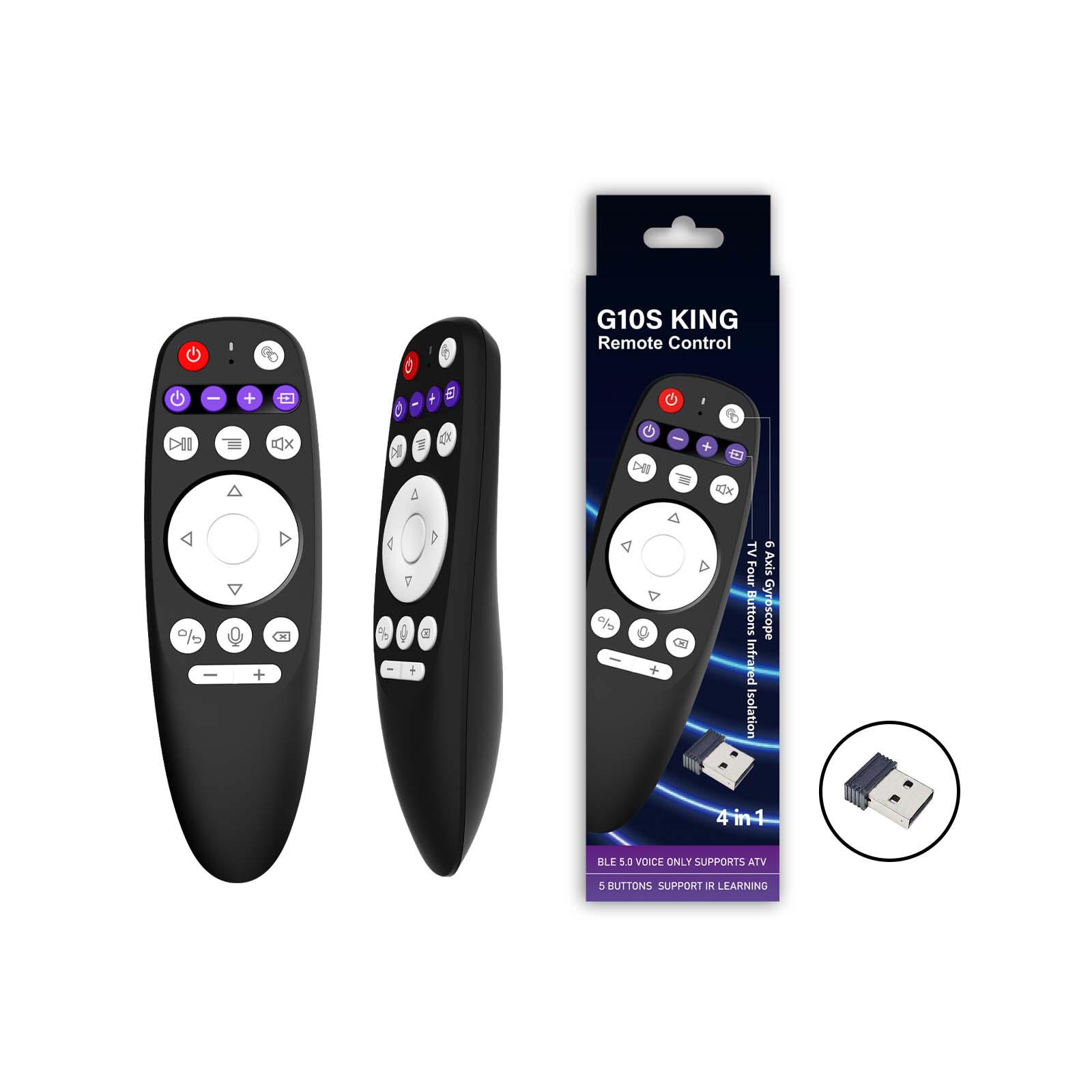
1.1. irudia: Aurrealdea view of the BOXPUT G10S King remote control, showing its compact design and key layout. Dimensions are approximately 14.3cm in length and 4.5cm in width.
2. Paketearen edukia
Mesedez, egiaztatu paketea elementu hauek dituen:
- 1 x G10S King Remote Control
- 1 x USB 2.4G hargailua
- 1 x Erabiltzailearen eskuliburua

Image 2.1: The BOXPUT G10S King remote control, its USB receiver, and the user manual, laid out next to the product packaging.
3. Konfigurazioa
3.1 Inserting Batteries and USB Receiver
The remote control requires AAA batteries (not included). Open the battery compartment cover on the back of the remote and insert two AAA batteries, ensuring correct polarity. The 2.4G USB receiver is typically stored inside the battery compartment.
Video 3.1: This video demonstrates how to open the battery compartment and retrieve the 2.4G USB receiver from the BOXPUT G10S King remote control.
3.2 2.4G Haririk gabeko Konexioa
- Insert the 2.4G USB receiver into an available USB port on your device (e.g., TV box, PC, Smart TV).
- The remote control should automatically connect. If not, ensure the batteries are correctly inserted.
3.3 Bluetooth 5.0 Pairing
- Ensure the 2.4G USB receiver is NOT plugged into your device.
- Press and hold the "OK" button (center of the directional pad) and the "Back" button (left of the voice button) simultaneously for 3-5 seconds.
- The indicator light on the remote will start blinking rapidly, indicating it's in pairing mode.
- Zure gailuan, joan Bluetooth ezarpenetara eta bilatu gailu berriak.
- Select "G10S King" from the list of available devices to complete the pairing. The indicator light will stop blinking once successfully paired.
4. Funtzionamendu-argibideak
4.1 Botoien funtzioakview

Image 4.1: A detailed diagram labeling each button on the BOXPUT G10S King remote control, including Power, MIC, Indicators, Mouse, TV Four Buttons Infrared Isolation, Play/Pause, Mute, Menu, Directional Pad (UP, Left, Down, Right, OK), Home, Voice, Volume-, Volume+, and Back.
| Botoia | Funtzioa |
|---|---|
| Potentzia (gorria) | Power On/Off (IR Learning) |
| Purple Buttons (4) | Infrared Learning Buttons (Programmable) |
| Erreproduzitu/Pausatu | Media Play/Pause |
| Menua | Access Menu/Options |
| Isildu | Desaktibatu/Desaktibatu audioa |
| Norabide Pad | Nabigazioa (Gora, Behera, Ezkerra, Eskuina) |
| OK | Confirm Selection / Mouse Left Click |
| Hasiera | Itzuli hasierako pantailara |
| Voice (Microphone) | Aktibatu Ahots Kontrola |
| Itzuli | Go Back / Exit |
| +/- bolumena | Egokitu Bolumena |
| Mouse (Pointer icon) | Toggle Air Mouse On/Off |
4.2 Infrared (IR) Learning Function
The G10S King remote supports IR learning for its red Power button and the four purple buttons, allowing it to mimic functions from your original TV remote. This enables control of two devices (e.g., TV and TV Box) with one remote.
- Place the G10S King remote and your original TV remote head-to-head, within 1-3 cm distance.
- Press and hold the desired learning button on the G10S King (e.g., the red Power button or one of the purple buttons) for 3-5 seconds until the indicator light starts blinking rapidly.
- While the indicator light is blinking, press the corresponding button on your original TV remote that you wish to learn.
- The indicator light on the G10S King will blink three times and then stay solid, indicating successful learning.
- Repeat steps 2-4 for other buttons you wish to program.
- To exit IR learning mode, press any non-learning button or wait for 10 seconds.

Image 4.2: The BOXPUT G10S King remote control being used to control a TV, illustrating the infrared learning capability for precise control.
Video 4.1: This video demonstrates the infrared learning function of the BOXPUT G10S King remote control, showing how to program buttons from an existing TV remote.
4.3 6-Axis Gyroscope (Air Mouse) Function
The remote features a 6-axis gyroscope for intuitive air mouse control. This allows you to move the cursor on your screen by simply moving the remote in the air.
- Sakatu Sagua button (pointer icon) to activate or deactivate the air mouse function.
- When activated, move the remote in the air to control the cursor on your screen.
- Sakatu OK button to perform a left-click action.
- To re-calibrate the gyroscope, place the remote on a flat surface for a few seconds.

Image 4.3: A visual representation of the 6-axis gyroscope function, showing the remote's movement translating to on-screen cursor control.
4.4 Ahots-kontrolaren funtzioa
The G10S King supports voice control for compatible devices, allowing you to issue commands or search content using your voice.
- Eduki sakatuta Ahotsa botoia (mikrofonoaren ikonoa).
- Hitz egin argi urrutiko agintearen mikrofonoan.
- Askatu botoia hitz egiten amaitutakoan.
- Ensure your device supports voice input and is properly configured.

Image 4.4: A user holding the BOXPUT G10S King remote and speaking into it, demonstrating the voice control feature for interacting with a smart TV.
5. Arazoak
- Urrunekoek ez dute erantzuten:
- Egiaztatu bateriaren maila eta ordeztu behar izanez gero.
- Ziurtatu USB hartzailea ondo konektatuta dagoela 2.4G modurako.
- For Bluetooth mode, ensure it's paired correctly and within range.
- IR learning not working:
- Ensure the remotes are placed head-to-head and close enough (1-3 cm).
- Verify the indicator light blinks correctly during the learning process.
- Try repeating the learning steps carefully.
- Air mouse cursor erratic:
- Place the remote on a flat surface for a few seconds to re-calibrate the gyroscope.
- Ensure there are no strong magnetic fields or interference nearby.
- Ahots-kontrola ez dabil:
- Ensure the remote is connected via Bluetooth (voice control typically requires Bluetooth).
- Check if your device supports voice input and if the microphone access is granted.
- Speak clearly and hold the voice button while speaking.
- To reset IR learning:
- Press and hold the "Back" button and the "Delete" button (often the rightmost purple button) simultaneously until the indicator light blinks, indicating all learned IR codes are cleared.
6. Zehaztapenak
| Ezaugarri | Xehetasuna |
|---|---|
| Modelo zenbakia | G10S King |
| Marka | KUTXA-JARRI |
| Konektibitatea | Bluetooth 5.0, 2.4G haririk gabekoa (USB hargailua) |
| Sentsoreak | 6 ardatzeko giroskopioa |
| Kontrol-eremua | > 10 metro |
| IR Ikaskuntza | Yes (5 buttons: Power + 4 programmable) |
| Ahots kontrola | Bai |
| Gailu bateragarriak | Streaming devices, TVs, PCs, Projectors (Android TV Box, Smart TV compatible) |
| Kolorea | Beltza |
| Neurriak | 16.1 x 6.3 x 5.9 cm (paketearen gutxi gorabeherako tamaina) |
| Pisua | 30 g (paketearen gutxi gorabeherako pisua) |
| Pilak | 2 x AAA (ez dago barne) |
7. Mantentzea
- Keep the remote control dry and away from moisture.
- Saihestu urrutiko agintea erortzea edo kolpe gogorren eraginpean jartzea.
- Garbitu urrutiko agintea oihal leun eta lehor batekin. Ez erabili garbitzaile edo disolbatzaile urratzailerik.
- Kendu pilak urrutiko agintea denbora luzez erabiliko ez baduzu, isuriak saihesteko.
8. Bermea eta Laguntza
For warranty information or technical support, please refer to the contact details provided with your purchase or visit the official BOXPUT webgunea. Gorde erosketa-agiria erosketaren frogagiri gisa.
Ask a question about this manual
Ask about setup, troubleshooting, compatibility, parts, safety, or missing instructions. Manuals+ will review the question and use this page’s manual context to help answer it.