
1. Sarrera
This manual provides essential information for the safe and efficient use of your Azeyou M17QF27A Android Tablet. Please read this manual thoroughly before operating the device and retain it for future reference.
The Azeyou M17QF27A is an 11.97-inch Android tablet featuring a Unisoc T616 processor, 20GB RAM (8GB physical + 12GB virtual), 256GB internal storage expandable up to 1TB, a 1920x2000 FHD touch screen, dual cameras, Wi-Fi 5, Bluetooth 5.0, and an 8000mAh battery.
2. Paketearen edukia
Egiaztatu elementu guztiak zure produktuaren paketean daudela:
- Azeyou M17QF27A Android Tablet
- Babes-zorroa
- USB-C kargatzeko kablea
- Elikatze-moldagailua
- Erabiltzailearen eskuliburua (dokumentu hau)
- SIM Ejector Tool (if applicable for cellular models)
3. Gailua amaitu daview
Ohitu zaitez zure tabletaren osagai fisikoekin.
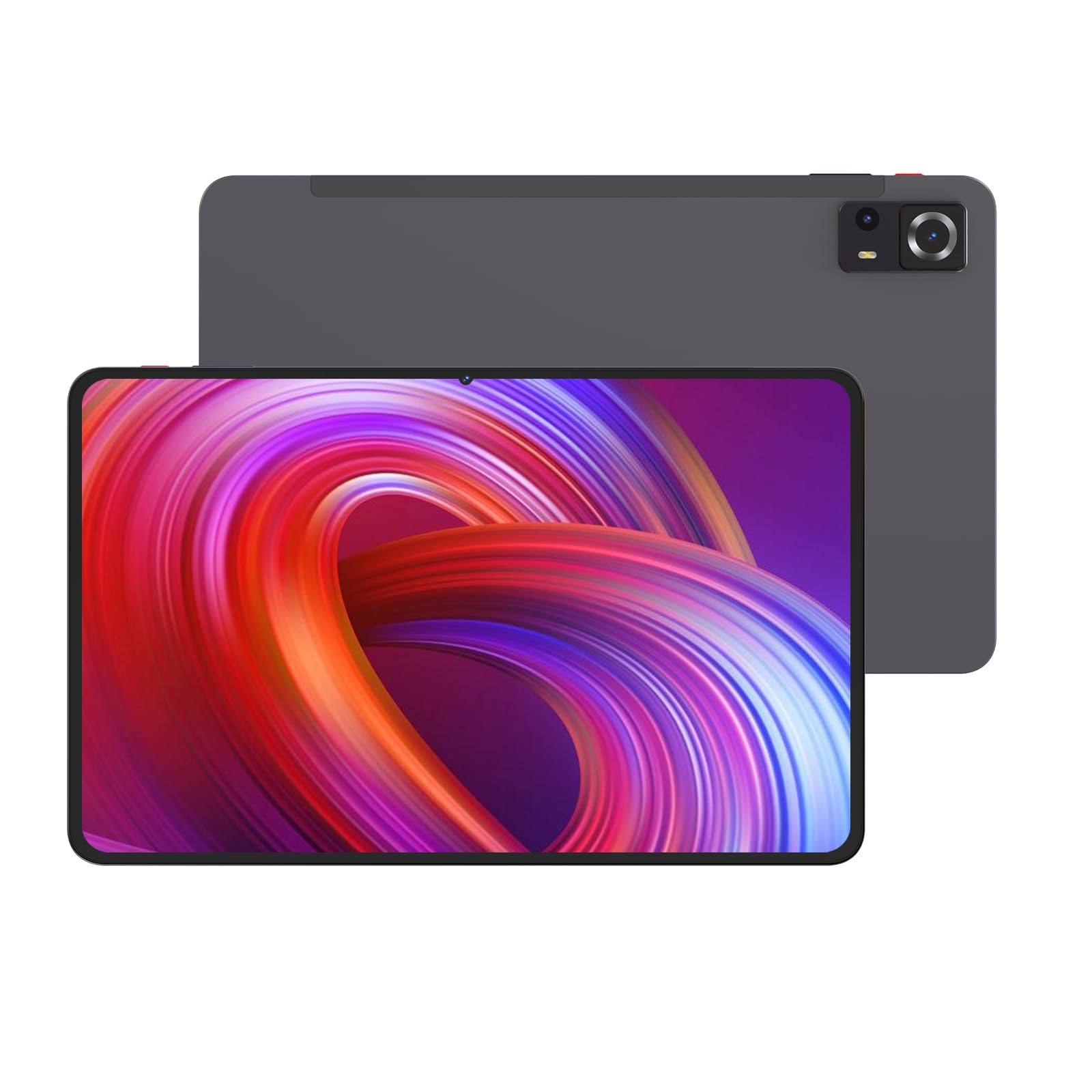
1. irudia: Aurrealdea eta atzealdea view of the Azeyou M17QF27A Android Tablet, showcasing the screen, cameras, and the included protective case.
3.1. Osagai fisikoak
- Aurrealdeko kamera: Located at the top center when held vertically.
- Pantaila: 11.97-inch FHD Touch Screen.
- Pizteko botoia: Typically on the side, used to power on/off or wake/sleep the device.
- Bolumen-botoiak: Pizteko botoiaren ondoan, audio mailak doitzeko.
- USB-C ataka: Kargatzeko eta datuak transferitzeko.
- Bozgorailuak: Audio irteerarako.
- Atzeko kamera: Tabletaren atzealdean kokatuta.
- MicroSD txartelaren zirrikitua: For storage expansion up to 1TB.
4. Konfigurazioa
4.1. Bateria kargatzea
Before first use, fully charge your tablet. Connect the USB-C charging cable to the tablet's USB-C port and the power adapter to a wall outlet. The battery indicator on the screen will show charging progress. A full charge typically takes several hours.
The tablet is equipped with an 8000mAh battery, providing an average battery life of approximately 6 hours under typical usage conditions.
4.2. Piztu/Itzaltzea
- Pizteko: Press and hold the Power button until the Azeyou logo appears on the screen.
- Itzaltzeko: Press and hold the Power button until a power menu appears. Select "Power off" and confirm.
- Lo egiteko/esnatzeko: Sakatu labur pizteko botoia tableta lo moduan jartzeko edo esnatzeko.
4.3. Hasierako konfigurazioa
Lehenengo aldiz piztean, tabletak hasierako konfigurazio prozesuan zehar gidatuko zaitu:
- Aukeratu nahi duzun hizkuntza.
- Konektatu Wi-Fi sare batera. Ezinbestekoa da eguneraketak deskargatzeko eta lineako zerbitzuetara sartzeko.
- Sign in with your Google account or create a new one. This is required for accessing the Google Play Store and other Google services.
- Review eta baldintzak eta zehaztapenak onartu.
- Set up screen lock (PIN, pattern, password, or facial recognition).
- Berreskuratu datuak aurreko gailu batetik (aukerakoa).
5. Funtzionamendu-argibideak
5.1. Oinarrizko nabigazioa
Your Azeyou tablet uses an Android 14 operating system with a touch-sensitive screen. Common gestures include:
- Sakatu: Elementu bat hautatzeko, ireki aplikazio bat edo sakatu botoi bat.
- Eduki ukituta: Testuinguru-menuetara sartzeko edo ikonoak mugitzeko.
- Pasatu hatza: To scroll through lists, switch between home screens, or navigate within apps.
- Zoom egiteko apur bat egin: To zoom in or out on images, maps, or web orrialdeak.
5.2. Wi-Fi konexioa
Wi-Fi sare batera konektatzeko:
- Joan zaitez Ezarpenak > Sarea eta Internet > Wi-Fi.
- Wi-Fia aktibatu/desaktibatu On.
- Hautatu nahi duzun sarea zerrendatik.
- Eskatzen bazaizu, idatzi pasahitza eta sakatu Konektatu.
The tablet supports Wi-Fi 5 (802.11ac) for fast wireless connections.
5.3. Bluetooth konexioa
To pair with a Bluetooth device (e.g., headphones, keyboard):
- Joan zaitez Ezarpenak > Konektatutako gailuak > Bluetootha.
- Aktibatu Bluetooth-a On.
- Ziurtatu zure Bluetooth gailua parekatze moduan dagoela.
- Hautatu gailua eskuragarri dauden gailuen zerrendatik eta jarraitu pantailan agertzen diren argibideei parekatzea osatzeko.
The tablet supports Bluetooth 5.0 for stable and efficient wireless connections.
5.4. Biltegiratze kudeaketa
Your tablet comes with 256GB of internal storage. You can expand this storage up to 1TB using a microSD card. To insert a microSD card:
- Bilatu microSD txartelaren zirrikitua tabletaren alboan.
- Use the provided SIM ejector tool (or a paperclip) to open the tray.
- Jarri microSD txartela erretiluan, urre-koloreko kontaktuak behera begira dituela.
- Sartu erretilua astiro-astiro zirrikituan klik egin arte.
Biltegiratzea kudeatzeko, joan honera Ezarpenak > Biltegiratzea.
5.5. Kamerak erabiltzea
The tablet features dual cameras. To use the camera:
- Ireki Kamera app from your home screen or app drawer.
- Sakatu obturadorearen botoia argazkia ateratzeko.
- Sakatu bideoaren ikonoa bideoa grabatzeko modura aldatzeko.
- Use the camera switch icon to toggle between the front and rear cameras.
6. Mantentzea
6.1. Tableta garbitzea
To clean your tablet, power it off and disconnect all cables. Use a soft, lint-free cloth slightly dampened with water or a screen cleaner specifically designed for electronics. Avoid using harsh chemicals, abrasive materials, or excessive moisture.
6.2. Software eguneraketak
Egiaztatu eta instalatu software eguneraketak aldizka errendimendu eta segurtasun optimoa bermatzeko. Joan honera Ezarpenak > Sistema > Sistema eguneratzea.
6.3. Bateria zaintzea
Bateriaren iraupena luzatzeko:
- Saihestu muturreko tenperaturak.
- Ez utzi bateria maiz erabat agortzen.
- Deskonektatu kargagailua bateria beteta dagoenean.
- Reduce screen brightness and disable unnecessary features (e.g., Bluetooth, Wi-Fi) when not in use.
7. Arazoak
| Arazoa | Irtenbide posiblea |
|---|---|
| Tableta ez da pizten. | Ziurtatu bateria kargatuta dagoela. Konektatu kargagailua eta itxaron minutu batzuk berriro pizten saiatu aurretik. |
| Wi-Fi konexio arazoak. | Check if Wi-Fi is enabled in settings. Restart your router and the tablet. Ensure you are entering the correct Wi-Fi password. |
| Aplikazioak huts egiten ari dira edo izozten ari dira. | Itxi aplikazioa eta berriro ireki. Garbitu aplikazioaren cachea (Ezarpenak > Aplikazioak > hautatu aplikazioa > Biltegiratzea eta cachea > Garbitu cachea). Berrabiarazi tableta. |
| Errendimendu motela. | Itxi beharrezkoak ez diren atzeko planoan dauden aplikazioak. Garbitu cachea eta aldi baterakoak files. Consider uninstalling unused apps. Check for system updates. |
| Bateria azkar agortzen da. | Reduce screen brightness. Disable Wi-Fi, Bluetooth, and GPS when not in use. Close background apps. Check battery usage in settings to identify power-hungry apps. |
8. Zehaztapenak
| Ezaugarri | Xehetasuna |
|---|---|
| Ereduaren izena | M17QF27A |
| Marka | Azeyou |
| Sistema eragilea | Android 14 |
| Prozesadorea | Unisoc T616 |
| RAM | 20 GB (8 GB fisikoa + 12 GB birtuala) |
| Barne Biltegiratzea | 256 GB |
| Biltegiratze zabalgarria | Gehienez 1 TB microSD txartelaren bidez |
| Pantailaren tamaina | 11.97 hazbete |
| Gehienezko pantailaren bereizmena | 1920x2000 Pixels FHD |
| Kamerak | Dual Camera (Front and Rear) |
| Haririk gabeko konexioa | Wi-Fi 5 (802.11ac), Bluetooth 5.0 |
| Bateria Edukiera | 8000mAh |
| Bateriaren batez besteko iraupena | 6 ordu gutxi gorabehera |
| Neurriak (LxWxH) | 10.94 x 6.81 x 0.3 hazbete |
| Elementuaren pisua | 2.36 kilo |
| Kolorea | Metal-Grey |
9. Bermea eta Laguntza
For warranty information and technical support, please refer to the warranty card included in your package or visit the official Azeyou webgunea. Gorde erosketa-agiria erosketaren frogagiri gisa berme-erreklamazioetarako.
For further assistance, you may contact Azeyou customer service through the contact details provided on their official support page.