
TABWEE K10
TABWEE K10 Kids Tablet 10.1-inch Wi-Fi Model User Manual
Your guide to setting up, operating, and maintaining your TABWEE K10 Kids Tablet.
1. Sarrera
Welcome to the TABWEE K10 Kids Tablet! This 10.1-inch Wi-Fi tablet is designed to provide a safe and engaging learning and entertainment experience for children. Featuring Android 15 Go Edition, Google Kids Space, robust parental controls via Google Family Link, and a durable EVA protective case, the K10 is built for young users.
This manual will guide you through the tablet's features, setup process, operation, maintenance, and troubleshooting to ensure a smooth and enjoyable experience.
Kutxan dagoena
Upon opening your TABWEE K10 Kids Tablet package, you should find the following items:
- TABWEE K10 Kids Tablet (with pre-installed EVA protective case)
- Ukitu Boligrafoa
- USB motako kablea
- Elikatze-moldagailua
- Erabiltzailearen eskuliburua (dokumentu hau)
- AR Zoo Cards (for interactive learning)
Video: Unboxing the TABWEE K10 Kids Tablet, showing the tablet, protective case, and accessories.
2. Segurtasun informazioa
Please read the following safety guidelines carefully to ensure safe and proper use of your TABWEE K10 Kids Tablet:
- Helduen gainbegiratzea: Always supervise young children while they are using the tablet.
- Kargatzen: Use only the provided power adapter and USB Type-C cable for charging. Do not use damaged chargers or cables. Ensure the tablet is charged in a well-ventilated area.
- Ura eta hezetasuna: Keep the tablet away from water, liquids, and excessive humidity.
- Tenperatura: Saihestu tableta tenperatura altuetan (beroan edo hotzean) jartzea.
- Kalte fisikoa: While the EVA case provides protection, avoid dropping the tablet from significant heights or applying excessive force.
- Pantaila-denbora: Encourage breaks during extended use to prevent eye strain. Utilize parental controls to manage screen time.
- Entzumenaren babesa: When using headphones, ensure the volume is set to a safe level to protect hearing.
- Garbiketa: Use a soft, dry cloth to clean the tablet. Do not use harsh chemicals.
3. Hasteko urratsak (konfigurazioa)
3.1 Hasierako karga
Before first use, fully charge the tablet using the included USB Type-C cable and power adapter. The battery indicator on the screen will show charging progress.
3.2 Piztu/Itzaltzea
- Pizteko: Press and hold the Power button (located on the side) for a few seconds until the TABWEE logo appears.
- Itzaltzeko: Press and hold the Power button until a menu appears on the screen. Select "Power Off" and confirm.
- Berrabiarazteko: From the power menu, select "Restart."
3.3 Hasierako konfigurazio-morroia
Upon first power-on, the tablet will guide you through an initial setup process:
- Hizkuntza hautaketa: Aukeratu zure hizkuntza hobetsia.
- Wi-Fi konexioa: Hautatu zure Wi-Fi sarea eta idatzi pasahitza internetera konektatzeko.
- Google kontua: Sign in with an existing Google account or create a new one. This is necessary for accessing Google services like Kids Space and Play Store.
- Data eta ordua: Ezarri data eta ordu zuzena.
- Google Kids Space Setup: Follow the on-screen prompts to set up Google Kids Space for your child. This will provide age-appropriate content and a child-friendly interface.
- Google Family Link Setup: Install the Google Family Link app on your own smartphone and follow the instructions to link your child's tablet. This enables parental control features.
4. Produktua amaitu daview (Components & Controls)
Familiarize yourself with the physical components and controls of your TABWEE K10 Kids Tablet:

Image: The TABWEE K10 tablet showing its various ports, buttons, and cameras.
- Pizteko botoia: Turns the tablet on/off or puts it to sleep.
- Bolumen-botoiak: Audioaren bolumena doitzen du.
- USB C motako ataka: Kargatzeko eta datuak transferitzeko.
- 3.5 mm-ko audio-konexioa: Entzungailuak konektatzeko.
- MicroSD txartelaren zirrikitua: For expanding storage up to 2TB.
- Aurreko kamera (2MP): Bideo-deietarako eta selfieetarako.
- Atzeko kamera (5MP): Argazkiak eta bideoak ateratzeko.
- Hizlariak: Audio irteera eskaintzen du.
- Mikrofonoa: Ahotsaren sarrerarako.
- EVA Protective Case: Provides drop protection and includes a built-in stand/handle.
5. Funtzionamendu-argibideak
5.1 Oinarrizko nabigazioa
The TABWEE K10 uses a touchscreen interface. Use your finger or the included touch pen for navigation:
- Sakatu: Hautatu elementu bat edo ireki aplikazio bat.
- Pasatu hatza: Scroll through pages or menus.
- Pixka bat: Irudiak handitu edo txikitu eta web orrialdeak.
5.2 Google Kids Space
Google Kids Space offers a curated library of apps, books, and videos designed for children. It categorizes content into "Play," "Read," "Watch," and "Make" to encourage exploration and learning.
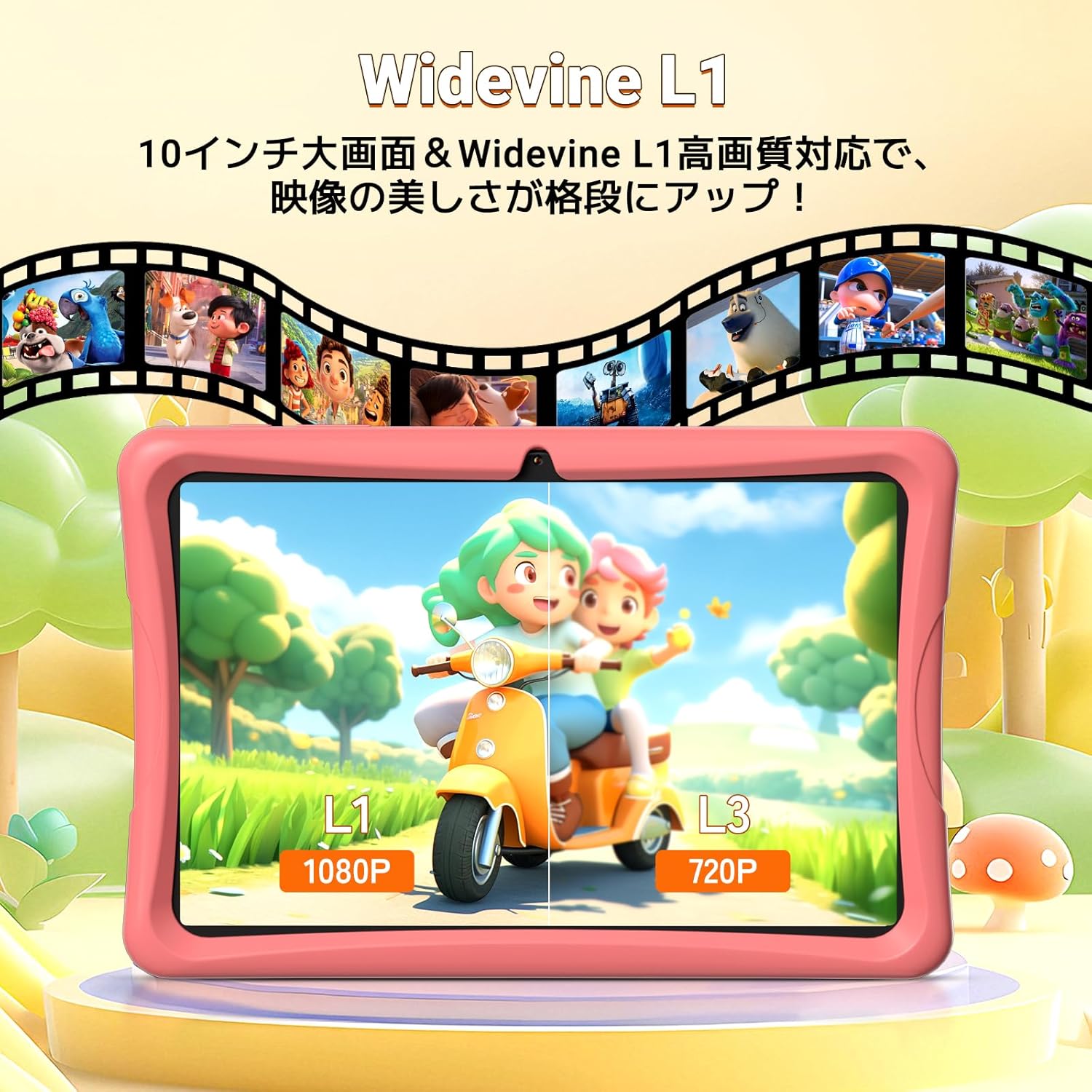
Image: The tablet screen showing the Google Kids Space interface with various app categories.
To access Kids Space, tap its icon on the home screen. Parents can manage the content available through Google Family Link.
Video: Demonstrating the variety of educational apps and content available within Google Kids Space.
5.3 YouTube Kids
The tablet supports YouTube Kids, offering a safer video experience for children. You can adjust filter settings based on your child's age and preferences.

Image: The tablet screen displaying the YouTube Kids application.
5.4 Parental Controls (Google Family Link)
Google Family Link allows you to manage your child's tablet usage remotely from your smartphone. Key features include:
- Pantaila-denboraren kudeaketa: Set daily usage limits in 15-minute increments.
- App Restrictions: Block or allow specific apps.
- Edukiak iragaztea: Ensure age-appropriate content is displayed.
- Urruneko monitorizazioa: View your child's activity and screen time.
Video: Demonstration of Google Family Link features for managing app usage and screen time on the tablet.
5.5 Using the Touch Pen
The included touch pen allows for precise interaction with the tablet, making drawing, writing, and educational games more engaging. Simply use the pen as you would your finger on the screen.

Image: A child interacting with the tablet using the dedicated touch pen.
5.6 Bistaratzeko moduak
The tablet offers various display modes to enhance comfort and reduce eye strain:
- Gaueko modua: Argi urdinaren igorpena murrizten du erosotasunerako viewargi gutxiko baldintzetan aritzea.
- Modu iluna: Changes the interface to a darker color scheme, which can reduce eye fatigue.
- Irakurle modua: Optimizes the display for reading, often by adjusting colors to mimic paper.

Image: The tablet screen demonstrating Night Mode, Dark Mode, and Reader Mode.
5.7 AR Zoo App
The tablet comes with an AR Zoo app that uses augmented reality technology. Use the included AR Zoo cards with the tablet's camera to bring animals to life on the screen, providing an interactive learning experience.
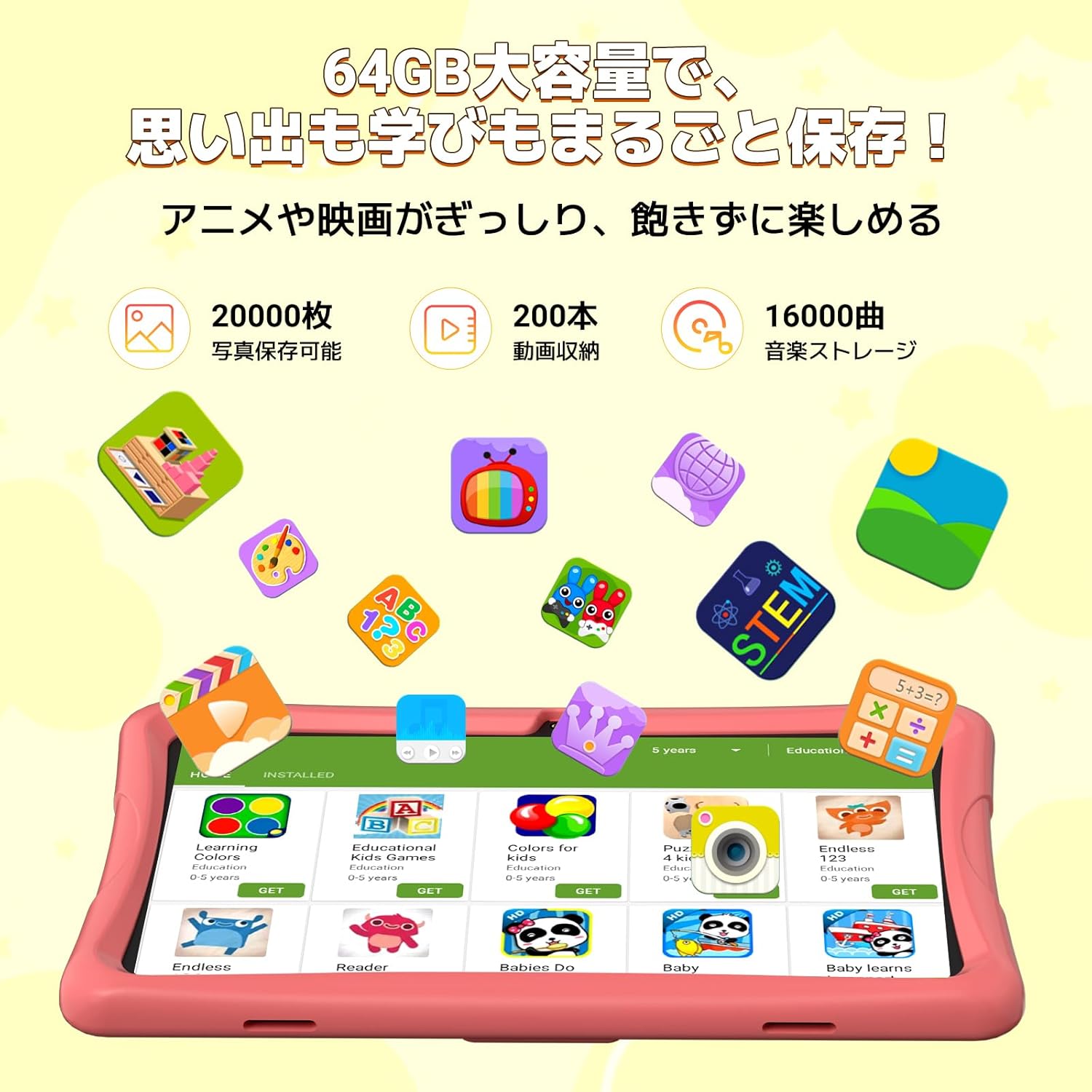
Image: The tablet displaying an augmented reality animal from the AR Zoo app, with physical cards nearby.
5.8 Biltegiratze kudeaketa
The tablet has 64GB of internal storage, which can be expanded up to 2TB using a microSD card (sold separately). To insert a microSD card, locate the card slot on the side of the tablet and gently push the card in until it clicks into place.
5.9 Kameraren erabilera
The tablet is equipped with a 2MP front camera and a 5MP rear camera. Open the Camera app to take photos or record videos. The intuitive interface makes it easy for children to capture their moments.
6. Mantentzea
- Garbiketa: Use a soft, lint-free cloth to wipe the screen and body of the tablet. For stubborn smudges, slightly dampGarbitu zapiarekin urarekin. Saihestu garbitzaile edo disolbatzaile urratzaileak erabiltzea.
- Bateria zaintzea: To prolong battery life, avoid fully discharging the tablet frequently. Charge the tablet when the battery level is low. Store the tablet in a cool, dry place when not in use for extended periods.
- Software eguneraketak: Periodically check for system updates in the tablet's settings. Keeping the software updated ensures optimal performance and security.
- EVA kasua: The EVA case can be cleaned with mild soap and water if it gets dirty. Ensure it is completely dry before reattaching it to the tablet.
7. Arazoak
If you encounter any issues with your TABWEE K10 Kids Tablet, please refer to the following common solutions:
| Arazoa | Irtenbidea |
|---|---|
| Tableta ez da pizten. | Ensure the tablet is fully charged. Connect the charger and wait a few minutes before attempting to power on again. |
| Wi-Fi konexio arazoak. | Check if your Wi-Fi router is working correctly. Go to Settings > Network & internet > Wi-Fi, forget the network, and reconnect. Restart the tablet and router. |
| Aplikazioak huts egiten ari dira edo izozten ari dira. | Close the problematic app and reopen it. Clear the app's cache (Settings > Apps > [App Name] > Storage & cache > Clear cache). Restart the tablet. |
| Errendimendu motela. | Close unnecessary background apps. Clear app caches. Ensure there is sufficient free storage space. Restart the tablet. |
| Parental controls not working as expected. | Ensure both the tablet and your smartphone have the latest Google Family Link app versions. Check the settings within the Family Link app on your smartphone. |
| Touch pen not responding. | Ensure the screen is clean. Try restarting the tablet. |
Urrats hauek probatu ondoren arazoa konpontzen ez bada, jarri harremanetan bezeroarentzako arreta-zerbitzuarekin laguntza gehiago jasotzeko.
8. Zehaztapenak
| Ezaugarri | Xehetasuna |
|---|---|
| Ereduaren izena | TABWEE K10 |
| Sistema eragilea | Android 15 Go edizioa |
| Bistaratzea | 10.1-inch HD IPS (1280x800 pixels) |
| Prozesadorea | RK3562 Quad-Core (Cortex-A55, max 2.0GHz) |
| GPU | Mali-G52 |
| RAM | 12 GB (4 GB fisikoa + 8 GB birtuala) |
| Barne Biltegiratzea | 64GB ROM |
| Biltegiratze zabalgarria | Up to 2TB via microSD card (not included) |
| Bateria | 5000mAh Litio-ioia |
| Aurrealdeko kamera | 2MP |
| Atzeko kamera | 5MP |
| Konektibitatea | Wi-Fia (802.11ac), Bluetootha |
| Neurriak | 32.79 x 20 x 3.9 cm |
| Pisua | 1.02 kg |
| Ziurtagiriak | TELEC, GMS |
9. Bermea eta Laguntza
Your TABWEE K10 Kids Tablet comes with a 24 hilabeteko bermea erosketa-datatik aurrera. Berme honek fabrikazio-akatsak estaltzen ditu eta lasaitasuna bermatzen du.
For any questions, technical support, or warranty claims, please contact TABWEE customer service. Our support team is available 24 hours a day via email in both Japanese and English.
Nola jarri laguntzarekin harremanetan:
- Through Amazon: Go to your Amazon account, navigate to "Order History," select the relevant order, and click "Contact Seller."
- From the Product Page: On the product page, below the "Add to Cart" button, click on the store name. Then, in the upper right corner, click "Ask a Question" to send an email.
We aim to respond to all inquiries as quickly as possible, excluding holidays.

Image: A customer support representative assisting with inquiries.
Ask a question about this manual
Ask about setup, troubleshooting, compatibility, parts, safety, or missing instructions. Manuals+ will review the question and use this page’s manual context to help answer it.