
Elgato 20GBR9901
Elgato 4K S External Capture Card User Manual
Model: 20GBR9901
Sarrera
The Elgato 4K S is an external capture card designed for high-performance video capture and passthrough. It allows users to record and stream gameplay from various consoles and devices, including PS5, Xbox Series X/S, Nintendo Switch 2, PC, Mac, and iPad, with exceptional quality and near-zero latency. This manual provides comprehensive instructions for setting up, operating, and maintaining your Elgato 4K S.
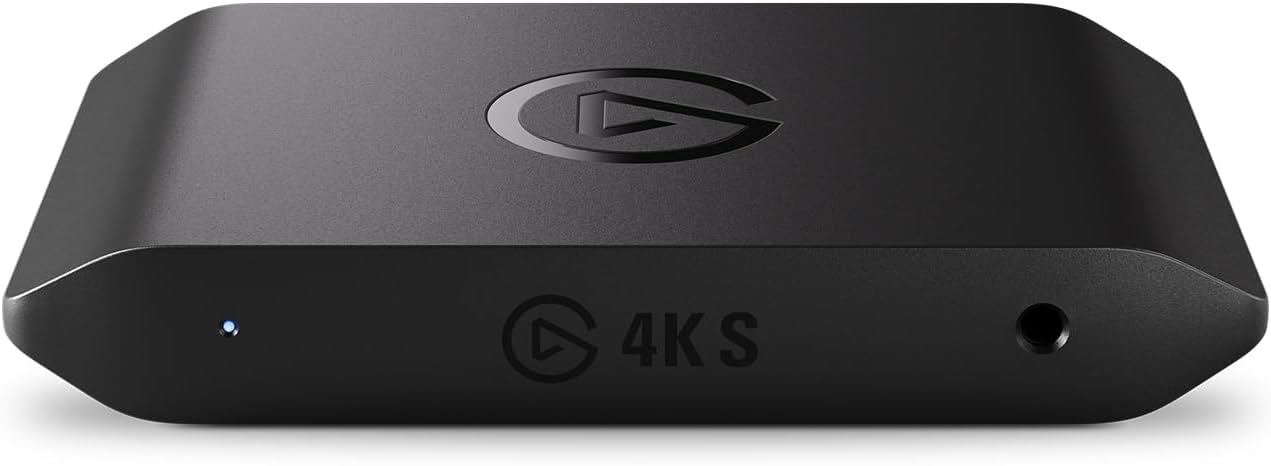
Image: The Elgato 4K S capture card, a compact black device with a subtle blue LED indicator and the Elgato logo, designed for external use.
Konfigurazio Gida
1. Kutxatik ateratzea eta osagaiak
Hasi aurretik, ziurtatu osagai guztiak kaxan daudela:
- Elgato Game Capture 4K S device
- USB-C to USB-C Cable (150 cm / 59 in.)
- HDMI 2.0 Cable (150 cm / 59 in.)

Image: A visual representation of the items included in the Elgato 4K S package: the capture card itself, a USB-C to USB-C cable, and an HDMI 2.0 cable.
2. Sistemaren eskakizunak
To ensure optimal performance, your system should meet the following minimum requirements:
- Sistema eragilea: Windows 11 (64-bit), macOS 13 or later, iPadOS with USB-C
- CPU: Intel Core i5 (8th gen or later) / AMD Ryzen / Apple M1 or better
- GPU: NVIDIA GeForce RTX 10xx or equivalent
- Portua: USB 3.0 C motakoa
3. Connecting Your Elgato 4K S
Follow these steps to connect the capture card to your gaming console/PC and display:
- Connect one end of the HDMI 2.0 cable to the HDMI OUT port of your gaming console (e.g., PS5, Xbox Series X/S, Nintendo Switch 2) or PC.
- Connect the other end of this HDMI cable to the HDMI SARRERA port on your Elgato 4K S.
- Connect one end of the second HDMI 2.0 cable (not included, or use the provided one if your setup allows) to the HDMI OUT port on your Elgato 4K S.
- Connect the other end of this HDMI cable to your TV or monitor. This provides the lag-free passthrough signal.
- Connect the USB-C to USB-C cable from the USB-C port on your Elgato 4K S to an available USB 3.0 Type-C port on your computer (Windows/macOS) or iPad.
- For analog audio input (e.g., for commentary or chat), connect a 3.5mm audio cable from your audio source to the 3.5mm analog audio in port on the Elgato 4K S.

Image: A step-by-step diagram illustrating the connection process for the Elgato 4K S, showing HDMI input from a console, HDMI output to a display, and USB-C connection to a computer or iPad.
Funtzionamendu-argibideak
1. Software Recognition
The Elgato 4K S is designed for plug-and-play functionality. Once connected, it should be automatically recognized by compatible streaming and recording software such as OBS Studio, Streamlabs Desktop, XSplit, and others. No specific drivers are typically required.

Image: The Elgato 4K S capture card integrated into a streaming setup, displaying its compatibility with popular broadcasting software like OBS Studio.
2. Capture and Passthrough Capabilities
The Elgato 4K S offers versatile capture and passthrough options:
- Passthrough Resolutions: Up to 2160p60 (4K60), 1440p120, 1080p240. This ensures you can play your games at high refresh rates and resolutions on your display without compromise.
- Harrapatzeko ebazpenak: 2160p60 (4K60), 1440p60, 1080p120, 1080p60, 720p60, 567p, 480p.
- HDR10 Passthrough: Supports up to 2160p60 HDR10 passthrough.
- HDR10 Capture: Up to 1080p60 (Windows only).
- VRR laguntza: Variable Refresh Rate (VRR) passthrough ensures smooth, tear-free gameplay on compatible displays.
- Near-Zero Latency: Experience minimal delay between your gameplay and the captured signal, crucial for competitive gaming.

Image: An infographic highlighting the key features of the Elgato 4K S, such as 4K60 capture, HDR10 support, VRR compatibility, and its ability to work across various gaming devices.

Image: A visual demonstrating the benefit of Variable Refresh Rate (VRR) support, showing a smooth gaming experience without screen tearing or stuttering.
3. Audio Sarrera
The 3.5mm analog audio input allows you to capture external audio sources, such as microphone commentary or console voice chat, directly through the 4K S. This is particularly useful for streamers and content creators.

Image: The Elgato 4K S connected to a gaming setup, illustrating how it can be used to record console voice chat with an optional Chat Link Pro accessory.
Zehaztapen Teknikoak
| Ezaugarri | Xehetasuna |
|---|---|
| Sarrera | HDMI 2.0 (unencrypted), 3.5 mm analog audio in |
| Irteera | HDMI 2.0 (lag-free passthrough) |
| Passthrough Resolutions | Up to 2160p60, 1440p120, 1080p240 |
| Harrapatzeko ebazpenak | 2160p60, 1440p60, 1080p120, 1080p60, 720p60, 567p, 480p |
| HDR10 Passthrough | Up to 2160p60 HDR10 |
| HDR10 Capture | Up to 1080p60 (Windows only) |
| VRR Support | Bai |
| Neurriak | 112 x 72 x 18 mm / 4.4 x 2.8 x 0.7 hazbete |
| Pisua | 90 g / 3.2 oz |
| Hardware interfazea | USB 3.0 C motakoa |
| Modelo zenbakia | 20GBR9901 |
| Fabrikatzailea | Corsair (Elgato Brand) |

Image: A comparative chart outlining the technical specifications and features of different Elgato capture cards, including the 4K S, 4K X, and 4K Pro, to help users understand their capabilities.
Arazoak konpontzea
If you encounter issues with your Elgato 4K S, try the following solutions:
- Seinalerik ez/Pantaila beltza:
- Ensure all HDMI and USB-C cables are securely connected.
- Verify that your source device (console/PC) is powered on and outputting a signal.
- Check your display's input source selection.
- Saiatu HDMI kable desberdinak erabiltzen.
- Ensure your source device's resolution and refresh rate are supported by the 4K S (refer to Specifications).
- Audiorik ez:
- Check audio settings in your capture software (e.g., OBS Studio) to ensure the 4K S is selected as the audio input device.
- Verify that the audio output from your source device is enabled and not muted.
- If using the 3.5mm analog input, ensure the cable is connected correctly and the audio source is active.
- Performance Issues (Lag, Stuttering):
- Ensure your computer meets the minimum system requirements, especially for CPU and GPU.
- Confirm the 4K S is connected to a USB 3.0 (or higher) Type-C port. USB 2.0 ports will not provide sufficient bandwidth.
- Close unnecessary applications running in the background on your computer.
- Eguneratu zure txartel grafikoaren kontrolatzaileak.
- Reduce the capture resolution or frame rate in your software settings.
- Softwareak ez du gailua ezagutzen:
- Restart your computer and the Elgato 4K S.
- Try connecting the 4K S to a different USB-C port.
- Ziurtatu zure sistema eragilea eguneratuta dagoela.
- Check the official Elgato support website for any specific software updates or troubleshooting guides.
Mantentzea
To ensure the longevity and optimal performance of your Elgato 4K S, follow these simple maintenance guidelines:
- Garbiketa: Use a soft, dry, lint-free cloth to gently wipe the exterior of the device. Avoid using harsh chemicals, solvents, or abrasive materials.
- Biltegiratzea: Erabiltzen ez duzunean, gorde gailua leku fresko eta lehor batean, eguzki-argitik eta muturreko tenperaturatik urrun.
- Manipulazioa: Kontu handiz maneiatu gailua. Saihestu erortzea edo kolpe bortitzak jasatea.
- Aireztapena: Ensure the device has adequate airflow around it during operation to prevent overheating. Do not block any vents (if present).
Bermea eta Laguntza
Elgato products are manufactured to high standards and undergo rigorous quality control. For information regarding warranty coverage, please refer to the warranty card included with your product or visit the official Elgato webgunea.
For technical support, FAQs, and additional resources, please visit the official Elgato support page:
Informazio eta produktu gehiago ere aurki ditzakezu hemen: Elgato Store on Amazon.
Erlazionatutako dokumentuak - 20GBR9901
 |
Elgato 4K60 S+ Quick Start Guide: Setup and Recording Concise guide to setting up and using the Elgato 4K60 S+ for PC and SD card recording. Learn about connections, LED status, and essential requirements for game capture. |
 |
USB/USB-C Video Capture Card Instructions and Connectivity Guide Comprehensive instructions for connecting a 4K USB/USB-C video capture card to computers, game consoles (PS4, Xbox, Switch), camcorders, and other HDMI output devices. Learn about setup and compatibility. |
 |
Nola konfiguratu Mirabox Harrapaketa Txartela macOS-en OBSrako Mirabox harrapaketa-txartela OBS softwarearekin Mac sistema batean audio eta bideo harrapaketarako konfiguratzeko urratsez urratseko gida. |
 |
HDTV Jokoen Harrapaketa Txartelaren Erabiltzaile Eskuliburua HDTV jokoen harrapaketa txartelaren erabiltzailearen eskuliburua, non ezaugarriak, funtzionamendua, konexio metodoak eta jokoen materiala harrapatzeko zehaztapen teknikoak zehaztuta dauden.tage eta zuzeneko erreprodukzioa. |
 |
UGREEN UG701 HDMI bideo-harrapaketa txartelaren erabiltzailearen eskuliburua UGREEN UG701 HDMI bideo-harrapaketa txartelaren erabiltzailearen eskuliburu osoa, zehaztapenen xehetasunak, joko-kontsoletarako eta kameretarako konexio-gidak eta errendimendu optimoa lortzeko arazoak konpontzeko aholkuak. |
 |
Elgato 4K60 S+ Hasiera Azkarreko Gida: Konfigurazioa, Grabaketa eta LED Kodeak Elgato 4K60 S+ ordenagailuan eta SD txartelean grabatzeko konfiguratzeko eta erabiltzeko gida laburra, argibide zehatzak, LED egoeraren azalpenak eta betetze-informazioa barne. |
Ask a question about this manual
Ask about setup, troubleshooting, compatibility, parts, safety, or missing instructions. Manuals+ will review the question and use this page’s manual context to help answer it.