
1. Sarrera
The TABWEE 10.1 Inch WiFi Digital Calendar, Model P10, is an interactive touchscreen display designed to streamline family organization. It integrates calendars, task management, meal planning, and digital photo frame capabilities into a single device. This manual provides detailed instructions to help you set up and utilize all features of your new digital calendar.

1.1. irudia: The TABWEE Digital Calendar in use, showcasing its calendar interface and mobile app synchronization.
2. Segurtasun informazioa
- Ziurtatu gailua gainazal egonkor eta lau batean jartzen dela, ustekabeko erorketak saihesteko.
- Erabili emandako korronte-egokigailua soilik. Baimenik gabeko egokigailuak erabiltzeak gailua kaltetu eta bermea baliogabetu dezake.
- Mantendu gailua uretatik, hezetasunetik eta muturreko tenperaturatik urrun.
- Do not attempt to open or repair the device yourself. Refer to qualified service personnel for any maintenance or repair needs.
- Keep out of reach of small children to prevent accidental ingestion of small parts or damage to the device.
3. Paketearen edukia
Egiaztatu elementu guztiak paketean daudela:
- TABWEE 10.1 Inch WiFi Digital Calendar (Model P10)
- Elikatze-moldagailua
- Erabiltzailearen eskuliburua (dokumentu hau)
4. Produktua amaitu daview
Familiarize yourself with the physical components of your TABWEE Digital Calendar.

4.1. irudia: Technical details and component layout of the TABWEE Digital Calendar.
- Pizteko / itzaltzeko botoia: Located on the side for turning the device on or off.
- Bolumena igo / jaitsi botoiak: Adjust the device's audio output.
- Argi-sentsorea: Automatikoki doitzen du pantailaren distira inguruko argiaren arabera.
- Euskarri-euskarria: Integrated stand for desk placement.
5. Konfigurazioa
5.1 Hasierako piztea
- Connect the provided power adapter to the device's power port.
- Plug the adapter into a standard electrical outlet. The device will automatically power on.
- Jarraitu pantailan agertzen diren argibideei zure hizkuntza eta eskualdea hautatzeko.
5.2 Sareko konexioa
- Hasierako konfigurazio pantailan, hautatu zure Wi-Fi sarea zerrendatik.
- Enter your Wi-Fi password and tap 'Connect'.
- Ensure the device is connected to a stable internet connection for full functionality.
5.3 Aplikazioaren instalazioa eta kontuaren sorrera
To fully utilize the calendar's features, download and set up the companion 'eCalendar' app on your smartphone (iOS or Android).

5.1. irudia: Steps for downloading and creating an account on the eCalendar app.
- Scan the QR code displayed on the calendar screen or search for 'eCalendar' in your device's app store (Google Play Store for Android, Apple App Store for iOS).
- Deskargatu eta instalatu aplikazioa.
- Open the eCalendar app and follow the prompts to create a new account or log in if you already have one.
- Onartu Erabiltzailearen Hitzarmena eta Pribatutasun Politika.
5.4 Device Linking
Link your TABWEE Digital Calendar to your eCalendar app account.

5.2. irudia: Linking the calendar device to the eCalendar app and setting up your unique calendar email.
- In the eCalendar app, select the option to 'Add Device' or 'Activate a new eCalendar Frame'.
- Follow the on-screen instructions to pair your device. This may involve scanning a QR code displayed on the calendar or entering a pairing code.
- Once linked, you can set up your unique calendar email address within the app.
6. Funtzionamendua
6.1 Oinarrizko nabigazioa
The TABWEE Digital Calendar features a responsive touchscreen. Navigate through menus and features by tapping, swiping, and pinching as you would on a tablet device.
6.2 Calendar Management
The core function of your device is calendar management, allowing for seamless synchronization and event organization.
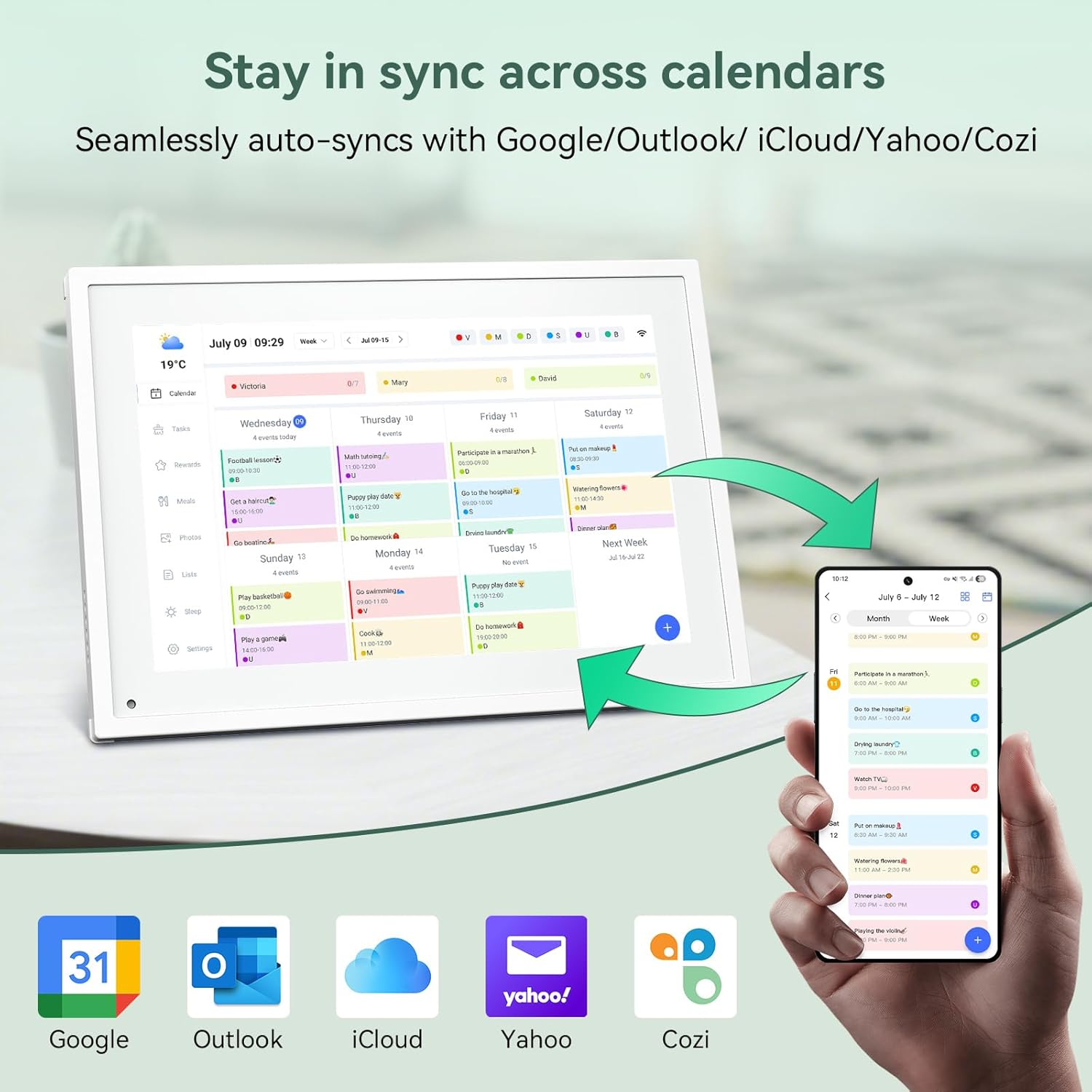
6.1. irudia: Seamless synchronization of the digital calendar with various external calendar services.
- Syncing External Calendars: Within the eCalendar app settings, you can link your Google, Apple, Outlook, Yahoo, or Cozi calendars. Events from these linked accounts will automatically appear on your TABWEE Digital Calendar.
- Adding/Editing Events: Tap on a date or time slot on the calendar display or use the eCalendar app to add new events. You can specify event details, set reminders, and assign participants.
- Pertsonalizatua Views: Switch between day, week, or month views directly on the device or through the app.
6.3 Task Management (Chore Chart)
Organize tasks and chores for family members with a built-in reward system.
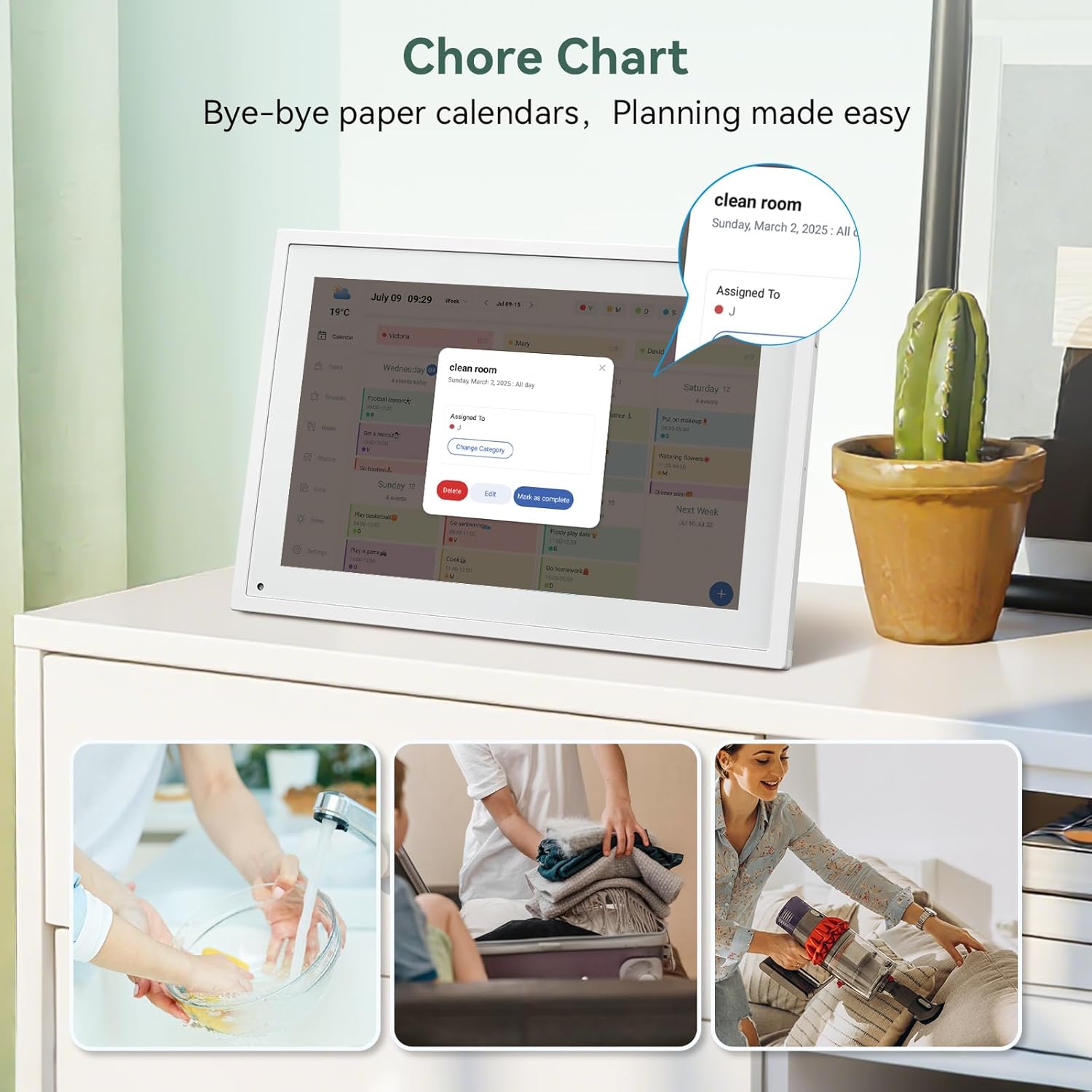
6.2. irudia: Managing tasks and chores on the digital calendar interface.
- Creating Tasks: Use the 'Tasks' section on the device or app to create new tasks. Assign them to specific individuals, set due dates, and configure recurring tasks.
- Aurrerapenaren Jarraipena: Users can mark tasks as complete. The system tracks completion and can be configured to award points.
- Sari-sistema: Set up a star-point reward system within the app. Points earned from completed tasks can be redeemed for custom rewards, encouraging participation.

6.3. irudia: The task manager and rewards interface, designed for engaging users.
6.4 Meal Planning
Plan your meals directly on the device or through the app.

6.4. irudia: Visual meal planning interface on the digital calendar.
- Create Meal Plans: Access the 'Meals' section to plan breakfasts, lunches, dinners, and snacks for the week.
- Custom Recipes: Upload and store your favorite recipes.
- Grocery Lists: Generate grocery lists based on your meal plans.
6.5 Digital Photo Frame Functionality
The device can also function as a digital photo frame.

6.5. irudia: The digital calendar switching between calendar and photo frame modes, in both landscape and portrait orientations.
- Aldaketa moduak: Navigate to the 'Photos' section on the device or app to activate the digital photo frame mode.
- Argazkiak kargatzen: Upload your favorite memories directly from your smartphone via the eCalendar app.
- Orientazioa: The device supports both landscape and portrait orientations, automatically adjusting the display.
6.6 Beste ezaugarri batzuk
The TABWEE Digital Calendar includes additional smart features to enhance usability.
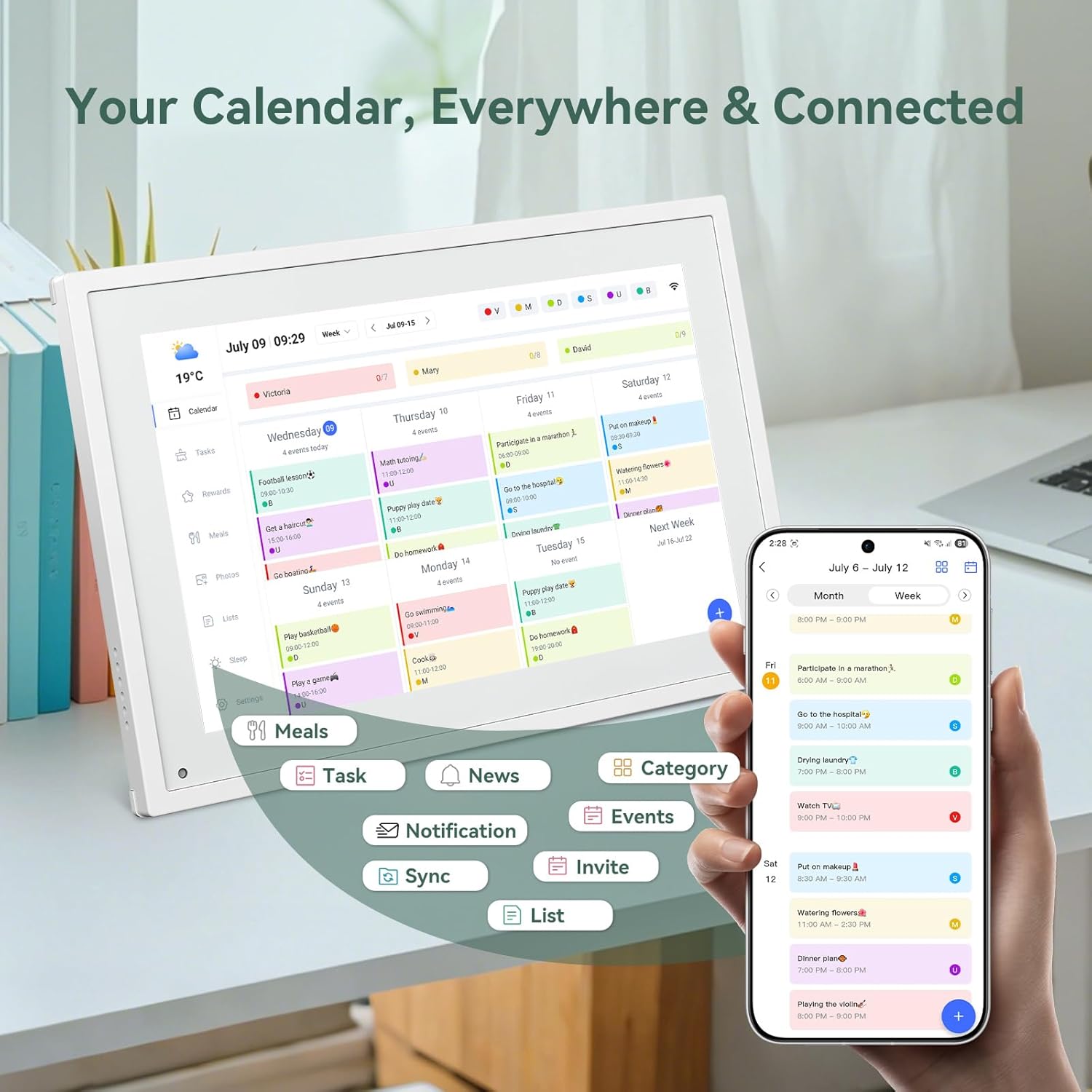
6.6. irudia: Amaituview of smart features and app connectivity.
- Live Weather Forecasts: Displays current weather conditions and forecasts.
- Distira automatikoa: The built-in light sensor automatically adjusts screen brightness for optimal viewing.
- Lo egiteko modua: Configure scheduled times for the device to enter a low-power sleep mode.
- Custom Lists: Create and manage various lists (e.g., shopping lists, packing lists).
- Kolore-kodeketa: Assign different colors to events or tasks for easy visual identification.
7. Mantentzea
7.1 Gailua garbitzea
- Garbitu pantaila astiro-astiro zapi leun eta pelusik gabeko batekin. Orban egoskorrak lortzeko, garbitu apur batampGarbitu oihalak urarekin edo pantaila garbitzeko soluzio batekin.
- Saihestu produktu kimiko gogorrak, material urratzaileak edo aerosolak zuzenean gailuan erabiltzea.
- Garbitu aurretik, ziurtatu gailua itzalita eta deskonektatuta dagoela.
7.2 Software eguneraketak
The device may receive periodic software updates to improve performance and add new features. Ensure your device is connected to Wi-Fi to receive these updates. You will typically be notified on-screen when an update is available.
8. Arazoak
| Arazoa | Kausa posiblea | Irtenbidea |
|---|---|---|
| Gailua ez da pizten. | Energia-egokitzailea ez dago konektatuta edo akastuna. | Ziurtatu korronte-egokitzailea ondo konektatuta dagoela gailura eta funtzionatzen duen entxufe batera. |
| Ezin da wifira konektatu. | Pasahitz okerra, eremutik kanpo edo sareko arazoa. | Verify Wi-Fi password. Move the device closer to the router. Restart your router. |
| Calendar events are not syncing. | App not linked, external calendar not connected, or internet issue. | Check app-device linking. Ensure external calendars are correctly linked in the eCalendar app. Verify internet connection. |
| Pantailak ez du erantzuten. | Softwarearen aldi baterako akatsa. | Restart the device by holding the power button until it turns off, then power it back on. |
9. Zehaztapenak
| Ezaugarri | Xehetasuna |
|---|---|
| Modelo zenbakia | P10 |
| Pantailaren tamaina | 10.1 hazbete |
| Bistaratzeko mota | Ukipen-pantaila |
| Konektibitatea | WiFi |
| Produktuaren neurriak | 10.51 x 0.91 x 7.32 hazbete (26.7 x 2.3 x 18.6 cm) |
| Elementuaren pisua | 2.58 libra (1.17 kg) |
| Muntatze Mota | Desk Mount (not wall-mountable) |
| Energia iturria | Plug-in (no internal battery) |
| Kolorea | Zuria |
10. Bermea eta Laguntza
The TABWEE Digital Calendar comes with a standard manufacturer's warranty. For specific warranty terms and conditions, please refer to the warranty card included in your product packaging or visit the official TABWEE webgunea.
For technical support, troubleshooting assistance, or any inquiries regarding your product, please contact TABWEE customer service through their official webgunea edo zure produktuaren dokumentazioan emandako harremanetarako informazioa.
