
1. Sarrera
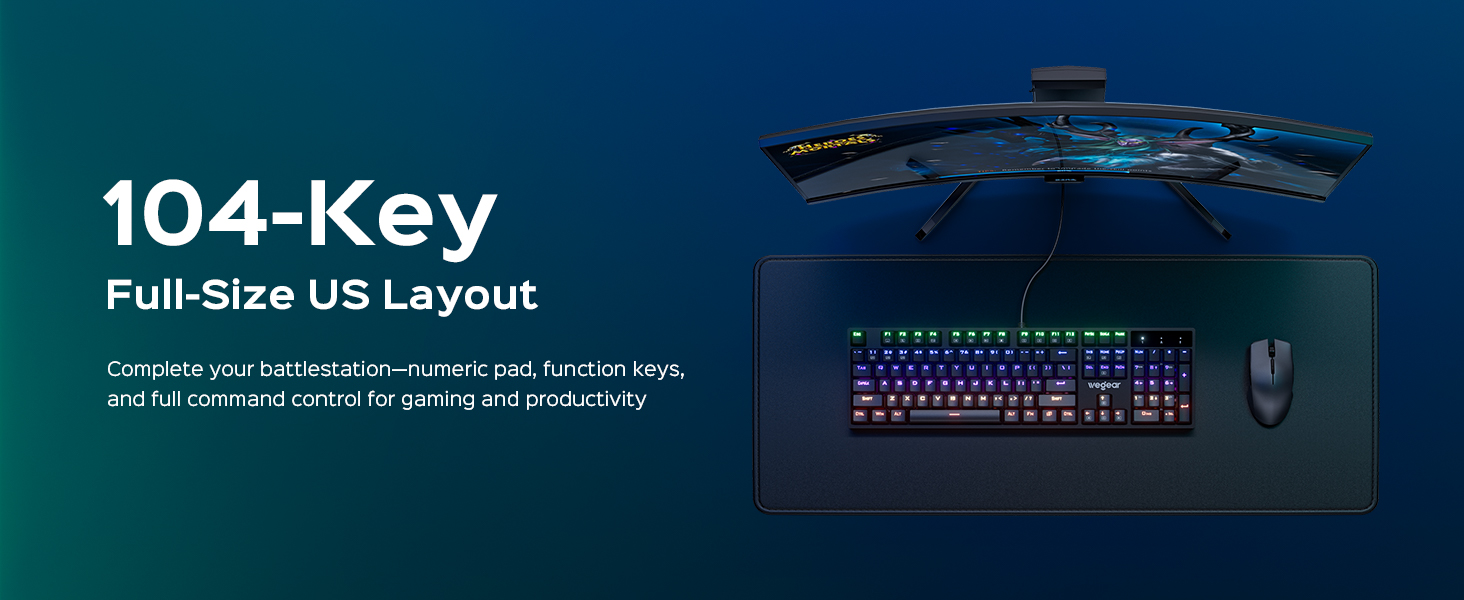
Thank you for choosing the wegear GK1 Mechanical Gaming Keyboard. This full-size, 104-key wired keyboard is designed for precision, durability, and an immersive user experience. Featuring professional Blue switches, vibrant RGB backlighting, and advanced anti-ghosting technology, it is suitable for both intense gaming sessions and efficient productivity tasks.
This manual provides detailed instructions for setting up, operating, maintaining, and troubleshooting your new keyboard. Please read it thoroughly to ensure optimal performance and longevity of your device.
2. Paketearen edukia
- wegear GK1 Mechanical Gaming Keyboard
- Erabiltzailearen eskuliburua
3. Konfigurazioa
3.1 Teklatua konektatzea
The wegear GK1 is a wired keyboard designed for plug-and-play functionality. No additional drivers are typically required for basic operation on most operating systems.
- Locate an available USB-A port on your computer (Laptop, PC, Tablet).
- Plug the USB-A connector of the keyboard cable into the USB-A port on your computer.
- The keyboard's RGB backlighting should illuminate, indicating a successful connection. Your computer will automatically detect and install the necessary drivers.
3.2 Adjusting Keyboard Tilt
For enhanced ergonomic comfort, the keyboard features adjustable tilt stands on its underside.
- Gently flip the keyboard over.
- Locate the two foldable kickstands at the top corners of the keyboard.
- Flip out the kickstands to achieve a 7° ergonomic tilt, or keep them folded for a flat typing experience.
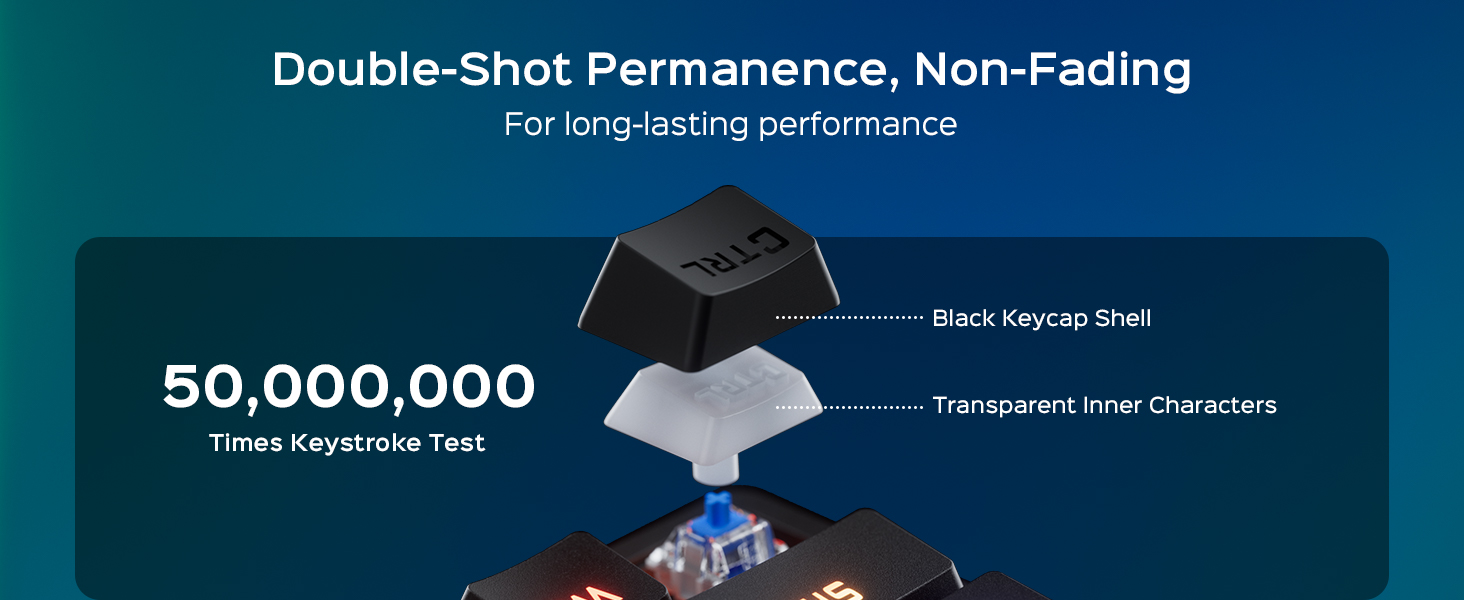
Image: The wegear GK1 keyboard demonstrating its ergonomic 7-degree adjustable tilt for comfortable typing.

Image: A user's hands positioned comfortably on the wegear GK1 keyboard, highlighting the ergonomic design for reduced wrist strain.
4. Funtzionamendu-argibideak
4.1 Mechanical Blue Switches
The wegear GK1 keyboard features professional Blue mechanical switches, known for their tactile bump and crisp audible click. This provides satisfying feedback for both typing and gaming, enhancing precision and responsiveness.
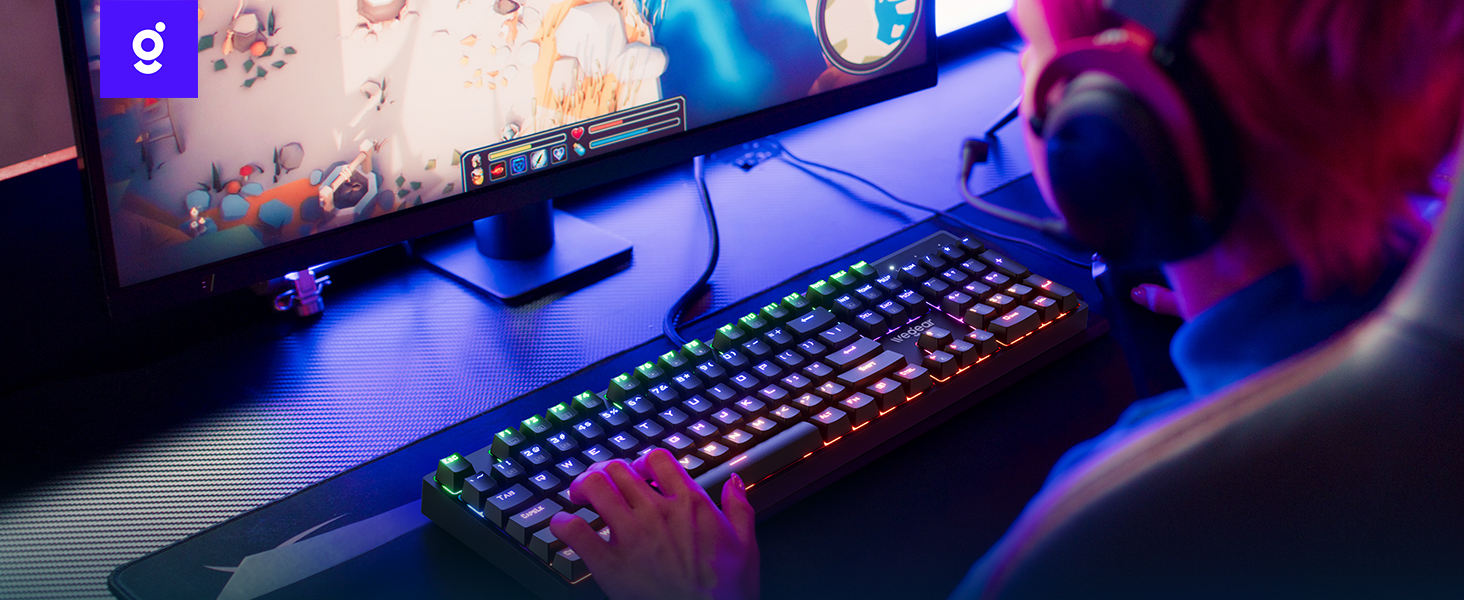
Image: A detailed diagram illustrating the internal mechanism of a clicky blue mechanical switch, emphasizing its tactile bump and crisp acoustic feedback.
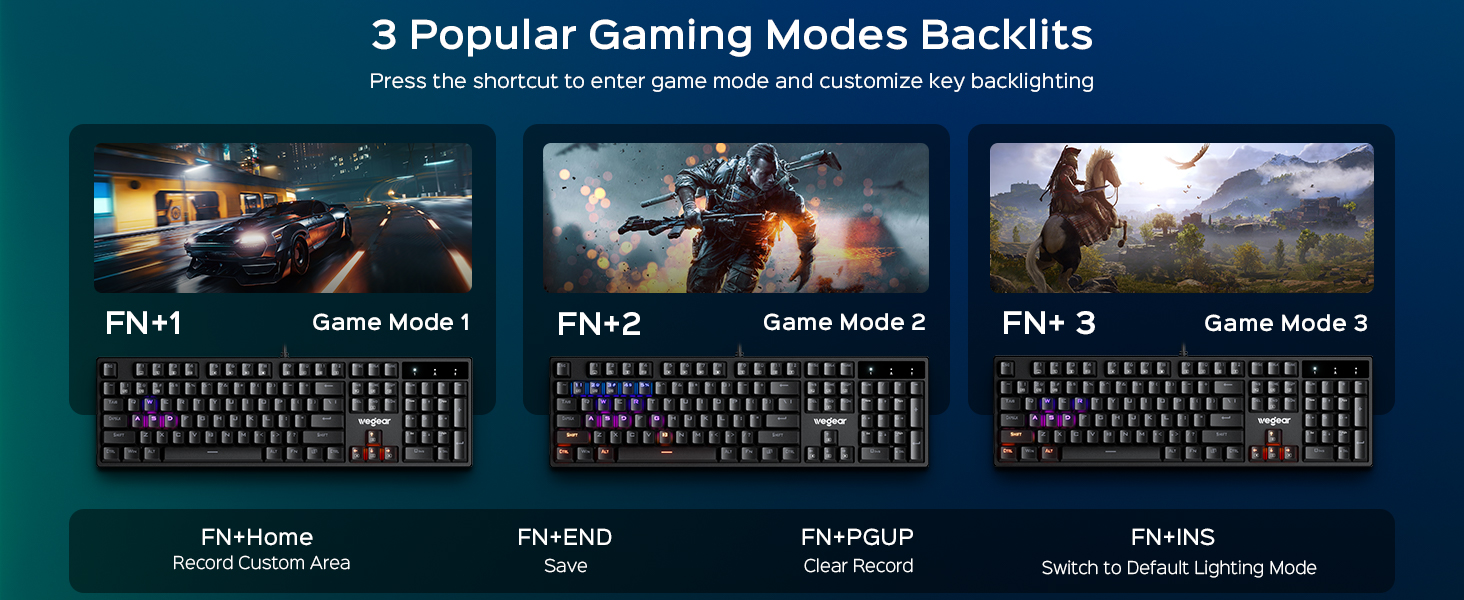
Image: A close-up of a finger pressing a blue mechanical switch on the wegear GK1 keyboard, illustrating the tactile and auditory feedback.
4.2 RGB atzeko argia
The keyboard features dynamic RGB backlighting with 11 distinct modes, adjustable brightness, and speed settings to customize your visual experience.
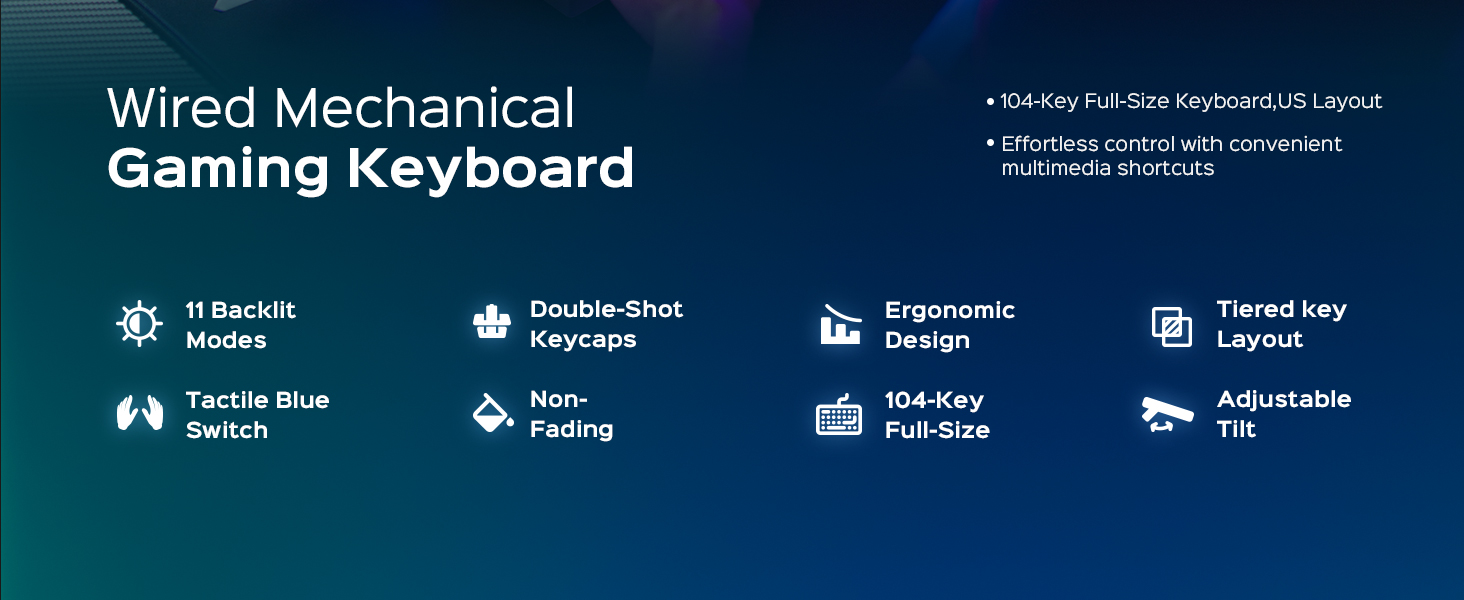
Image: The wegear GK1 keyboard displaying its dynamic RGB lightscape with various backlight modes, brightness levels, and adjustable speeds.
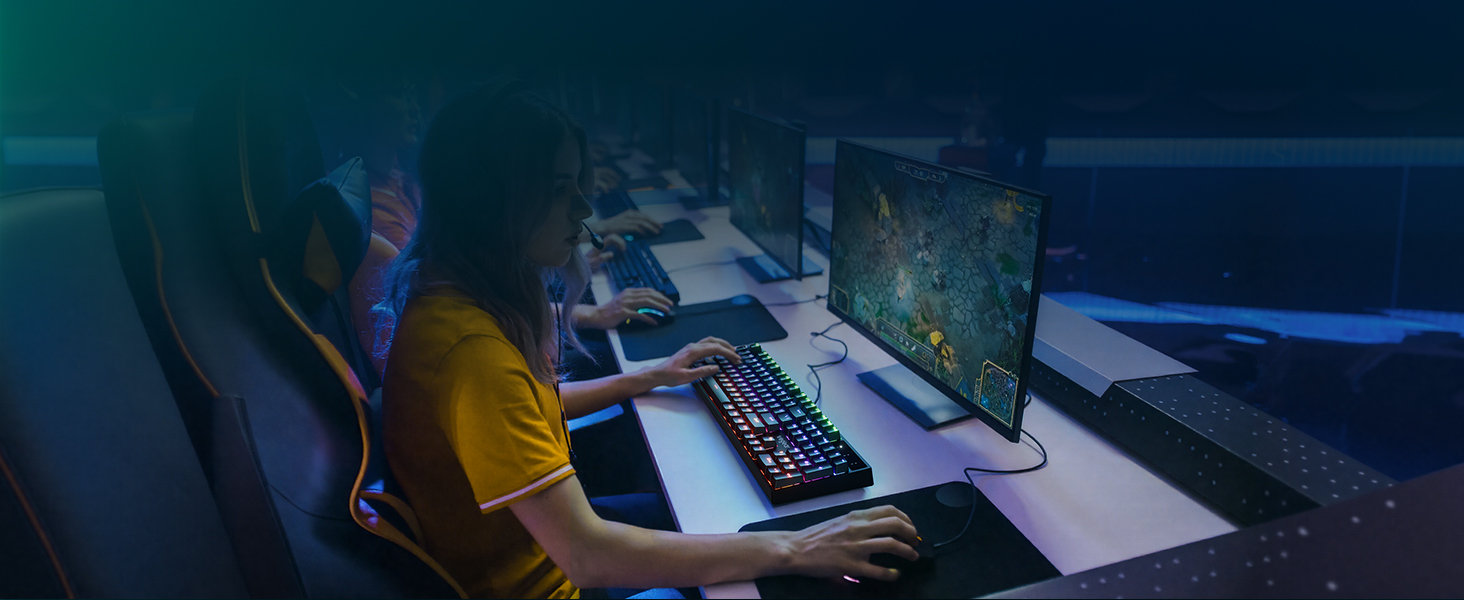
Image: The wegear GK1 keyboard highlighting its RGB lighting controls, including switching backlight modes, adjusting brightness, and setting light speed using FN key combinations.
Lighting Control Functions:
- Fn + INS: Switch between 11 dynamic backlight modes.
- Fn + Gora/Behera gezia: Doitu atzeko argiaren distira (5 maila).
- Fn + Ezkerra/Eskuina gezia: Atzeko argiaren abiadura doitzea.
Joko moduak:
The keyboard supports 3 popular gaming modes with customizable key backlighting.
- Fn + 1: 1. modua
- Fn + 2: 2. modua
- Fn + 3: 3. modua
- Fn + Hasiera: Record Custom Area
- Fn + END: Save Custom Area
- Fn + PGUP: Clear Recorded Area
- Fn + INS: Switch to Default Lighting Mode

Image: The wegear GK1 keyboard illustrating its three dedicated gaming modes (Fn+1, Fn+2, Fn+3) and controls for recording, saving, and clearing custom backlight areas.
4.3 Multimedia lasterbideak
Access common multimedia functions quickly using the Fn key in combination with the F-keys.
- Fn+F1: Ordenagailua
- Fn+F2: Search
- Fn+F3: Kalkulagailua
- Fn+F4: CD
- Fn+F5: Aurreko Pista
- Fn+F6: Hurrengo Pista
- Fn+F7: Erreproduzitu/Pausatu
- Fn+F8: CD Stop
- Fn+F9: Isildu
- Fn+F10: Bolumena jaitsi
- Fn+F11: Bolumena igo
- Fn+F12: Blokeatu teklatua
4.4 Anti-Ghosting and Win Lock
The keyboard features 100% anti-ghosting on all 104 keys, ensuring every keystroke is registered accurately, even during rapid, simultaneous presses. The Win Lock function prevents accidental interruptions during gameplay or work.
- Ghosting-aren % 100: All 104 keys respond instantly, preventing missed inputs.
- Fn + Irabazi: Activates/Deactivates the Win Lock function, disabling the Windows key to avoid accidental presses.
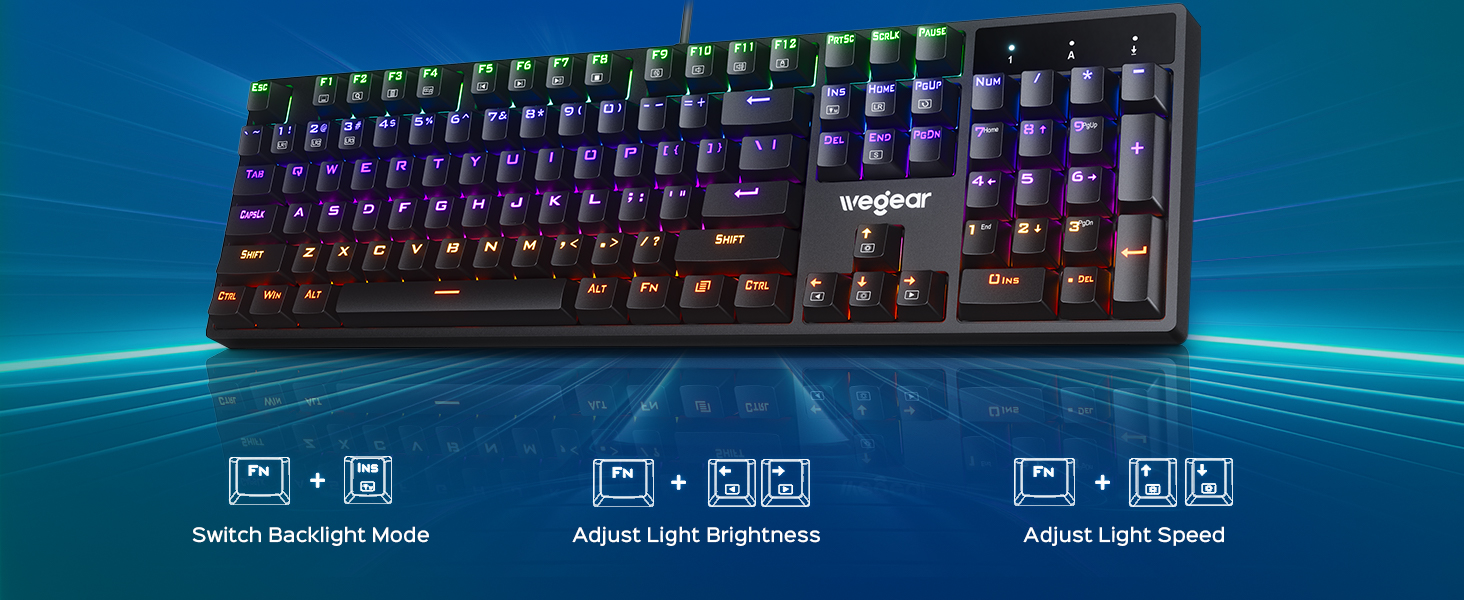
Image: A user actively gaming with the wegear GK1 keyboard, illustrating the benefit of 100% anti-ghosting for flawless multi-key input without missed commands.
5. Mantentzea
5.1 Teklatua garbitzea
To maintain optimal performance and appearance, regular cleaning is recommended.
- Deskonektatu teklatua ordenagailutik garbitu aurretik.
- Erabili lipurrik gabeko zapi leun bat dampGarbitu urarekin edo garbiketa-soluzio leun batekin teklak eta teklatuaren gainazala garbitzeko. Saihestu gehiegizko hezetasuna.
- For deeper cleaning, you may use a keycap puller (not included) to remove individual keycaps and clean underneath with compressed air or a small brush.
- Ziurtatu osagai guztiak guztiz lehor daudela teklatua berriro konektatu aurretik.
5.2 Tekla-tapen iraunkortasuna
The wegear GK1 features double-shot ABS keycaps, designed for long-lasting performance. The legends are wear-resistant and have high light transmission, ensuring they remain vibrant and do not fade over time.
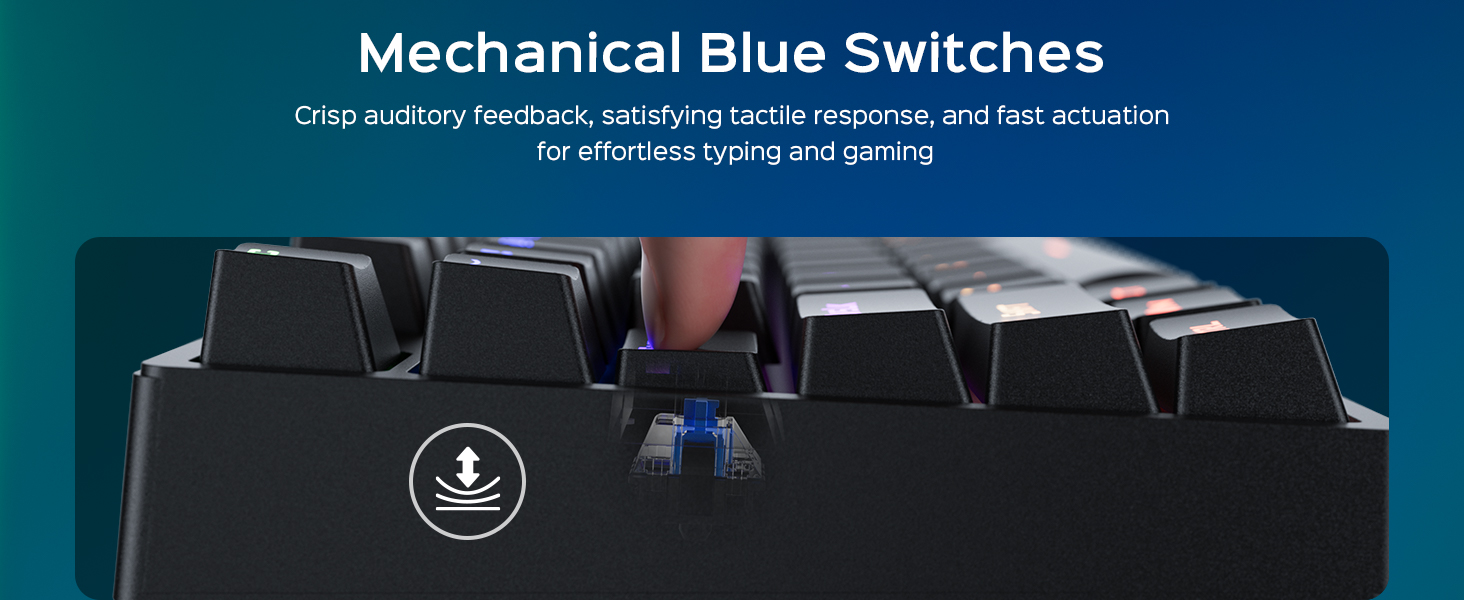
Image: A diagram illustrating the double-shot molding process of the keycaps, highlighting their fade-resistant and scratch-proof properties for long-lasting performance.
Irudia: Gertutik view of a double-shot keycap, showing the black keycap shell and transparent inner characters, which ensures the legends do not fade.
6. Arazoak
| Arazoa | Kausa posiblea | Irtenbidea |
|---|---|---|
| Teklatuak ez du erantzuten | Loose USB connection; Faulty USB port; Driver issue | Ziurtatu USB kablea ondo konektatuta dagoela. Saiatu beste USB ataka batekin. Berrabiarazi ordenagailua. |
| Atzeko argiztapena ez dabil | Backlight turned off or brightness set to minimum; Software conflict | Sakatu Fn + Gora gezia distira handitzeko. Sakatu Fn + INS to cycle through modes. Ensure no conflicting software is running. |
| Giltzak bi aldiz idaztea edo ez erregistratzea | Dust/debris under keycap; Switch malfunction | Clean under the keycap using compressed air. If issue persists, contact customer support. |
| Multimedia teklak ez dute funtzionatzen | Incorrect key combination; Software conflict | Ensure you are pressing the correct Fn + F-key combination. Check for any conflicting media player software. |
7. Zehaztapenak
- Marka: arropa
- Ereduaren izena: GK1-MK
- Modelo zenbakia: GK1-black
- Konektibitate Teknologia: USB-A (Kableduna)
- Teklatuaren deskribapena: Jolasa
- Gako kopurua: 104
- Etengailu mota: Clicky Blue Mechanical Switches
- Teklatuaren diseinua: QWERTY (US Layout)
- Ezaugarri bereziak: Backlit, Ergonomic, 100% Anti-Ghosting, Win Lock, Multimedia Shortcuts
- Teklatuaren atzeko argiaren kolore-laguntza: RGB (11 modes, 5 brightness levels, adjustable speed)
- Teklatuaren materiala: Tiro bikoitzeko ABS
- Produktuaren neurriak: 17.3"L x 5.03"Z x 1.42"A
- Gailu bateragarriak: Laptop, PC, Tablet (Windows OS)
- Materiala: Plastikoa
8. Bermea eta Laguntza
8.1 Bermearen informazioa
The wegear GK1 Mechanical Gaming Keyboard comes with a 1 urteko berme mugatua from the date of purchase. This warranty covers manufacturing defects and workmanship under normal use. It does not cover damage caused by misuse, accident, modification, or unauthorized repair.
8.2 Bezeroarentzako laguntza
For technical assistance, warranty claims, or any questions regarding your wegear GK1 keyboard, please contact our customer support team. Refer to the contact information provided on the product packaging or our official webgunea.
Video: An official product video from Lenovo Product Marketplace, Inc. (wegear's seller) highlighting the features and benefits of the wegear Mechanical Keyboard. This video provides a visual overview of the keyboard's design, lighting, and functionality.