
Sarrera
This manual provides detailed instructions for the setup, operation, and maintenance of your TELE System UP Stick Google TV 4K UHD HDMI streaming device. Please read this manual thoroughly before using the device to ensure proper functionality and to maximize your viewesperientzia.

Image: The TELE System UP Stick, an Ultra HD 4K Streaming Player, featuring Google TV branding and logos for Dolby, HDMI, HEVC, and Bluetooth technologies.
Kutxan dagoena
Egiaztatu elementu hauek guztiak zure paketean sartuta daudela:
- TELE System UP Stick Google TV 4K UHD HDMI device
- Bluetooth Urruneko Kontrola
- Urruneko kontrolerako bateriak
- HDMI Cable/Extender
- Quick Start Guide and Warranty Sheet

Irudia: Aurrealdea view of the TELE System UP Stick Google TV 4K UHD HDMI device, showing its compact design and the 'UP Stick' logo with a green indicator light.
Konfigurazio Argibideak
1. Gailua konektatzea
- Insert the UP Stick: Plug the TELE System UP Stick directly into an available HDMI port on your television. If space is limited, use the provided HDMI extender cable.
- Konektatu energia: Connect the power adapter (not explicitly listed in box, but implied by "Power=5V=1A" on back image) to the UP Stick and then to a power outlet. The device can also be powered via a TV's USB port (0.5A is sufficient).
- Hautatu HDMI Sarrera: Turn on your television and select the corresponding HDMI input source to which the UP Stick is connected.
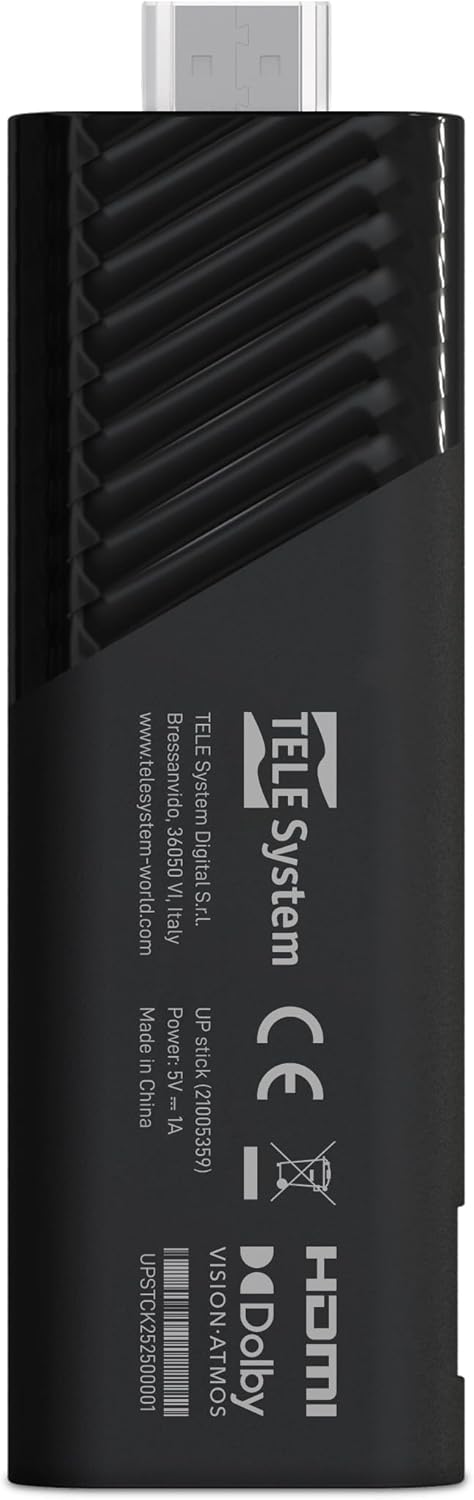
Irudia: Atzealdea view of the TELE System UP Stick, displaying regulatory marks, HDMI connector, and power input specifications (5V=1A).
2. Urruneko kontrolaren parekatzea
Upon first use, the remote control may need to be paired with the UP Stick:
- Insert the provided batteries into the Bluetooth remote control.
- Follow the on-screen instructions to pair the remote. Typically, this involves pressing and holding specific buttons (e.g., Home and Back) simultaneously until a pairing confirmation appears on the screen.

Image: The TELE System UP Stick remote control, featuring a prominent voice control button and dedicated buttons for popular streaming services like YouTube, Netflix, Prime Video, and Disney+.
3. Hasierako softwarearen konfigurazioa
Once connected and powered on, the device will guide you through the initial setup process:
- Hizkuntza hautaketa: Aukeratu zure hizkuntza hobetsia.
- Wi-Fi konexioa: Select your Wi-Fi network from the list and enter the password. The device supports dual-band Wi-Fi for stable 4K streaming.
- Google kontuaren saioa hasteko: Sign in with your Google account. This is necessary to access Google TV features, download apps from the Google Play Store, and use Google Assistant.
- Google TV Configuration: Follow the prompts to configure Google TV, including accepting terms of service and setting up personalized recommendations.

Image: A screenshot of the Google TV interface, displaying icons for popular streaming services such as Netflix, Prime Video, Apple TV, Disney+, and YouTube, indicating broad app compatibility.
Funtzionamendu-argibideak
Google TV nabigatzen
The Google TV interface organizes your content from various streaming services into a single, personalized home screen. Use the remote control's directional pad to navigate through menus, select content, and launch applications.
- Hasierako pantaila: Displays recommended content, installed apps, and quick access to different categories (Movies, Shows, Apps, Library).
- Aplikazioak: Access all your installed applications. You can download more from the Google Play Store.
- Bilatu: Use the search function to find specific titles, actors, or genres across all your streaming services.
Using Google Assistant (Voice Control)
The remote control features a dedicated button for Google Assistant. Press this button and speak your commands or questions into the remote's microphone.
- Edukien bilaketa: Say "Find action movies" or "Open Netflix."
- Gailuaren kontrola: Say "Turn up the volume" or "Pause."
- Informazioa: Ask "What's the weather?" or "Who directed this movie?"

Image: A television screen displaying the Google Assistant interface, prompted by a voice command, alongside the remote control, illustrating the voice control feature.
Streaming edukia
The UP Stick supports 4K UHD streaming with Dolby Vision, Dolby Atmos, and HDR10+ for an enhanced audio-visual experience. Access your favorite streaming services directly from the Google TV home screen or through their dedicated apps.
- Onartutako zerbitzuak: Netflix, Disney+, Prime Video, YouTube, DAZN, Apple TV+, NOW, RaiPlay, and more.
- Aplikazioaren instalazioa: Download additional apps from the Google Play Store. The device has 32 GB of internal storage for apps and data.
Google Cast erabiliz
The built-in Google Cast functionality allows you to stream content directly from your compatible smartphone, tablet, or computer to your television via the UP Stick.
- Ensure your mobile device and the UP Stick are connected to the same Wi-Fi network.
- Open a compatible app (e.g., YouTube, Netflix) on your mobile device.
- Sakatu Igorri ikonoa
 within the app and select your UP Stick from the list of available devices.

Image: The TELE System UP Stick shown alongside a smartphone displaying content being cast to a television, highlighting the Google Cast feature.
Mantentzea
- Garbiketa: Erabili zapi leun eta lehor bat gailua garbitzeko. Ez erabili garbitzaile likidorik edo aerosolik.
- Software eguneraketak: The UP Stick will periodically receive software updates to improve performance and add new features. Ensure your device is connected to the internet to receive these updates automatically. You can also manually check for updates in the device settings.
- Biltegiratze kudeaketa: Regularly check the available storage space (32 GB total) and uninstall unused applications to maintain optimal performance.
Arazoak konpontzea
No Picture/No Signal
- Ensure the UP Stick is securely plugged into the HDMI port on your TV.
- Egiaztatu telebista HDMI sarrera-iturri zuzenera konfiguratuta dagoela.
- Check that the UP Stick is receiving power and its indicator light is on.
- Try plugging the UP Stick into a different HDMI port on your TV.
Urruneko kontrola ez du erantzuten
- Egiaztatu eta ordezkatu urrutiko agintearen bateriak.
- Ensure there are no obstructions between the remote and the UP Stick.
- Attempt to re-pair the remote control by following the pairing instructions in the Setup section.
Wi-Fi konexio-arazoak
- Verify that your Wi-Fi router is powered on and functioning correctly.
- Egiaztatu ea beste gailu batzuk zure Wi-Fi sarera konekta daitezkeen.
- Restart your Wi-Fi router and the UP Stick.
- Ziurtatu Wi-Fi pasahitz zuzena sartu duzula.
Aplikazioa kraskatzea edo izoztea
- Itxi arazoa duen aplikazioa eta ireki berriro.
- Clear the app's cache and data through the device settings (Settings > Apps > [App Name] > Clear cache/Clear data).
- Ziurtatu aplikazioa azken bertsiora eguneratuta dagoela.
- Restart the UP Stick.
Zehaztapenak
| Ereduaren izena | UP Stick |
| Marka | Tele System |
| Konektibitate Teknologia | WiFi, HDMI, Google Cast |
| Konektore mota | HDMI |
| Ezaugarri bereziak | Dolby Vision, Dolby Atmos, HDR10+, HLG, HEVC, AV1, Google Cast |
| Ebazpena | 4K (3840 Pixels) |
| Onartutako Interneteko zerbitzuak | Netflix, Disney+, Prime Video, YouTube, DAZN, Apple TV+, NOW, RaiPlay |
| Forma-faktorea | Telebista Stick |
| Kolorea | Beltza |
| Produktuaren neurriak (LxWxH) | 30 x 20 x 110 milimetro |
| RAM instalatua | 2 GB |
| Biltegiratze Ahalmena | 32 GB |
| Gailu bateragarriak | TV, smartphone, tablet, personal computer |
| Bideo-kodeka | H.264, H.265/HEVC, AV1 |
| Etxe adimendunen bateragarritasuna | Compatible with digital home systems |
| Jatorrizko Herrialdea | Txina |
Bermearen informazioa
The TELE System UP Stick Google TV 4K UHD HDMI device is covered by a 2-year manufacturer's warranty from the date of purchase. This warranty covers defects in materials and workmanship under normal use. Please retain your proof of purchase for warranty claims.
For specific details regarding warranty terms and conditions, refer to the warranty sheet included in your product package or contact Tele System customer support.
Bezeroarentzako Arreta
For technical assistance, troubleshooting, or further inquiries regarding your TELE System UP Stick, please contact Tele System customer support. Refer to the contact information provided in the warranty sheet or visit the official Tele System webgunea.
Fabrikatzailea: Tele System
Webgunea: www.telesystem-world.com