
Sarrera
This manual provides essential information and instructions for the Blackview Tab 20 WiFi tablet. Please read this manual carefully before using your device to ensure proper operation and to maximize its features. Keep this manual for future reference.
Kutxan dagoena
Egiaztatu elementu guztiak paketean daudela:
- Beltzaview 20. fitxa WiFi tableta
- TPU babes-zorroa
- Erabiltzailearen eskuliburua
- Elikatze-moldagailua
- USB kablea
Note: The user manual included in the box may not be in English. This digital manual provides English instructions.
Produktua amaituview
Familiarize yourself with the key components and features of your Blackview Tab 20 WiFi tablet.
1. irudia: Aurrealdea view Beltzarenview Tab 20 WiFi tablet, showing the display and front camera.

2. irudia: Itzuli view Beltzarenview Tab 20 WiFi tablet, highlighting the rear camera module.

3. irudia: Aldea view Beltzarenview Tab 20 WiFi tablet, illustrating the USB Type-C charging port.

4. irudia: Aldea view Beltzarenview Tab 20 WiFi tablet, showing the dual speaker grilles.
Ezaugarri nagusiak:
- Gemini AI 2.0: Integrated AI assistant for intelligent control and real-time interaction.
- 10.1-inch HD+ Display: Expansive screen with 800 x 1200 pixel resolution for clear visuals.
- Dual Box Speakers: Enhanced audio experience with Smart-K powered dual speakers.
- Kamerak: 8MP atzeko kamera eta 5MP aurreko kamera argazki eta bideo deietarako.
- Memoria eta biltegiratzea: Up to 12GB RAM (4GB physical + 8GB expansion) and 64GB internal storage, expandable up to 2TB via microSD.
- 6000 mAh bateria: High-capacity battery designed for extended usage.
- Begien Babeserako Moduak: Three dedicated modes (Reading, Night Light, Dark) to reduce eye strain.
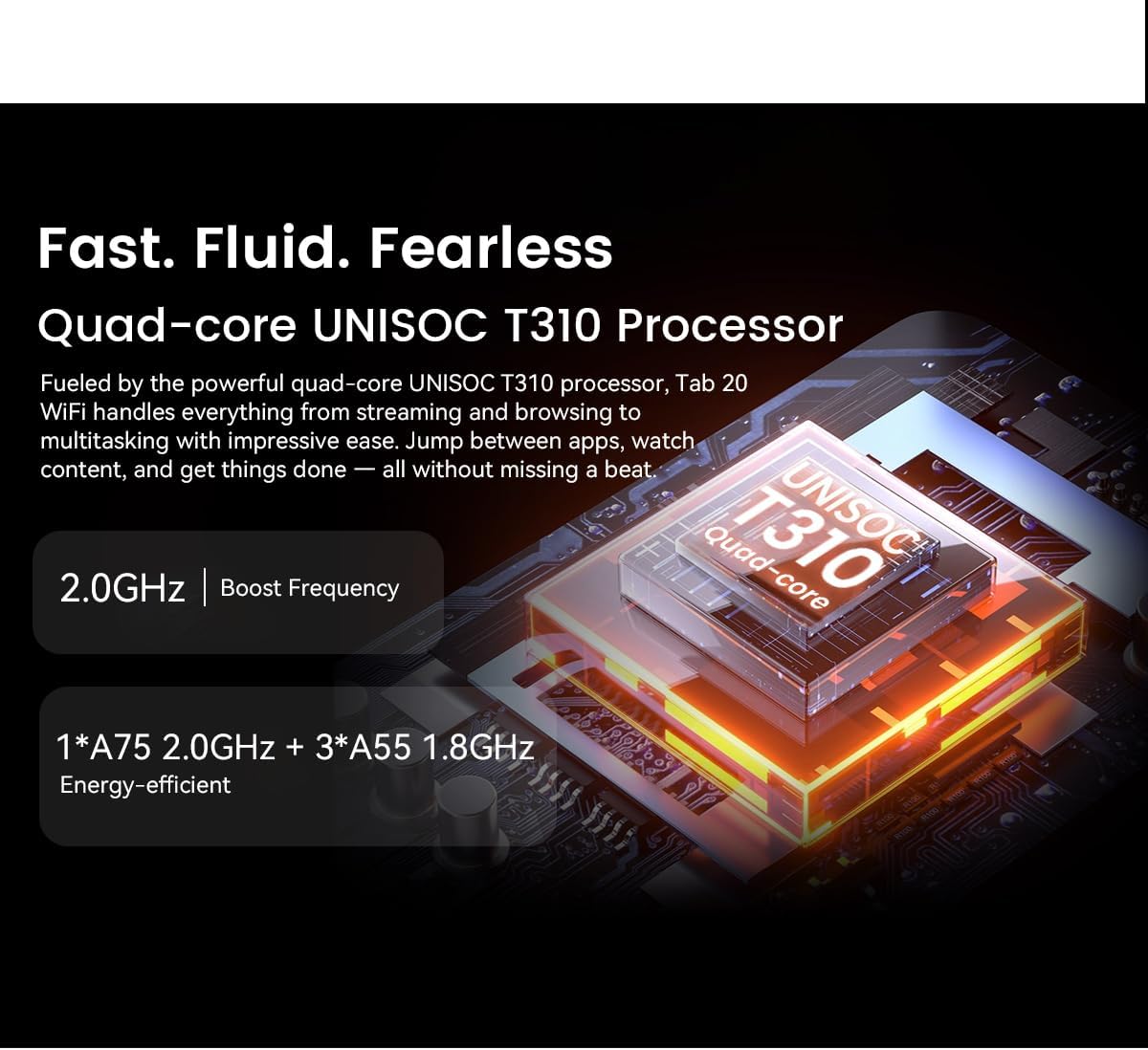
- UNISOC T310 Processor: Quad-core processor for smooth multitasking and performance.
Konfigurazioa
- Kargatu tableta:
Before first use, fully charge the tablet using the provided power adapter and USB cable. Connect the USB cable to the tablet's Type-C port and the adapter to a power outlet. The charging indicator will show the charging status.
- Piztu/Itzali:
To power on, press and hold the power button until the Blackview logo appears. To power off, press and hold the power button, then select "Power off" from the options.
- Hasierako konfigurazioa:
Follow the on-screen prompts to complete the initial setup. This includes selecting your language, connecting to a Wi-Fi network, setting up your Google account, and configuring facial unlock.
- Sartu MicroSD txartela (aukerakoa):
If you wish to expand storage, locate the SIM/microSD card tray on the side of the tablet. Use the provided ejector tool to open the tray. Insert a microSD card (up to 2TB) into the designated slot, ensuring correct orientation, then close the tray securely.
Funtzionamendu-argibideak
Oinarrizko nabigazioa:
- Ukipen-keinuak: Sakatu hautatzeko, irristatu korritzeko, apurtu handitzeko.
- Hasierako pantaila: Sartu aplikazioetara, widgetetara eta jakinarazpenetara.
- Jakinarazpen panela: Irristatu hatza behera pantailaren goialdetik view jakinarazpenak eta ezarpen azkarrak.
Wi-Fira konektatzen:
- Joan zaitez Ezarpenak > Sarea eta Internet > Wi-Fi.
- Aktibatu Wi-Fi.
- Hautatu nahi duzun sarea zerrendatik eta idatzi pasahitza behar izanez gero.
Using Gemini AI:
Beltzaview Tab 20 WiFi integrates Gemini AI 2.0 for intelligent assistance. You can activate it via voice commands or specific gestures (refer to on-screen tutorials during initial setup or in the AI settings). Gemini AI can assist with tasks, provide information, and control smart features.

5. irudia: Visual representation of Gemini AI 2.0's integration with various applications and smart controls.
Kameraren funtzionamendua:
Ireki Kamera aplikazioa argazkiak eta bideoak ateratzeko.
- Atzeko kamera (8MP): Suitable for general photography and document scanning.
- Aurreko kamera (5MP): Ideal for video calls and selfies.
Tap the shutter button to take a photo. Switch between photo and video modes as needed.

6. irudia: Gertutik view of the tablet's rear and front cameras.
Begien Babeserako Moduak:
To reduce eye strain, activate one of the three eye protection modes:
- Irakurketa modua: Adjusts screen color temperature for a paper-like reading experience.
- Gaueko argia modua: Filters blue light to reduce eye fatigue during evening use.
- Modu iluna: Inverts colors to a dark theme, reducing brightness in low-light environments.
These modes can typically be found in Ezarpenak > Bistaratzea or via the quick settings panel.

7. irudia: Visual guide to the tablet's eye protection modes.
Mantentzea
- Garbiketa: Erabili zapi leun eta lihorik gabeko bat tabletaren pantaila eta gorputza garbitzeko. Saihestu produktu kimiko gogorrak edo material urratzaileak erabiltzea.
- Software eguneraketak: Egiaztatu eta instalatu sistemaren eguneraketak aldizka errendimendu eta segurtasun optimoa bermatzeko. Joan honera Ezarpenak > Sistema > Sistema eguneratzea.
- Bateria zaintzea: Bateriaren iraupena luzatzeko, saihestu tenperatura altuegiak. Ez utzi bateria maiz erabat agortzen.
- Biltegiratze kudeaketa: Aldian-aldian garbitu beharrezkoak ez direnak fileeta desinstalatu erabiltzen ez diren aplikazioak biltegiratze espazioa askatzeko eta errendimendua mantentzeko.
Arazoak konpontzea
| Arazoa | Kausa posiblea | Irtenbidea |
|---|---|---|
| Tableta ez da pizten. | Bateria baxua; softwarearen kraskadura. | Kargatu tableta gutxienez 30 minutuz. Berrabiaraztea behartzeko, sakatu eta eutsi pizteko botoia 10-15 segundoz. |
| Ezin da wifira konektatu. | Pasahitz okerra; bideratzailearen arazoa; Wi-Fia desgaituta. | Ensure correct password. Restart your Wi-Fi router. Check if Wi-Fi is enabled in settings. |
| Apps are slow or freezing. | Aplikazio gehiegi martxan; biltegiratze gutxi; software zaharkitua. | Close background apps. Clear cache/data for problematic apps. Free up storage. Update system software. |
| Bateria azkar agortzen da. | High screen brightness; background apps; excessive usage. | Reduce screen brightness. Close unused apps. Limit background data usage. Check battery usage in settings. |
| Facial unlock not working. | Poor lighting; face not recognized; sensor obstruction. | Ensure adequate lighting. Clean the front camera. Re-register your face in settings. |
Zehaztapenak
| Ezaugarri | Xehetasuna |
|---|---|
| Marka | Beltzaview |
| Ereduaren izena | TAB 20 WIFI |
| Sistema eragilea | Android 15 |
| Prozesadorea | UNISOC T310 (Quad-core) |
| RAM | Up to 12GB (4GB physical + 8GB expansion) |
| Barne Biltegiratzea | 64 GB |
| Biltegiratze zabalgarria | microSD slot, up to 2TB |
| Pantailaren tamaina | 10.1 hazbete |
| Pantailaren bereizmena | 800 x 1200 pixel |
| Atzeko kamera | 8 megapixelekoa |
| Aurrealdeko kamera | 5 megapixelekoa |
| Bateria Edukiera | 6000 mAh |
| Konektibitatea | Wi-Fi, Bluetootha, USB C motakoa |
| Ezaugarri bereziak | Gemini AI Assistant, Facial Unlock, Google Lens |
| Dimensions (L x W x Thickness) | 24.2L x 16W x 0.9Thickness cm |
| GTIN/UPC | 810154306572 |
Bermea eta Laguntza
Bermearen informazioa:
Beltzaview Tab 20 WiFi tablet comes with a Berme mugatua. Please refer to the warranty card included in your product packaging for specific terms and conditions, including coverage duration and claim procedures. Keep your proof of purchase for warranty claims.
Bezeroarentzako laguntza:
For technical assistance, troubleshooting beyond this manual, or warranty inquiries, please contact Blackview customer support. You can typically find contact information on the official Blackview website or through the retailer where you purchased the tablet.
Always provide your product model (TAB 20 WIFI) and serial number when contacting support for faster service.