
Sarrera
This manual provides detailed instructions for the installation, operation, and maintenance of your Naifay Android Car Radio, designed specifically for Toyota Prius models from 2004 to 2009 (Model A: Not Fit Big Screen & J.B.L Version). Please read this manual thoroughly before use to ensure proper functionality and safety.
Ohar garrantzitsua: If your Toyota Prius has a large screen or supports the J.B.L sound system, this unit is not compatible. Please refer to ASIN: B0FPG2RRXJ for compatible models. For any compatibility concerns, please send your car's model, year, and a dashboard picture to Naifay customer support via Amazon chat.
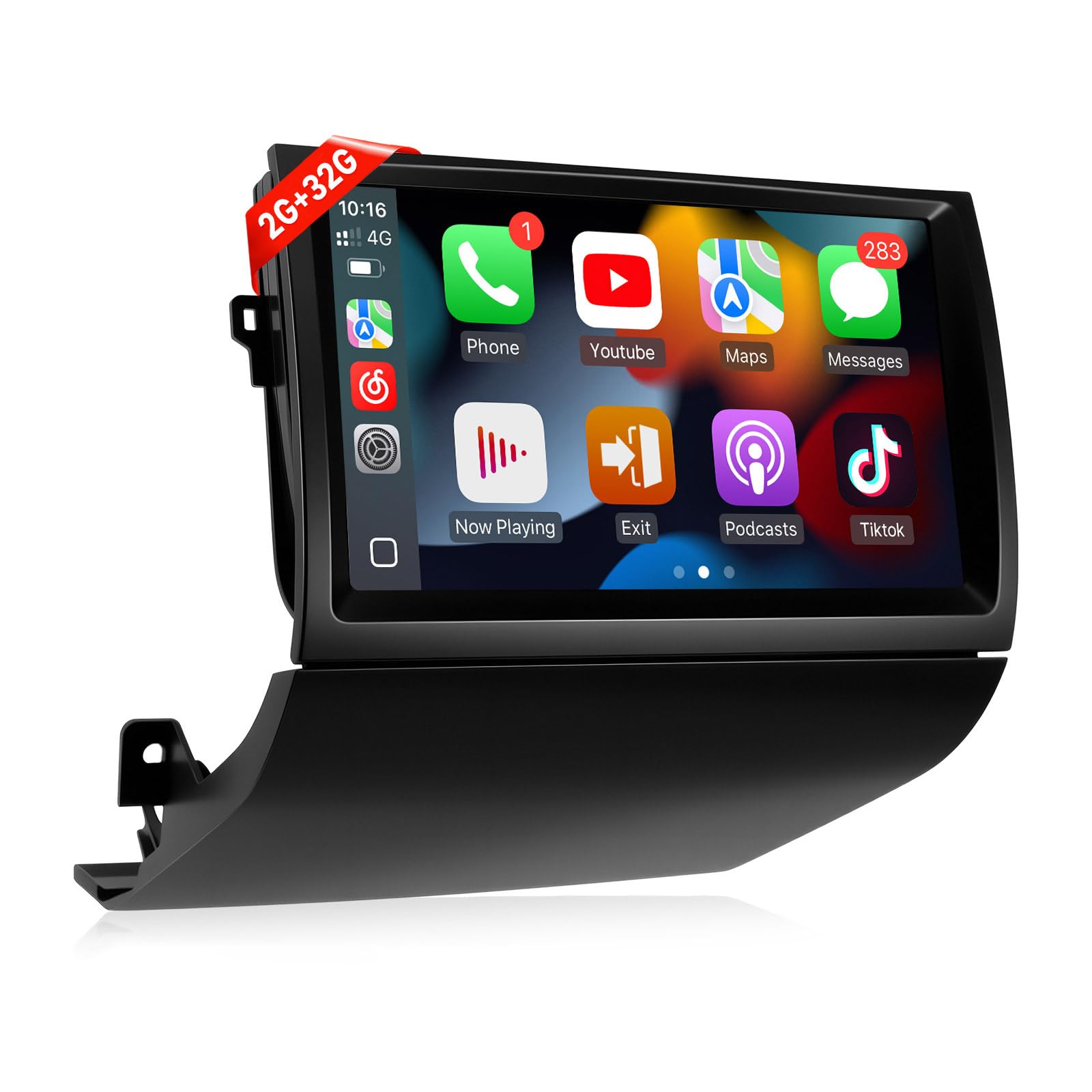
Figure 1: Naifay Android Car Radio Unit
Konfigurazioa eta Instalazioa
Proper installation is crucial for the optimal performance of your new car radio. This section guides you through the necessary steps.
1. Instalazioaren aurreko egiaztapenak
- Ziurtatu ibilgailua itzalita dagoela eta aparkaleku-balazta jarrita dagoela.
- Before removing the old radio, eject all CDs to prevent them from being stuck.
- Confirm compatibility with your Toyota Prius model (2004-2009, non-JBL, non-large screen).
2. Removing the Old Unit
Carefully remove the existing car radio unit and surrounding trim. Use appropriate tools to avoid damage.

Figure 2: Visual comparison of the dashboard before and after installation, highlighting compatible and incompatible setups.
The video below provides a detailed walkthrough of the installation process for the Toyota Prius 2004-2009.
Video 1: Toyota Prius 2004-2009 Installation Method. This video demonstrates the step-by-step process of removing the old unit and installing the new Naifay Android Car Radio.
3. Wiring the New Screen
Connect the provided wiring harness to the new unit and the vehicle's existing connectors. Ensure all connections are secure. The black connector should be plugged into the designated port on the new unit. The CANBUS box is connected to the main wiring harness.
- Konektatu antena-kablea.
- Connect the GPS antenna.
- Connect the 4G antenna (can be taped anywhere in the back panel).
- Connect the backup camera wire (brownish wire).

Figure 3: Diagram illustrating the wiring for the reversing camera, showing connections for power and video signal.
4. Initial Power On and Testing
Before fully securing the unit, perform a quick power-on test to ensure the screen powers on and audio is working. This helps identify any immediate wiring issues.
5. Programming Steering Wheel Controls
To utilize your vehicle's steering wheel controls with the new unit, you will need to program them. Navigate to Settings > General > Steering Wheel Study. Long-press the desired button on your steering wheel, then select the corresponding function on the screen. Repeat for all desired controls.
Funtzionamendu-argibideak
Your Naifay Android Car Radio offers a variety of features for an enhanced driving experience.
1. Haririk gabeko CarPlay eta Android Auto
Connect your iPhone or Android phone wirelessly to access navigation, music, calls, and more directly on the car radio screen. This feature allows for hands-free operation via voice assistants like Siri or Google Assistant.

Figure 4: Display showing the Wireless CarPlay and Android Auto interfaces, enabling seamless smartphone integration.
Video 2: How To Connect Wireless CarPlay & Android Auto. This video demonstrates the connection process for both Apple CarPlay and Android Auto.
2. Wireless MirrorLink
Mirror your iOS or Android phone screen onto the car radio display. Connect via Bluetooth and Wi-Fi for wireless mirroring, or use a USB cable for wired mirroring.
Video 3: How To Connect Wireless Mirrorlink for iOS & Android. This video illustrates the steps to mirror your smartphone screen to the car radio.
3. GPS nabigazioa
The unit supports both offline and online GPS navigation. Connect to Wi-Fi or a mobile hotspot to download offline maps or use real-time online navigation. You can also download your preferred navigation apps from the app store.

Figure 5: Screenshot of the GPS navigation interface, showing online and offline map options, alongside the Wi-Fi connection status.
4. Wi-Fi konexioa
Connect to a Wi-Fi network or your phone's mobile hotspot to access online features, download apps, and stream content. Note that with 2GB RAM, it is recommended to limit the number of running applications to avoid freezing.
5. Bluetooth & FM Radio
Enjoy hands-free calling, phonebook access, and audio streaming via Bluetooth. The FM radio features high-quality stereo, automatic and semi-automatic channel search, and unlimited preset stations.

6 Irudia: Gainetikview of various features including Bluetooth for calls and music, FM radio, AHD backup camera display, steering wheel control interface, and split-screen functionality.
6. Sound Equalizer (DSP)
Customize your audio experience using the built-in Digital Sound Processor (DSP). Access the equalizer settings to adjust bass, treble, and other audio parameters to your preference. You can select from preset modes like Rock, Soft, Popular, or create a custom profile.
7. Pantaila zatitu funtzionaltasuna
Multitask efficiently with the split-screen feature, allowing you to run two applications simultaneously on the 9-inch IPS touch screen.
8. AHD Backup Camera
The unit supports AHD backup cameras, providing a clear view of your surroundings when reversing. Ensure the camera is properly wired during installation.
Mantentzea
To ensure the longevity and optimal performance of your Naifay Android Car Radio, follow these maintenance guidelines:
- Pantaila garbitzea: Use a soft, lint-free cloth to gently wipe the touch screen. Avoid abrasive cleaners or harsh chemicals that could damage the display.
- Software eguneraketak: Periodically check for software updates to ensure your unit has the latest features and security patches. Follow the on-screen instructions for any available updates.
- Kable konexioak: Ensure all cables remain securely connected. Loose connections can lead to intermittent functionality or poor performance.
- Ingurumen-baldintzak: Saihestu unitatea tenperatura altuen, eguzki-argiaren eraginpean denbora luzez edo hezetasun gehiegizkoaren eraginpean jartzea.
Arazoak konpontzea
If you encounter any issues with your Naifay Android Car Radio, refer to the following common troubleshooting steps:
- Potentziarik gabe:
- Egiaztatu konexio elektriko guztiak ondo finkatuta daudela ziurtatzeko.
- Verify the vehicle's fuse related to the car radio.
- Soinurik ez:
- Ziurtatu bolumena ez dagoela isilarazita edo baxuegia ezarrita.
- Check speaker wiring connections.
- Verify the sound equalizer settings (DSP) are configured correctly.
- Bolantearen kontrolak ez dira funtzionatzen:
- Re-program the steering wheel controls via Settings > General > Steering Wheel Study.
- Ensure the CANBUS box is correctly connected.
- GPS seinalearen arazoak:
- Ziurtatu GPS antena behar bezala instalatuta dagoela eta argia duela. view zeruko.
- Check Wi-Fi or mobile hotspot connection for online maps.
- Wireless CarPlay/Android Auto Connection Problems:
- Ensure Bluetooth and Wi-Fi are enabled on both the car radio and your smartphone.
- Forget and re-pair the device in Bluetooth settings.
- Refer to the "How To Connect Wireless CarPlay & Android Auto" video for detailed steps.
- Unit Freezes or Slows Down:
- Itxi behar ez diren atzeko planoko aplikazioak.
- Berrabiarazi unitatea.
- Consider performing a factory reset (note: this will erase all user data and settings).
For further assistance, please contact Naifay customer support.
Zehaztapenak
| Ezaugarri | Xehetasuna |
|---|---|
| Marka | Naifay |
| Modelo zenbakia | US11-SW640A-2 |
| Ibilgailuen Zerbitzu Mota | Toyota Prius 2004-2009 (Non J.B.L Version, Not Fit Big Screen) |
| Pantailaren tamaina | 9 hazbete |
| Sistema eragilea | Android 12 |
| Prozesadorea | 4-Nukleoa |
| RAM | 2 GB |
| Memoria Biltegiratzeko Ahalmena | 32 GB |
| Bistaratzeko mota | 2.5D IPS Touch Screen |
| Konektibitate Teknologia | Wireless, Bluetooth, USB, Wi-Fi |
| Ezaugarri bereziak | Wireless CarPlay & Android Auto, Wireless & Wired MirrorLink, Offline/Online GPS Navigation, Bluetooth, FM, AHD Backup Camera, SWC, Split Screen, 2 USB Ports, Multiple UI Options |
| Mapa mota | Mundu osoan |
| Audio irteera modua | Estereoa |
| Elementuaren pisua | 1.5 kilogramo |
Bermea eta Laguntza
Naifay is committed to providing excellent products and superior customer service. Your product comes with the following support and warranty:
- Erantzun azkarra: 24-hour response time for inquiries.
- Itzultzeko politika: 60 eguneko itzulketa-epea, kezkarik gabe.
- Ordezkoa: 12-month replacement available.
- Laguntza teknikoa: Salmenta osteko aholkularitza eta laguntza teknikoa bizitza osorako.
If you have any questions or require assistance, please contact Naifay customer service via Amazon chat. You can find the "Sold by Naifay" link on the product page and click "Ask a question" to reach support.