
1. Sarrera
Welcome to the instruction manual for your Jectse WiFi 6 4G/5G CPE LTE Router. This document provides essential information on how to set up, operate, maintain, and troubleshoot your device. Please read this manual carefully before using the product to ensure optimal performance and longevity.
The Jectse WiFi 6 Router is designed to provide high-speed internet connectivity by converting a 4G LTE signal into a Wi-Fi hotspot, supporting multiple devices simultaneously. Its robust design with four antennas ensures stable and wide coverage.
2. Produktua amaitu daview
2.1 Ezaugarri nagusiak
- 4G LTE Support: Compatible with multiple 4G LTE bands, including FDD B1, B3, B5, B7, B8, B20, TDD B38, B40, B41, and WCDMA B1, B5, B8. This ensures versatile connectivity across various networks.
- Abiadura azkarrak: Experience 4G download speeds up to 150 Mbps and upload speeds up to 50 Mbps. Wireless transfer rates reach up to 300 Mbps for smooth streaming, gaming, and browsing.
- Konfigurazio erraza: Simply insert a standard SIM card to transform the 4G LTE signal into a Wi-Fi hotspot. Enjoy immediate internet access with minimal configuration.
- Gailuaren edukiera handia: Connect up to 32 devices simultaneously, including smartphones, tablets, and PCs, within a maximum coverage area of 300 square meters.
- 4-Antenna Design: Equipped with four antennas for enhanced signal coverage, faster network speeds, and stable connectivity throughout your space.
2.2 Paketearen edukia
Mesedez, markatu laukitxoa elementu hauetarako:
- 1 x Jectse WiFi 6 4G/5G CPE LTE Router
- 1 x korronte egokitzailea
- 1 x Ethernet kablea
- 1 x USB kablea
- 1 x Erabiltzailearen eskuliburua (dokumentu hau)

Image: Jectse WiFi 6 Router with its power adapter, Ethernet cable, and USB cable.
3. Konfiguratzeko argibideak
Follow these steps to set up your Jectse WiFi 6 Router:
- Routerraren paketea deskonektatzea: Kontu handiz atera routerra eta osagarri guztiak paketetik.
- Sartu SIM txartela: Locate the SIM card slot on the side of the router. Insert a standard-sized 4G LTE SIM card into the slot until it clicks into place. Ensure the SIM card is correctly oriented as indicated by the diagram near the slot.

Irudia: Albokoa view of the router highlighting the SIM card slot and USB/WAN/LAN ports.
- Konektatu energia: Connect the power adapter to the router's power input port and then plug the adapter into a wall outlet. The router will power on automatically.
- Piztu: Wait for the router's indicator lights to stabilize. The Wi-Fi and network status lights should indicate a successful connection.
- Optional: Wired Connection: If you prefer a wired connection, connect one end of the Ethernet cable to the WAN/LAN port on the router and the other end to your computer or another network device.
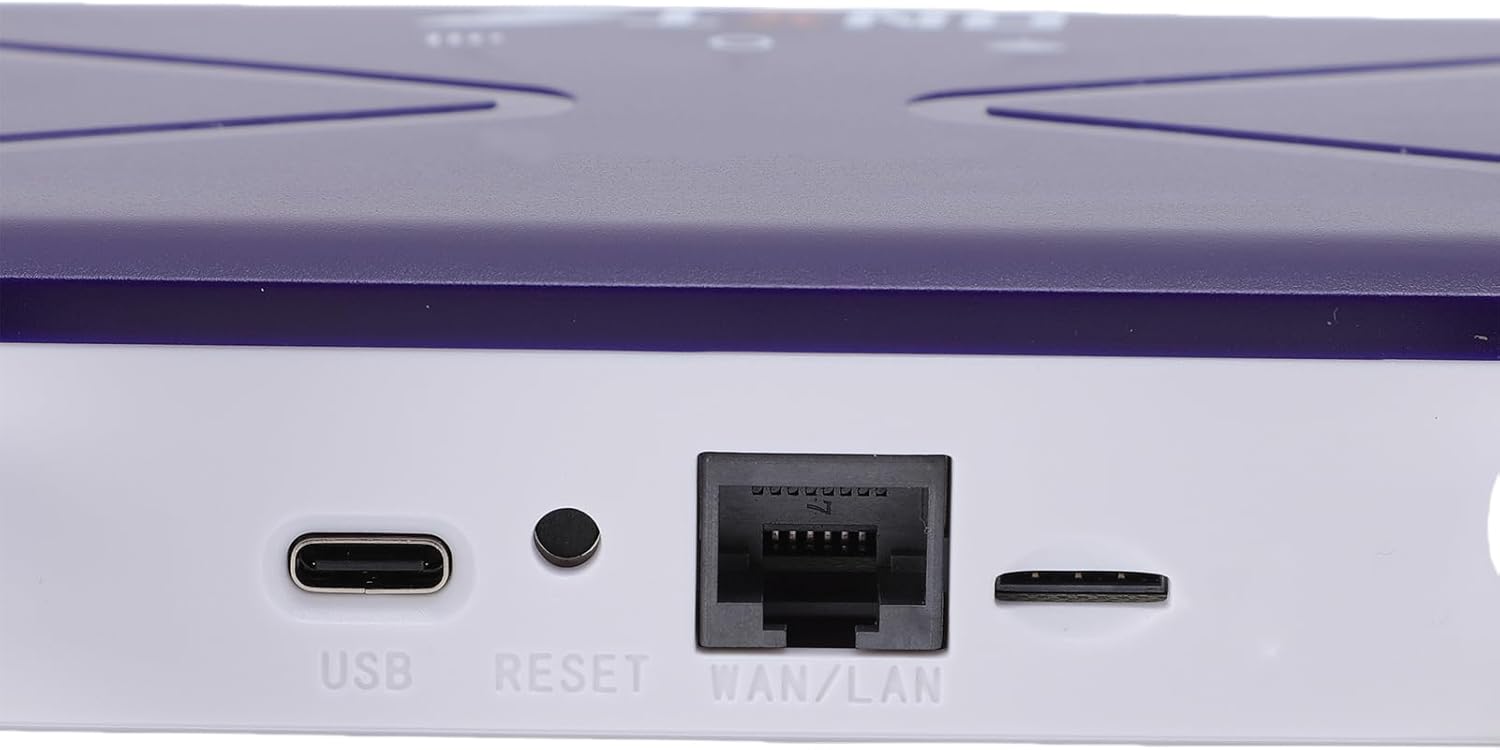
Image: Close-up of the router's rear panel showing the USB port, Reset button, and WAN/LAN port.
4. Funtzionamendu-argibideak
4.1 Wi-Fira konektatzea
To connect your devices to the router's Wi-Fi network:
- On your device (smartphone, tablet, laptop), open the Wi-Fi settings.
- Bilatu available Wi-Fi networks. The router's default Wi-Fi network name (SSID) and password (Wi-Fi Key) are typically printed on a label on the bottom of the router.
- Select the router's SSID from the list.
- Enter the Wi-Fi Key when prompted. The default Wi-Fi Key is usually 1234567890.
- Behin konektatuta, zure gailuak Interneterako sarbidea izan beharko luke.

Image: Bottom label of the router displaying default Wi-Fi Key and Web IP helbidea.
4.2 Routerraren ezarpenetara sartzea
To manage your router settings, such as changing the Wi-Fi name or password, or configuring advanced network options:
- Connect your device to the router's Wi-Fi network or via an Ethernet cable.
- Ireki a web nabigatzailea (adibidez, Chrome, Firefox, Edge).
- In the address bar, type the default Web IP helbidea: 192.168.100.1 eta sakatu Sartu.
- You will be prompted for a username and password. Refer to the label on the bottom of your router for default login credentials.
- Once logged in, you can customize your network settings.
4.3 Network Coverage
The router provides Wi-Fi wireless coverage and supports network port wired output for various environments.

Image: Diagram showing the router's Wi-Fi coverage and wired output capabilities.
5. Mantentzea
To ensure the optimal performance and longevity of your router, consider the following maintenance tips:
- Lekua: Jarri bideratzailea toki zentralean, oztopoetatik, metalezko objektu handietatik eta interferentziak sor ditzaketen beste gailu elektronikoetatik urrun.
- Aireztapena: Ensure the router has adequate ventilation. Do not cover the ventilation holes or place it in an enclosed space.
- Garbiketa: Gently clean the router's exterior with a soft, dry cloth. Avoid using liquid cleaners or aerosols.
- Firmware eguneraketak: Aldian-aldian egiaztatu fabrikatzailearen webfirmware eguneratzeetarako gunea. Zure bideratzailearen firmwarea eguneratuta mantentzeak errendimendua eta segurtasuna hobetu ditzake eta funtzio berriak gehi ditzake.
- Potentzia-zikloa: If you experience minor network issues, try power cycling the router by unplugging it from the power outlet for 10-15 seconds and then plugging it back in.
6. Arazoak
If you encounter issues with your router, refer to the following common problems and solutions:
- Ez dago Interneteko konexiorik:
- Egiaztatu SIM txartela behar bezala sartuta eta aktibatuta dagoen.
- Verify that the router's network indicator lights are stable and show a connection.
- Ensure your SIM card has an active data plan.
- Try power cycling the router.
- Wi-Fi abiadura motela:
- Hurbildu bideratzailera seinalearen indarra hobetzeko.
- Reduce the number of connected devices if many are actively using bandwidth.
- Egiaztatu beste gailu elektroniko batzuen interferentziarik.
- Berrabiarazi bideratzailea.
- Ezin da Wi-Fira konektatu:
- Ensure you are entering the correct Wi-Fi password (Wi-Fi Key).
- Check if the Wi-Fi function on the router is enabled (refer to router settings via web interfazea).
- Restart both the router and your connecting device.
- Routerrak ez du erantzuten:
- Perform a hard reset by pressing and holding the 'RESET' button (located near the WAN/LAN port) with a pin for about 10 seconds until the lights flash. This will restore the router to factory default settings, including the default Wi-Fi name and password.
7. Zehaztapenak
| Ezaugarri | Zehaztapena |
|---|---|
| Modelo zenbakia | Jectseak28xtdzqf |
| Wi-Fi estandarra | 802.11b/g/n |
| Haririk gabeko maiztasuna | 2.4 GHz |
| 4G LTE Bands (FDD) | B1, B3, B5, B7, B8, B20 |
| 4G LTE Bands (TDD) | B38, B40, B41 |
| WCDMA Bandak | B1, B5, B8 |
| Deskarga-abiadura maximoa | 150 Mbps |
| Gehienezko igoera abiadura | 50 Mbps |
| Wireless Transfer Rate | 300 Mbps |
| SIM txartelaren zirrikitua | SIM estandarra |
| Antenak | 4 |
| Suebaki integratua | Bai |
| Konektatutako gehienezko gailuak | 32 |
| Estaldura Eremua | Gehienez 300 m² |
| Fabrikatzailea | Jetse |
| Jatorrizko Herrialdea | Txina |
8. Bermea eta Laguntza
8.1 Bermearen informazioa
This Jectse WiFi 6 4G/5G CPE LTE Router comes with a 2 urteko fabrikatzailearen bermea erosketa-datatik aurrera. Berme honek materialen eta fabrikazioaren akatsak estaltzen ditu erabilera normalaren pean. Gorde erosketaren egiaztagiria berme-erreklamazioetarako.
The warranty does not cover damage caused by misuse, accidents, unauthorized modifications, or external factors such as power surges.
8.2 Bezeroarentzako laguntza
For technical assistance, troubleshooting beyond this manual, or warranty inquiries, please contact your retailer or the Jectse customer support team. Refer to the contact information provided with your purchase or visit the official Jectse weblaguntza baliabideen gunea.