
1. Sarrera
Eskerrik asko erosketagatik.asing the Z-Edge 27-inch 4K UHD IPS Monitor, Model S274K. This monitor is designed to provide a high-quality visual experience for both professional and gaming applications, featuring a 3840x2160 resolution, 120Hz refresh rate, and 1ms response time. This manual provides essential information for setting up, operating, and maintaining your monitor to ensure optimal performance and longevity.

Image: Visual comparison demonstrating the clarity of 4K UHD (3840x2160) resolution compared to QHD (2560x1440) and FHD (1920x1080) on the Z-Edge monitor.
2. Segurtasun informazioa
Produktu hau erabili aurretik, irakurri arretaz argibide guztiak. Gorde eskuliburu hau etorkizunean erreferentzia gisa.
- Ez jarri monitoreari euriari, hezetasunari edo muturreko tenperaturei.
- Ziurtatu monitorearen inguruan behar bezala aireztatuta dagoela. Ez blokeatu aireztapen-irekidurak.
- Erabili monitorearekin batera datorren korronte-egokitzailea soilik.
- Ez jarri objektu astunak korronte-kablean.
- Deskonektatu entxufea entxufetik monitoreak denbora luzez erabiliko ez badu.
- Ez saiatu monitorearen konponketa zeuk egiten. Konponketa guztiak langile kualifikatuei eskatu.
3. Paketearen edukia
Egiaztatu elementu guztiak zure paketean daudela:
- Z-Edge 27-inch 4K UHD Monitor
- Monitorearen euskarria (oinarria eta lepoa)
- Elikatze-moldagailua
- HDMI kablea
- Erabiltzailearen eskuliburua (dokumentu hau)
- Euskarri muntaketarako torlojuak
4. Monitorea baino gehiagoview
4.1 Aurrealdea View
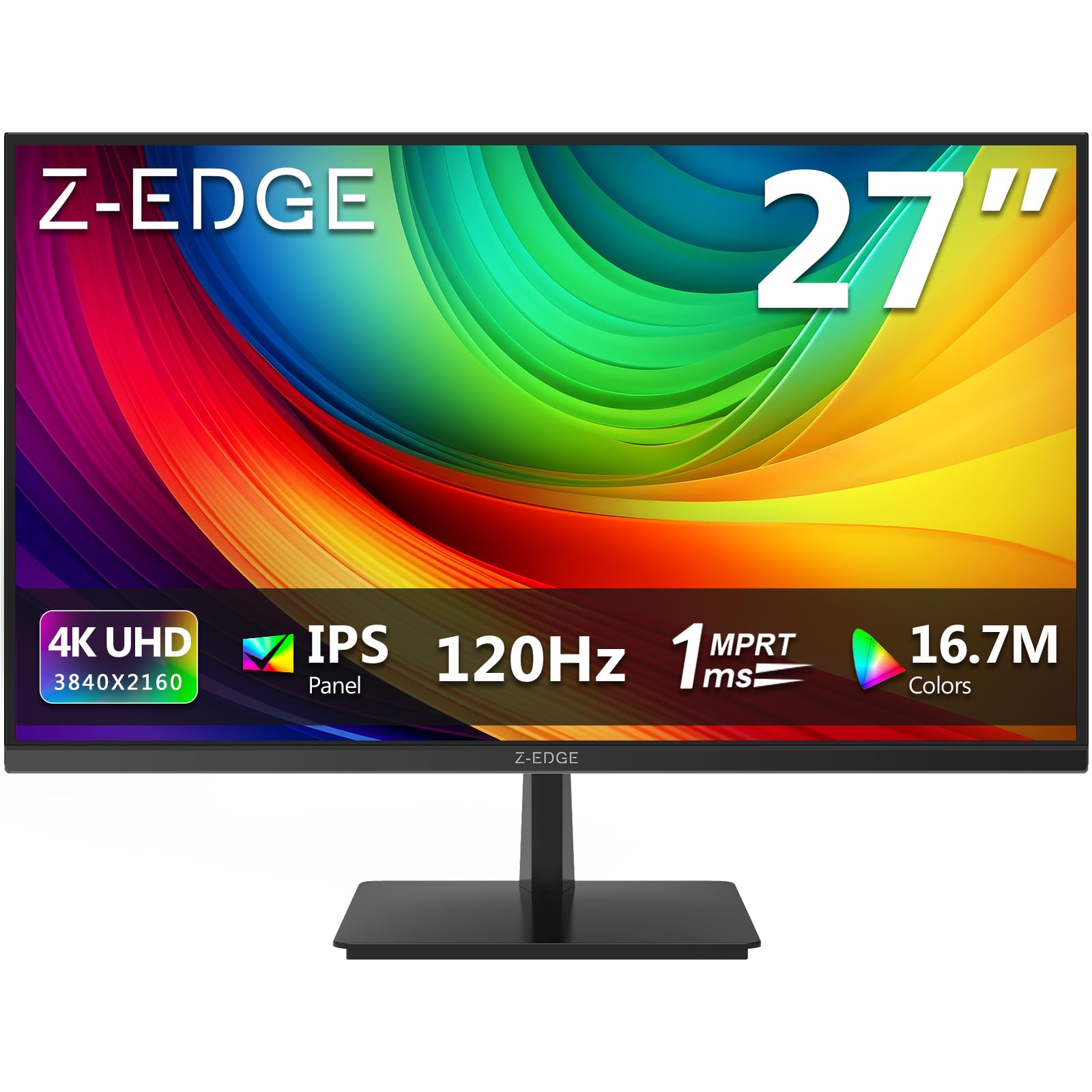
Irudia: Aurrealdea view of the Z-Edge 27-inch 4K UHD monitor. This image shows the monitor displaying a vibrant scene, highlighting its slim bezels and overall design.
4.2 Atzekoa View eta Portuak

Irudia: Atzealdea view of the Z-Edge 27-inch 4K UHD monitor. This image illustrates the monitor's connectivity options, including HDMI and DisplayPort inputs, and the VESA mounting pattern.
Eskuragarri dauden portuak:
- 12 V DC: Energia sarrerako ataka.
- HDMI 1/2 (2.0): Two HDMI input ports for connecting various devices.
- DP 1/2 (1.4): Two DisplayPort input ports for high-resolution connections.
- Audio irteera: 3.5mm audio jack for connecting external speakers or headphones.

Irudia: Xehetasun handikoa view of the monitor's input ports. This diagram clearly labels each port, including DC 12V power, two HDMI 2.0, two DisplayPort 1.4, and an audio output.
5. Konfigurazioa
5.1 Euskarriko muntaketa
- Kontu handiz atera monitorearen paketea, pantaila babestuta mantenduz.
- Lotu euskarriaren lepoa monitorearen panelera emandako torlojuak erabiliz.
- Connect the stand base to the stand neck, securing it with the remaining screws.
- Jarri muntatutako monitorea gainazal egonkor eta lau batean.
Alternatively, the monitor supports VESA 100x100mm mounting for wall mounts or monitor arms. Ensure the VESA mount is rated for the monitor's weight.
5.2 Gailu batera konektatzea
Connect your computer, game console, or other compatible device to the monitor using either an HDMI or DisplayPort cable.
- For 4K resolution at 120Hz, use a DisplayPort 1.4 cable or an HDMI 2.0 cable.
- Insert one end of the cable into the corresponding port on your device and the other end into an available HDMI or DP port on the monitor.
5.3 Energia-konexioa
- Connect the power adapter to the DC 12V port on the monitor.
- Entxufatu korronte-egokigailua korronte-hartune batera.
6. Funtzionamendu-argibideak
6.1 Piztu/Itzaltzea
Sakatu monitorearen gainean dagoen pizteko botoia pizteko edo itzaltzeko. Pizteko adierazlearen argia piztuko da monitorearen piztuta dagoenean.
6.2 OSD menuko nabigazioa
The On-Screen Display (OSD) menu allows you to adjust various monitor settings. Use the control buttons (usually located on the back or bottom of the monitor) to navigate the menu.
- Press a button to open the OSD menu.
- Use the directional buttons to move between options.
- Sakatu hautatzeko botoia hautaketa berresteko edo azpimenu batera sartzeko.
- Sakatu irteteko botoia OSD menua ixteko.
6.3 Irudi ezarpenak
Adjust display characteristics to your preference:
- Distira: Doitu pantailaren luminantzia orokorra.
- Kontrastea: Modify the difference between light and dark areas.
- Kolore Tenperatura: Select from preset modes (e.g., Warm, Cool, User) or adjust RGB values manually.
- Aspektu-erlazioa: Choose between Full, 4:3, or 16:9.
6.4 Jokoen Ezaugarriak

Image: Visual representation of the difference between 120Hz and 60Hz refresh rates, illustrating how 120Hz provides a smoother and more fluid visual experience, especially for fast-paced content.
- FreeSync / Adaptive Sync: Enable this feature in the OSD menu and on your graphics card settings to synchronize the monitor's refresh rate with your GPU's frame rate, reducing screen tearing and stuttering.
- Erantzun denbora (MPRT): Adjust for faster pixel response, beneficial for fast-paced gaming.

Image: Visual demonstration of FreeSync technology. The left side shows screen tearing and stuttering when FreeSync is off, while the right side displays smooth, fluid motion with FreeSync enabled.
6.5 Sarrera hautatzea
If you have multiple devices connected, use the OSD menu or a dedicated input select button to switch between HDMI 1, HDMI 2, DP 1, and DP 2 inputs.
7. Mantentzea
7.1 Monitorea garbitzea
- Deskonektatu beti monitorearen entxufea korrontetik garbitu aurretik.
- Erabili lipurrik gabeko zapi leun bat dampUrarekin edo pantaila-garbitzaile leun eta ez-urratzaile batekin garbitu.
- Ez ihinztatu garbitzailea zuzenean pantailan.
- Avoid using alcohol-based cleaners, ammonia, or abrasive materials.
7.2 Arreta orokorra
- Mantendu monitoreak eguzki-argitik eta bero-iturrietatik urrun.
- Ez jarri objektu astunak monitorearen edo haren kableen gainean.
- Ez ukitu pantaila objektu zorrotzekin.
8. Arazoak
| Arazoa | Kausa posiblea | Irtenbidea |
|---|---|---|
| Ez dago irudirik pantailan |
|
|
| Irudia lausoa edo distortsionatua dago |
|
|
| Screen tearing or stuttering (gaming) |
|
|
| No audio from headphones/speakers |
|
|
9. Zehaztapenak
| Ezaugarri | Xehetasuna |
|---|---|
| Marka | Z-ertza |
| Modelo zenbakia | S274K |
| Pantailaren tamaina | 27 hazbete |
| Panel mota | IPS |
| Ebazpena | 4K UHD (3840 x 2160 pixel) |
| Freskatze tasa | 120 Hz |
| Erantzun Denbora | 1 ms MPRT |
| Aspektu-erlazioa | 16:9 |
| Distira | 250 cd/m² |
| Kontraste-erlazioa | 1000:1 |
| Koloreen euskarria | 1.07 Billion Colors (99% sRGB) |
| Viewangelua | 178° (H/B) |
| Konektibitatea | 2x HDMI 2.0, 2x DisplayPort 1.4, Audio Out |
| Ezaugarri bereziak | Adjustable Tilt (-5°~15°), FreeSync, Flicker-Free, Ultra Slim Bezel |
| VESA bateragarritasuna | 100x100mm |
| Energia-kontsumoa | 32 Watt |
| Energia Eraginkortasun Klasea | F (EPREL esteka) |

Image: Key display specifications including IPS Panel technology, 250 nits brightness, support for 16.7 million colors, and a 1000:1 contrast ratio.
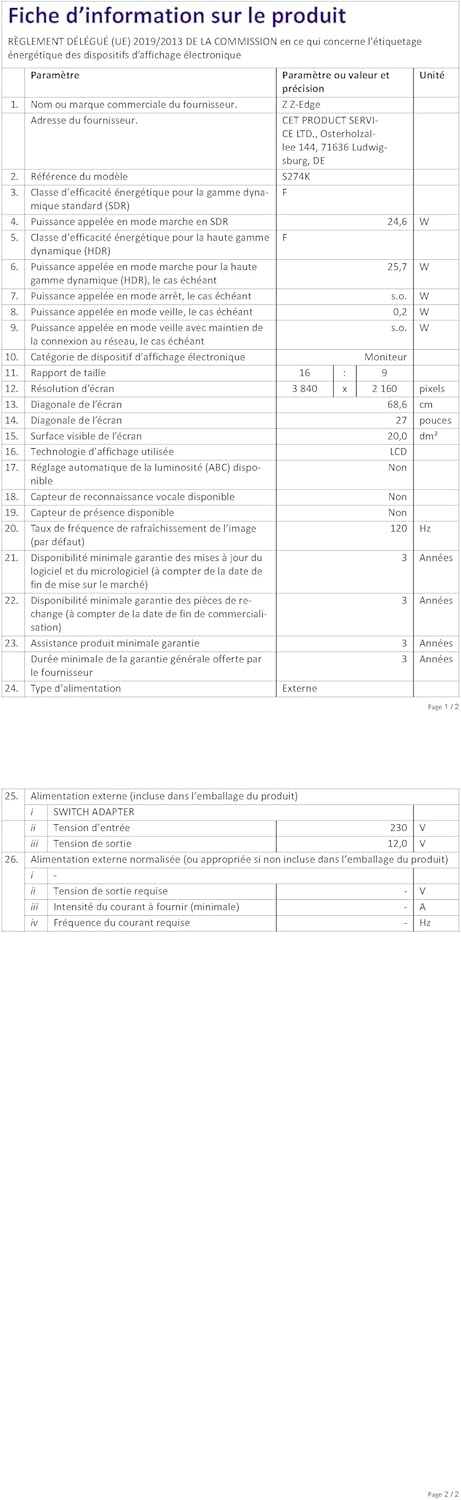
Image: EU Energy Label for the Z-Edge S274K monitor, indicating an energy efficiency class of F and energy consumption of 25 kWh per 1000 hours.
10. Bermea eta Laguntza
10.1 Fabrikatzailearen bermea
This Z-Edge monitor comes with a 1 urteko fabrikatzailearen bermea from the date of purchase. This warranty covers defects in materials and workmanship under normal use. It does not cover damage caused by misuse, accidents, unauthorized modifications, or external causes.
Bermearen erreklamazioetarako, gorde erosketaren egiaztagiria.
10.2 Bezeroarentzako laguntza
If you encounter any issues not covered in the troubleshooting section or require further assistance, please contact Z-Edge customer support. Refer to the official Z-Edge webgunea kontaktu-informazio eta laguntza-baliabide eguneratuenak lortzeko.