
1. Sarrera
This manual provides instructions for the SABLUTE KMA1pro Bluetooth Keyboard and Mouse combo, designed for Apple devices. This combo offers a full-size Mac layout keyboard with 7-color backlighting, multi-device connectivity, and a quiet, rechargeable mouse. Please read this manual thoroughly before use to ensure proper operation and longevity of your devices.
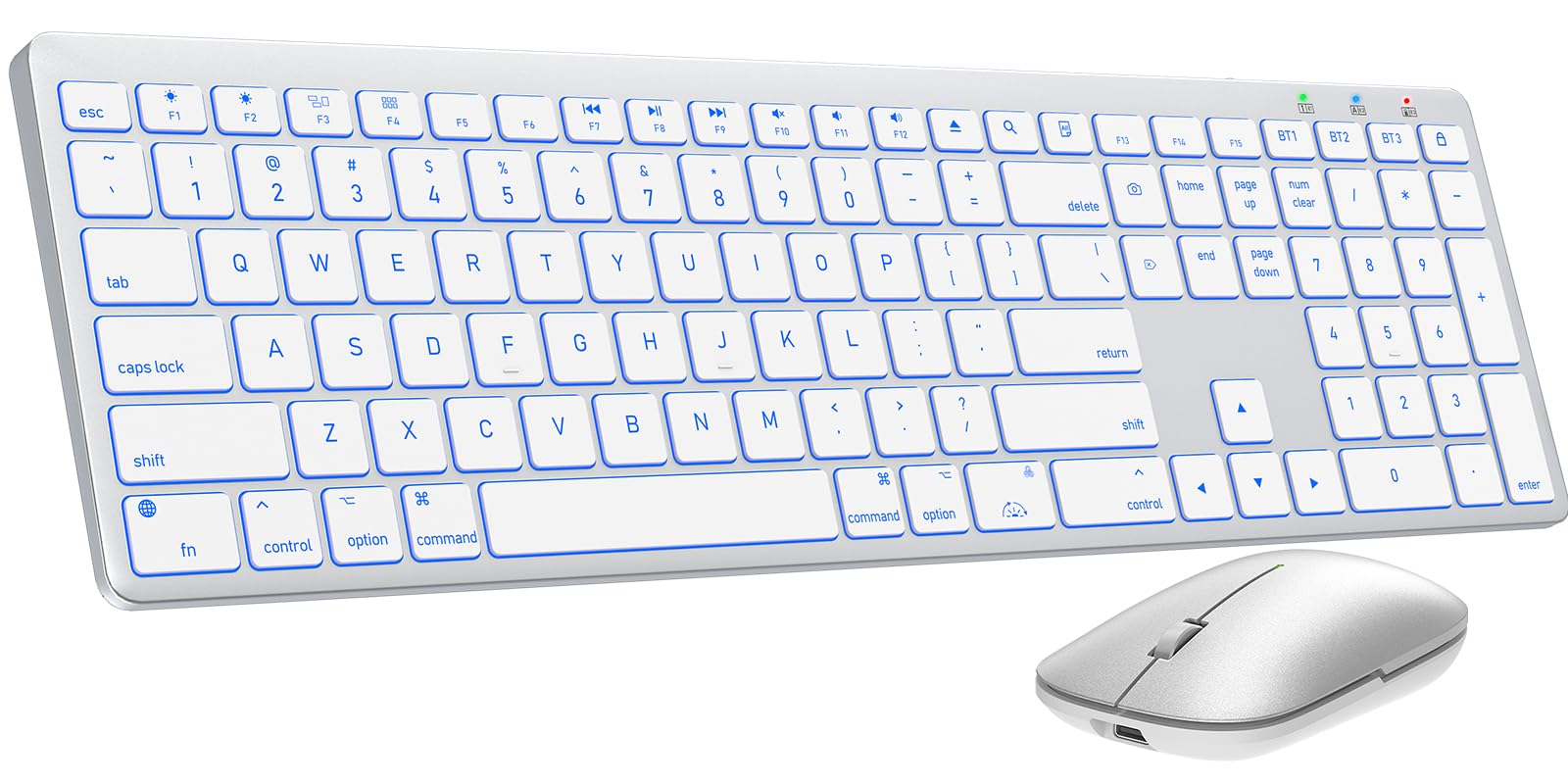
Image 1.1: The SABLUTE KMA1pro Bluetooth Keyboard and Mouse combo.
Paketearen edukia:
- SABLUTE KMA1pro Bluetooth Keyboard
- SABLUTE Bluetooth Mouse
- USB-C kargatzeko kablea
- Silicone Dustproof Cover
- Erabiltzailearen eskuliburua
2. Konfigurazioa
2.1 Gailuak kargatzea
Before initial use, fully charge both the keyboard and the mouse. Use the provided USB-C charging cable.
- Connect the USB-C end of the cable to the charging port on the keyboard (located on the top edge) and the mouse (located on the front edge).
- Konektatu kablearen USB-A muturra USB elikatze-egokitzaile batera (ez dago barne) edo ordenagailuaren USB ataka batera.
- The charging indicator light will illuminate. Once fully charged (approximately 2-3 hours), the indicator will change or turn off.

Image 2.1: Charging the keyboard and mouse via USB-C cable.
2.2 Piztu/Itzaltzea
- Teklatua: Locate the power switch on the top edge of the keyboard. Slide it to the 'ON' position to power on, and 'OFF' to power off.
- Sagua: Bilatu saguaren beheko aldean dagoen pizteko etengailua. Pizteko, irristatu 'ON' posiziora eta itzaltzeko 'OFF' posiziora.
2.3 Bluetooth parekatzea
The KMA1pro combo supports connecting up to three Bluetooth devices simultaneously.
- Enable Bluetooth on your Mac device: Go to System Settings (or System Preferences) > Bluetooth and ensure Bluetooth is turned on.
- Teklatuaren parekatzea:
- Piztu teklatua.
- Eduki sakatuta BT1, BT2, edo BT3 key for 3-5 seconds until the corresponding indicator light flashes rapidly. This indicates the keyboard is in pairing mode.
- On your Mac device, look for "SABLUTE Keyboard" in the Bluetooth device list and click "Connect".
- Behin konektatuta, adierazle-argia keinuka geldituko da.
- Saguaren parekatzea:
- Piztu sagua.
- Press the channel switch button on the bottom of the mouse to select a channel (e.g., BT1). The indicator light will flash.
- On your Mac device, look for "SABLUTE Mouse" in the Bluetooth device list and click "Connect".
- Behin konektatuta, adierazle-argia keinuka geldituko da.
- Repeat these steps for additional devices using BT2 and BT3 channels.

Image 2.2: The keyboard and mouse can switch between three paired Bluetooth devices.
3. Funtzionamendua
3.1 Teklatuaren atzeko argiaren kontrola
The keyboard features 7-color backlighting with adjustable brightness levels.
- Atzeko argiaren kolorea aldatu: Sakatu Fn +
 (the light bulb icon) to cycle through the 7 available colors.
 - Doitu distira: Sakatu Fn + (the sun icon) to cycle through 3 brightness levels or turn the backlight off.

Image 3.1: Adjusting backlight colors and brightness on the keyboard.
3.2 Switching Between Multiple Devices
To switch between your paired devices (Mac, iPad, iPhone), simply press the corresponding Bluetooth channel key on the keyboard:
- Sakatu BT1 to switch to device 1.
- Sakatu BT2 to switch to device 2.
- Sakatu BT3 to switch to device 3.
For the mouse, press the channel switch button on the bottom to select the desired paired channel.
3.3 Mac Shortcut Keys
The keyboard features a full standard Mac layout with dedicated macOS shortcut keys for enhanced productivity.

Image 3.2: Mac-specific function keys on the keyboard.
| Gakoa | Funtzioa |
|---|---|
| F1 | Light Decreases |
| F2 | Light Increases |
| F3 | Multitasking Window |
| F4 | Launchpad |
| F7 | Aurreko Pista |
| F8 | Erreproduzitu/Pausatu |
| F9 | Hurrengo Pista |
| F10 | Isildu |
| F11 | Bolumena - |
| F12 | Bolumena + |
| Multimedia kanporatzea | Eject Media |
| Search | Bilaketa Funtzioa |
| Hautatu Guztiak | Select All Content |
| Atzeko argia aldatu | Atzeko argia aktibatu/desaktibatu |
| Blokeatu pantaila | Blokeatu pantaila |
Oharra: Mac shortcuts and keys are incompatible with Windows operating systems.
3.4 Saguaren DPI doikuntza
The mouse features three adjustable DPI settings (800/1200/1600) for precise cursor control.
- To switch DPI settings, press and hold the middle scroll wheel button and the right-click button simultaneously for 3 seconds. The DPI will cycle through 800, 1200, and 1600.

Image 3.3: The mouse offers three adjustable DPI settings for cursor precision.
3.5 Ergonomic Tilt
The keyboard includes built-in adjustable folding feet to set an ergonomic typing angle, reducing wrist strain during extended use.
- Gently pull out the folding feet located on the underside of the keyboard to elevate the back edge.
- Push them back in to return the keyboard to a flat position.

Image 3.4: The keyboard features adjustable folding feet for ergonomic comfort.
3.6 Energia aurrezteko modua
Both the keyboard and mouse feature an intelligent auto-sleep mode to conserve battery power when not in use. To reactivate, simply press any key on the keyboard or move/click the mouse.
4. Mantentzea
4.1 Garbiketa
- Itzali teklatua eta sagua garbitu aurretik.
- Erabili lipurrik gabeko zapi leun bat dampUrarekin edo garbiketa-soluzio leun batekin garbitu. Saihestu produktu kimiko gogorrak.
- For the keyboard, you can use a can of compressed air to remove dust and debris from between the keys.
4.2 Using the Dustproof Cover
A custom-fit silicone protective film is included to shield your keyboard from dust, spills, and daily wear. Place it over the keyboard when not in active use or during travel.
4.3 Bateria zaintzea
- Avoid fully discharging the batteries frequently. Recharge when the low battery indicator appears.
- If storing the devices for an extended period, charge them to about 50% and power them off. Recharge every few months to prevent deep discharge.
5. Arazoak
| Arazoa | Irtenbide posiblea |
|---|---|
| Keyboard/Mouse not connecting via Bluetooth |
|
| Atzeko argia ez dabil edo ilun dago |
|
| Saguaren kurtsorea irregularra edo erantzuten ez duena |
|
| Keyboard keys not responding |
|
6. Zehaztapenak
| Ezaugarri | Xehetasuna |
|---|---|
| Marka | SABLUTE |
| Modelo zenbakia | KMA1pro |
| Kolorea | Zilarrezko Zuria |
| Konektibitate Teknologia | Bluetootha |
| Gailu bateragarriak | Mac, Mac Mini, iPad, MacBook, MacBook Air, MacBook Pro |
| Sistema eragilea | Mac OS |
| Teklatuaren diseinua | QWERTY |
| Teklatuaren deskribapena | Membrane, Scissor-Switch Keys |
| Teklatuaren atzeko argia | 7 Colors, 3 Brightness Levels |
| Teklatuaren bateriaren edukiera | 1600 mAh |
| Saguaren bateriaren edukiera | 300 mAh |
| Saguaren DPI ezarpenak | 800/1200/1600 |
| Elementuaren pisua | 0.82 Kilograms (Keyboard and Mouse) |
| Ezaugarri bereziak | 7 Color Backlit, Designed for Mac, Dustproof Cover, Quiet Typing, Rechargeable, Multi-Device Switching, Ergonomic Tilt |
7. Bermearen informazioa
SABLUTE offers a 24 hilabeteko bermea for each KMA1pro Bluetooth Keyboard and Mouse combo from the date of purchase. This warranty covers manufacturing defects and workmanship. Please retain your proof of purchase for warranty claims.
Bermeak ez ditu estaltzen erabilera okerrak, istripuek, baimenik gabeko aldaketek edo ohiko higadurak eragindako kalteak.
8. Bezeroarentzako arreta
For any questions, technical assistance, or warranty claims, please contact SABLUTE customer support:
- Posta elektronikoa: sabluteservices@outlook.com
Our support team aims to respond within 24 hours.
Video 8.1: Official product video demonstrating the SABLUTE Bluetooth Wireless Keyboard and Mouse for Mac features.