
Jectse Jectse8og49p7mre
Jectse 4G LTE Mobile WiFi Hotspot Router User Manual
Model: Jectse8og49p7mre
1. Sarrera
This manual provides essential instructions for the safe and efficient operation of your Jectse 4G LTE Mobile WiFi Hotspot Router. Please read this manual thoroughly before using the device and retain it for future reference.
The Jectse 4G LTE Mobile WiFi Hotspot Router is designed to provide portable internet access, supporting 4G and 3G networks. It features an integrated 8000mAh lithium-ion battery, allowing for extended use and the ability to charge other devices. The device supports connection for up to 10 devices simultaneously and offers secure internet access with WPA/WPA2 encryption.

1.1. irudia: The Jectse router in an outdoor setting, demonstrating its portability for business and travel.
2. Paketearen edukia
Egiaztatu elementu guztiak paketean daudela:
- 1 x Jectse 4G LTE Mobile WiFi Hotspot Router
- 1 x USB kablea
- 1 x Erabiltzailearen eskuliburua
3. Produktua amaitu daview
The Jectse 4G LTE Mobile WiFi Hotspot Router is a compact and versatile device. It features an LED display for status indication, a micro SIM card slot, and USB ports for charging and data transfer. Its design emphasizes both functionality and security.

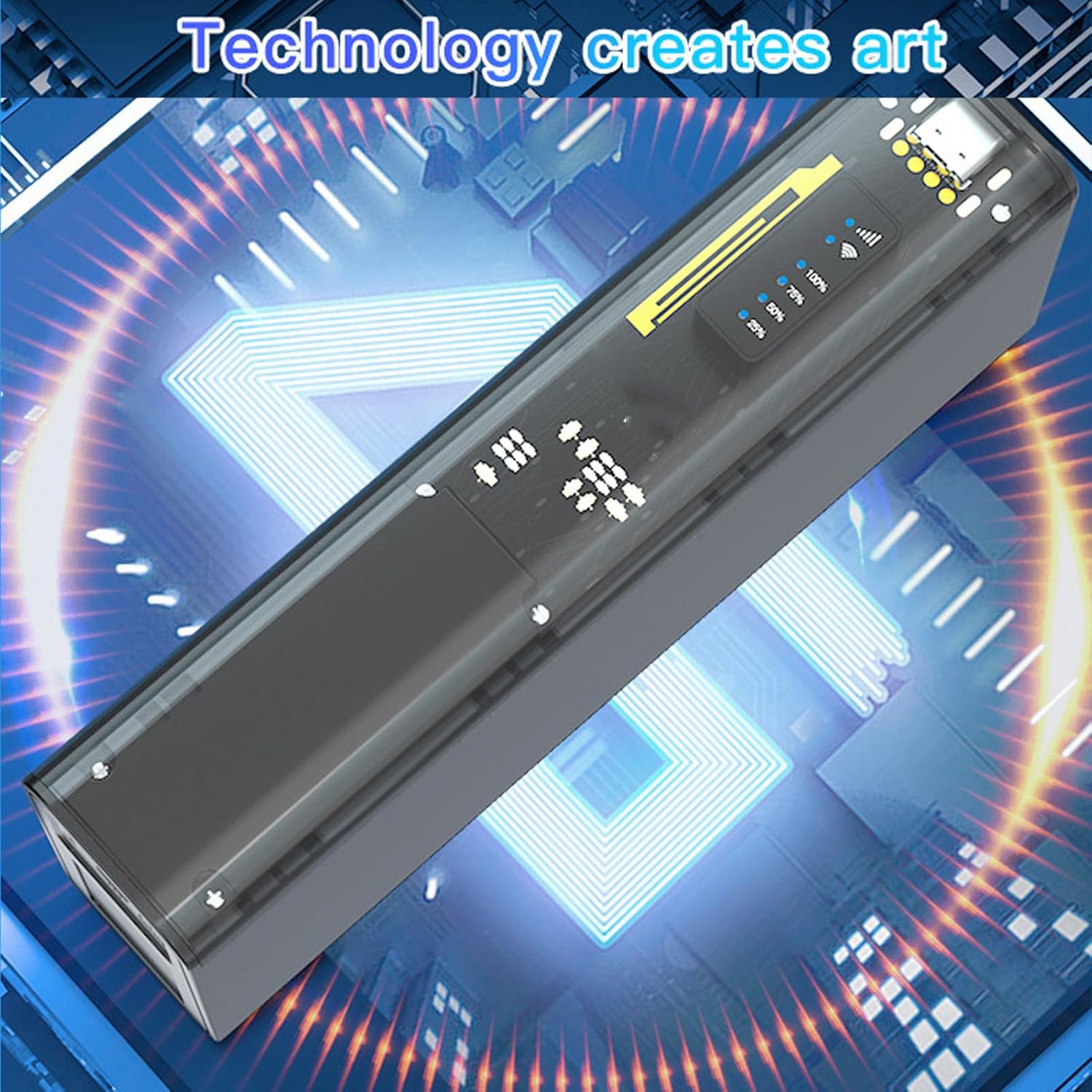
3.1. irudia: Aurrealdea view of the Jectse 4G LTE Mobile WiFi Hotspot Router, showing its sleek design and transparent side panel with battery indicators.
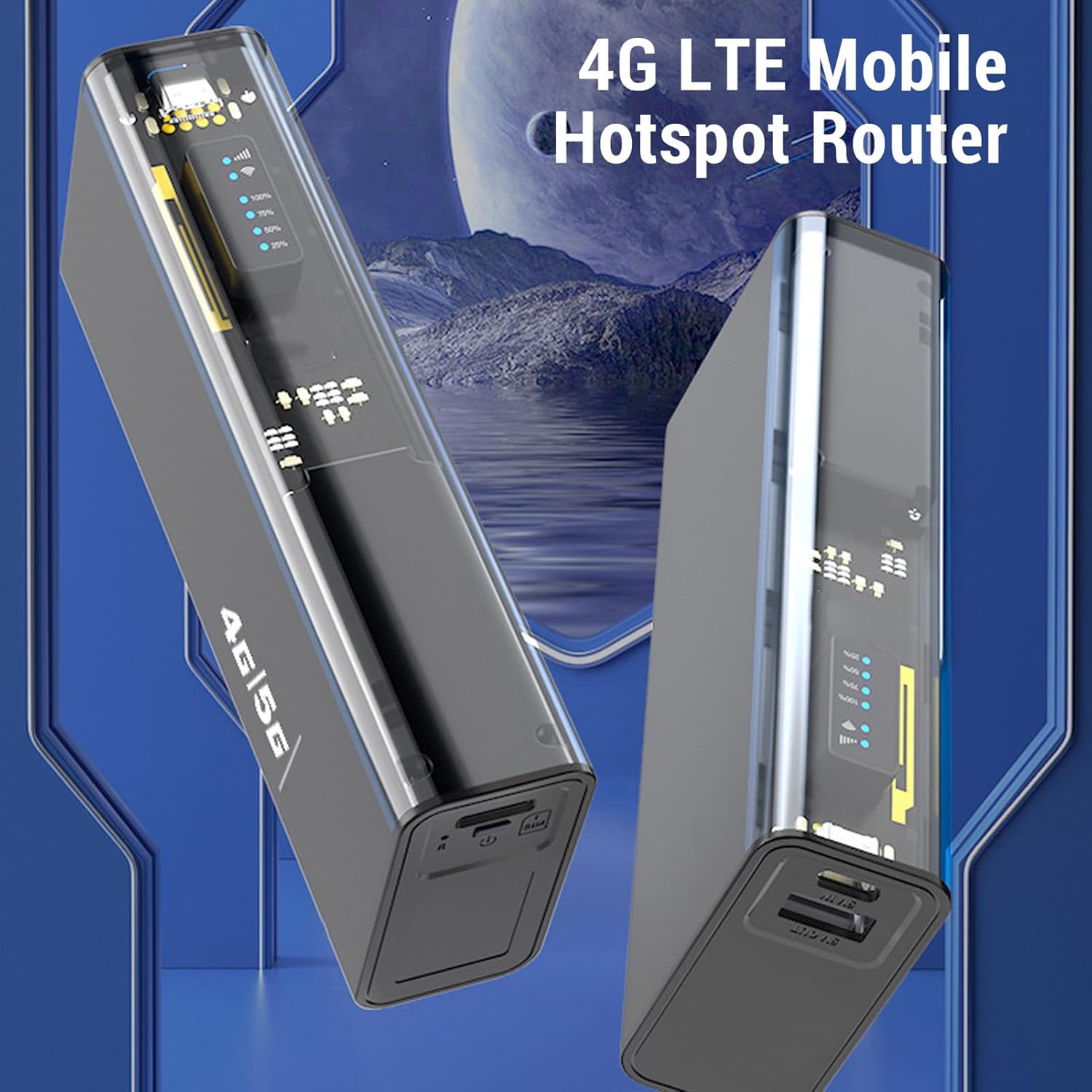
3.2. irudia: Angelukoa view of the Jectse 4G LTE Mobile WiFi Hotspot Router, highlighting its compact form factor.
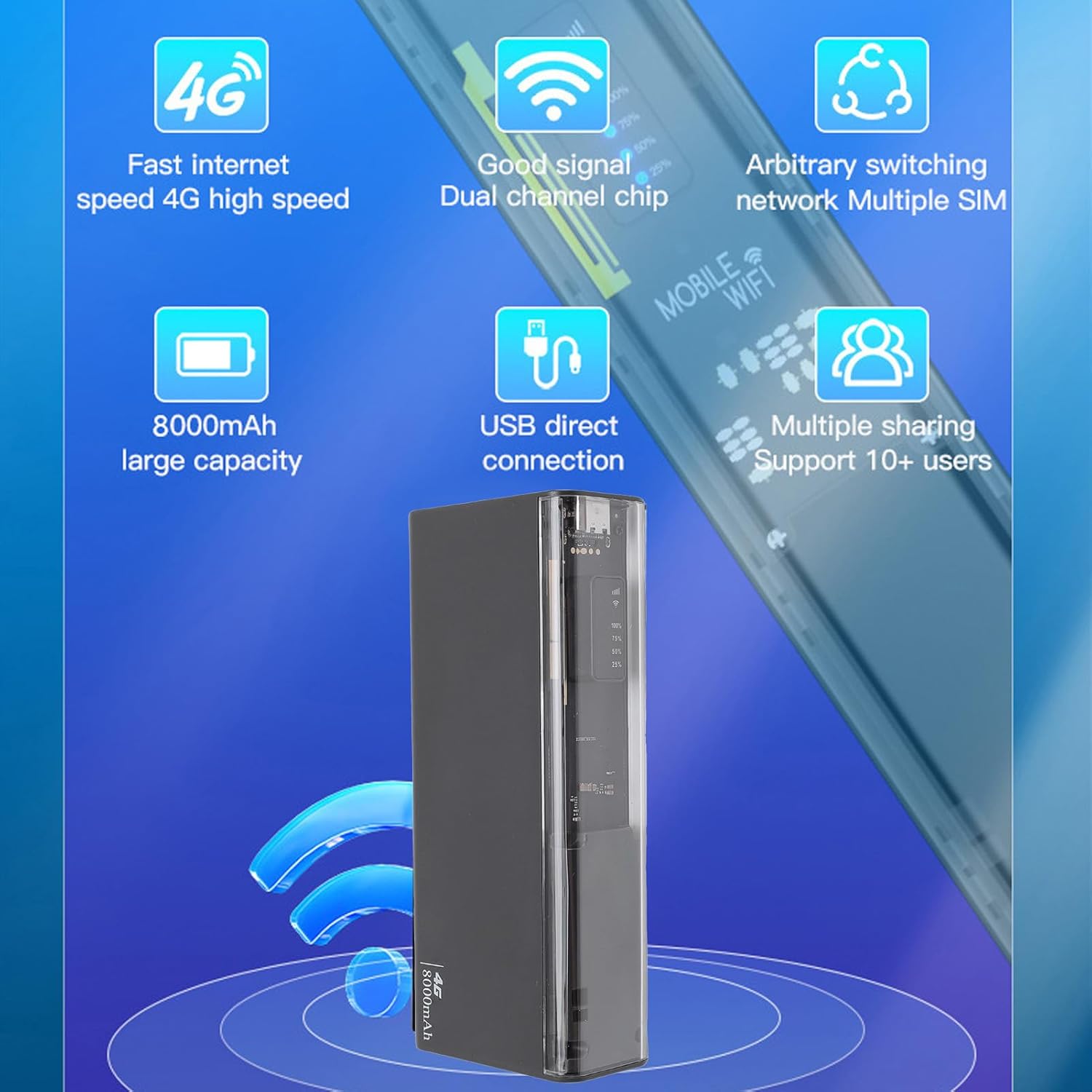
3.3. irudia: The router displaying key features such as 4G high speed, good signal, multiple SIM support, 8000mAh capacity, USB direct connection, and support for 10+ users.

3.4. irudia: The router depicted with a security shield, emphasizing its secure internet access features like WPA/WPA2 encryption.
4. Konfigurazioa
Follow these steps to set up your Jectse 4G LTE Mobile WiFi Hotspot Router:
- Insert Micro SIM Card: Locate the micro SIM card slot on the device. Carefully insert your activated micro SIM card into the slot until it clicks into place. Ensure the card is inserted in the correct orientation as indicated on the device.
- Piztu: Press and hold the power button (usually located near the SIM slot) for a few seconds until the device powers on and the LED indicators light up.
- Hasierako konfigurazioa (aukerakoa): For advanced settings or to change the default WiFi name (SSID) and password, connect to the device's WiFi network using a computer or smartphone. Open a web browser and navigate to the router's administration page (usually 192.168.0.1 or 192.168.1.1). Refer to the device's label for default login credentials.

4.1. irudia: Illustration of inserting a micro SIM card into the designated slot on the router.
Oharra: This device is a European version and supports networks in Europe, Africa, Southeast Asia, the Middle East, and Central Asia (FDD B1 3 5 7 8 20, TDD B38 40 41, WCDMA B1 5 8).
5. Funtzionamendu-argibideak
5.1. WiFi sarera konektatzea
- Ziurtatu hotspot-a piztuta dagoela.
- On your device (smartphone, laptop, tablet), search for available WiFi networks.
- Select the network name (SSID) corresponding to your Jectse Hotspot. The default SSID and password are typically found on a sticker inside the battery compartment or on the device itself.
- Sartu WiFi pasahitza eskatzen zaizunean.
- Once connected, you can access the internet. The hotspot supports up to 10 connected devices simultaneously.

5.1. irudia: The router actively providing a WiFi signal to a nearby laptop, illustrating its function as a mobile hotspot.
5.2. Power Bank gisa erabiltzea
With its 8000mAh battery, the Jectse Hotspot can also function as a power bank to charge other devices.
- Connect your smartphone or other USB-powered device to the "5V OUT" USB port on the hotspot using a compatible USB cable.
- The hotspot will begin charging your device.

5.2. irudia: The router connected via USB to a smartphone, demonstrating its capability to charge external devices.
5.3. Direct USB Connection (Tethering)
You can connect the hotspot directly to a computer via USB for internet access, functioning as a USB modem.
- Connect the hotspot to your computer using the provided USB cable.
- The computer should automatically detect the device and install necessary drivers.
- Once recognized, the computer will use the hotspot's internet connection.
5.3. irudia: The router connected to a desktop computer, illustrating its direct USB connection capability for internet access.
6. Zehaztapenak
| Ezaugarri | Zehaztapena |
|---|---|
| Modelo zenbakia | Jectse8og49p7mre |
| Network Frequency Bands | FDD B1 3 5 7 8 20, TDD B38 40 41, WCDMA B1 5 8 |
| Supported Network Type | 4G, 3G |
| Transmisio-tasa | Gehienez 300 Mbps |
| Onartutako protokoloa | 802.11ac |
| Wireless Network Frequency | 2.4 GHz, 5.8 GHz |
| Suebaki integratua | Bai |
| Bateria | 8000 mAh litio-ioizko bateria |
| SIM txartelaren zirrikitua | Micro SIM (not included) |
| Materiala | ABS |
| Onartutako eskualdeak | Europe, Africa, Southeast Asia, Middle East, Central Asia |
7. Mantentzea
To ensure the longevity and optimal performance of your Jectse 4G LTE Mobile WiFi Hotspot Router, follow these maintenance guidelines:
- Garbiketa: Erabili zapi leun eta lehor bat gailua garbitzeko. Saihestu garbitzaile likidoak edo material urratzaileak erabiltzea.
- Biltegiratzea: Gorde gailua leku fresko eta lehor batean, eguzki-argitik eta muturreko tenperaturetatik babestuta.
- Bateria zaintzea: Bateriaren iraupen optimoa lortzeko, saihestu bateria maiz erabat deskargatzea. Denbora luzez gordetzen baduzu, kargatu bateria % 50 inguru gorde aurretik.
- Eraginak saihestu: Babestu gailua erorketetatik eta kolpeetatik, barneko osagaiak kaltetu baititzakete.
- Aireztapena: Ziurtatu gailuak behar bezalako aireztapena duela funtzionamenduan zehar, gehiegi berotzea saihesteko.
8. Arazoak
If you encounter issues with your Jectse 4G LTE Mobile WiFi Hotspot Router, refer to the following common problems and solutions:
| Arazoa | Balizko Kausa / Irtenbidea |
|---|---|
| Ez dago Interneteko konexiorik |
|
| Interneteko abiadura motela |
|
| Ezin da WiFira konektatu |
|
| Gailua ez da kargatzen |
|
9. Bermea eta Laguntza
Your Jectse 4G LTE Mobile WiFi Hotspot Router comes with a manufacturer's warranty.
- Fabrikatzailearen bermea: 2 urte.
- Ordezko piezen erabilgarritasuna: Informazioa ez dago eskuragarri.
- Software eguneraketak: Informazioa ez dago eskuragarri.
Laguntza teknikoa edo berme erreklamazioak egiteko, jarri harremanetan zure saltzailearekin edo fabrikatzailearekin zuzenean. Gorde erosketa-agiria erosketaren frogagiri gisa.
Ask a question about this manual
Ask about setup, troubleshooting, compatibility, parts, safety, or missing instructions. Manuals+ will review the question and use this page’s manual context to help answer it.