
1. Sarrera
This manual provides essential information for setting up, operating, maintaining, and troubleshooting your HP Chromebook 14a-ne1013dx. This device is designed for productivity and entertainment, featuring a reliable Intel Celeron N4500 processor, a 14-inch HD display, and the Chrome OS operating system.
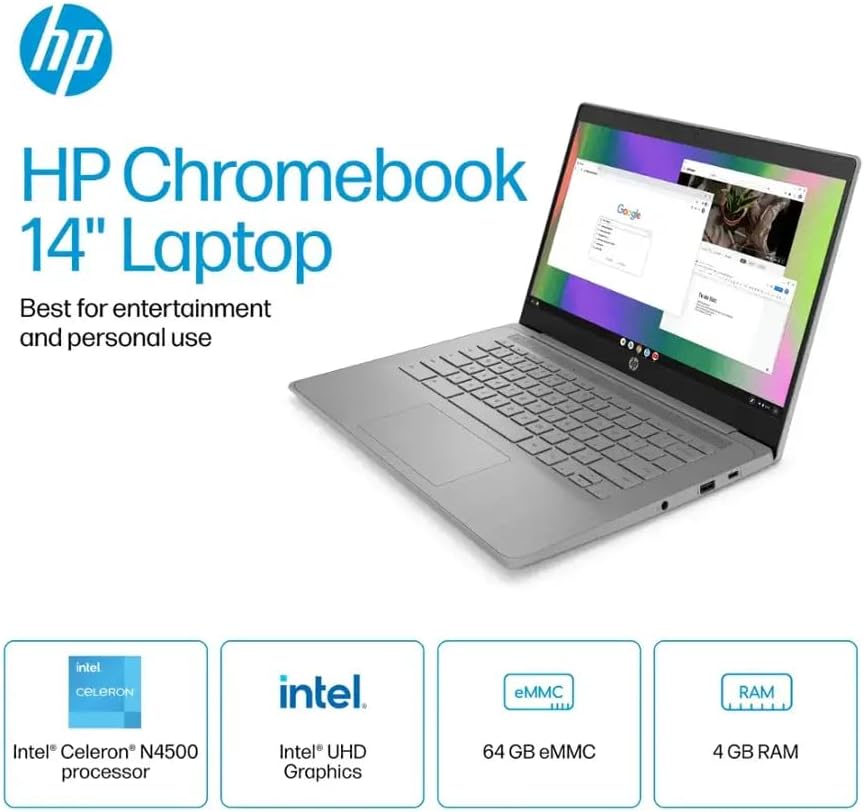
1.1. irudia: HP Chromebook 14a-ne1013dx overview, highlighting its core components: Intel Celeron N4500 processor, Intel UHD Graphics, 64GB eMMC storage, and 4GB RAM.
2. Konfigurazioa
2.1 Desontziratzea eta hasierako ikuskapena
Kontu handiz atera osagai guztiak paketetik. Egiaztatu behean zerrendatutako elementu guztiak daudela eta kalterik gabe daudela.

2.1. irudia: Items included in the box: HP Chromebook 14-inch Laptop, 45W USB Type-C power adapter, and setup instructions.
Zer dago Kutxan:
- HP Chromebook 14-inch Laptop (Model: 14a-ne1013dx)
- 45W USB Type-C Power Adapter
- Konfigurazio Argibideak
- Integratua Webkamara
2.2 Piztea eta hasierako konfigurazioa
- Connect the 45W USB Type-C power adapter to the Chromebook and a power outlet.
- Open the laptop lid. The Chromebook should power on automatically. If not, press the power button located on the keyboard.
- Follow the on-screen prompts to select your language, connect to a Wi-Fi network, and sign in with your Google account. A Google account is required to use Chrome OS.
3. Zure Chromebook-a erabiltzea
3.1 Chrome OS Basics
Your HP Chromebook runs on Chrome OS, a lightweight operating system designed for speed, simplicity, and security. It integrates seamlessly with Google services and provides access to a wide range of web-based applications and Android apps.

3.1. irudia: Chrome OS security features, including built-in virus protection and automatic updates, ensuring a secure and efficient user experience.
3.2 Display and Multimedia
The 14-inch HD (1366 x 768) micro-edge, anti-glare display provides clear visuals for work and entertainment. Dual speakers enhance the audio experience.

3.2. irudia: The 14-inch micro-edge display is ideal for streaming and multimedia consumption, allowing multiple applications to be viewed aldi berean.
3.3 Portuak eta Konexioa
Your Chromebook is equipped with various ports for connecting peripherals and external displays.

3.3. irudia: Port layout of the HP Chromebook 14a-ne1013dx, including HDMI 1.4b, USB Type-A, USB Type-C, and a headphone/microphone combo jack.
- 1x SuperSpeed USB 3.1 Type-C: Datuen transferentziarako, energia-hornidurarako eta pantaila-irteerarako.
- 2x SuperSpeed USB 3.0 Type-A: For connecting USB devices like mice, keyboards, and external storage.
- HDMI 1.4 1x: Kanpoko monitore edo telebistetara konektatzeko.
- 1x Entzungailu/mikrofono konbinazioa: Audio sarrera eta irteerarako.
Wireless connectivity includes Wi-Fi (802.11a/b/g/n/ac) and Bluetooth for connecting to wireless networks and accessories.
4. Mantentzea
4.1 Cleaning Your Chromebook
- Pantaila: Erabili lipurrik gabeko zapi leun bat dampened with water or a screen cleaner specifically designed for electronics. Do not spray cleaner directly onto the screen.
- Teklatua eta txasisa: Erabili zapi leun eta lehor bat. Zikinkeria egoskorra bada, ukitu apur batamp oihal bat erabil daiteke. Saihestu produktu kimiko gogorrak edo material urratzaileak.
- Portuak: Ensure ports are free of dust and debris. Use compressed air if necessary, holding the can upright to prevent liquid propellant from spraying.
4.2 Bateria zaintzea
- Bateriaren iraupena maximizatzeko, saihestu tenperatura altuenak.
- Noizean behin bateria % 20tik behera deskargatzea eta gero guztiz kargatzea gomendatzen da.
- The Chromebook supports HP Fast Charge for quick recharging.
5. Arazoak
5.1 Ohiko arazoak eta irtenbideak
| Gaia | Irtenbide posiblea |
|---|---|
| Chromebook does not power on. | Ensure the power adapter is securely connected to both the Chromebook and a working power outlet. Try a different outlet. If the battery is completely drained, it may take a few minutes to show signs of charging. |
| Ezin da wifira konektatu. | Check if Wi-Fi is enabled in Chrome OS settings. Restart your router and modem. Verify the Wi-Fi password. Try connecting to a different network if available. |
| External display not detected. | Ensure the HDMI cable is securely connected to both the Chromebook and the external display. Check the input source on your external display. Try a different HDMI cable or port if available. |
| Errendimendu motela. | Close unnecessary browser tabs and applications. Clear browser cache and cookies. Ensure Chrome OS is up to date. Consider a powerwash (factory reset) as a last resort, backing up your data first. |
| Webkamerak ez du funtzionatzen. | Ensure no physical cover is obstructing the webcam. Check privacy settings in Chrome OS to ensure applications have permission to access the camera. Restart the Chromebook. |
6. Zehaztapenak
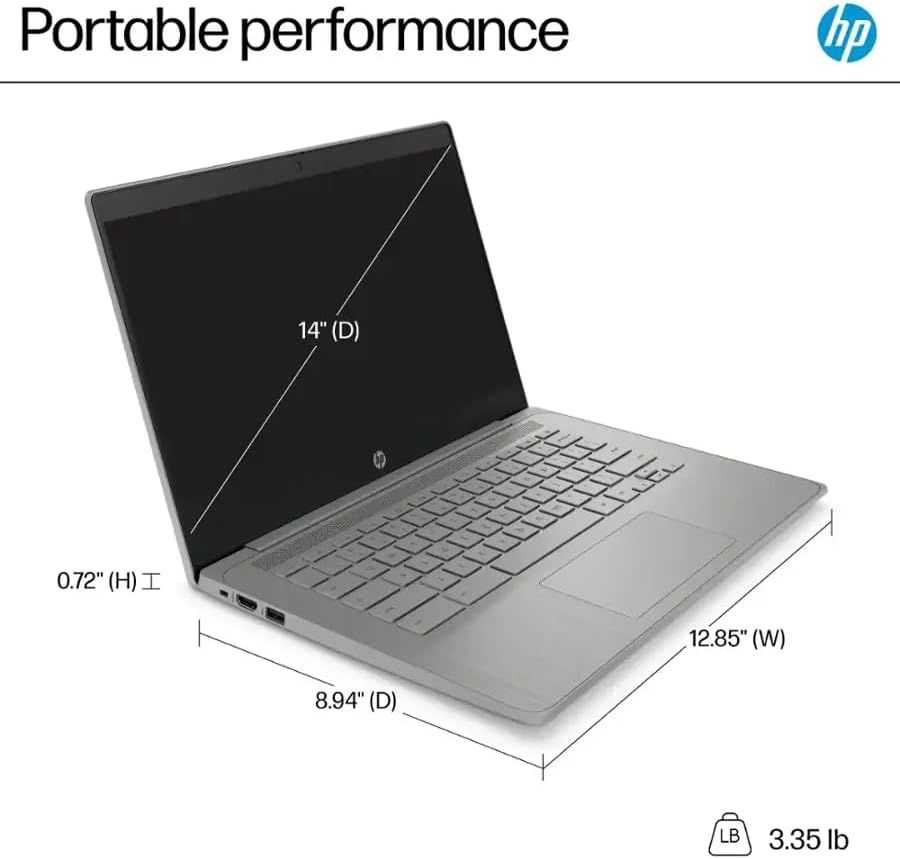
6.1. irudia: Physical dimensions and weight of the HP Chromebook 14a-ne1013dx.
| Ezaugarri | Xehetasuna |
|---|---|
| Ereduaren izena | 14a-ne1013dx |
| Prozesadorea | Intel Celeron N4500 (1.1 GHz, up to 2.8 GHz burst) |
| Grafikoak | Intel UHD grafikoak (integratuak) |
| Bistaratzea | 14-inch diagonal, HD (1366 x 768), micro-edge, anti-glare, 250 nits, 60Hz LCD |
| RAM | 4 GB DDR4 SDRAM |
| Biltegiratzea | 64GB eMMC |
| Sistema eragilea | Chrome OS |
| Haririk gabeko konexioa | 802.11a/b/g/n/ac Wi-Fia, Bluetooth |
| Portuak | 1x SuperSpeed USB 3.1 Type-C, 2x SuperSpeed USB 3.0 Type-A, 1x HDMI 1.4, 1x Headphone/microphone combo |
| Media integratua | Webkamara |
| Neurriak (L x W x H) | 12.85" x 8.94" x 0.72" (32.64 cm x 22.71 cm x 1.83 cm) |
| Pisua | 3.35 libra (1.52 kg) |
| Kolorea | Grisa |
| Ezaugarri bereziak | Chrome OS, HP Fast Charge |
7. Bermearen informazioa
Your HP Chromebook 14a-ne1013dx comes with a urtebeteko berme mugatuaMesedez, kontsultatu zure produktuarekin batera datorren berme-dokumentazioa baldintza eta zehaztapen guztiak ikusteko. Gorde erosketaren frogagiria berme-erreklamazioetarako.
8. Laguntza
For technical assistance, driver downloads, or further product information, please visit the official HP support website. You can typically find support resources by searching for your model number (14a-ne1013dx) on the HP support portal.
HP laguntza Webgunea: www.hp.com/support