
1. Sarrera
Thank you for choosing the GOHHDL Android 15 Car Stereo. This manual provides detailed instructions for the installation, operation, and maintenance of your new car multimedia system. Please read this manual thoroughly before use to ensure proper functionality and to maximize your user experience. This device is designed to enhance your driving with advanced navigation, entertainment, and connectivity features.
2. Produktua amaitu daview
The GOHHDL Android 15 Car Stereo features a 7-inch touch screen, powered by Android 15 with 4GB RAM and 64GB ROM for smooth performance and ample storage for applications. It offers seamless integration with your smartphone via wireless Carplay and Android Auto, along with GPS navigation, WiFi connectivity, Bluetooth 5.0, and FM/RDS radio.
2.1 Ibilgailuen bateragarritasuna
This car stereo is specifically designed for the following vehicle models:
- Dacia Logan (2012-2017)
- Dacia Duster (2011-2017)
- Dacia Sandero (2012-2017)
- Dacia Lodgy (2012-2017)
- Renault Captur (2013-2017)
- Renault Symbol (2013-2017)
- Lada Xray

Image 2.1: Vehicle compatibility and a visual comparison of the dashboard before and after installation.
3. Paketearen edukia
Mesedez, egiaztatu behean zerrendatutako elementu guztiak zure paketean sartuta daudela:
- GOHHDL Android 15 Car Stereo Unit
- Elikatze-kablea
- RCA Kablea
- 3.8PIN Canbus Plug
- 4.6 pineko USB kablea
- Atzeko kameraren sarrera-kablea
- Irrati Antena
- GPS Antenna (1.7M)
- Canbus deskodetzailea
- Erabiltzailearen eskuliburua
- Mikrofonoa
- Atzekoa View Camera (Optional, if included in your package)

3.1 irudia: Xehetasun zehatza view of the car stereo dimensions and included accessories.
4. Instalazioa eta konfigurazioa
Professional installation is recommended for this product. Incorrect wiring can damage the device or your vehicle's electrical system. Ensure the vehicle's ignition is off and the battery is disconnected before starting installation.
4.1 Kableatutako konexioak
Refer to the wiring diagram provided in Image 3.1 and the included user manual for specific connection points. Key connections include:
- Sare elektrikoa Connect to the vehicle's power supply (constant 12V, accessory 12V, and ground).
- RCA kableak: For audio output to external amplifiers edo subwooferak.
- USB kableak: For connecting USB devices, charging, or data transfer.
- GPS Antena: Muntatu leku garden batean view zeruaren seinalea modu optimoan jasotzeko.
- Canbus Decoder: Connect to the vehicle's CAN-BUS system for steering wheel controls and other vehicle data integration.
- Atzeko kameraren sarrera: Konektatu atzeko aldea view kameraren kablea.
- Irrati antena: Konektatu ibilgailuaren irrati-antena.
- Mikrofonoa: Connect the external microphone for hands-free calling and voice commands.
4.2 Hasierako piztea
After all connections are securely made, reconnect the vehicle's battery and turn on the ignition. The device should power on automatically. Follow any on-screen prompts for initial setup, such as language selection and time zone.
5. Funtzionamendu-argibideak
5.1 Haririk gabeko Carplay eta Android Auto
The unit supports wireless Carplay and Android Auto for seamless smartphone integration. This allows you to access navigation, music, calls, and messages directly from your phone via the car stereo's display, using voice control or touch.
- Ziurtatu Bluetootha eta Wi-Fi gaituta daudela zure telefonoan.
- On the car stereo, open the Carplay or Android Auto application.
- Follow the on-screen instructions to pair your phone. For Carplay, search for the car stereo's Bluetooth name on your iPhone and connect. For Android Auto, ensure the Android Auto app is installed on your Android phone and follow the pairing process.
- Once connected, your phone's interface will appear on the car stereo screen.
5.2 Ispilu-lotura
Mirror Link allows you to mirror your smartphone's screen onto the car stereo display. This feature supports both iOS and Android devices.
- Open the 'Mirror Link' application on the car stereo.
- Follow the specific instructions for iOS or Android devices displayed on the screen to establish the connection, typically involving a USB cable or Wi-Fi connection.
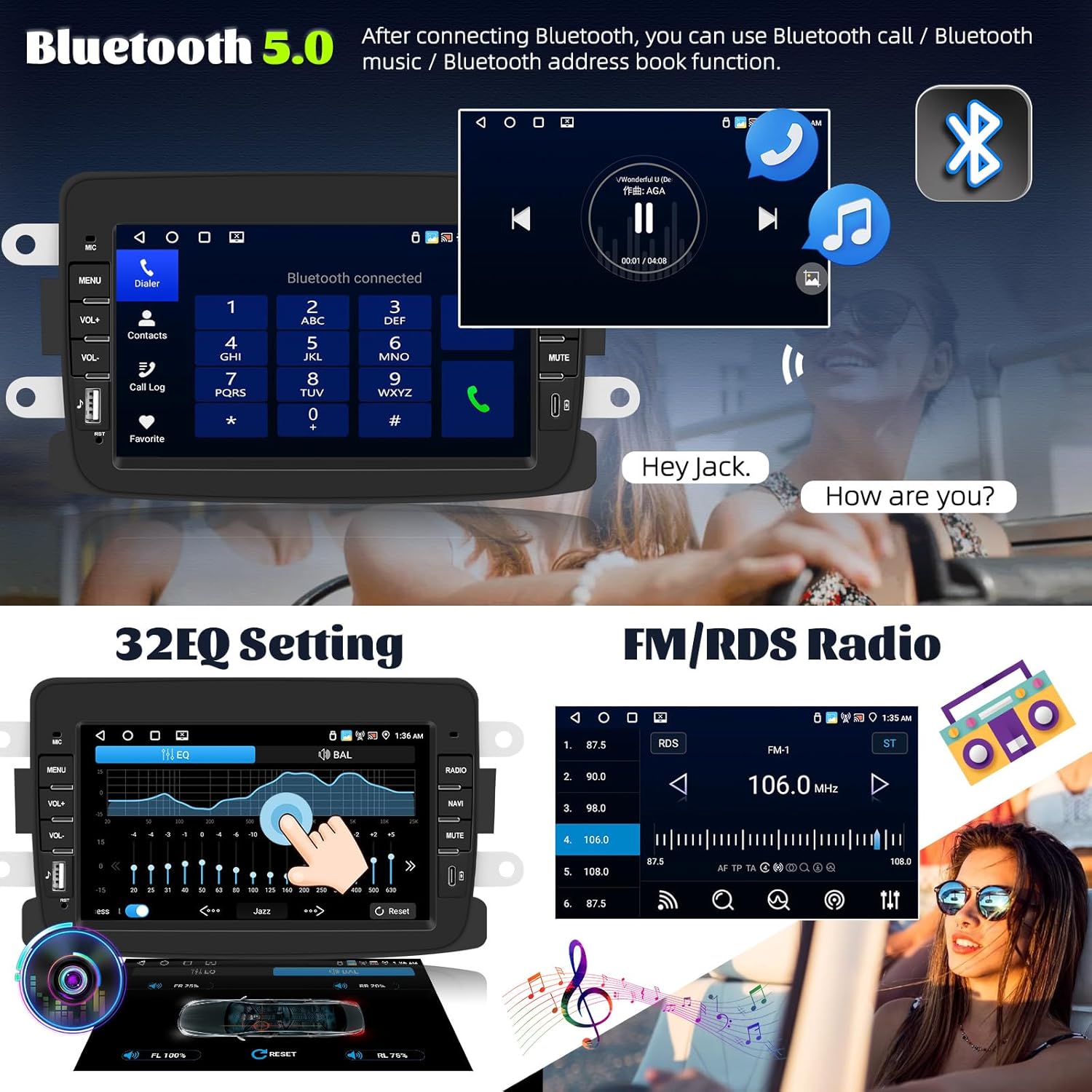
Image 5.1: Wireless Carplay, Android Auto, and Mirror Link features.
5.3 Bluetooth 5.0
The integrated Bluetooth 5.0 module enables hands-free calling, audio streaming, and phonebook synchronization.
- Go to the Bluetooth settings on the car stereo.
- Enable Bluetooth on your smartphone and search for the car stereo's device name.
- Pair and connect the devices. You may be prompted to enter a PIN (usually '0000').
- Once connected, you can make/receive calls, play music, and access your phone's contacts.
5.4 FM/RDS Radio with 32-Band EQ
Enjoy high-quality radio reception with FM/RDS functionality. The 32-band equalizer allows for precise audio customization.
- Select the 'Radio' application from the main menu.
- Use the scan function to find available stations or manually tune to a frequency.
- Save your favorite stations to the presets.
- Access the 'EQ' settings to adjust the 32-band equalizer for optimal sound.

Image 5.2: Bluetooth, 32-band EQ, and FM/RDS Radio functions.
5.5 GPS Navigation and WiFi
The built-in GPS module supports both online and offline navigation. Connect to WiFi to download maps, applications, and stream media.
- GPSa: Open the 'Navigation' application. You can use pre-installed maps or download others via WiFi. Ensure the GPS antenna is properly installed.
- WiFi: Go to 'Settings' > 'Network & Internet' > 'Wi-Fi'. Connect to an available Wi-Fi network (e.g., mobile hotspot). Once connected, you can browse the internet, download apps from the Play Store, or stream content.

Image 5.3: GPS Navigation, WiFi Connectivity, Android 15, and System Specifications.
5.6 Atzekoa View Kamera (aukerakoa)
If equipped with a rear view camera, the system automatically displays the camera feed when the vehicle is in reverse gear. The camera features AHD resolution, a wide viewing angle, waterproof design, and HD night vision.
5.7 Bolantearen kontrola (SWC)
The unit supports learning functions for your vehicle's steering wheel controls, allowing you to operate the stereo without taking your hands off the wheel.
- Go to 'Settings' > 'Steering Wheel Control'.
- Follow the on-screen instructions to program each button on your steering wheel to the corresponding function on the car stereo.

5.4. irudia: Atzekoa View Camera and Steering Wheel Control setup.
5.8 Split Screen and Shortcut Function
The split-screen feature allows you to run two applications simultaneously, such as navigation and music. The shortcut function provides quick access to frequently used apps.

Image 5.5: Split Screen and Shortcut Functionality.
5.9 AI DSP and Voice Control (Optional)
Some models may include an optional AI DSP (Digital Signal Processor) for advanced audio optimization and optional voice control for hands-free operation.
6. Zehaztapenak
| Ezaugarri | Deskribapena |
|---|---|
| Marka | GOHHDL |
| Sistema eragilea | Android 15 |
| RAM + ROM | 4 GB RAM + 64 GB ROM |
| Bistaratzea | 7 hazbeteko ukipen-pantaila |
| Konektibitate Teknologia | Bluetooth, Wi-Fi, USB |
| Bluetooth bertsioa | 5.0 |
| Ezaugarri bereziak | Wireless Carplay, Android Auto, Mirror Link, GPS Navigation, FM/RDS Radio, 32-band EQ, Steering Wheel Control, Rear View Kameraren euskarria |
| Gailu bateragarriak | Smartphone |
| Audio irteera modua | Estereoa |
| Inguruko soinu-kanalaren konfigurazioa | 2.1 |
| Bideo-kodeketa | H.264, H.265/HEVC |
7. Arazoak
Zure autoko estereoarekin arazoak badituzu, jarraitu arazoak konpontzeko ohiko urrats hauek:
- Potentziarik gabe: Check all power cable connections. Ensure the vehicle's ignition is on. Verify fuses are intact.
- Soinurik ez: Check speaker connections. Ensure volume is not muted or set to zero. Verify audio output settings.
- GPS seinalearen galera: Ensure the GPS antenna is securely connected and mounted in a location with a clear view zeruko.
- Bluetooth konexio-arazoak: Ensure Bluetooth is enabled on both devices. Try unpairing and re-pairing the devices. Clear Bluetooth cache on your phone if necessary.
- Carplay/Android Auto Not Connecting: Ensure Wi-Fi and Bluetooth are enabled on your phone. Try restarting both the phone and the car stereo. Check for app updates on your phone.
- Ukipen-pantailak ez du erantzuten: Saiatu gailua berrabiarazten. Arazoak jarraitzen badu, fabrikako ezarpenak berrezarri behar izatea gerta daiteke (oharra: honek erabiltzaile-datu guztiak ezabatuko ditu).
- System Slow/Lagging: Close unnecessary background applications. Clear cache from apps. Consider a factory reset if performance does not improve.
For persistent issues, please contact GOHHDL customer support.
8. Mantentzea
To ensure the longevity and optimal performance of your GOHHDL car stereo, follow these maintenance guidelines:
- Garbiketa: Use a soft, dry cloth to clean the screen and exterior. For stubborn smudges, lightly dampGarbitu zapi bat urarekin edo pantaila-garbitzaile batekin. Saihestu material urratzaileak edo produktu kimiko gogorrak.
- Software eguneraketak: Periodically check for system software updates via the 'Settings' menu and a Wi-Fi connection. Updates can improve performance, add features, and fix bugs.
- Saihestu muturreko tenperaturak: Do not expose the device to extreme heat or cold for extended periods, as this can affect its electronic components.
- Babestu hezetasunetik: Keep the device dry. Moisture can cause internal damage.
9. Bermea eta Laguntza
GOHHDL products are designed for reliability and performance. For information regarding warranty coverage, please refer to the warranty card included with your product or contact your point of purchase. For technical support, troubleshooting assistance beyond this manual, or service inquiries, please contact GOHHDL customer support through the official website or the seller from whom you purchased the product.