
1. Sarrera
This manual provides essential information for the setup, operation, maintenance, and troubleshooting of your NIMO N159 15.6-inch IPS FHD Gaming Laptop. This device is equipped with an AMD Ryzen 7 7735HS processor, 32GB DDR5 RAM, and a 1TB PCIe SSD, designed for balanced performance in productivity and light gaming tasks. Please read this manual thoroughly to ensure proper usage and to maximize the lifespan of your laptop.
2. Zer dago kutxan
Egiaztatu elementu guztiak ontzian daudela:
- 1 x NIMO N159 Laptop
- 1 x Type-C 100W PD Fast Charger
- 1 x Erabiltzailearen eskuliburua (dokumentu hau)
- Windows 11 Home (pre-installed)
3. Produktua amaitu daview
Familiarize yourself with the components and features of your NIMO N159 laptop.

3.1. irudia: Aurrealdea view of the NIMO N159 laptop, showcasing its 15.6-inch display and overall design.
3.1 Ezaugarri nagusiak
- Prozesadorea: AMD Ryzen 7 7735HS with 8 Cores and 16 Threads, up to 4.75GHz.
- Grafikoak: Integrated AMD Radeon 680M GPU.
- Memoria: 32 GB DDR5 RAM multiataza eraginkorrerako.
- Biltegiratzea: 1TB PCIe 4.0 SSD for fast boot times and data access.
- Pantaila: 15.6-inch Full HD (1920x1080) IPS Anti-Glare Display.
- Kargatzen: 100W Type-C PD Fast Charger.
- Segurtasuna: Fingerprint Unlock integrated into the touchpad.
- Sarrera: Backlit Keyboard with Numeric Keypad.

3.2 Irudia: Gainetikview of the AMD Ryzen 7 7735HS processor and its integrated Radeon 680M graphics.
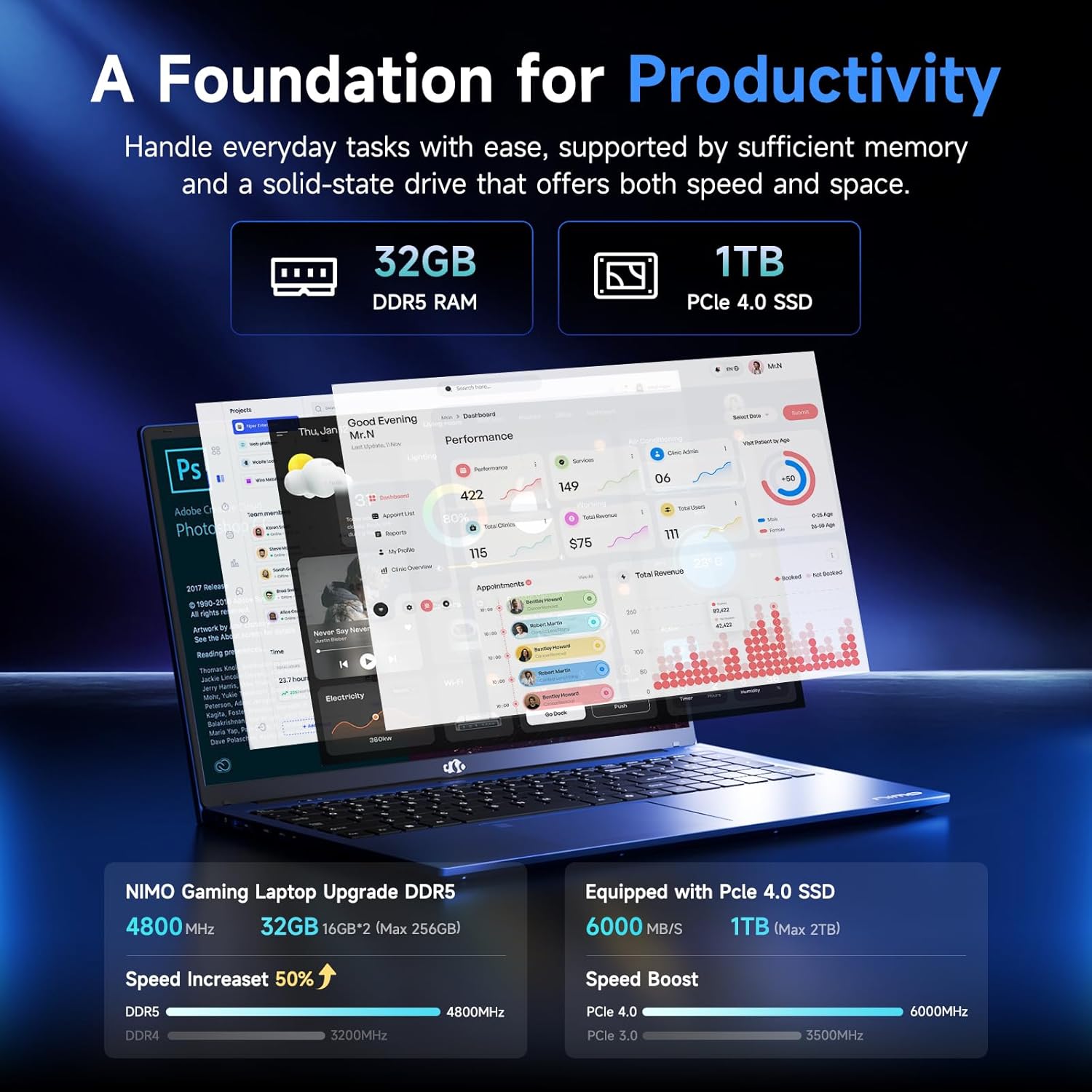
Figure 3.3: Illustration of the 32GB DDR5 RAM and 1TB PCIe 4.0 SSD, highlighting their speed and capacity.
3.2 Portuak eta konektoreak
The NIMO N159 laptop provides a variety of ports for connectivity:

3.4. irudia: Xehetasuna view of the laptop's ports and their functions.
- Ezkerreko aldea: Kensington Lock, Audio Jack, USB 3.2 Gen 1, USB 2.0, Micro SD Reader.
- Eskuineko aldea: Type-C Gen2 (Multifunction), USB 3.2 Gen 1, HDMI 2.0, Type-C Gen2 (Multifunction).
3.3 Energia eta bateria

Figure 3.5: Battery and charging capabilities of the NIMO N159 laptop.
The laptop is equipped with a 54Wh smart battery. It supports fast charging via the included 100W Type-C PD charger, providing approximately 5 hours of usage from a 1-hour charge.
3.4 Keyboard and Fingerprint Unlock
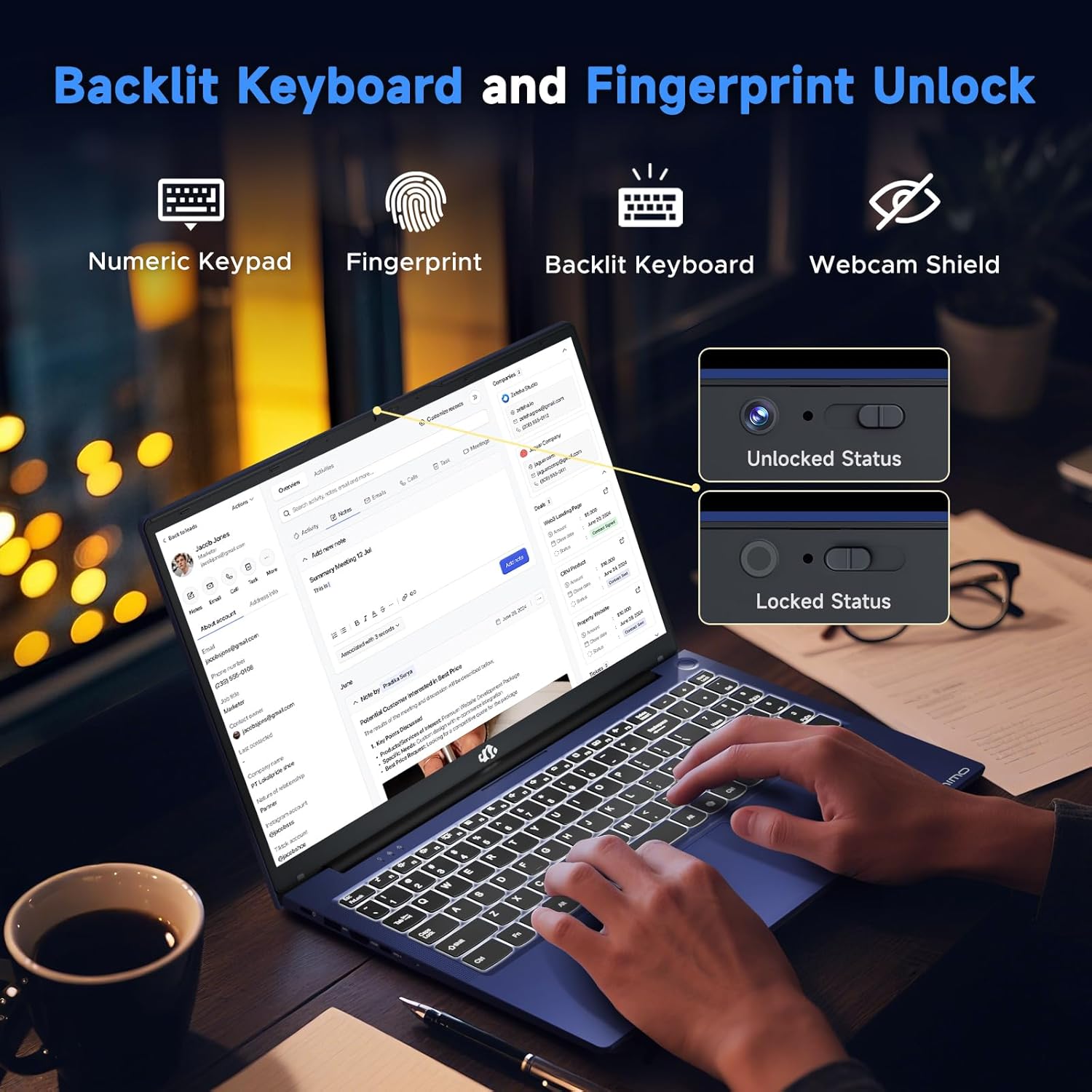
Figure 3.6: Features of the backlit keyboard, numeric keypad, fingerprint unlock, and webcam shield.
The keyboard features backlighting for use in low-light conditions and includes a numeric keypad. The fingerprint reader is integrated into the touchpad for secure and quick access.
3.5 Bistaratzea
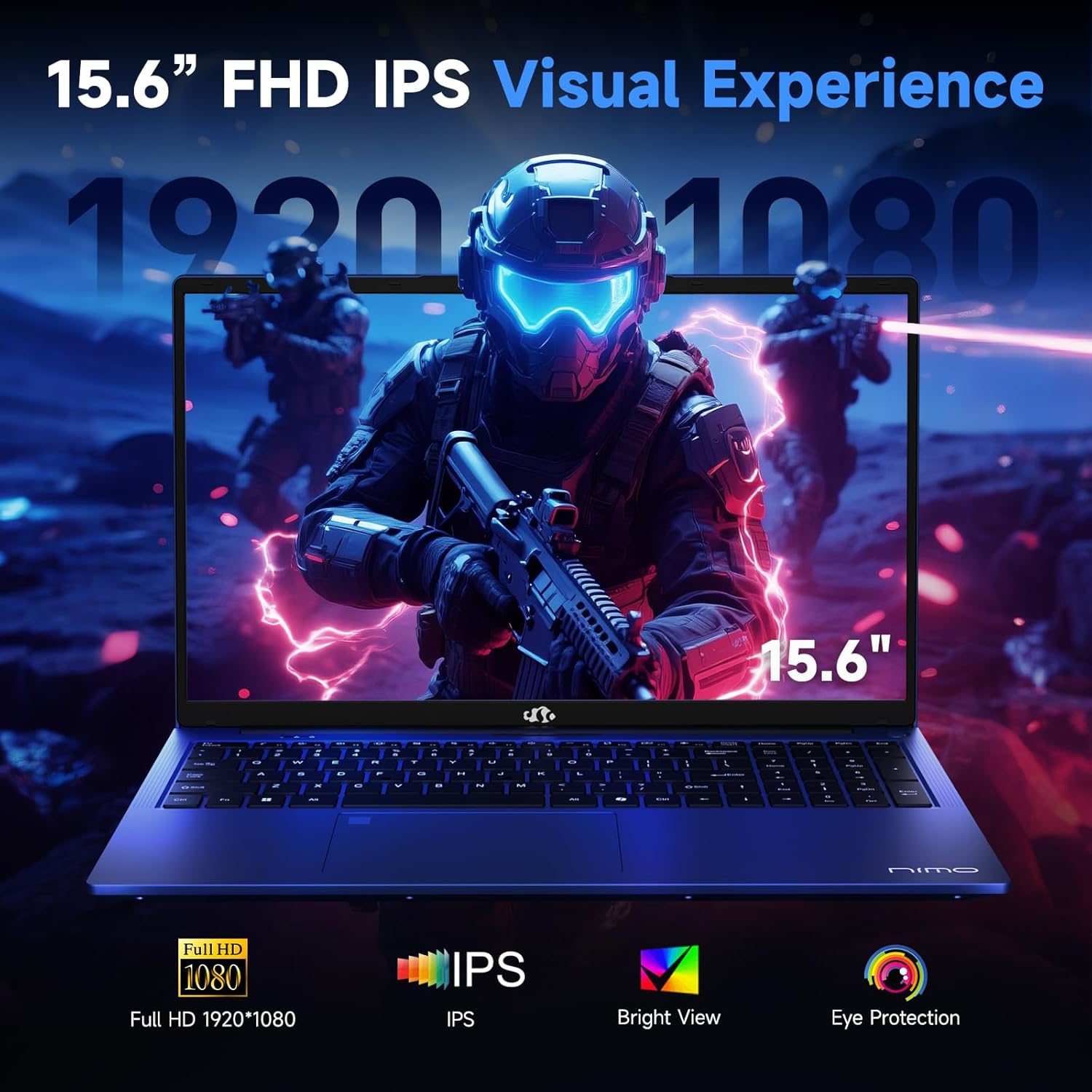
Figure 3.7: Visual representation of the 15.6-inch FHD IPS display quality.
The 15.6-inch Full HD (1920x1080) IPS Anti-Glare Display offers vibrant visuals and a wide viewing angle, suitable for various tasks from work to entertainment.
4. Konfigurazioa
4.1 Hasierako piztea
- Desegin: Kontu handiz atera ordenagailu eramangarria eta osagarri guztiak paketetik.
- Konektatu energia: Plug the Type-C 100W PD Fast Charger into a power outlet and connect the Type-C connector to one of the multifunction Type-C ports on the laptop.
- Lehenengo abioa: Open the laptop lid and press the power button, typically located on the top-right of the keyboard or side.
- Windows konfigurazioa: Jarraitu pantailan agertzen diren argibideei Windows 11 Home konfigurazioa osatzeko, hizkuntza, eskualdea, sareko konexioa eta erabiltzaile-kontua sortzea barne.
4.2 Sare batera konektatzea
- Wi-Fi: During Windows setup or later, select your Wi-Fi network from the available list and enter the password.
- Wired (Optional): If an Ethernet adapter (not included) is used with a USB port, connect an Ethernet cable to the adapter and then to your router/modem.
5. Funtzionamendu-argibideak
5.1 Piztu/Itzali
- Piztu: Sakatu pizteko botoia.
- Itzali: Egin klik Windows-eko Hasi botoian, eta ondoren Pizteko > Itzali aukeran.
- Lo egin: Itxi tapa edo egin klik Hasi botoian, eta ondoren Pizteko > Lo egiteko.
5.2 Teklatua erabiltzea
- Atzeko argiaren kontrola: Press the designated function key (e.g., F9) to cycle through backlight brightness levels (off, low, medium, high).
- Funtzio-teklak: Use the Fn key in combination with F1-F12 for various shortcuts (e.g., volume, brightness, Wi-Fi toggle).
5.3 Using the Touchpad and Fingerprint Sensor
- Ukipen-panela: Nabigaziorako ukipen anitzeko keinuak onartzen ditu. Ikusi Windows ezarpenak pertsonalizaziorako.
- Hatz-marka desblokeatzea: Enroll your fingerprint through Windows Hello settings for secure login. Place your registered finger on the sensor located on the touchpad to unlock the device.
5.4 Kanpoko gailuak konektatzea
Use the available USB-A, USB-C, and HDMI ports to connect peripherals such as external monitors, USB drives, mice, and keyboards. The Type-C Gen2 ports support multifunctionality, including data transfer and video output.
6. Mantentzea
6.1 Garbiketa
- Pantaila: Erabili lipurrik gabeko zapi leun bat dampUrarekin edo pantaila-garbitzaile batekin garbitu. Ez ihinztatu likidoa zuzenean pantailan.
- Teklatua eta txasisa: Erabili zapi leun eta lehor bat. Zikinkeria egoskorra bada, ukitu apur batamp oihal bat erabil daiteke, likidorik irekiduretan sartzen ez dela ziurtatuz.
- Portuak: Erabili aire konprimatua portuetako hautsa astiro-astiro kentzeko.
6.2 Bateria zaintzea
- Saihestu bateria maiz erabat deskargatzea.
- Store the laptop in a cool, dry place if not used for extended periods, with the battery charged to around 50-60%.
- Use only the provided NIMO charger or a compatible 100W Type-C PD charger.
6.3 Software eguneraketak
Regularly check for and install Windows updates and driver updates to ensure optimal performance and security. These can typically be found in Windows Settings > Windows Update.
7. Arazoak
This section addresses common issues you might encounter with your NIMO N159 laptop.
| Arazoa | Kausa posiblea | Irtenbidea |
|---|---|---|
| Ordenagailu eramangarria ez da pizten. | Low battery, power adapter issue, or hardware fault. | Ensure the charger is properly connected and the outlet is working. Try charging for at least 30 minutes. If the issue persists, contact support. |
| Pantaila hutsik edo beltzez dago. | Display settings, external monitor conflict, or driver issue. | Press Fn + F7 (or relevant display toggle key) to cycle display modes. Disconnect any external monitors. Restart the laptop. |
| Wi-Fi konexio arazoak. | Incorrect password, router issue, or Wi-Fi adapter disabled. | Verify Wi-Fi password. Restart your router. Check Windows settings to ensure Wi-Fi is enabled. |
| Ordenagailu eramangarria motel dabil. | Too many applications open, low storage, or outdated drivers. | Close unnecessary applications. Check available storage. Update Windows and drivers. Run a malware scan. |
| Hatz-marken sentsorea ez dabil. | Finger not clean, sensor dirty, or software issue. | Ensure your finger and the sensor are clean and dry. Re-enroll your fingerprint in Windows Hello settings. |
8. Zehaztapenak
Detailed technical specifications for the NIMO N159 laptop:
| Ezaugarri | Xehetasuna |
|---|---|
| Marka | NIMO |
| Ereduaren izena | NIMO N159B |
| Pantailaren tamaina | 15.6 hazbete |
| Pantailaren bereizmena | 1920 x 1080 pixel (FHD IPS) |
| Prozesadorea | AMD Ryzen 7 7735HS (8 Cores, up to 4.75 GHz) |
| RAM | 32 GB DDR5 (4800 MHz) |
| Disko gogorra | 1024 GB SSD (PCIe 4.0) |
| Koprozesadore grafikoa | AMD Radeon 680M (Integratua) |
| Sistema eragilea | Windows 11 Home |
| Haririk gabeko mota | 802.11a/b/g/n/ac |
| USB 2.0 Portuak | 1 |
| USB 3.0 Portuak | 4 |
| C motako atakak | 2 (Gen2, Multifunction) |
| HDMI ataka | 1 (HDMI 2.0) |
| Bateriaren batez besteko iraupena | 5 Hours (54Wh) |
| Elementuaren pisua | 3.8 kilo |
| Produktuaren neurriak | 14.07 x 8.98 x 0.76 hazbete |
| Kolorea | Urdina |
| Ezaugarri bereziak | Backlit Keyboard, Fingerprint Reader, HD Audio, Numeric Keypad |
9. Bermea eta Laguntza
NIMO is committed to providing quality products and customer satisfaction.
- Fabrikatzailearen bermea: Your NIMO N159 laptop is covered by a 2-Year Manufacturer's Warranty from Nimo Direct Inc. This warranty covers defects in materials and workmanship under normal use.
- Itzultzeko politika: A 90-Day Hassle-Free Return Policy is offered by Nimo Direct Inc. from the date of purchase.
9.1 Jarri harremanetan laguntzarekin
For technical assistance, warranty claims, or product-related inquiries, please contact NIMO customer support:
- Posta elektronikoa: service@nimopc.com
- Sarean: Visit the official NIMO website for further support options and FAQs.
Our dedicated support team is available to assist you with any issues or replacements.