
Sarrera
Thank you for choosing the SABLUTE KC15 Wireless Ergonomic Keyboard and Mouse Combo. This manual provides detailed instructions for setting up, operating, and maintaining your new peripheral set. Designed for comfort and efficiency, this combo features ergonomic wave keys, a cushioned palm rest, and silent operation, compatible with multiple operating systems.
Paketearen edukia
- 1 x SABLUTE Wireless Ergonomic Keyboard
- 1 x SABLUTE Wireless Mouse
- 1 x 2.4G USB hargailua
- 1 x USB-C USB-A egokitzaileetara
- 1 x Erabiltzailearen eskuliburua
Konfigurazio Argibideak
1. Gailuak elikatzea
- The keyboard and mouse require 2 AA batteries each (not included). Open the battery compartments on the underside of both the keyboard and mouse and insert the batteries, ensuring correct polarity.
- Locate the ON/OFF switch on the underside of both the keyboard and mouse. Switch them to the 'ON' position.

1. irudia: Location of ON/OFF switch and battery compartment.
2. Hargailua konektatzea
- Locate the 2.4G USB receiver, typically stored within the mouse's battery compartment.
- Konektatu USB hargailua ordenagailuko USB-A ataka libre batera.
- If your computer only has USB-C ports, use the provided USB-C to USB-A adapter. Connect the USB receiver to the USB-A end of the adapter, then plug the USB-C end into your computer's USB-C port.
- The keyboard and mouse are plug-and-play and should connect automatically.

2. irudia: USB-A receiver and USB-C adapter for versatile connectivity.
Funtzionamendu-argibideak
1. Diseinu ergonomikoa eta erosotasuna
- The keyboard features an ergonomic wave design that promotes a natural and relaxed typing posture, reducing wrist strain.
- An integrated cushioned palm rest provides additional support and comfort during extended use.
- Adjustable leg stands on the keyboard allow you to modify the typing angle for personalized comfort.

3. irudia: Ergonomic wave keyboard with palm rest for comfortable typing.

4. irudia: Xehetasuna view of the cushioned palm rest construction.
2. Quiet Typing and Clicking
- The keyboard keys are designed for quiet operation, minimizing typing noise.
- The mouse features silent micro-switches, reducing click noise by up to 95%.
3. Hotkeys and Mouse Functions
- The keyboard includes standard F1-F12 shortcut hotkeys and 8 additional one-touch hotkeys for quick access to common functions.
- The mouse is a 6-button design with 3-level adjustable tracking speed (DPI) and dedicated forward/backward buttons for enhanced navigation.
5. irudia: Features of the ergonomic 7-button mouse.
4. Sistema eragile anitzeko bateragarritasuna
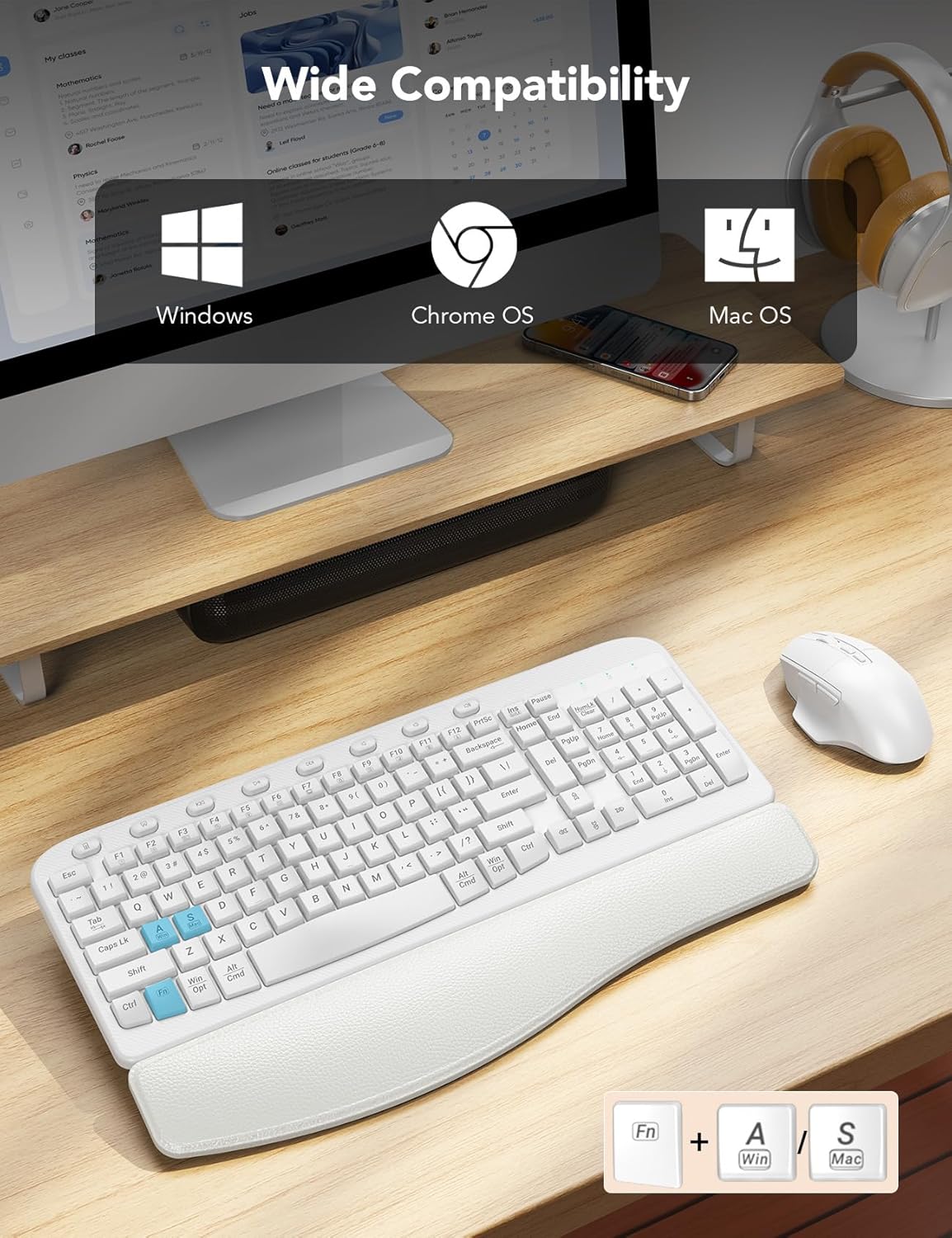
- The combo is compatible with Windows, macOS, and Chrome OS.
- To switch between Windows and macOS layouts, press FN + A Windows-erako edo FN + S for macOS.
6. irudia: Multi-OS compatibility and key combinations.
5. Integrated Phone Holder
- The keyboard includes a built-in slot at the top for holding your smartphone, keeping it conveniently visible while you work.
6. Smart Power Management
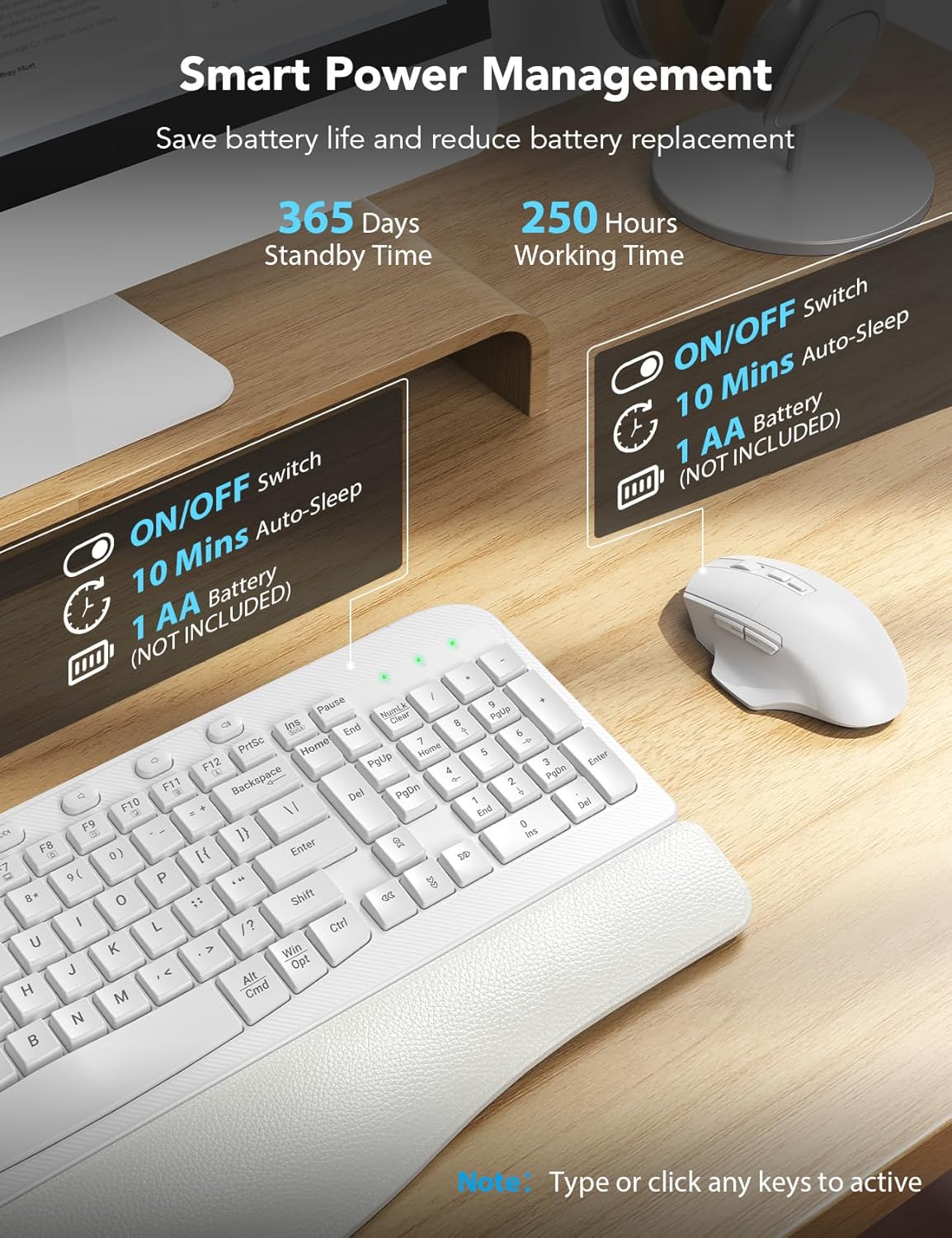
- The devices feature smart power management to conserve battery life.
- After 10 minutes of inactivity, both the keyboard and mouse will enter auto-sleep mode.
- To reactivate, simply type on the keyboard or click the mouse.
- Expected battery life: Up to 365 days standby time, 250 hours working time.

7. irudia: Smart power management features.
Mantentzea
1. Garbiketa
- Teklatua eta sagua garbitzeko, erabili zapi leun etaamp oihal. Saihestu produktu kimiko gogorrak edo garbitzaile urratzaileak erabiltzea.
- Teklen arteko hautsa eta hondakinak lortzeko, erabili aire konprimatua.
2. Bateria ordezkatzea
- When the devices stop responding or show signs of low power, replace the 2 AA batteries in each unit.
- Ziurtatu polaritate zuzena bateria berriak sartzerakoan.
Arazoak konpontzea
- Gailuak ez dute erantzuten: Ensure the keyboard and mouse are switched 'ON' and have fresh batteries. Verify the USB receiver is securely plugged into your computer's USB port (or via the adapter).
- Konexio atzeratua edo etengabekoa: Move the receiver closer to the keyboard and mouse. Ensure there are no large metal objects or other wireless devices interfering with the 2.4G signal.
- Incorrect key functions (Mac/Windows): Erabili FN + A (Windows) edo FN + S (macOS) key combination to switch the operating system layout.
- Saguaren jarraipen arazoak: Adjust the DPI settings on the mouse if available, or ensure the mouse is used on a suitable surface.
Zehaztapenak
| Ezaugarri | Xehetasuna |
|---|---|
| Modelo zenbakia | KC15 |
| Produktuaren neurriak | 11.31 x 1.88 x 17.32 hazbete |
| Elementuaren pisua | 2.55 kilo |
| Konektibitate Teknologia | 2.4G USB Haririk gabekoa |
| Energia iturria | 2 AA bateria (ez dago barne) |
| Ezaugarri bereziak | Ergonomic wave keys, soft wrist rest, silent mouse, multi-OS compatibility, phone holder |
| Gailu bateragarriak | Laptop, Personal Computer, Television (with USB-A or USB-C port) |
Bermea eta Laguntza
SABLUTE provides a 90-day replacement policy and a 360-day manufacturer warranty for this product. For technical support or warranty claims, please contact SABLUTE customer service.
- Bezeroarentzako arretarako telefonoa: 1-213-296-1273 (AEB)
- Ordutegia: Mon-Fri, 9:00 AM - 1:00 PM & 2:00 PM - 6:00 PM (PST)