
1. Produktua amaitu daview
The Keychron M6 Silent Wireless Gaming Mouse is designed for optimal comfort and performance across various tasks, from gaming to productivity. It features a lightweight, ergonomic design, versatile connectivity options, and a high-precision optical sensor. This manual provides detailed instructions for setup, operation, and maintenance.

Image: Keychron M6 Silent Wireless Gaming Mouse, showcasing its ergonomic shape and main buttons.
2. Ezaugarri nagusiak
- Ultra-Ergonomic & Lightweight Design: The M6 mouse combines a compact, ergonomic shape with a lightweight 86g body for extended comfort. It includes over ten customizable buttons and an infinite metal scroll wheel.
- Stable Wireless with Ultra-Low Latency: Experience reliable 2.4GHz wireless performance with a 1000Hz polling rate. The M6 also supports Bluetooth 5.3 for multi-device use and flexible switching.
- High-Precision PixArt 3395 Sensor: Equipped with the advanced PixArt 3395 optical sensor, the M6 provides up to 26,000 DPI, 650 IPS tracking speed, and pinpoint accuracy.
- Infinite Scroll & Premium Metal Wheel: Features dual scrolling modes: smooth, infinite scroll for fast navigation and tactile mode for precision. The solid metal wheel offers a quiet, premium feel.
- Fully Programmable via Keychron Engine Software: Customize every button with Keychron Engine software on macOS and Windows. Create shortcuts, set macros, adjust DPI, polling rate, and LOD.
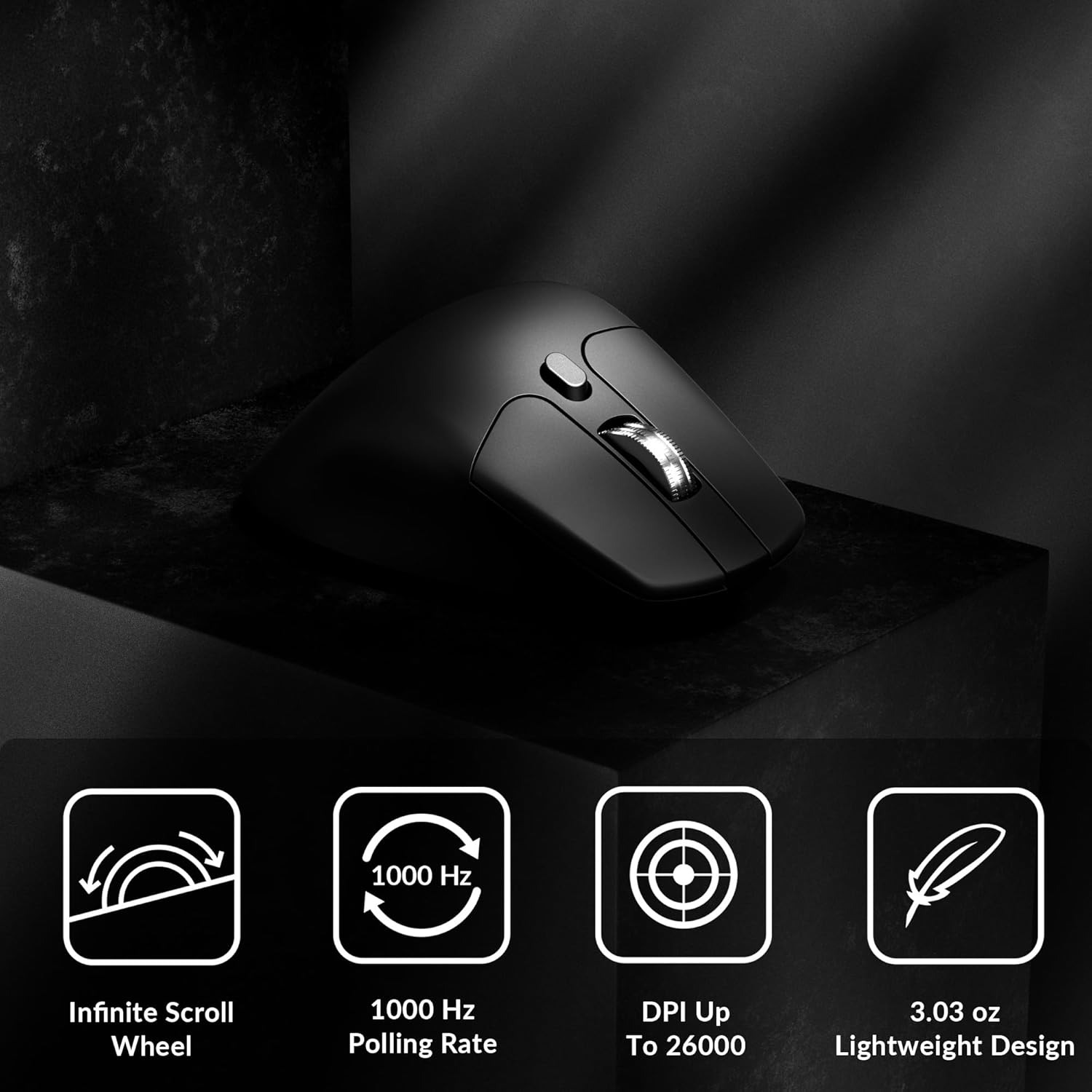
Image: Icons illustrating key features: Infinite Scroll Wheel, 1000 Hz Polling Rate, DPI Up To 26000, and Lightweight Design.
3. Konfigurazioa
3.1 Paketearen edukia
Egiaztatu elementu guztiak paketean daudela:
- 1x Keychron M6 Mouse
- 1x C motatik C motako kablea
- 1x A motako C motako egokitzaile
- 1x Luzapen egokitzailea Hargailurako
- 1x C motako 2.4 GHz hargailu
- 1 A motako 2.4 GHz-ko hargailua
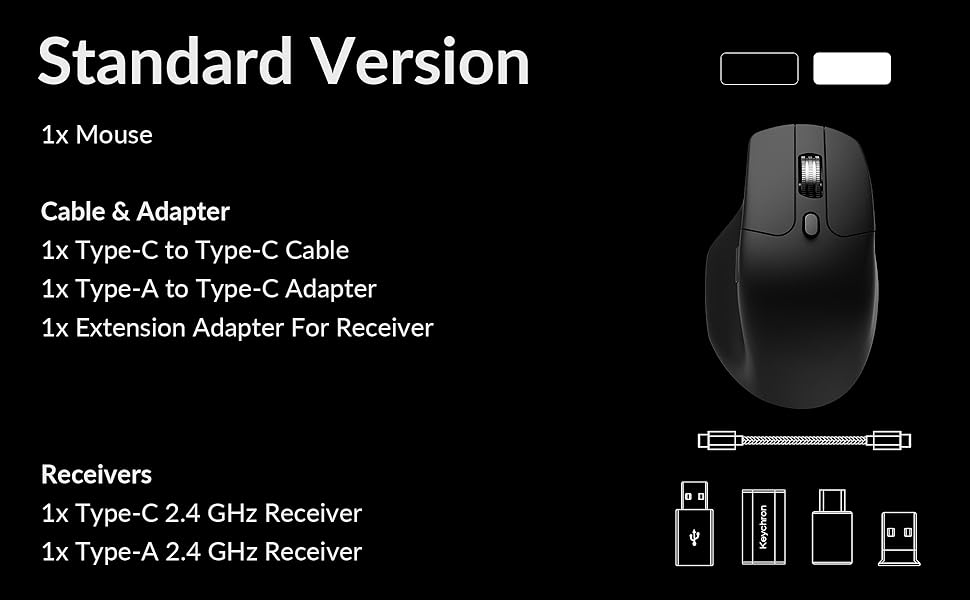
Image: Diagram showing the contents of the Keychron M6 mouse package.
3.2 Hasierako karga
Before first use, it is recommended to fully charge the mouse. Connect the mouse to your computer using the provided Type-C cable. The LED indicator will show charging status.
3.3 Sagua konektatzea
The Keychron M6 supports three connection modes: 2.4GHz wireless, Bluetooth 5.3, and wired.
- 2.4 GHz-ko haririk gabekoa: Insert the 2.4GHz receiver (Type-A or Type-C) into your computer's USB port. Switch the mode switch on the bottom of the mouse to 'G' (Gaming) mode. The mouse should connect automatically.
- Bluetooth 5.3: Switch the mode switch on the bottom of the mouse to 'B' (Bluetooth) mode. On your computer, search for Bluetooth devices and select 'Keychron M6' to pair.
- Sare: Connect the mouse directly to your computer using the provided Type-C cable. The mouse will function in wired mode and charge simultaneously.

Image: Keychron M6 mouse connected to a laptop via 2.4GHz receiver, with Bluetooth 5.3 icon.
4. Funtzionamendu-argibideak
4.1 Oinarrizko funtzioak
- Ezkerreko/eskuineko klik: Saguaren botoi estandarraren funtzioak.
- Korritzeko gurpila: Bertikalean mugitzeko erabiltzen da.
- Alboko botoiak: Default to Forward/Backward navigation. Customizable via software.
- Erpuruaren gurpila: Located on the side, used for horizontal scrolling.
4.2 DPI doikuntza
The DPI (Dots Per Inch) button on the bottom of the mouse allows you to cycle through preset sensitivity levels. Each level is indicated by a specific LED color. You can customize these DPI levels using the Keychron Engine software.
4.3 Bozketa-tasaren doikuntza
The polling rate button on the bottom of the mouse allows you to switch between different polling rates (125Hz, 500Hz, 1000Hz). A higher polling rate provides more responsive tracking, ideal for gaming. The LED indicator will change color to reflect the current polling rate.

Image: Close-up of the polling rate switch and indicator light on the mouse's underside.
4.4 Infinite Scroll Mode
The M6 features a button near the main scroll wheel to toggle between infinite scroll mode and tactile (notched) scroll mode. Infinite scroll allows for rapid navigation through long documents or web orrialdeak.

Image: Diagram showing the infinite scroll button and the horizontal scrolling function of the thumb wheel.
5. Customization with Keychron Engine Software
The Keychron Engine software allows for comprehensive customization of your M6 mouse. It is compatible with macOS and Windows and can be accessed online, eliminating the need for a download.
- Botoiaren esleipena: Remap any of the mouse buttons to perform different functions, including keyboard shortcuts, multimedia keys, or macros.
- Makroen sorrera: Record and assign complex sequences of commands to a single button.
- DPI/Polling Rate/LOD Adjustment: Fine-tune sensor settings to match your preferences.
Bisitatu Keychron ofiziala website to access the Keychron Engine software.

Image: Screenshot of the Keychron Engine software interface, showing button customization options for the M6 mouse.
6. Konexio moduak
The M6 mouse offers flexible connectivity to suit various setups:
- 2.4 GHz-ko haririk gabekoa: Provides a stable, low-latency connection with a 1000Hz polling rate, ideal for gaming and demanding tasks. Uses a dedicated USB receiver.
- Bluetooth 5.3: Offers seamless connection to multiple devices, allowing for quick switching between systems. Suitable for general use and productivity.
- Kable bidez (USB-C): Connects directly via the USB-C cable, providing a reliable connection and simultaneously charging the mouse.
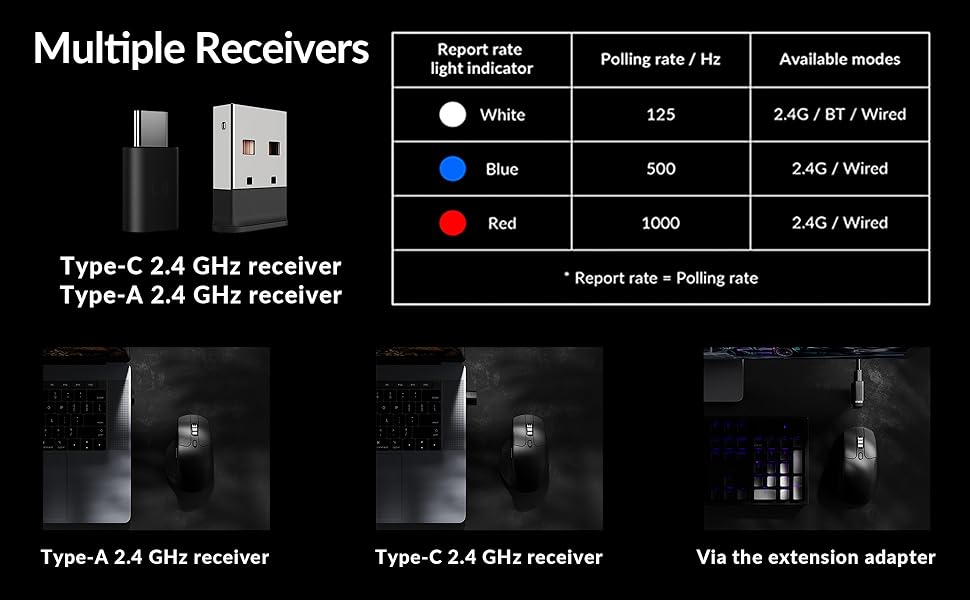
Image: Illustration of the Type-C and Type-A 2.4 GHz receivers, along with a table detailing polling rates and available modes.
7. Zehaztapenak
| Modelo zenbakia | M6S |
| Sentsore | PixArt 3395 Sentsore Optikoa |
| DPI | 26,000 arte |
| IPS Jarraipen Abiadura | 650 |
| Bozketa-tasa | 1000Hz (2.4GHz/Wired), 125Hz (Bluetooth) |
| Konektibitatea | 2.4 GHz haririk gabekoa, Bluetooth 5.3, USB-C kable bidezkoa |
| Pisua | 86 g (3.03 ontza) |
| Bateria | 800 mAh (Up to 80 hours) |
| Etengailuak | Huano 20M Silent Micro Switch |
| Bateragarritasuna | Windows, macOS, Linux |
| Neurriak | 4.82 x 2.97 x 1.97 hazbete (122.5 x 75.4 x 50 mm) |
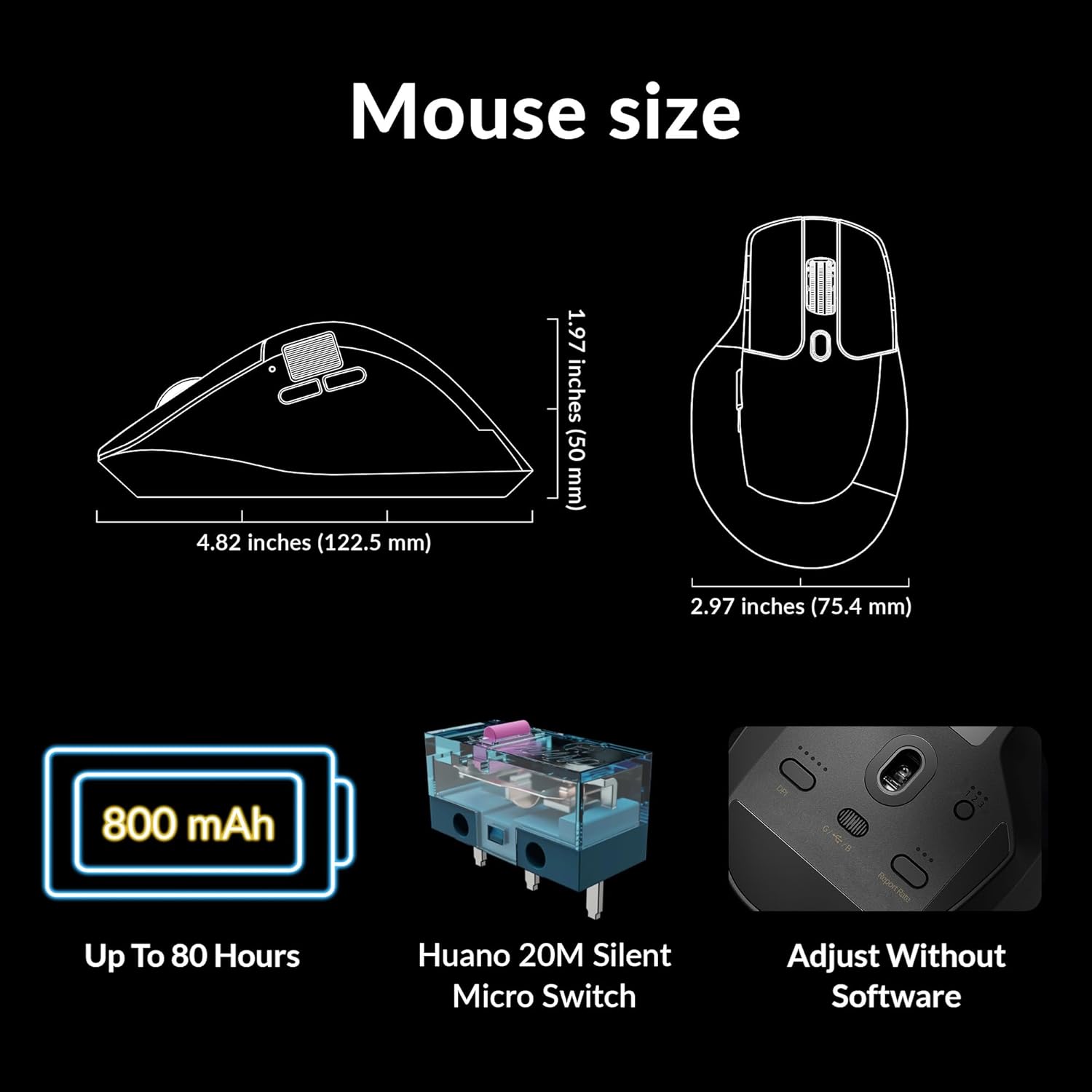
Image: Diagram showing the dimensions of the Keychron M6 mouse, its 800 mAh battery, and Huano 20M Silent Micro Switches.
8. Mantentzea
Zure Keychron M6 saguaren iraupena eta errendimendu optimoa bermatzeko, jarraitu mantentze-jarraibide hauek:
- Garbiketa: Erabili zapi leun eta lehor bat saguaren gainazala garbitzeko. Zikinkeria egoskorra bada, garbitu pixka bat.ampGarbitu zapi bat urarekin edo garbiketa-soluzio leun batekin. Saihestu produktu kimiko gogorrak.
- Sentsoreen zainketa: Jarraipen zehatza bermatzeko, mantendu saguaren beheko aldean dagoen sentsore optikoa garbi eta hautsik edo hondakinik gabe.
- Bateria zaintzea: Saihestu bateria maiz erabat deskargatzea. Epe luzerako biltegiratzeko, kargatu sagua % 50 ingurura eta gorde leku fresko eta lehor batean.
- Biltegiratzea: When not in use, store the mouse in a safe place to prevent physical damage.
9. Arazoak
If you encounter issues with your Keychron M6 mouse, refer to the following common solutions:
- Saguak ez du erantzuten:
- Ziurtatu sagua kargatuta dagoela.
- Check the connection mode switch (2.4GHz, Bluetooth, Wired) is set correctly.
- For 2.4GHz, ensure the receiver is properly inserted and try a different USB port.
- For Bluetooth, re-pair the device in your computer's Bluetooth settings.
- Saiatu USB-C kable baten bidez konektatzen haririk gabeko arazoak baztertzeko.
- Jarraipen ez-koherentea:
- Garbitu saguaren beheko aldean dagoen sentsore optikoa.
- Ziurtatu sagua gainazal egoki batean erabiltzen ari zarela (adibidez, sagu-alfonbra batean).
- Adjust the DPI settings to a comfortable level.
- Botoiak ez funtzionatzen:
- Check Keychron Engine software for custom button assignments that might be interfering.
- Ziurtatu saguaren firmwarea eguneratuta dagoela.
- Scroll Wheel Issues:
- Toggle the infinite scroll button to ensure it's in the desired mode.
- Garbitu gurpilaren inguruko hondakin guztiak.
10. Produktuaren bideo ofiziala
Bideoa: Ofizial bat amaitu daview of the Keychron M6 Silent Wireless Optical Gaming Mouse, highlighting its features and design.
11. Bermea eta Laguntza
Keychron products come with a limited warranty. For detailed warranty information, technical support, and frequently asked questions, please visit the official Keychron webwebgunera edo jarri harremanetan bezeroarentzako arreta-zerbitzura. Gorde erosketaren frogagiria berme-erreklamazioetarako.