
1. Sarrera
Welcome to the user manual for your NIMO N152S 15.6-inch Laptop. This guide provides essential information on setting up, operating, maintaining, and troubleshooting your new device. Please read this manual thoroughly to ensure optimal performance and longevity of your laptop.
2. Produktua amaitu daview
2.1 Ezaugarri nagusiak
- Errendimendu indartsua: Equipped with an AMD Ryzen 5 3500U processor and integrated Radeon graphics for smooth multitasking and efficient performance.
- Full HD pantaila murgilgarria: A 15.6-inch Full HD (1920x1080) IPS display with a 180° wide hinge for vibrant visuals and wide viewangeluak.
- Diseinu argala eta arina: Crafted with a sleek metal top cover, weighing under 3.7 lbs and measuring just 19.2 mm thin.
- Konektibitate hobetua: Features 2 USB-A, 2 USB-C (full function PD/DP/Data), HDMI, MicroSD, and a 3.5mm audio jack.
- Expandable Memory & Storage: Supports up to 32GB DDR4 RAM and M.2 PCIe 3.0 x4 SSD for future-proof upgrades.
- Smart Security & Comfort: Includes a fingerprint reader on the touchpad, a backlit keyboard for low-light use, and dual microphones.
2.2 Osagaien identifikazioa
Familiarize yourself with the various components of your NIMO N152S laptop as illustrated below.

2.1. irudia: Aurrealdea view of the NIMO N152S laptop, showcasing its sleek design and key features like Windows 11, 32GB RAM, 1TB SSD, Full HD display, AMD Ryzen 5, Type-C PD Charger, Backlit Keyboard, and Fingerprint Reader.

Figure 2.2: Illustration of the AMD Ryzen 5 processor, detailing its specifications including 4 Cores, 8 Threads, 15W Power Consumption, and 3.7 GHz Turbo Boost, indicating its capability for daily tasks and light gaming.

Figure 2.3: The NIMO laptop screen showcasing a vivid Full HD (1920x1080) IPS display, highlighting features like bright view and eye protection, with an 85% screen-to-body ratio.

2.4. irudia: Xehetasuna view of the NIMO laptop's expanded connectivity options, labeling ports such as Type-C (Charge Only), USB 3.0, HDMI, Type-C (Full Function), Charge LED, Micro SD Reader, USB 2.0, USB 3.0, Headphone Combo, and Kensington Lock.
3. Hasierako konfigurazioa
3.1 Charging the Laptop
Before first use, fully charge your NIMO laptop. Connect the provided 65W Type-C PD charger to the USB-C charging port on the laptop and then to a power outlet. The charge LED indicator will illuminate to confirm charging.

Figure 3.1: The 65W Type-C PD Charger, designed for universal compatibility with laptops, tablets, and smartphones, simplifying your charging needs compared to multiple chargers.
3.2 Lehen aldiz piztea
- Ireki ordenagailu eramangarriaren estalkia.
- Sakatu teklatuan dagoen pizteko botoia.
- Jarraitu pantailan agertzen diren argibideei Windows 11ren hasierako konfigurazioa osatzeko, hizkuntza hautatzea, sareko konexioa eta erabiltzaile kontua sortzea barne.
4. Operating Your NIMO Laptop
4.1 Piztea/Itzaltzea eta lo modua
- Piztu: Sakatu pizteko botoia.
- Itzali: Egin klik Hasi botoian, eta ondoren Pizteko > Itzali aukeran.
- Lo egiteko modua: Itxi tapa edo egin klik Hasi botoian, eta ondoren Pizteko > Lo egiteko.
4.2 Teklatua eta ukipen-panela erabiltzea
Your NIMO laptop features a full-sized keyboard with a numeric keypad and a responsive touchpad.
- Atzeko argiztatutako teklatua: Sakatu Fn + F10 (or the key with the backlight icon) to toggle the keyboard backlight on/off or adjust brightness levels.
- Ukipen-panela: Nabigaziorako ukipen anitzeko keinuak onartzen ditu. Ikusi Windows ezarpenak pertsonalizaziorako.
- Zenbakizko teklatua: Use the dedicated numeric keypad for efficient data entry.

Figure 4.1: The NIMO laptop keyboard, emphasizing its backlit keys, integrated touchpad, fingerprint reader, and numeric keypad, designed for comfortable typing in various lighting conditions.
4.3 hatz-marken irakurgailua
The integrated fingerprint reader on the touchpad provides quick and secure access to your laptop.
- Joan Windows Ezarpenak > Kontuak > Saioa hasteko aukerak atalera.
- Set up Windows Hello Fingerprint.
- Follow the on-screen prompts to register your fingerprints.
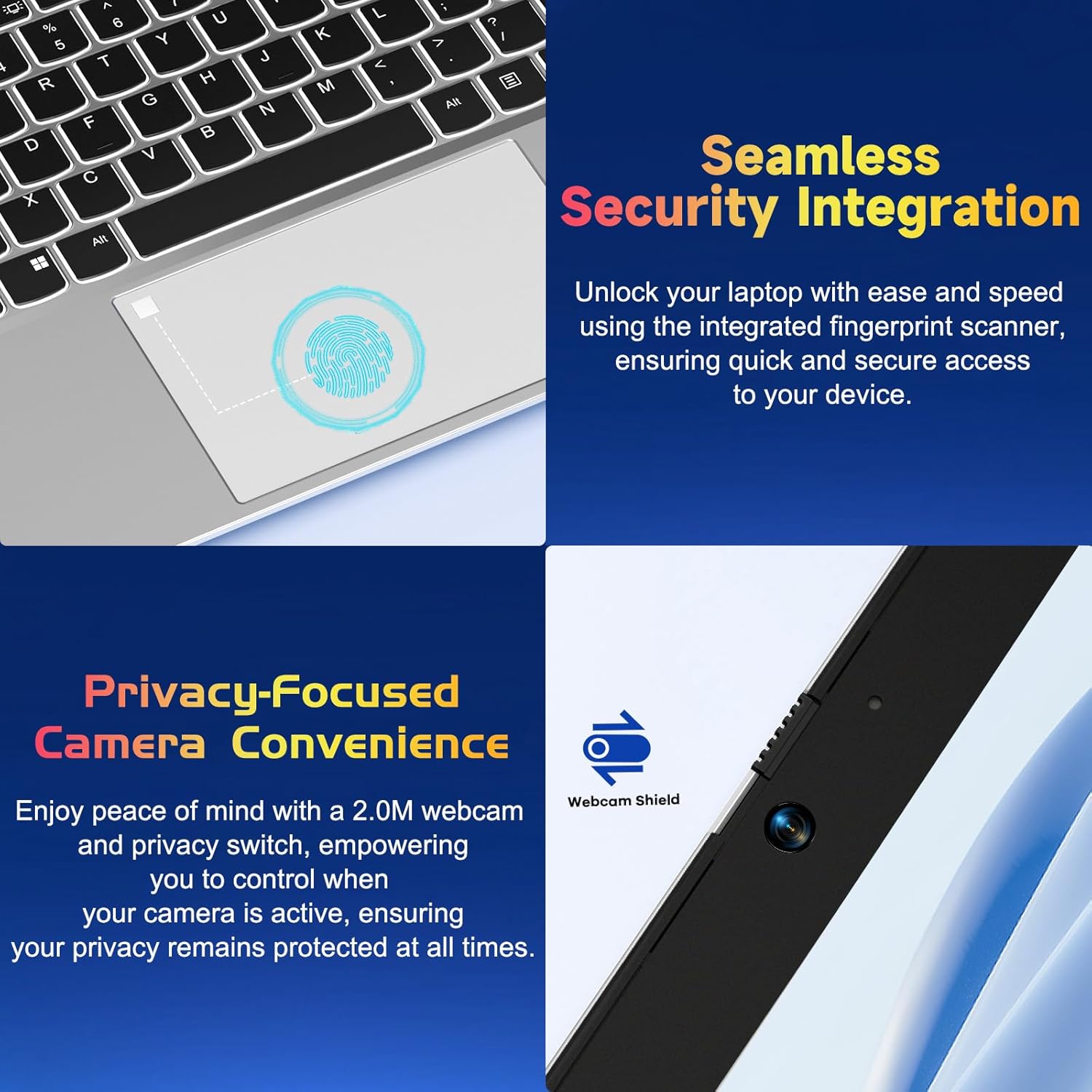
4.2. irudia: hurbileko planoa view of the NIMO laptop's touchpad, highlighting the integrated fingerprint scanner for seamless security integration, alongside the privacy-focused webcam with a physical shield.
4.4 Periferikoak konektatzea
Your laptop offers various ports for connecting external devices:
- USB-A atakak: USB gailu estandarrak konektatzeko, hala nola saguak, teklatuak edo kanpoko unitateak.
- USB-C atakak: Two full-function USB-C ports support Power Delivery (PD), DisplayPort (DP), and data transfer. One is dedicated for charging.
- HDMI ataka: Kanpoko monitore edo proiektoreetara konektatu.
- MicroSD txartel irakurgailua: Sartu MicroSD txartel bat biltegiratze edo datu-transferentzia gehigarrirako.
- 3.5 mm-ko audio-konexioa: Entzungailuetarako edo kanpoko bozgorailuetarako.
4.5 Webcam Privacy
The laptop includes a 2.0MP webcam with a physical privacy shield. Slide the shield to cover the camera lens when not in use to ensure your privacy.
5. Mantentzea eta Zainketa
- Garbiketa: Erabili lipurrik gabeko zapi leun bat dampened with water or a screen cleaner to clean the display and exterior. Avoid harsh chemicals.
- Software eguneraketak: Eguneratu aldizka zure Windows sistema eragilea eta kontrolatzaileak errendimendu eta segurtasun optimoa bermatzeko.
- Bateria zaintzea: Bateriaren iraupena luzatzeko, saihestu tenperatura muturrekoak eta saiatu bateriaren karga % 20 eta % 80 artean mantentzen ahal den guztietan.
- Biltegiratzea: Gorde ordenagailu eramangarria leku fresko eta lehor batean, eguzki-argitik eta muturreko tenperaturetatik babestuta.
6. Arazoak
This section addresses common issues you might encounter with your NIMO laptop.
| Gaia | Irtenbide posiblea |
|---|---|
| Ordenagailu eramangarria ez da pizten. | Ensure the laptop is charged. Connect the charger and wait a few minutes before attempting to power on again. If unresponsive, perform a hard reset by holding the power button for 15 seconds. |
| Pantaila hutsik dago edo keinuka ari da. | Try adjusting the screen brightness (Fn + F5/F6). If connected to an external monitor, ensure the cable is secure. Restart the laptop. |
| Keyboard backlight is not working. | Press Fn + F10 (or the key with the backlight icon) to cycle through backlight settings. Ensure the function keys are enabled. |
| Fingerprint reader not recognized. | Ensure your finger is clean and dry. Re-register your fingerprint in Windows Hello settings if the issue persists. |
| Wi-Fi konexio arazoak. | Check if Wi-Fi is enabled (Fn + F12 or Windows settings). Restart your router and laptop. Update Wi-Fi drivers if necessary. |
| Ordenagailu eramangarria motel dabil. | Close unnecessary applications. Check Task Manager for resource-intensive processes. Ensure Windows and drivers are up to date. Consider running a disk cleanup. |
7. Zehaztapen Teknikoak
| Ezaugarri | Zehaztapena |
|---|---|
| Marka | NIMO |
| Ereduaren izena | NIMO N152S |
| Elementuaren eredu-zenbakia | NIMO N152 |
| Pantailaren tamaina | 15.6 hazbete |
| Gehienezko pantailaren bereizmena | 1920 x 1080 pixel (HD osoa) |
| Prozesadorea | AMD Ryzen 5 3500U (3.7 GHz) |
| RAM | 32 GB DDR4 (3200 MHz) |
| Disko gogorra | 1024 GB-ko SSDa (egoera solidoa) |
| Koprozesadore grafikoa | AMD Integrated graphics |
| Sistema eragilea | Windows 11 |
| Haririk gabeko mota | 802.11abg |
| USB 2.0 ataka kopurua | 1 |
| Bateriaren batez besteko iraupena | 5 ordu |
| Elementuaren pisua | 3.8 kilo |
| Produktuaren neurriak | 14.07 x 8.98 x 0.76 hazbete |
| Kolorea | Zilar klasikoa |
| Atzekoa Webkamaren ebazpena | 2 MP |
| Energia iturria | Bateriaren bidez |
| Pilak | 1 litio-polimeroko bateriak behar dira (barne) |
8. Bermea eta bezeroarentzako laguntza
8.1 Bermearen informazioa
Your NIMO N152S laptop comes with a comprehensive warranty:
- 90-Day Free Return Policy: You may return your NIMO laptop for any reason within 90 days of purchase.
- 2 urteko bermea: All NIMO products are covered by a 2-year warranty for after-sales support.

Figure 8.1: NIMO's commitment to customer satisfaction, featuring a 90-day free return policy and a 2-year warranty for reliable support.
8.2 Bezeroarentzako laguntza
For any product-related questions, technical assistance, or warranty claims, please contact our U.S.-based support team:
- Visit the official NIMO weblaguntza baliabideen eta harremanetarako aukeren gunea.
- Kontaktu-datu zehatzak lortzeko, kontsultatu erosketa-dokumentazioa.
Our team is dedicated to providing professional and high-quality customer service to resolve any issues you may encounter.