Sarrera
This manual provides comprehensive instructions for the safe and efficient operation of your NIIMBOT D110 Bluetooth Label Maker Machine. Please read this manual thoroughly before using the device to ensure proper setup, usage, and maintenance.
Paketearen edukia
Paketea irekitzean, egiaztatu honako elementu guztiak daudela:
- 1 x NIIMBOT D110 Label Maker Machine
- 1 x 12x40mm Thermal Label Roll (pre-installed in printer)
- 1 x C motako USB kablea
- Erabiltzailearen eskuliburua (dokumentu hau)
- Additional 3 rolls of clear labels (packaged separately)
Konfigurazioa
1. Gailua kargatzea
Before initial use, fully charge the NIIMBOT D110 label maker.
- Connect the provided Type-C USB cable to the charging port on the label maker.
- Konektatu USB kablearen beste muturra USB elikatze-egokitzaile estandar batera (ez dago barne) edo ordenagailuaren USB atakara.
- Adierazle-argiak kargatze-egoera erakutsiko du (adibidez, gorria kargatzen ari bada, berdea guztiz kargatuta dagoenean).
2. Etiketa-zinta instalatzea
The device comes with one roll of label tape pre-installed. To replace or install new tape:
- Open the label compartment cover by gently lifting it.
- Remove any empty label roll.
- Insert the new label roll with the printing surface facing upwards, ensuring the label edge extends slightly out of the slot.
- Itxi konpartimentuaren estalkia ondo, bere lekuan klik egin arte.

Image: NIIMBOT D110 Label Maker with a label roll being inserted and a smartphone displaying the NIIMBOT app interface for label creation.
3. Aplikazioa deskargatzea eta Bluetooth konexioa
The NIIMBOT D110 operates via a dedicated mobile application.
- Download the "NIIMBOT" app from the App Store (for iOS) or Google Play Store (for Android). You can search for "NIIMBOT" or scan the QR code provided in the quick start guide.
- Ziurtatu Bluetootha gaituta dagoela zure gailu mugikorrean.
- Open the NIIMBOT app.
- Turn on the D110 label maker by pressing and holding the power button.
- Within the app, search for available devices and select "D110" to connect. The indicator light on the printer will confirm a successful connection.
Image: The NIIMBOT D110 Bluetooth Label Maker, highlighting its wireless connectivity and showing icons for downloading the companion app from the App Store and Google Play.
4. PC Connection (Optional)
For more versatile content editing, the D110 can also be connected to a computer.
- Download and install the necessary drivers from the official NIIMBOT webgunea.
- Connect the D110 to your computer using the provided Type-C USB cable.
- Follow the on-screen instructions in the NIIMBOT PC software to begin creating and printing labels.
Funtzionamendu-argibideak
1. Creating Labels with the NIIMBOT App
The NIIMBOT app offers various features for designing your labels.
- Testu sarrera: Sartu nahi duzun testua.
- Sinboloak eta ikonoak: Access over 1500 symbols to enhance your labels.
- Hizkuntzak: Supports over 10 languages for text input.
- Markoak: Choose from over 100 frames to customize label borders.
- QR Code & Barcode: Sortu eta inprimatu QR kodeak edo barra-kodeak zuzenean aplikaziotik.
- Txantiloiak: Utilize various built-in templates for quick label creation.
- Loteen inprimaketa: Print multiple identical or different labels efficiently.

Image: The NIIMBOT app interface showcasing its powerful functions, including a wide selection of symbols, support for multiple languages, various frames, and the ability to generate QR codes and barcodes.
2. Etiketak inprimatzea
After designing your label in the app:
- Review your label design on the app screen.
- Ensure the D110 is connected via Bluetooth and has sufficient battery.
- Tap the "Print" button in the app.
- The label maker will automatically feed and print the label.
- Tear off the printed label along the serrated edge.
3. Supported Label Sizes
The D110 supports various label widths from 0.47 inches (12mm) to 0.59 inches (15mm). Ensure you use genuine NIIMBOT thermal labels for optimal performance.

Image: The NIIMBOT D110 Label Maker demonstrating its compatibility with various label sizes, including 12x22mm, 12x40mm, 14x40mm, 14x60mm, 15x30mm, and 15x50mm, with examples of printed labels.
4. Eskaera Adibamples
The NIIMBOT D110 is suitable for a wide range of labeling needs, including:
- School supplies (notebooks, binders, pencil cases)
- Food storage and organization
- Reminder labels for medication or tasks
- Gift labeling
- Travel item identification
- Cosmetic organization
- Office filing and organization
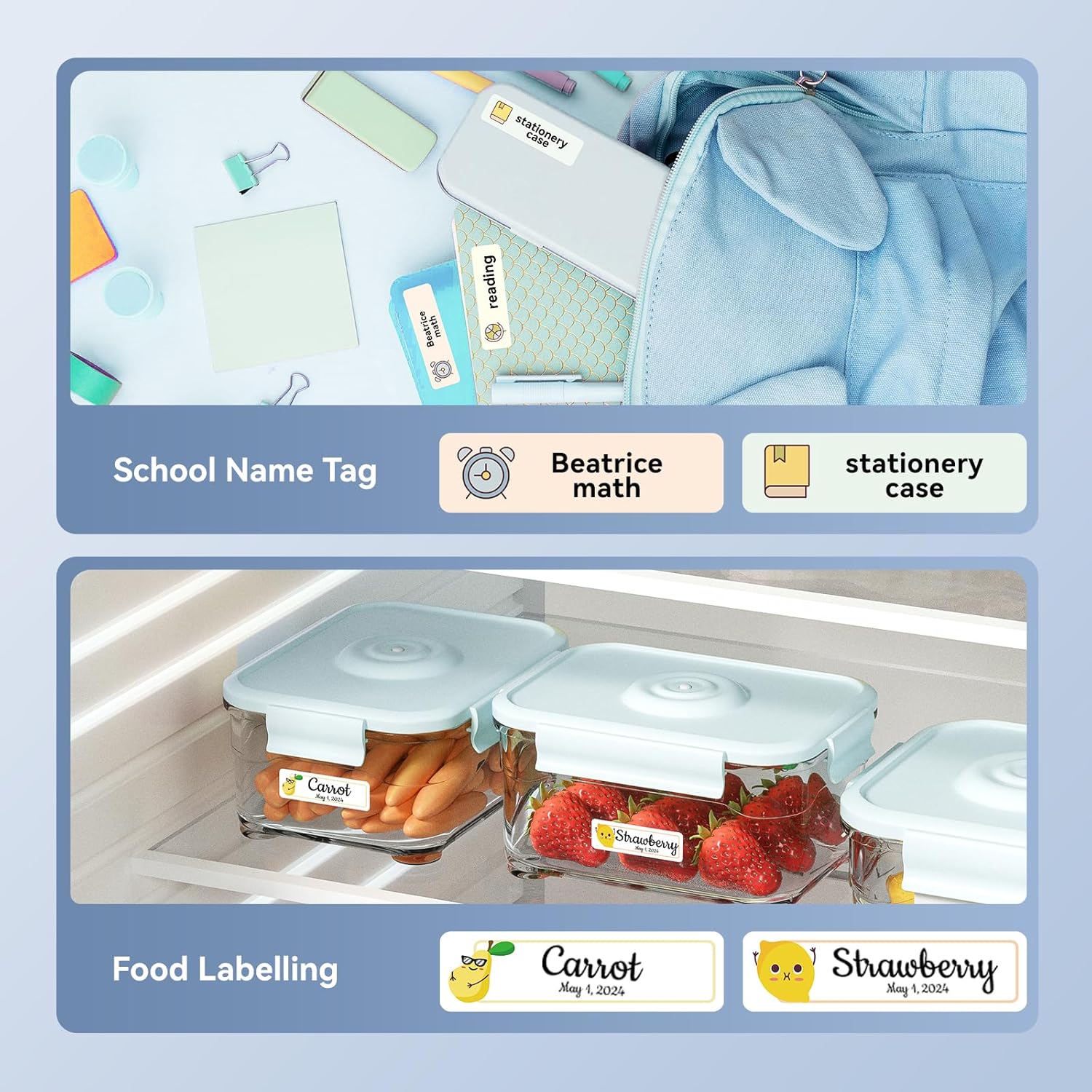
Irudia: Adibamples of labels created with the NIIMBOT D110, demonstrating use for school name tags on backpacks and stationery, as well as for food labeling on storage containers with contents and dates.

Irudia: Adibamples of labels created with the NIIMBOT D110, showing application for medication reminders in a pill organizer and decorative labels for gifts.

Irudia: Adibamples of labels created with the NIIMBOT D110, illustrating use for organizing travel toiletries like shampoo and conditioner, and for identifying makeup products such as eyeliner and eyeshadow.
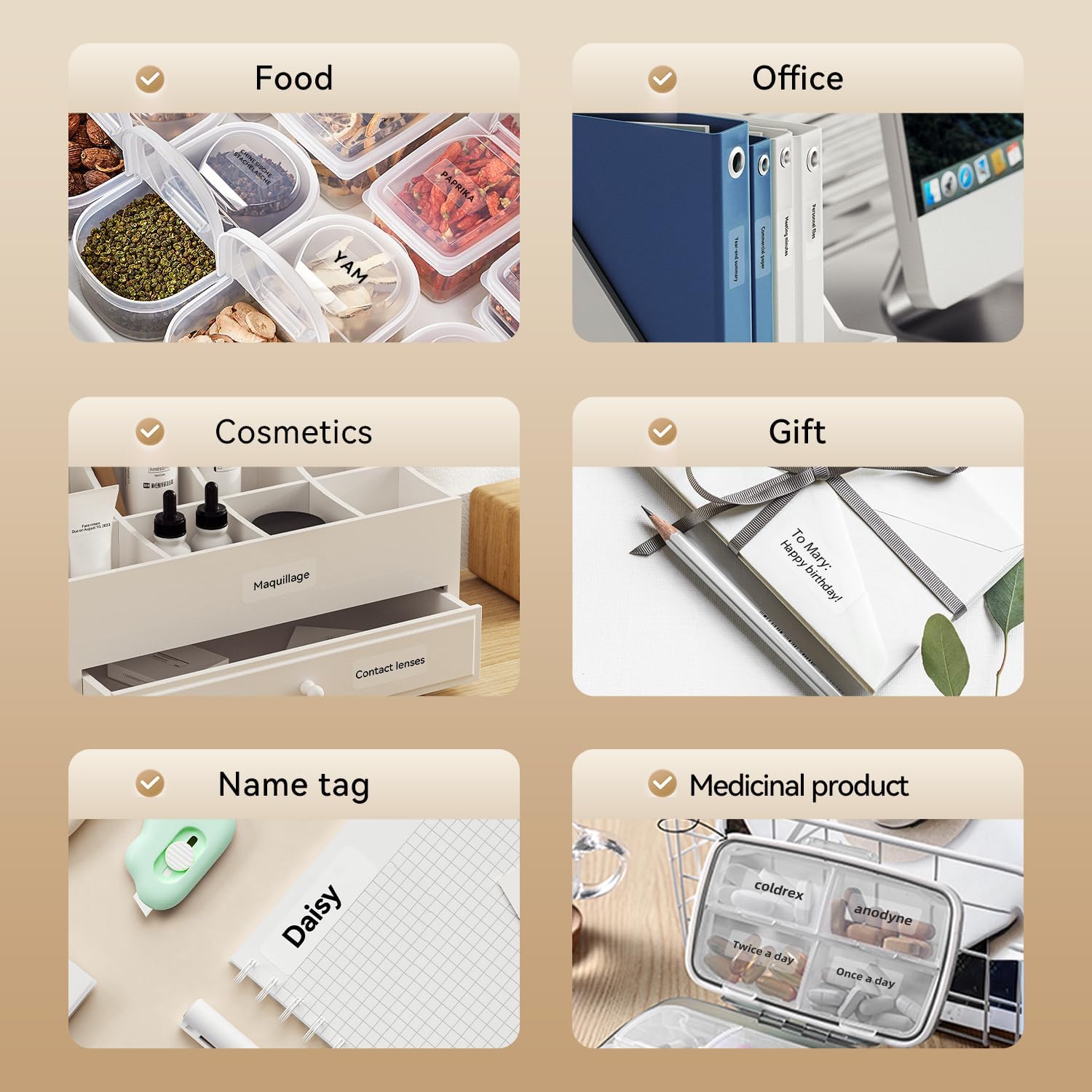
Image: A collage of various application examples for NIIMBOT D110 labels, including organizing food containers, office supplies, cosmetic items, gifts, creating name tags, and labeling medicinal products.
Mantentzea
1. Inprimatze-burua garbitzea
To ensure optimal print quality, regularly clean the print head.
- Turn off the label maker and disconnect it from any power source.
- Ireki etiketa-konpartimentuaren estalkia.
- Garbitu inprimatze-burua astiro-astiro kotoi-zapi batekinampisopropil alkoholarekin egina.
- Allow the print head to dry completely before closing the cover and resuming use.
2. Bateria zaintzea
Bateriaren iraupena luzatzeko:
- Saihestu bateria maiz erabat deskargatzea.
- Kargatu gailua aldizka, etengabe erabiltzen ez baduzu ere.
- Gorde gailua leku fresko eta lehor batean denbora luzez erabiltzen ez duzunean.
3. Biltegiratzea
Store the label maker and label rolls in a dry environment, away from direct sunlight and extreme temperatures.
Arazoak konpontzea
| Arazoa | Kausa posiblea | Irtenbidea |
|---|---|---|
| Gailua ez da pizten | Bateria baxua | Kargatu gailua emandako USB kablea erabiliz. |
| Ezin da Bluetooth bidez konektatu | Bluetooth is off; App not open; Device out of range | Ensure Bluetooth is enabled on your phone, open the NIIMBOT app, and keep the printer within close proximity. Restart both devices if necessary. |
| Inprimatze-kalitate eskasa | Dirty print head; Incorrect label type; Low battery | Clean the print head (refer to Maintenance section). Ensure you are using genuine NIIMBOT thermal labels. Charge the device. |
| Etiketak ez dira behar bezala elikatzen | Label roll incorrectly installed; Label jammed | Open the cover and re-install the label roll, ensuring it is properly aligned. Remove any jammed labels carefully. |
| "No ink" message | Thermal printers do not use ink. This message is incorrect or a misunderstanding. | The D110 is a thermal printer and does not require ink. Ensure the label roll is correctly installed and is thermal paper. |
Zehaztapenak
| Ezaugarri | Xehetasuna |
|---|---|
| Eredua | NIIMBOT D110 |
| Inprimatzeko metodoa | Thermal Printing (No Ink Required) |
| Konektibitatea | Bluetooth, USB (for PC) |
| Onartutako etiketaren zabalera | 0.47'' - 0.59'' (12mm - 15mm) |
| Pisua | 0.2 lb (approximately 90g) |
| Neurriak | 3.8'' x 2.9'' x 1.1'' (approximately 9.65cm x 7.37cm x 2.79cm) |
| Potentzia Sarrera | C motako USB |

Image: A visual comparison showing the NIIMBOT D110 as significantly smaller and lighter (0.2 lb, 3.8"x2.9"x1.1") compared to a traditional label printer (1.2 lb, 7"x6.3"x2.2").
Bermea eta Laguntza
For warranty information and technical support, please refer to the official NIIMBOT website or contact NIIMBOT customer service directly. Details can typically be found on the product packaging or the manufacturer's webgunea.
Lineako laguntza: Bisitatu www.niimbot.com maiz egiten diren galderen, gidarien deskargaren eta harremanetarako informazioa lortzeko.