
1. Sarrera
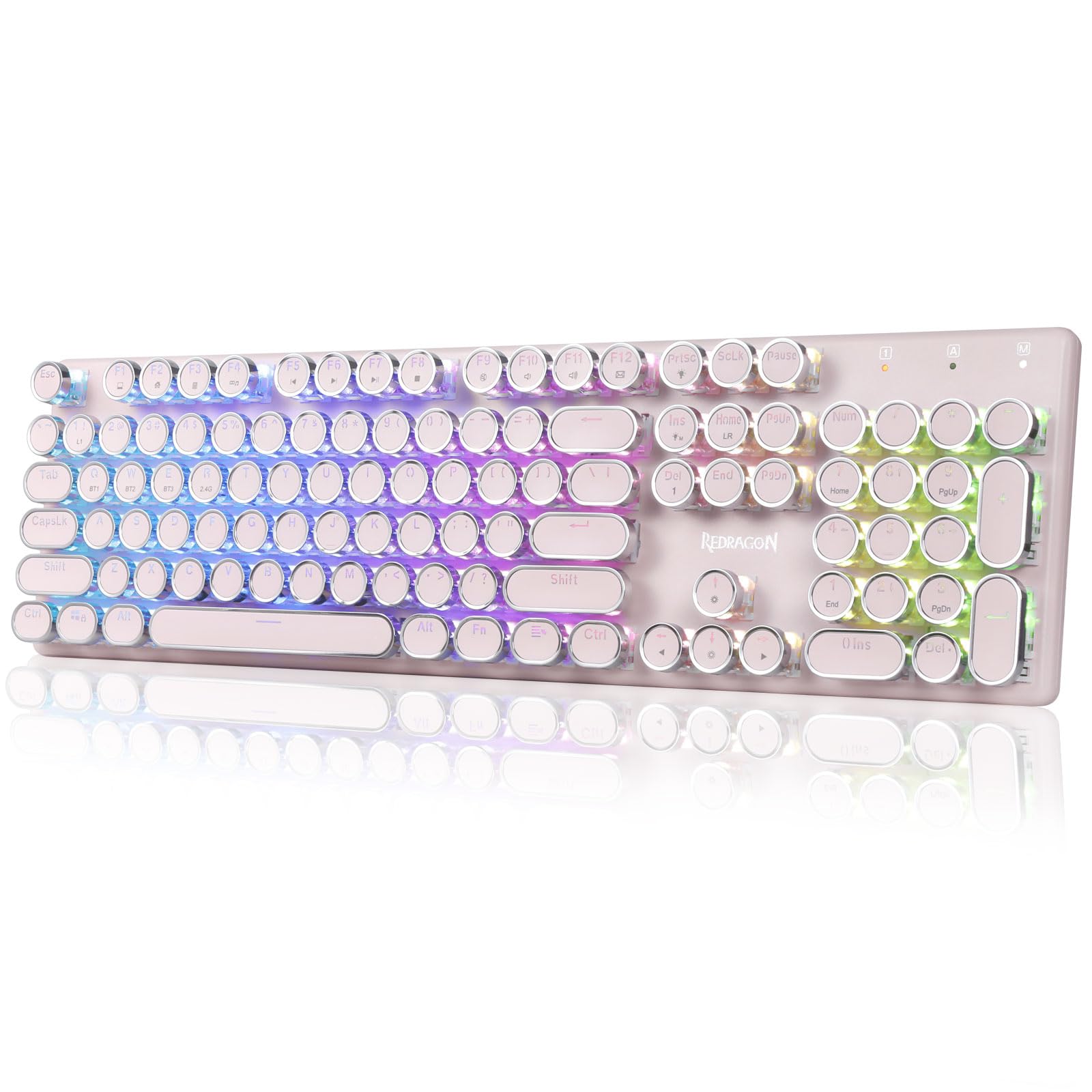
The Redragon K710 is a versatile mechanical gaming keyboard designed for a superior typing and gaming experience. It features a retro typewriter style with round keycaps and offers multiple connectivity options, vibrant RGB backlighting, and durable construction. This manual provides detailed instructions for setup, operation, maintenance, and troubleshooting.

2. Konfigurazioa
2.1 Paketearen edukia
Hasi aurretik, ziurtatu elementu guztiak paketean daudela:
- Redragon K710 Wireless Mechanical Gaming Keyboard
- USB-C kablea
- 2.4Ghz Wireless Dongle
- Tekla-tapoien erauzgailua (barne badago)
- Erabiltzailearen eskuliburua
2.2 Hasierako karga
For optimal performance, fully charge the keyboard before first use. Connect the provided USB-C cable to the keyboard's port and to a USB power source (e.g., computer, wall adapter). The LED indicator will show charging status.
2.3 Konexio moduak
The Redragon K710 supports three connection modes: 2.4Ghz Wireless, Bluetooth 3.0/5.0, and USB-C Wired.


2.3.1 2.4Ghz Haririk gabeko Modua
- Locate the 2.4Ghz wireless dongle, usually stored in a compartment on the back of the keyboard.
- Konektatu donglea ordenagailuko USB ataka erabilgarri batean.
- Switch the mode selector on the back of the keyboard to "2.4G".
- Luze sakatu FN + R on the keyboard to enter 2.4G pairing mode. The indicator light will flash.
- Teklatua automatikoki konektatu beharko litzateke.
2.3.2 Bluetooth modua
- Switch the mode selector on the back of the keyboard to "BT".
- Luze sakatu FN + Q, FN + W, edo FN + E for 3 seconds to select a Bluetooth channel (BT1, BT2, or BT3). The indicator light for the selected channel will flash rapidly, indicating pairing mode.
- On your device (PC, laptop, tablet, phone), open Bluetooth settings and search for new devices.
- Select "Redragon K710" from the list of available devices to pair.
- Behin konektatuta, adierazle-argia keinuka geldituko da.
2.3.3 USB-C kable bidezko modua
- Connect the provided USB-C cable to the keyboard and to a USB port on your computer.
- Teklatua automatikoki aldatuko da kable bidezko modura eta kargatzen hasiko da.
3. Funtzionamendu-argibideak
3.1 RGB atzeko argiztapenaren kontrola
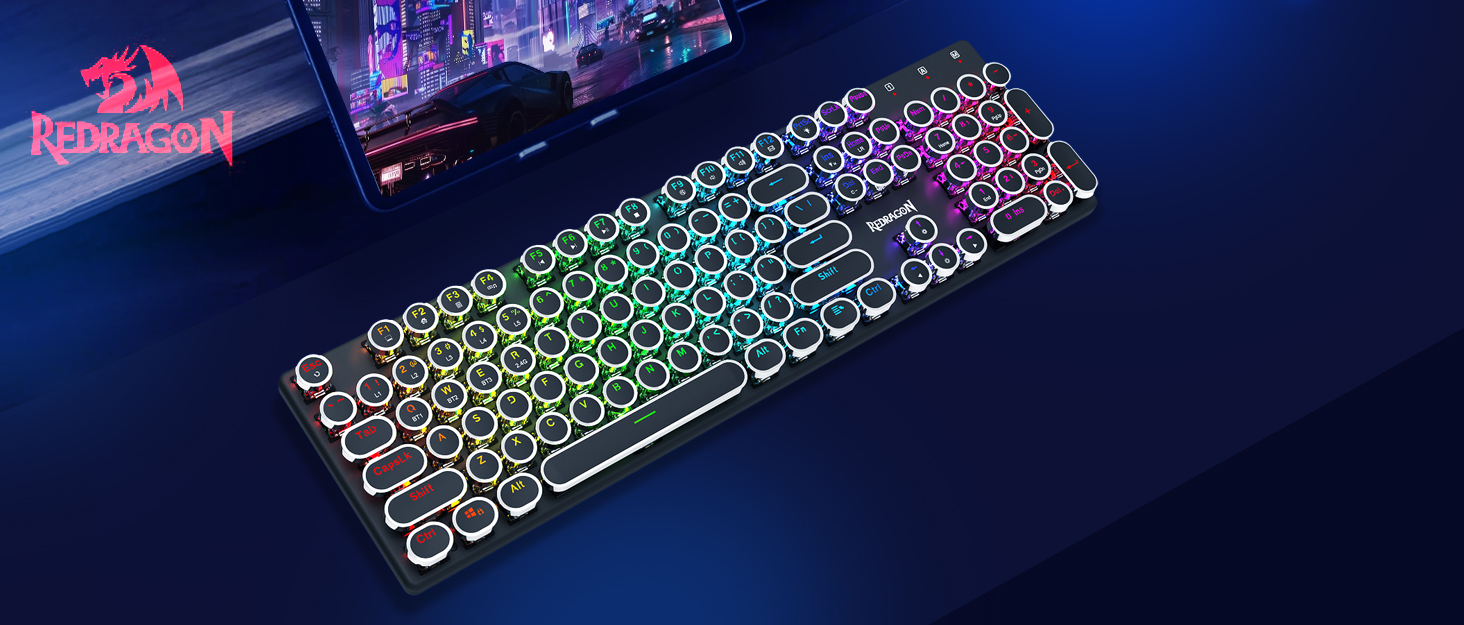
The K710 keyboard features 16.8 million RGB backlighting with various modes and customization options.

- FN + INS: Switch between 16 different RGB lighting modes and effects.
- FN + ↑ / ↓: Adjust backlight brightness (5 levels).
- FN + DEL: Cycle through 7 solid colors (Red, Green, Blue, Yellow, Purple, Cyan, White).
- FN + PrtSc: Toggle backlight on/off.
3.2 Custom Backlighting
You can customize individual key backlighting:
- Sakatu FN + 1 to enter game mode.
- Sakatu FN + Etxea to enter custom recording state.
- Press desired keys continuously to set their color.
- Sakatu FN + Etxea again to save the custom lighting.
3.3 Multimedia lasterbideak
Access various functions using FN key combinations:

- FN + F1: Nire ordenagailua
- FN + F2: Hasierako orria
- FN + F3: Kalkulagailua
- FN + F4: Jokalari
- FN + F5: Aurreko Pista
- FN + F6: Hurrengo Pista
- FN + F7: Erreproduzitu/Pausatu
- FN + F8: Gelditu
- FN + F9: Mutu
- FN + F10Bolumena -
- FN + F11: Bolumena +
- FN + F12Posta
- FN + IRABAZI: Lock/Unlock Windows Key
- FN + ESC (Eutsi 5 s): Leheneratu fabrikako ezarpenak
3.4 Bateriaren kudeaketa
The keyboard is equipped with a durable 4000mAh battery.

- Bateriaren iraupena: Up to 70 hours with RGB lights on, and over 300 hours with lights off.
- Kargatzen: A fast charge can provide enough power for a full day's use.
- Egiaztatu bateriaren maila: Sakatu FN + Sartu to check the current battery level via the LED indicators.

3.5 Auto Power Saving
To conserve battery, the keyboard's backlight will automatically turn off after 3 minutes of inactivity in wireless mode. Press any key to wake up the keyboard.
3.6 Softwarearen laguntza
The Redragon K710 is compatible with dedicated software for advanced customization, including macro recording, key remapping, and detailed lighting effects.

To download the driver software, visit the official Redragon webgunea: redragonzone.com/software.html. Navigate to "KEYBOARDS", search for model "K710", and download the appropriate software.
4. Mantentzea
4.1 Garbiketa
- Deskonektatu teklatua energia-iturri guztietatik garbitu aurretik.
- Erabili zapi leun eta lehor bat teklatuaren gainazala garbitzeko.
- Teklen arteko hautsa eta hondakinak kentzeko, erabili aire konprimatua.
- The included keycap puller can be used to carefully remove keycaps for deeper cleaning of the switches.
4.2 Biltegiratzea
Store the keyboard in a cool, dry place away from direct sunlight and extreme temperatures. Avoid placing heavy objects on the keyboard.
5. Arazoak
- Teklatuak ez du erantzuten: Ensure the keyboard is charged. Check the connection mode (wired, 2.4G, Bluetooth) and ensure it matches your device. Try reconnecting the USB cable or re-pairing the wireless connection.
- Giltzak ez dira erregistratzen edo bi aldiz idazten ari dira: Clean under the keycaps. If using wireless, ensure the dongle is securely plugged in or Bluetooth connection is stable. Try updating the keyboard firmware via the Redragon software.
- RGB argiak ez dira funtzionatzen: Check if the backlight is turned off (FN + PrtSc). Adjust brightness (FN + ↑/↓). If issues persist, perform a factory reset (FN + ESC for 5 seconds).
- Bluetooth konexio arazoak: Ensure your device's Bluetooth is enabled. Remove the keyboard from your device's paired list and re-pair it. Try a different Bluetooth channel (FN + Q/W/E).
- Software download link not working: Ensure you are visiting the official Redragon webgunea (redragonzone.com/software.html) and searching for the correct model (K710).
6. Zehaztapenak
| Ezaugarri | Xehetasuna |
|---|---|
| Marka | Redragon |
| Modelo zenbakia | K710P-RGB |
| Konektibitatea | 2.4Ghz Wireless, Bluetooth 3.0/5.0, USB-C Wired |
| Teklatu mota | Mekanikoa |
| Aldatu mota | Blue Switch (Clicky, Tactile) |
| Giltzak | Round, Electroplated, Double Shot |
| Atzeko argiztapena | RGB (16.8 Million Colors, 16+ Modes) |
| Ghostingaren aurkakoa | 104 teklako anti-ghosting-a |
| Bateria Edukiera | 4000 mAh |
| Materiala | Metal (Panel), Plastic |
| Elementuaren pisua | 950 gramo |
| Gailu bateragarriak | Joko kontsola, ordenagailu eramangarria, ordenagailua, tableta |


7. Bermea eta Laguntza
Bermeari buruzko informazioa, laguntza teknikoa edo laguntza gehiago lortzeko, bisitatu Redragon webgune ofiziala. website or contact their customer service. The latest drivers and software can be found at redragonzone.com/software.html.