
Cuifati CUIFATIvd1g4kecbu
Cuifati 4G CPE Cat6 Mobile WiFi Hotspot Router User Manual
Model: CUIFATIvd1g4kecbu
1. Sarrera
This manual provides detailed instructions for the setup, operation, and maintenance of your Cuifati 4G CPE Cat6 Mobile WiFi Hotspot Router. This device offers secure, high-speed internet sharing across multiple devices using a SIM card, making it suitable for various environments including home, office, and outdoor activities.
2. Paketearen edukia
Mesedez, egiaztatu behean zerrendatutako elementu guztiak zure paketean daudela:
- Cuifati 4G CPE Cat6 Mobile WiFi Hotspot Router
- Elikatze-moldagailua
- Ethernet kablea
- Mosketoia (eramangarritasunerako)
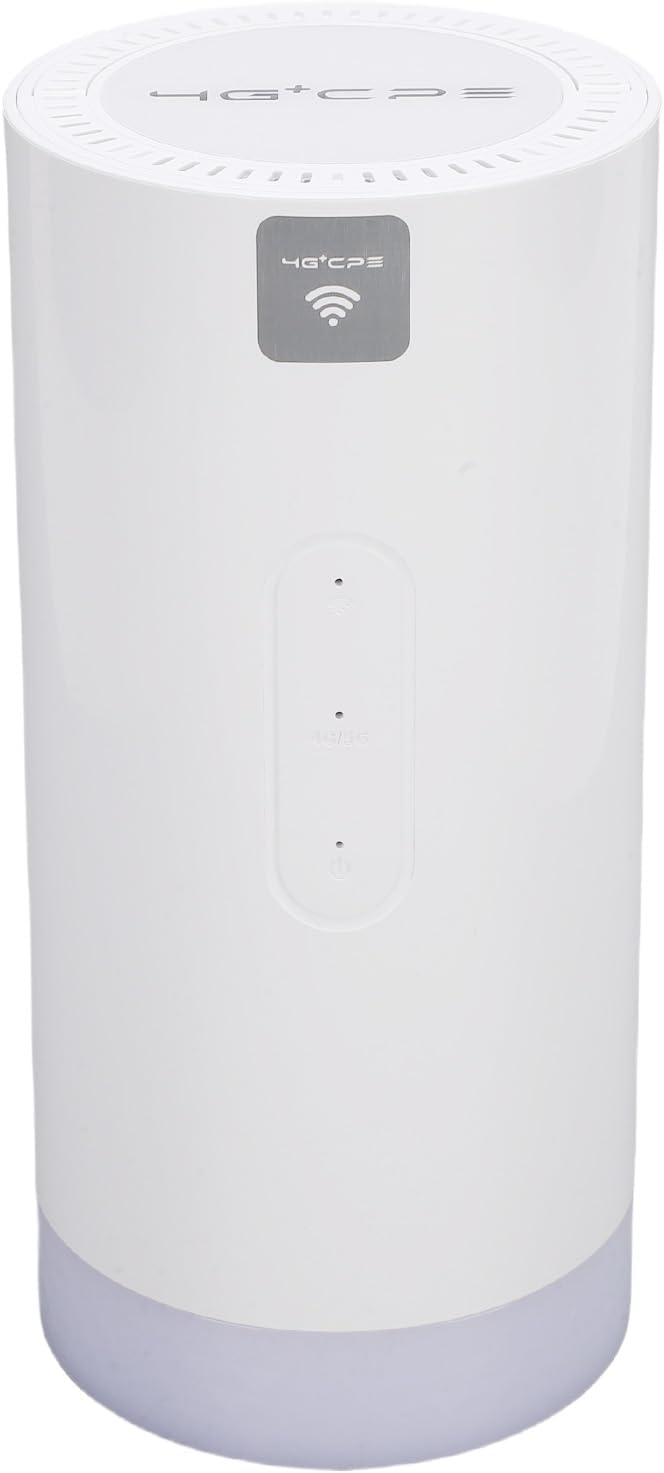
Image: Package contents including the router, power adapter, Ethernet cable, and carabiner.
3. Produktua amaitu daview
3.1 Aurreko panela

Irudia: Aurrealdea view of the router, showing LED indicators and the 4G+CPE logo.
The front panel features LED indicators for WiFi connection status, network connection status, and battery level, providing an intuitive display of the device's operational status.
3.2 Atzeko panela eta atakak

Irudia: Atzealdea view of the router, displaying various ports and the product information label.
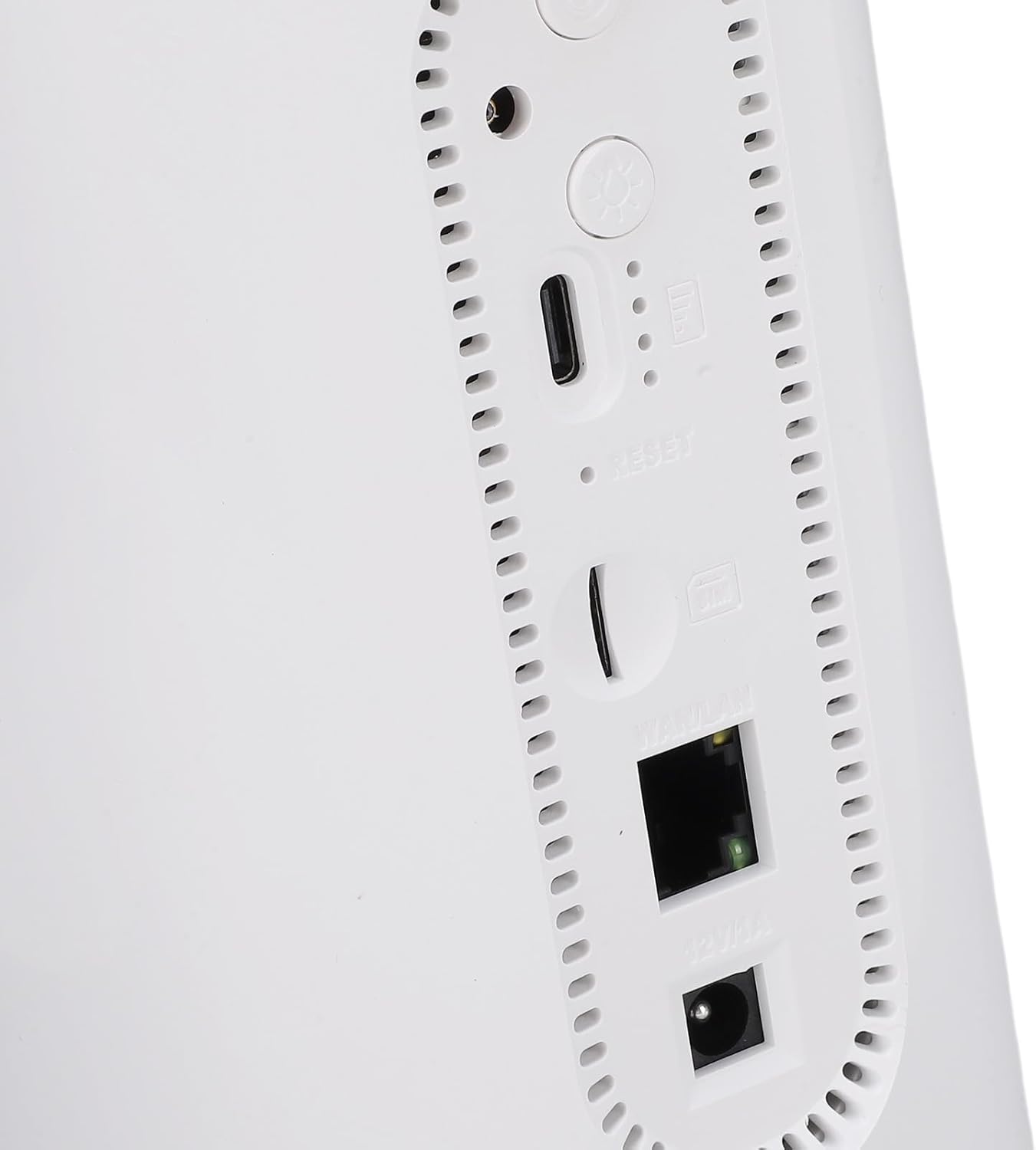
Irudia: Gertuko planoa view of the rear ports, including SIM card slot, Reset button, WAN/LAN port, and power input.
The rear panel includes essential ports and controls:
- SIM txartelaren zirrikitua: For inserting a Micro SIM card.
- Berrezarri botoia: Fabrika ezarpenak berrezartzeko erabiltzen da.
- WAN/LAN ataka: An Ethernet port for wired connections or connecting to an existing network.
- Potentzia sarrera: Korronte-egokigailua konektatzeko.
- Pizteko botoia: Gailua pizteko edo itzaltzeko.
- Camping Light Button: To activate or deactivate the colorful light feature.
4. Konfigurazioa
4.1 SIM txartelaren instalazioa
- Ziurtatu bideratzailea itzalita dagoela.
- Aurkitu SIM txartelaren zirrikitua atzeko panelean.
- Insert a Micro SIM card into the slot with the gold contacts facing down and the notched corner oriented correctly. Push until it clicks into place.
- To remove, gently push the SIM card again until it ejects.
4.2 Piztea
- Connect the provided power adapter to the power input port on the rear panel.
- Entxufatu korronte-egokigailua hormako entxufe batera.
- Press and hold the Power Button until the LED indicators illuminate. The device will begin to boot up.
4.3 Initial WiFi Connection
- Once the router is powered on and the network indicator shows a stable connection, locate the default WiFi Network Name (SSID) and Password (PWD) on the label at the bottom or rear of the device. (Example: SSID: 4G+CPE-XXXX, PWD: XXXXXXXXXX)
- On your smartphone, tablet, or computer, search for available WiFi networks.
- Select the SSID corresponding to your router.
- Enter the default PWD when prompted.
- You should now be connected to the internet.
5. Funtzionamendu-argibideak
5.1 Gailuak konektatzea
You can connect multiple devices to the router via WiFi. For wired connections, use an Ethernet cable to connect a device to the WAN/LAN port.
5.2 Sartzea Web Kudeaketa interfazea
To configure advanced settings, access the web kudeaketa interfazea:
- Ensure your device is connected to the router's WiFi network.
- Ireki a web nabigatzailea (adibidez, Chrome, Firefox).
- Enter the default IP address (e.g., 192.168.199.1) into the address bar and press Enter. This IP address is typically found on the product label.
- Enter the default username (e.g., admin) eta pasahitza (adibidez, admin) when prompted. These credentials are also on the product label.
- From the interface, you can change WiFi settings, view connected devices, and manage network preferences.
5.3 LED adierazleak
The LED indicators on the front panel provide visual feedback on the router's status:
- WiFi adierazlea: Shows the status of the WiFi network.
- Sarearen adierazlea: Displays the status of the 4G/3G/2G mobile network connection.
- Bateria adierazlea: Uneko bateriaren maila adierazten du.
Refer to the full product specifications for detailed indicator behavior (e.g., solid, blinking, color codes).
5.4 CampArgiaren funtzioa
This router includes a colorful light feature. Press the dedicated Camping Light Button on the rear panel to activate or deactivate this function. This can be useful for outdoor activities.
6. Mantentzea
- Garbiketa: Erabili zapi leun eta lehor bat gailua garbitzeko. Saihestu garbitzaile likidoak edo material urratzaileak.
- Biltegiratzea: Store the router in a cool, dry place away from direct sunlight and extreme temperatures.
- Bateria zaintzea: For optimal battery life, avoid fully discharging the battery frequently. If storing for extended periods, charge the battery to approximately 50%.
- Firmware eguneraketak: Aldian-aldian egiaztatu fabrikatzailearen webgunea edo web errendimendu eta segurtasun optimoak bermatzeko eskuragarri dauden firmware eguneratzeen kudeaketa interfazea.
7. Arazoak
- Ez dago Interneteko konexiorik:
- Ziurtatu SIM txartela behar bezala sartuta dagoela eta datu-plan batekin aktibatuta dagoela.
- Check the network LED indicator. If it's off or red, there might be a network issue or no signal.
- Berrabiarazi bideratzailea eta konektatutako gailua.
- Egiaztatu APN ezarpenak hemen: web management interface (if applicable).
- Ezin da WiFira konektatu:
- Ensure the WiFi LED indicator is on.
- Verify you are entering the correct WiFi password.
- Hurbildu bideratzailera seinalearen indarra hobetzeko.
- Berrabiarazi bideratzailea.
- Interneteko abiadura motela:
- Egiaztatu zure sare mugikorreko seinalearen indarra.
- Murriztu konektatutako gailuen kopurua.
- Ensure no background applications are consuming excessive bandwidth.
- Try moving the router to a location with better signal reception.
- Routerrak ez du erantzuten:
- Press and hold the Power Button for 10 seconds to force a shutdown, then restart.
- If issues persist, perform a factory reset by pressing the Reset button with a pin for 5-10 seconds. Note: This will erase all custom settings.
8. Zehaztapenak
| Ezaugarri | Zehaztapena |
|---|---|
| Modelo zenbakia | CUIFATIvd1g4kecbu |
| Marka | Cuifati |
| Konektibitate Teknologia | 4G LTE (Cat6), Ethernet |
| Haririk gabeko estandarra | 802.11 b/g/n/AC (2.4G, 5.8G) |
| WiFi Abiadura | 2.4G: 300Mbps, 5.8G: 866Mbps |
| Maiztasun Banda Klasea | Tri-Band (LTE FDD, TDD, WCDMA, EDGE) |
| SIM txartela mota | Micro SIM x 1 |
| Bateria Edukiera | 10000mAh Lithium Cell (Built-in) |
| Enkriptatzea | WiFi Protected Access™ (WPA/WPA2) 2 |
| Neurriak | Gutxi gorabehera 200x95x92 mm / 7.87x3.74x3.62 hazbete |
| Elementuaren pisua | 1.88 kilo |
| Gailu bateragarriak | Smartphones, Tablets, Laptops, Computers |
| Erabilera gomendatua | Barruan/Kanpoan |
9. Bermea eta Laguntza
For warranty information and technical support, please refer to the documentation included with your purchase or contact Cuifati customer service directly. You may also visit the official Cuifati webgunea laguntza eta baliabide gehiago lortzeko.
Ask a question about this manual
Ask about setup, troubleshooting, compatibility, parts, safety, or missing instructions. Manuals+ will review the question and use this page’s manual context to help answer it.