
1. Sarrera
This manual provides detailed instructions for the installation, operation, and maintenance of your KEDIERS K4 Mid Tower ATX PC Case. Please read this manual thoroughly before beginning assembly to ensure proper setup and safe usage. The KEDIERS K4 is designed for optimal airflow and component visibility, featuring panoramic tempered glass and pre-installed ARGB fans.
2. Segurtasun informazioa
- Always disconnect the power supply from the wall outlet before installing or servicing any components inside the PC case.
- Handle tempered glass panels with care. Although durable, they can break if dropped or subjected to sharp impacts.
- Saihestu ordenagailuaren kaxa eguzki-argitan edo bero-iturrietatik gertu jartzea.
- Ensure proper grounding to prevent electrostatic discharge (ESD) damage to sensitive components.
- Keep small parts and screws away from children.
3. Paketearen edukia
Instalazioarekin jarraitu aurretik, egiaztatu elementu guztiak daudela:
- KEDIERS K4 Mid Tower ATX PC Case (White)
- 7 x PWM ARGB Fans (Pre-installed)
- Accessory Box (containing mounting screws, zip ties, instruction manual)
4. Zehaztapenak
| Ezaugarri | Zehaztapena |
|---|---|
| Ereduaren izena | K4 |
| Kasu mota | Mid dorrea |
| Plaka amaren euskarria | ATX / Mikro-ATX / Mini-ITX |
| Aurrez instalatutako zaleak | 7 x PWM ARGB Fans (3x Side Reverse, 3x Top Exhaust, 1x Rear Exhaust) |
| Zaleentzako laguntza maximoa | Gehienez 10 x 120 mm-ko haizagailuak |
| Erradiadorearen euskarria | Top: 360mm/280mm/240mm/120mm Behea: 360 mm Side: 280mm/240mm Atzekoa: 120mm/140mm |
| CPU hozgailuaren gehienezko altuera | 175 mm |
| GPUaren gehienezko luzera | 400 mm |
| PSUaren gehienezko luzera | 200mm (ATX) |
| Drive Bays | 2 x SSD, 1 x HDD (or 3 x SSD) |
| Zabaltzeko Slots | 7 (Horizontala) + 2 (Bertikala) |
| I/O Portuak | 1x USB 3.2 Gen 2 Type-C, 2x USB 3.0, 1x Audio/Mic Combo, Power Button, Reset Button |
| Neurriak (LxWxH) | 16.54 x 11.22 x 15.75 hazbete (420 x 285 x 400 mm) |
| Pisua | 14.19 libra (6.45 kg) |
5. Konfigurazioa eta instalazioa
5.1. Panela kentzea
The KEDIERS K4 features tool-free access for most panels. For tempered glass panels, exercise caution.
Alboko beira tenplatua
To remove the side tempered glass panel, first lay the case flat on a soft, stable surface. Unscrew the four thumb screws located at each corner of the glass panel. Carefully lift the panel away from the chassis. Note the rubber washers on the thumb screws; ensure they are not lost and are reinstalled to prevent scratching the glass.
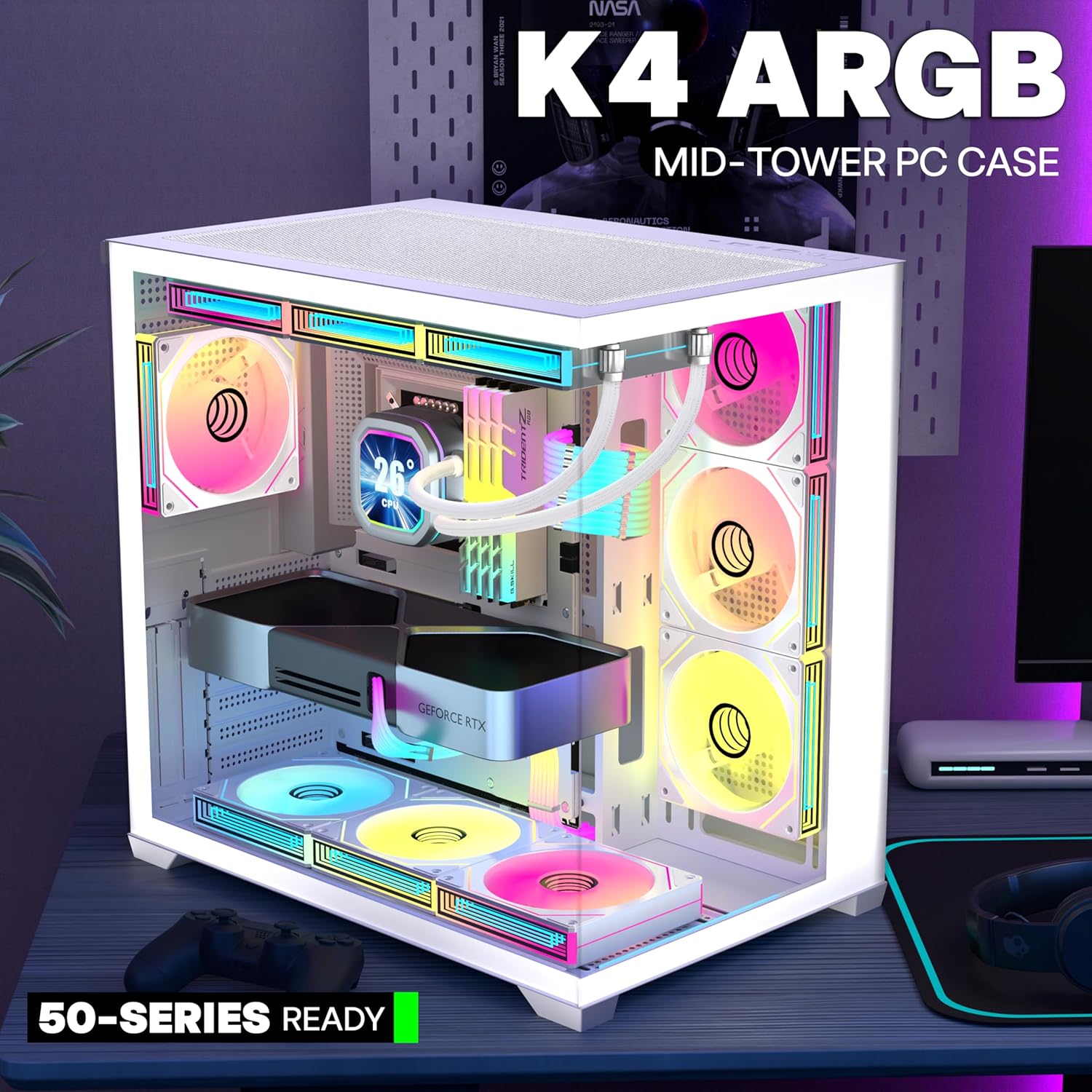
Image: KEDIERS K4 PC Case with side panel removed, showing internal layout.
Rear Metal Panel
The rear metal panel is secured by clips. Gently pull the panel straight back from the front edge to release it. It will pop off. Reinstallation involves aligning the clips and pushing firmly until it snaps into place.
Aurrealdeko beira tenplatua
To remove the front tempered glass panel, first remove the screws on the side of the rear compartment. Once the screws are removed, the panel can be pushed to open and then lifted off. This panel is not hinged and requires careful handling during removal and reinstallation.

Image: Illustration demonstrating the push-to-open mechanism for panel removal, secured by thumbscrews and tool-free fixing studs.
5.2. Plaka amaren instalazioa
The KEDIERS K4 supports ATX, Micro-ATX, and Mini-ITX motherboards. Install the necessary standoffs for your motherboard form factor. Carefully align your motherboard with the standoffs and secure it with screws.

Image: Diagram illustrating motherboard compatibility (ATX, M-ATX, ITX) and component clearance within the KEDIERS K4 case.
5.3. Haizagailuaren eta erradiadorearen instalazioa
The case comes with 7 pre-installed PWM ARGB fans for efficient cooling. Additional fan and radiator mounting options are available:
- Goia: Supports up to 3 x 120mm or 2 x 140mm fans, or a 360mm/280mm/240mm/120mm radiator.
- Atzekoa: Supports 1 x 120mm or 1 x 140mm fan, or a 120mm/140mm radiator.
- Behea: Supports up to 3 x 120mm or 2 x 140mm fans, or a 360mm radiator.
- Aldea: Supports up to 3 x 120mm or 2 x 140mm fans, or a 280mm/240mm radiator.

Image: Diagram detailing fan and radiator mounting locations and sizes supported within the KEDIERS K4 case.
5.4. GPU instalazioa
The K4 case supports graphics cards up to 400mm in length. It also features 7 horizontal and 2 vertical PCI-E slots for flexible GPU mounting. For vertical GPU mounting, a riser cable is not included and must be purchased separately.

Image: Illustration showing maximum GPU length compatibility and support for vertical graphics card installation with available PCI-E slots.
5.5. Biltegiratze instalazioa
The case provides dedicated trays for storage devices:
- 2 x 2.5" SSD mounts (behind motherboard tray).
- 1 x 3.5" HDD mount (in PSU shroud).
The HDD cage can be removed if not needed, providing more space for cable management or a larger power supply.
5.6. PSU instalazioa
Install your ATX power supply into the dedicated shroud at the bottom of the case. The K4 supports power supplies up to 200mm in length. Ensure the PSU fan faces downwards for optimal cooling, utilizing the filtered intake at the bottom of the case.
5.7. Kableen kudeaketa
The K4 features large cable management spaces and a back-connect design to keep the front of the case clean and improve airflow. Utilize the provided Velcro straps and routing channels behind the motherboard tray to organize cables effectively.

Image: Diagram illustrating the cable management system with reserved holes and Velcro straps for a clean build.
6. Funtzionamendu-argibideak
6.1. Aurreko paneleko sarrera/irteera
Goiko S/I panelak portu eta kontrol garrantzitsuetarako sarbide erosoa eskaintzen du:
- Pizteko botoia: Sistema pizteko/itzaltzeko.
- Berrezarri botoia: Sistema berrabiarazteko.
- USB 3.2 2. belaunaldiko C mota: Gailu bateragarriekin datu-transferentzia azkarra egiteko.
- 2 x USB 3.0: USB gailuak konektatzeko.
- Audio/Mic Combo Jack: Aurikularrak edo entzungailuak konektatzeko.

Irudia: Gertuko planoa view of the KEDIERS K4 PC Case's front panel I/O, highlighting the USB Type-C, USB 3.0, audio jacks, and power/reset buttons.
6.2. ARGB haizagailuaren kontrola
The pre-installed PWM ARGB fans are daisy-chained for simplified cable management. Connect the fan controller to your motherboard's ARGB header (5V 3-pin) to synchronize lighting effects with your motherboard's software, or use the integrated controller (if available) to cycle through pre-set lighting modes.

Image: Illustration showing ARGB fan synchronization with various motherboard software (ASRock Polychrome Sync, RGB Fusion, Aura Sync, MSI Mystic Light Sync).
7. Mantentzea
7.1. Hauts-iragazkiaren garbiketa
The K4 PC case is equipped with magnetic dust filters on the top and bottom. Regularly remove and clean these filters to maintain optimal airflow and prevent dust buildup inside the system. Simply detach the magnetic filter, clean it with water or a soft brush, and reattach once dry.
7.2. Garbiketa orokorra
Use a soft, dry cloth to clean the exterior surfaces of the case, including the tempered glass panels. For stubborn smudges on glass, a mild glass cleaner can be used, applied to the cloth first, not directly to the glass. Avoid abrasive cleaners or solvents.
8. Arazoak
- Potentziarik gabe: Ensure all power cables (PSU to wall, PSU to motherboard, CPU, GPU) are securely connected. Check the power button connection to the motherboard.
- Fans Not Spinning/No ARGB: Verify fan power connections (PWM) and ARGB connections (5V 3-pin) to the motherboard or controller. Check motherboard software for fan speed and lighting control.
- Gehiegizko berotzea: Ensure all fans are correctly oriented for optimal airflow (intake/exhaust). Clean dust filters regularly. Verify CPU cooler and GPU cooler are properly seated.
- Panel solteak: Re-secure all thumb screws for tempered glass panels. Ensure metal panels are properly clipped into place.
9. Bermea eta Laguntza
For warranty information, technical support, or further assistance, please refer to the contact information provided in the accessory box or visit the official KEDIERS webgunea. Gorde erosketaren egiaztagiria bermearen erreklamazioetarako.
10. Produktua amaitu daview Bideoa
Bideoa: Ofizial bat amaitu daview of the KEDIERS K4 White PC Case, showcasing its design, pre-installed ARGB fans, and panoramic tempered glass panels.


