
1. Sarrera
Thank you for choosing the suevery All-in-One PC. This manual provides essential information for setting up, operating, and maintaining your new computer. The suevery All-in-One PC is designed for productivity, entertainment, and various applications, featuring a 21.5-inch Full HD display, Intel Core i5 processor, 16GB RAM, and a 256GB SSD. It comes equipped with a built-in HD webcam, Wi-Fi 6, and includes a keyboard and mouse for a complete out-of-the-box experience.
2. Zer dago kutxan
Mesedez, egiaztatu paketearen edukia. Elementuren bat falta bada edo hondatuta badago, jarri harremanetan bezeroarentzako arreta-zerbitzuarekin.
- suevery 21.5-inch All-in-One PC
- Elikatze-moldagailua
- Teklatua
- Sagua
- Erabiltzailearen eskuliburua (dokumentu hau)
3. Produktua amaitu daview
3.1 Aurrealdea View eta pantaila
The All-in-One PC features a 21.5-inch Full HD (1920x1080) IPS Anti-glare display, providing clear and vibrant visuals. The display is tiltable for ergonomic adjustment.

3.1. irudia: Aurrealdea view of the suevery All-in-One PC, showcasinbere 21.5 hazbeteko pantailarekin.
3.2 Built-in Audio-Video Components
The PC integrates a high-definition camera, microphone, and speakers, eliminating the need for external peripherals for video communication.

Figure 3.2: Illustration of the integrated speaker, camera, and microphone for video communication.
3.3 Portuak eta interfazeak
The device provides various ports for connectivity. Refer to the diagram below for port locations and types.
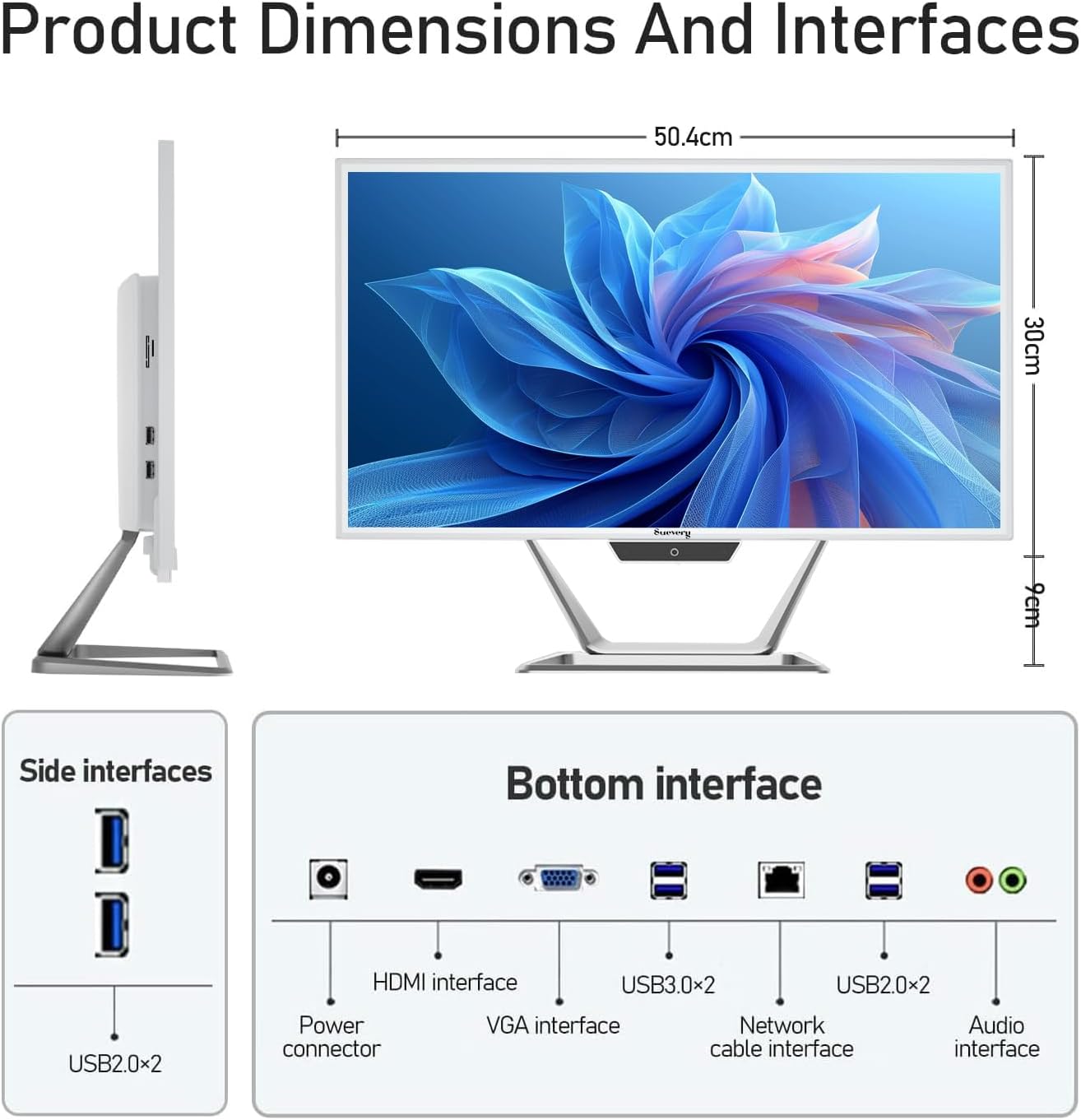
Figure 3.3: Product dimensions and interface layout. Includes USB 2.0, USB 3.0, HDMI, VGA, Network, Audio, and Power ports.
- Energia konektorea: Korronte-egokigailua konektatzeko.
- HDMI Interfazea: Kanpoko pantailetara konektatzeko.
- VGA Interface: For connecting to older external displays.
- USB 3.0 x 2: Abiadura handiko datuak transferitzeko portuak.
- USB 2.0 x 4: Standard data transfer ports (2 on side, 2 on bottom).
- Sare kablearen interfazea: Kable bidezko Ethernet konexiorako.
- Audio interfazea: Kanpoko entzungailuak edo bozgorailuak konektatzeko.
4. Konfigurazio gida
Follow these steps to set up your suevery All-in-One PC.
- Deskonprimitu ordenagailua: Carefully remove the All-in-One PC and all accessories from the packaging. Place the PC on a stable, flat surface.
- Konektatu teklatua eta sagua: Connect the included keyboard and mouse to the available USB ports on the back or side of the PC.
- Konektatu energia: Connect the power adapter to the power connector on the PC, then plug the power cord into a wall outlet.
- Piztu: Press the power button, usually located on the bottom bezel or side of the display. The PC will boot up.
- Initial Operating System Setup: Your PC comes with DOS pre-installed. You will need to install your preferred operating system (e.g., Windows, Linux) following its specific installation instructions. This typically involves booting from a USB drive or DVD.
- Konektatu sarera: Once the OS is installed, connect to your network via Wi-Fi 6 or an Ethernet cable.
5. Funtzionamendu-argibideak
5.1 Oinarrizko funtzionamendua
- Piztu/Itzali: Press the power button to turn the PC on. To turn off, use the operating system's shutdown function. A short press on the power button can put the PC to sleep.
- Pantailaren doikuntza: The display can be tilted from -5 to 25 degrees to achieve an optimal viewing angle. Gently adjust the top or bottom edge of the screen to tilt it.

Figure 5.1: The display supports tilt angle adjustment for ergonomic viewing.
5.2 Using Integrated Peripherals
- Webkamera: The built-in 5MP HD webcam is ready for video calls and conferences. Ensure your operating system and applications have permission to access the camera.
- Mikrofonoa: The integrated microphone captures audio for calls and voice commands. Adjust microphone levels in your operating system's sound settings.
- Hizlariak: The built-in speakers provide audio output. Adjust volume using your operating system's sound controls or external keyboard media keys.
5.3 Konektibitatea
- Wi-Fi 6: Connect to wireless networks for internet access. Configure Wi-Fi settings through your operating system.
- Ethernet: For a stable wired connection, plug an Ethernet cable into the network port.
- USB atakak: Use the USB 2.0 and USB 3.0 ports to connect external devices such as USB drives, printers, or additional peripherals.
- HDMI/VGA: Connect an external monitor or projector using the HDMI or VGA port for extended display options.
6. Mantentzea
Proper maintenance ensures the longevity and optimal performance of your PC.
- Pantaila garbitzea: Erabili lipurrik gabeko zapi leun bat dampened with water or a screen cleaner specifically designed for electronics. Do not spray cleaner directly onto the screen.
- Txasisa garbitzea: Wipe the exterior surfaces with a soft, dry cloth. Avoid abrasive cleaners or solvents.
- Aireztapena: Ensure the ventilation openings on the back and sides of the PC are not blocked to prevent overheating.
- Software eguneraketak: Regularly update your operating system and drivers to ensure security and performance.
- Datuen babeskopia: Aldian-aldian egin datu garrantzitsuen babeskopiak kanpoko disko gogor batean edo hodeiko biltegiratze batean.
7. Arazoak
Arazoren bat izanez gero, jo ezazu honako arazo eta irtenbide ohikoenei.
| Arazoa | Irtenbide posiblea |
|---|---|
| PCa ez da pizten. | Check if the power adapter is securely connected to both the PC and the wall outlet. Ensure the power outlet is functional. |
| Ez da pantailan bistaratzen. | Ensure the PC is powered on. If an external monitor is connected, check its power and cable connection. Try restarting the PC. |
| Teklatuak edo saguak ez du erantzuten. | Check USB connections. Try plugging them into different USB ports. If wireless, ensure batteries are charged and dongle is connected. |
| No internet connection (Wi-Fi/Ethernet). | For Wi-Fi, check if Wi-Fi is enabled in your OS settings and if you're connected to the correct network. For Ethernet, ensure the cable is properly connected to both the PC and the router/modem. Restart your router/modem. |
| Webcam or microphone not working. | Check privacy settings in your operating system to ensure applications have permission to access the camera and microphone. Ensure drivers are up to date. |
8. Zehaztapenak
Detailed technical specifications for the suevery All-in-One PC (Model: I22X W1-99).
| Ezaugarri | Xehetasuna |
|---|---|
| Marka | suevery |
| Modelo zenbakia | I22X W1-99 |
| Sistema eragilea | DOS (User-installable OS) |
| CPU eredua | Intel Core i5 7300U |
| CPU Abiadura | 2.6 GHz (3.5 GHz Turbo arte) |
| RAM memoria instalatuta | 16 GB DDR3 |
| RAM memoriaren gehienezko tamaina | 32 GB |
| Memoria Biltegiratzeko Ahalmena | 256 GB-ko SSDa (PCIE x 2) |
| Koprozesadore grafikoa | Intel HD Graphics 620 (Integratua) |
| Pantailaren tamaina | 21.5 hazbete |
| Bistaratzeko Gehienezko bereizmena | 1920x1080 pixel (Full HD) |
| Bistaratzeko mota | LED IPS Anti-glare |
| Konektibitate Teknologia | Ethernet, Wi-Fi 6 |
| Bideo Irteerako Interfazea | hdmi, vga |
| USB portuak guztira | 6 (2x USB 3.0, 4x USB 2.0) |
| Hedabide integratua | Webcam (5MP), Speakers, Microphone |
| Energia-kontsumoa | 90 Watt |
| Kolorea | Zuria |
9. Bermearen informazioa
The suevery All-in-One PC comes with a 1 urteko berme mugatua from the date of purchase. This warranty covers manufacturing defects and workmanship under normal use. It does not cover damage caused by misuse, accidents, unauthorized modifications, or external factors. Please retain your proof of purchase for warranty claims.
10. Bezeroarentzako arreta
For technical assistance, troubleshooting beyond this manual, or warranty inquiries, please contact suevery customer support through the retailer where you purchased the product or refer to the official suevery webharremanetarako informazioa lortzeko gunea.
Please have your product model number (I22X W1-99) and proof of purchase ready when contacting support.