
1. Sarrera
Thank you for choosing the INFIYA K1 2K Window Camera. This manual provides detailed instructions for setting up, operating, and maintaining your camera to ensure optimal performance and home security. Please read this manual thoroughly before use and retain it for future reference.
2. Zer dago kutxan
Egiaztatu osagai guztiak zure paketean daudela:
- 1 x INFIYA K1 Camera
- 1 x korronte egokitzailea
- 1 x C motako korronte kablea
- Magnetic Stickers
- Kable Klipak
- 1 x Hasierako gida azkarra

Image: Contents of the INFIYA K1 camera box.
3. Produktua amaitu daview
Familiarize yourself with the main components of your INFIYA K1 camera:

Image: Labeled diagram of the INFIYA K1 camera components.
- Argi adierazlea: Kameraren egoera erakusten du.
- Lentea: Captures 2K resolution video.
- Magnetic Part: For easy window mounting.
- Berrezarri botoia: Used for factory reset or pairing.
- TF txartelaren zirrikitua: Tokiko biltegiratzerako (128 GB artekoak onartzen ditu, txartela ez dago barne).
- Hizlaria: Bi norabideko audio komunikaziorako.
- Type-C Power Cable: Kamera korronte-egokitzailera konektatzen du.
4. Konfigurazio gida
4.1 Physical Installation (Drill-Free)
The INFIYA K1 camera features a magnetic design for easy, drill-free installation on any interior window.
- Clean the Window: Ensure the glass surface is clean and dry to prevent condensation issues.
- Apply Magnetic Sticker: Peel off the protective film from the magnetic sticker and firmly attach it to the desired location on your window.
- Erantsi kamera: Align the camera with the magnetic sticker and attach it. The magnetic connection will hold it securely.
- Piztu: Connect the Type-C power cable to the camera and plug the power adapter into an electrical outlet.

Image: Step-by-step physical installation of the camera.
4.2 App Connection and Wi-Fi Configuration
To access your camera's features, you need to connect it to the Wansview Hodeiko aplikazioa.
- Deskargatu aplikazioa: Deskargatu WANakview Cloud App from your smartphone's app store (available for Android and iOS).
- Erregistratu kontua: Ireki aplikazioa eta erregistratu kontu berri bat edo hasi saioa dagoeneko baduzu.
- Gehitu gailua: Follow the in-app instructions to add a new device. Select the INFIYA K1 model.
- Konektatu wifira: Ensure your camera is powered on and near your Wi-Fi router (within 3 feet for initial setup). The K1 camera supports dual-band Wi-Fi (2.4Ghz & 5Ghz). Follow the app prompts to connect the camera to your home Wi-Fi network.

Image: App connection and Wi-Fi configuration steps.
5. Funtzionamendua
5.1 Bizi View and 2K Resolution
Once connected, access the live feed through the Wansview Cloud App. The INFIYA K1 provides sharp 2K resolution video, capturing clear details of your outdoor environment through the window, optimized to reduce glare and reflection.
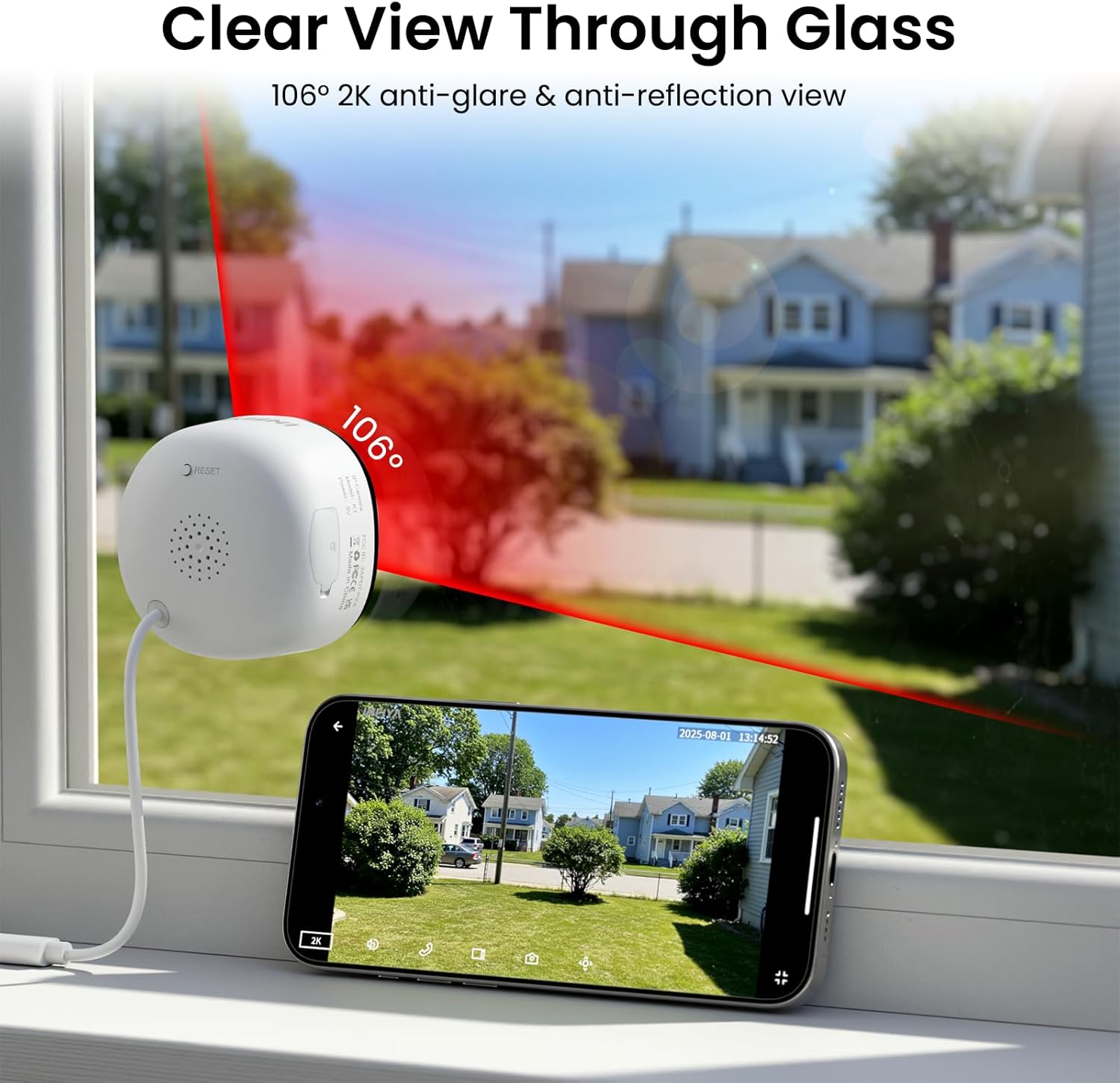
Image: Clear 2K view through glass from the camera.
5.2 Gaueko Ikuspegi Koloretsua
The camera features advanced Black Light Color Technology, enabling vivid full-color footage even in low-light conditions (e.g., starlight/moonlight). This allows for better identification of details at night compared to traditional infrared black and white night vision.

Image: Comparison of night vision capabilities.
5.3 Motion & Human Detection with Alerts
The INFIYA K1 camera utilizes AI-powered human detection to minimize false alarms. When human activity is detected, the camera activates a three-layer alert system:
- Immediate app notifications to your phone.
- An optional siren (can be configured in the app).
- Automatic video clip recording of the event.
You can customize detection zones and sensitivity levels within the app.
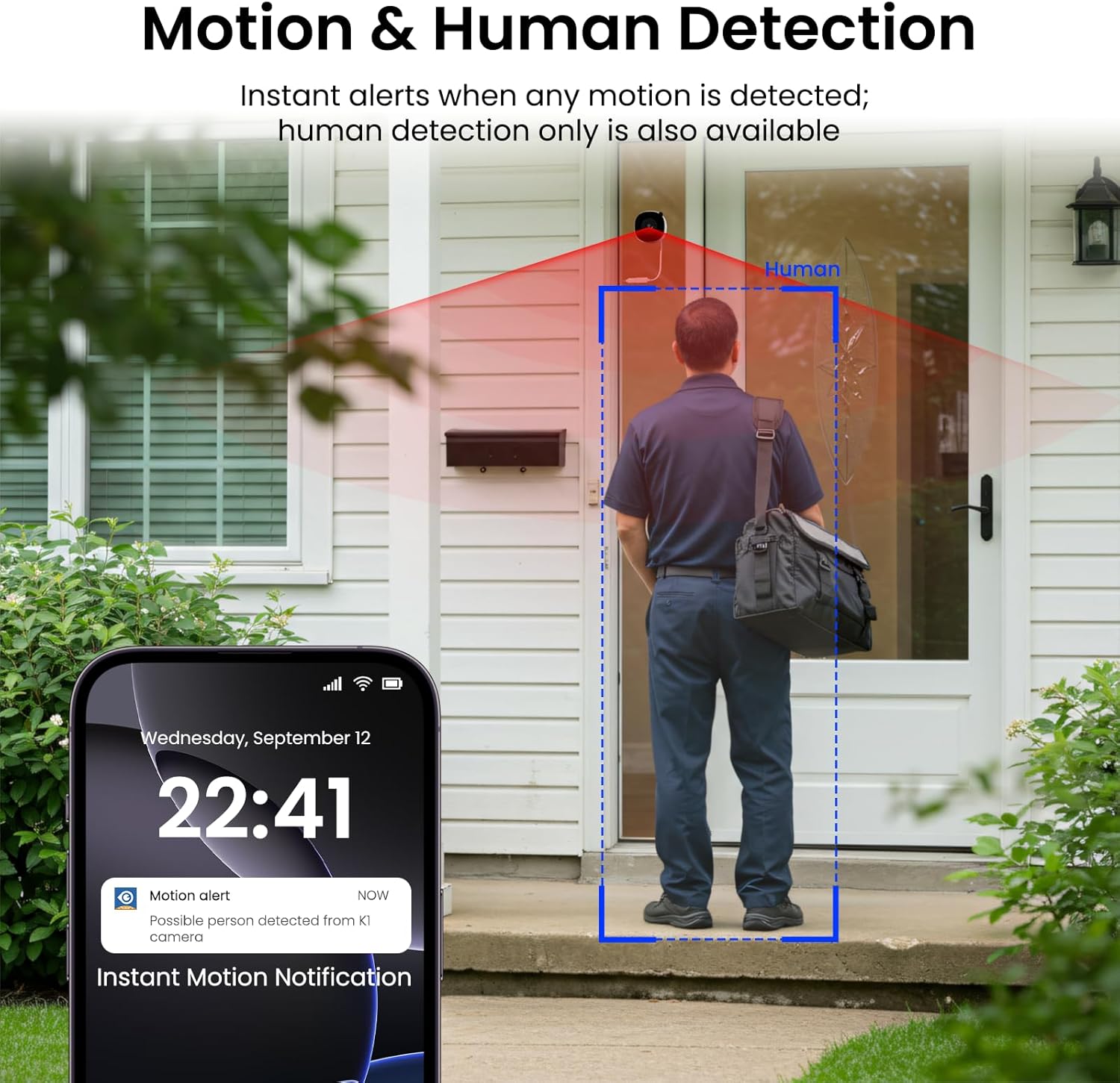
Image: Motion and human detection in action.
5.4 Bi norabideko audioa
The integrated speaker and microphone allow for two-way communication. You can speak through the camera to visitors or deter intruders directly from your smartphone app.
5.5 Multi-User Sharing & Multi-Device Support
Share camera access with family members through the app. The camera also supports integration with multiple devices and smart home platforms like Alexa and Google Assistant for convenient voice control and viewing.

Image: Multi-user sharing feature.

Image: Multi-device support with smart assistants.
6. Biltegiratzeko aukerak
The INFIYA K1 camera offers flexible recording and storage solutions:
6.1 Local Storage (TF Card)
Insert a TF (microSD) card (up to 128GB, not included) into the camera's slot for continuous 24/7 recording. The camera features a smart overwrite function that automatically manages storage space by cycling old footage.
6.2 Hodeiko biltegiratzea (aukerakoa)
For enhanced security and accessibility, you can opt for cloud storage. All videos uploaded to the cloud are encrypted. Cloud plans offer various features and storage durations, as detailed in the app.

Irudia: Tokiko eta hodeiko biltegiratze aukerak.
6.3 Recording Modes Comparison

Image: Comparison table of recording modes.
7. Zehaztapenak
Detailed technical specifications for the INFIYA K1 camera:
| Ezaugarri | Xehetasuna |
|---|---|
| Ereduaren izena | K1 |
| Marka | INFIYA |
| Konektibitate Teknologia | Haririk gabeko (WiFi) |
| Wi-Fi maiztasuna | 5 Ghz eta 2.4 Ghz |
| Bideo Harrapaketa Ebazpena | 3 MP (2K) |
| Viewangelua | 105 gradu |
| Gaueko Ikusmena | Color Night Vision (Black Light Color Technology) |
| Gaueko Ikusmenaren barrutia | 29.5 Oin |
| Detektatzeko Ezaugarriak | Mugimendua eta Giza Detekzioa |
| Alerta mota | Motion Only (Configurable) |
| Audioa | Bi norabidetako solasaldia |
| Biltegiratze-aukerak | TF Card (up to 128GB), Cloud Storage (Optional) |
| Energia iturria | Corded Electric (5V, 5 Watt-hours) |
| Mendi mota | Window Mount (Magnetic) |
| Gailu bateragarriak | Alexa / Google Laguntzailea |
| Elementuaren neurriak | 2.41 x 1.57 x 2.41 hazbete |
| Barruko Kanpoko Erabilera | Indoor (for window monitoring) |
8. Arazoak
If you encounter issues with your INFIYA K1 camera, refer to the following common problems and solutions:
- Kamera ez da wifira konektatzen:
- Ensure the camera is within range of your router.
- Egiaztatu zure Wi-Fi pasahitza zuzena dela.
- Check if your router supports 2.4Ghz or 5Ghz, and ensure the camera is attempting to connect to a compatible band.
- Try resetting the camera using the reset button and re-attempting the setup process.
- Bideoaren kalitate eskasa:
- Ziurtatu kameraren lentea garbi dagoela.
- Check your internet connection speed; a stable connection is crucial for 2K streaming.
- Verify the camera is positioned correctly on the window to minimize glare or reflections.
- Mugimendu-alertak ez dira funtzionatzen:
- Confirm motion detection is enabled in the app settings.
- Doitu detekzio-sentsibilitatea eta detekzio-eremuak.
- Ziurtatu aplikazioen jakinarazpenak gaituta daudela zure telefonoan.
- No Recording to TF Card:
- Ensure a TF card is properly inserted into the slot.
- Check if the TF card is formatted correctly (usually FAT32). Format it via the app if necessary.
- Verify that continuous recording or event recording to TF card is enabled in the app settings.
For further assistance, please refer to the in-app help section or contact INFIYA customer support.
9. Segurtasun informazioa
Please observe the following safety guidelines to ensure safe operation and prevent damage to your device:
- Erabili emandako korronte-egokitzailea eta kablea soilik.
- Do not expose the camera to extreme temperatures, humidity, or direct water.
- Avoid placing the camera near strong magnetic fields.
- Mantendu kamera haurren eta animalien eskura ez dagoen leku batean.
- Do not attempt to disassemble or repair the camera yourself. Contact qualified personnel for service.
- Ensure the camera is securely mounted to prevent it from falling.
10. Bermea eta Laguntza
Your INFIYA K1 camera comes with a standard manufacturer's warranty. Please refer to the warranty card included in your package or visit the official INFIYA webwebgunean bermearen baldintza zehatzak ikusteko.
For technical support, product inquiries, or warranty claims, please contact INFIYA customer service through the contact information provided in the app or on the official webgunea.