
1. Sarrera
Thank you for choosing the iiyama G-Master Red Eagle G2471HS-B1 gaming monitor. This 24-inch Full HD (1920x1080) monitor features a Fast IPS panel, 240Hz refresh rate, and 0.3ms MPRT response time, designed to provide a competitive edge in gaming. It is also NVIDIA G-SYNC Compatible, ensuring smooth, tear-free gameplay. This manual provides essential information for setting up, operating, maintaining, and troubleshooting your monitor.

1.1. irudia: Aurrealdea view of the iiyama G-Master Red Eagle G2471HS-B1 gaming monitor, showcasing its sleek design and thin bezels.
2. Segurtasun informazioa
Please read all instructions carefully before using the monitor. Keep this manual for future reference. Failure to follow these instructions may result in electric shock, fire, or damage to the product.
- Ez jarri monitoreari euri edo hezetasun eraginpean sute edo deskarga elektrikoen arriskuak saihesteko.
- Ez ireki monitorearen casing. Ez dago erabiltzaileak konpondu beharreko piezarik barruan. Konponketa guztiak zerbitzu-langile kualifikatuei eskatu.
- Jarri monitoreak gainazal egonkor eta lau batean, eror ez dadin.
- Ziurtatu monitorearen inguruan behar bezala aireztatuta dagoela. Ez blokeatu aireztapen-irekidurak.
- Erabili monitorearekin batera datozen elikatze-kablea eta egokitzailea soilik.
- Deskonektatu monitorearen entxufea tximista-ekaitzetan edo denbora luzez erabili gabe dagoenean.
3. Paketearen edukia
Egiaztatu behean zerrendatutako elementu guztiak zure paketean sartuta daudela. Elementuren bat falta bada edo hondatuta badago, jarri harremanetan zure saltzailearekin.
- iiyama G-Master Red Eagle G2471HS-B1 Monitor
- Monitorearen euskarria (oinarria eta lepoa)
- Elikatze-kablea
- HDMI kablea
- DisplayPort kablea
- Quick Start Guide / Safety Information (PDF documents available online)
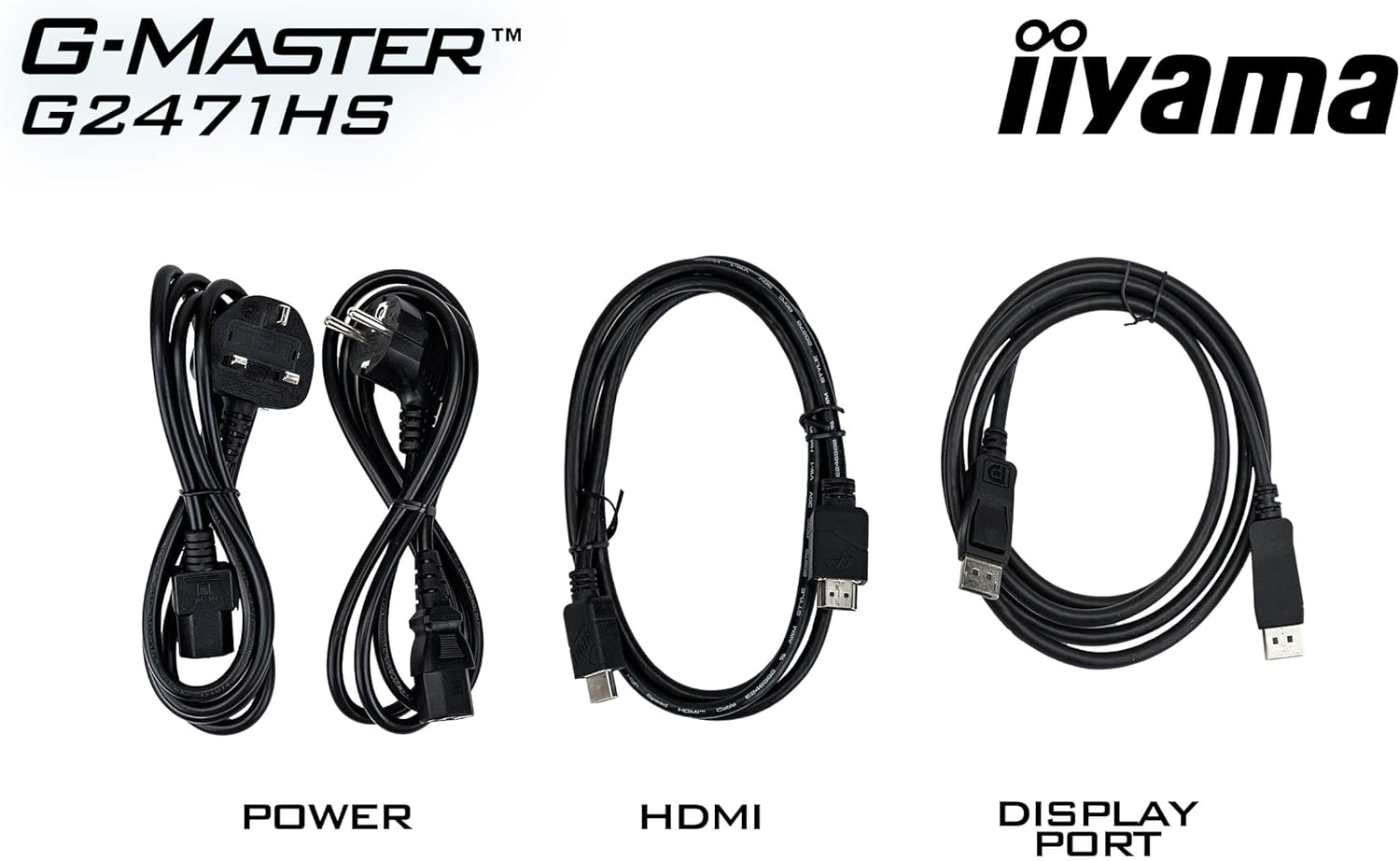
Figure 3.1: The monitor package includes power, HDMI, and DisplayPort cables for connectivity.
4. Konfigurazioa
4.1 Standa muntatzea
- Kontu handiz atera monitorearen paketea, gainazal bigun batean babestuta mantenduz.
- Attach the stand neck to the back of the monitor until it clicks into place or is secured with screws (refer to the quick start guide for specific instructions).
- Attach the stand base to the neck and tighten the screw at the bottom of the base.
- Jarri muntatutako monitorea mahai egonkor batean.
4.2 Konektatzeko kableak
Konektatu beharrezko kableak monitorearen atzealdeko eta ordenagailuaren dagokien ataketara.
- Potentzia-konexioa: Konektatu elikatze-kablea monitorearen elikatze-sarrerara eta gero hormako entxufe batera.
- Bideo-konexioa:
- For optimal performance, use the supplied DisplayPort cable to connect the monitor to your computer's DisplayPort output.
- Alternatively, use an HDMI cable to connect to your computer's HDMI output. The monitor supports 2x HDMI inputs.
- Audio konexioa: If you wish to use external speakers or headphones, connect them to the 3.5mm audio output jack on the monitor.

4.1. Irudia: Atzealdea view of the monitor showing the various input and output ports for connectivity.
4.3 Hasierako piztea
After connecting all cables, press the power button on the monitor. The monitor should display an image from your connected device. If no image appears, ensure all cables are securely connected and your computer is powered on.
5. Monitorea funtzionatzea
5.1 OSD menuko nabigazioa
The On-Screen Display (OSD) menu allows you to adjust various monitor settings. Use the buttons located on the monitor (typically on the bottom or back) to navigate the menu.
- Press a button to open the OSD menu.
- Erabili norabide-botoiak menuko aukeren artean nabigatzeko.
- Sakatu hautatzeko botoia azpimenu batera sartzeko edo ezarpen bat berresteko.
- Sakatu irteera botoia atzera egiteko edo OSD menua ixteko.
5.2 Pantailaren ezarpenak doitzea
Doitu ditzakezun ezarpen nagusien artean daude:
- Distira/Kontrastea: Egokitu hauek zure beharretara egokitzeko viewingurunea.
- Kolore ezarpenak: Aldatu kolore-tenperatura, gamma eta banakako RGB mailak.
- Black Tuner: This feature allows you to adjust the brightness and dark shades in shadowed areas, improving visibility in dark game scenes.

Figure 5.1: The Black Tuner feature enhances visibility in dark game environments by adjusting dark shades.
5.3 Enabling G-SYNC Compatible
To utilize the NVIDIA G-SYNC Compatible feature, ensure your graphics card supports G-SYNC and that it is enabled in your graphics card's control panel (e.g., NVIDIA Control Panel). Connect the monitor using a DisplayPort cable for this feature to function correctly.

Figure 5.2: G-SYNC Compatible technology eliminates screen tearing and stuttering for a smoother gaming experience.
6. Mantentzea
6.1 Pantaila garbitzea
Pantaila garbitzeko, astiro-astiro zapi leun eta pelusik gabeko batekin garbitu. Orba egoskorrak kentzeko, dampen the cloth slightly with water or a mild, non-abrasive screen cleaner. Never spray liquid directly onto the screen.
6.2 C garbitzeaasing
Garbitu monitorearen casing with a soft, dry cloth. Avoid using strong detergents or abrasive cleaners, as they can damage the surface.
7. Arazoak
Monitorearekin arazoak badituzu, jo ezazu honako arazo eta irtenbide ohikoenei:
| Arazoa | Balizko Kausa / Irtenbidea |
|---|---|
| Ez dago irudirik pantailan |
|
| Irudia keinuka edo ezegonkorra |
|
| Incorrect resolution or aspect ratio |
|
| Ez dago soinurik bozgorailuetatik/aurikularretatik |
|
8. Zehaztapenak
Below are the technical specifications for the iiyama G-Master Red Eagle G2471HS-B1 monitor:
| Ezaugarri | Zehaztapena |
|---|---|
| Marka | iiyama |
| Ereduaren izena | G2471HS-B1 |
| Pantailaren tamaina | 23.8 hazbete |
| Bistaratzeko ebazpena | 1920 x 1080 (HD osoa) |
| Aspektu-erlazioa | 16:9 |
| Panel mota | IPS azkarra |
| Freskatze tasa | 240 Hz |
| Erantzun denbora (MPRT) | 0.3 ms |
| Distira | 350 cd/m² |
| Kontraste-erlazioa | 1000:1 |
| Viewangelua | 178 Degrees (Horizontal/Vertical) |
| Pantailaren gainazala | Distiraren aurkakoa |
| Konektibitatea | 2x HDMI, 1x DisplayPort, 3.5mm Audio Out |
| Adaptive Sync Teknologia | NVIDIA G-SYNC bateragarria |
| Hizlariak | Yes (2x 2W) |
| Elementuaren neurriak (L x W x H) | 19.3 x 54 x 39.5 cm |
| Elementuaren pisua | 3.4 kilogramo |
| Kolorea | Beltza |

Figure 8.1: Energy label for the G2471HS-B1 monitor, indicating its energy efficiency rating.
9. Bermea eta Laguntza
9.1 Bermearen informazioa
This iiyama monitor comes with a 3 urteko fabrikatzailearen bermea. Please retain your proof of purchase for warranty claims. The warranty covers defects in materials and workmanship under normal use. It does not cover damage caused by misuse, accidents, unauthorized modifications, or external factors.
9.2 Bezeroarentzako laguntza
For technical assistance, warranty service, or further information, please visit the official iiyama website or contact their customer support. You may also refer to the official documentation provided with your product or available online.
- Official iiyama Webgunea: www.iiyama.com
- Segurtasun-informazioa (PDF): Deskargatu
- User Instructions (PDF): Deskargatu