
1. Sarrera
This manual provides essential information for setting up, operating, maintaining, and troubleshooting your Auusda 16-inch FHD Laptop T161N. Please read this manual thoroughly before using your device to ensure proper function and longevity.
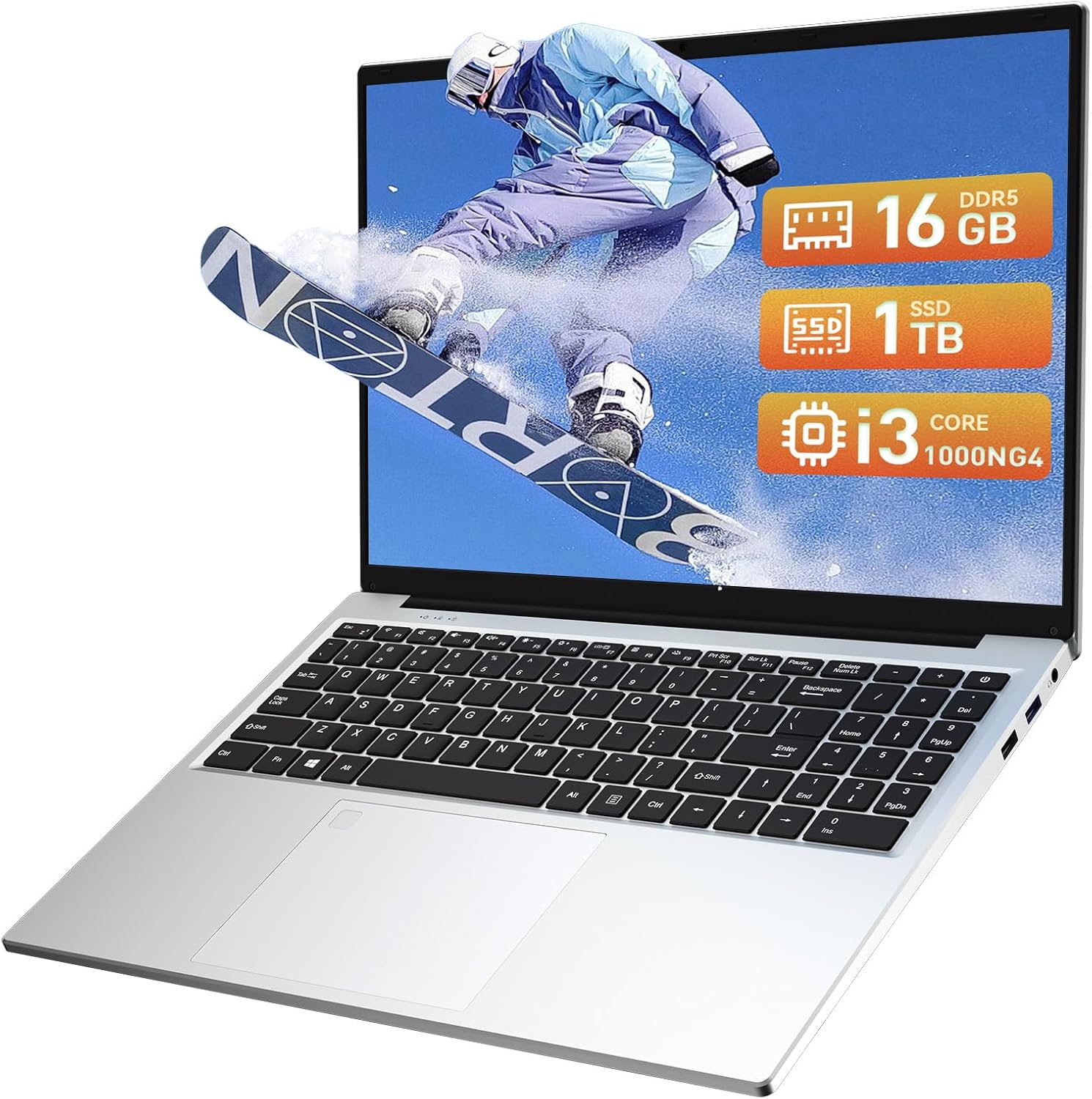
Image: The Auusda 16-inch FHD Laptop T161N, showcasinbere diseinu dotorea eta pantaila g.
2. Zer dago kutxan
Upon opening your Auusda T161N laptop package, verify that all the following items are included:
- Auusda 16-inch FHD Laptop T161N
- Korronte egokitzailea/kargagailua
- Argibide eskuliburua (dokumentu hau)
- Teklatuaren estalkia

Image: A visual representation of the items included in the Auusda T161N laptop packaging.
3. Produktua amaitu daview
3.1 Ezaugarri nagusiak
- Pantaila: 16-inch Full HD (1920x1080) IPS screen with 180° viewangelua.
- Prozesadorea: Intel Core i3-1000NG4 (up to 3.2GHz).
- Memoria: 16 GB DDR4 RAM.
- Biltegiratzea: 1TB PCIe SSD.
- Konektibitatea: Wi-Fi 6, Bluetooth 5.3.
- Segurtasuna: Fingerprint Reader.
- Sarrera: Backlit Keyboard.
- Sistema eragilea: Windows 11 Pro.
3.2 Portuak eta konektoreak
The Auusda T161N laptop is equipped with various ports for versatile connectivity:
- USB 3.0 ataka (x2)
- Full-Function Type-C Port (x1) - Supports data transfer, screen mirroring, and charging.
- USB 2.0 ataka (x1)
- Mini HDMI Port (x1)
- 3.5mm Standard Headphone Jack (x1)
- Microphone Input (shared with headphone jack)
- Kargatzeko ataka

Image: A detailed diagram illustrating the location and type of ports on the Auusda T161N laptop.
3.3 Ikusmen-gainjartzeaview
Bideoa: Amaiera batview of the Auusda 16-inch FHD Laptop T161N, demonstrating its design and key features.
4. Konfigurazioa
4.1 Hasierako karga
- Konektatu korronte-egokitzailea ordenagailu eramangarriaren kargatzeko atakara.
- Entxufatu korronte-egokigailua hormako entxufe batera.
- Utzi ordenagailu eramangarria gutxienez 30 minutuz kargatzen lehenengo aldiz erabili aurretik, edo bateriaren adierazleak karga nahikoa erakutsi arte.
4.2 Powering On and Initial Windows Setup
- Press the power button located on the keyboard to turn on the laptop.
- Jarraitu pantailan agertzen diren argibideei Windows 11 Pro konfigurazio prozesua osatzeko. Horrek eskualdea eta hizkuntza hautatzea, Wi-Fi sare batera konektatzea eta erabiltzaile kontu bat sortzea barne hartzen ditu.
- Ensure you have an active internet connection for Windows updates and driver installations during the setup.
5. Funtzionamendu-argibideak
5.1 Keyboard Functions (Fn + Function Keys)
The laptop features a full-size keyboard with dedicated function keys that can be accessed by pressing the Fn tekla dagokion funtzio-teklarekin (F1-F12) konbinatuta.
- Atzeko argiztatutako teklatua: Sakatu Fn + F9 to cycle through 2 brightness levels. Pressing it a third time turns the backlight off.
- Blokeo zenbakia: Sakatu Fn + Num Lk to toggle the numeric keypad on or off.
- Bolumen kontrola: Erabili Fn + Speaker keys (F1-F3) to mute, decrease, or increase volume.
- Distira kontrola: Erabili Fn + Sun keys (F4-F5) to decrease or increase screen brightness.

Image: A visual guide to using the Fn (Function) keys on the Auusda T161N keyboard for various controls.
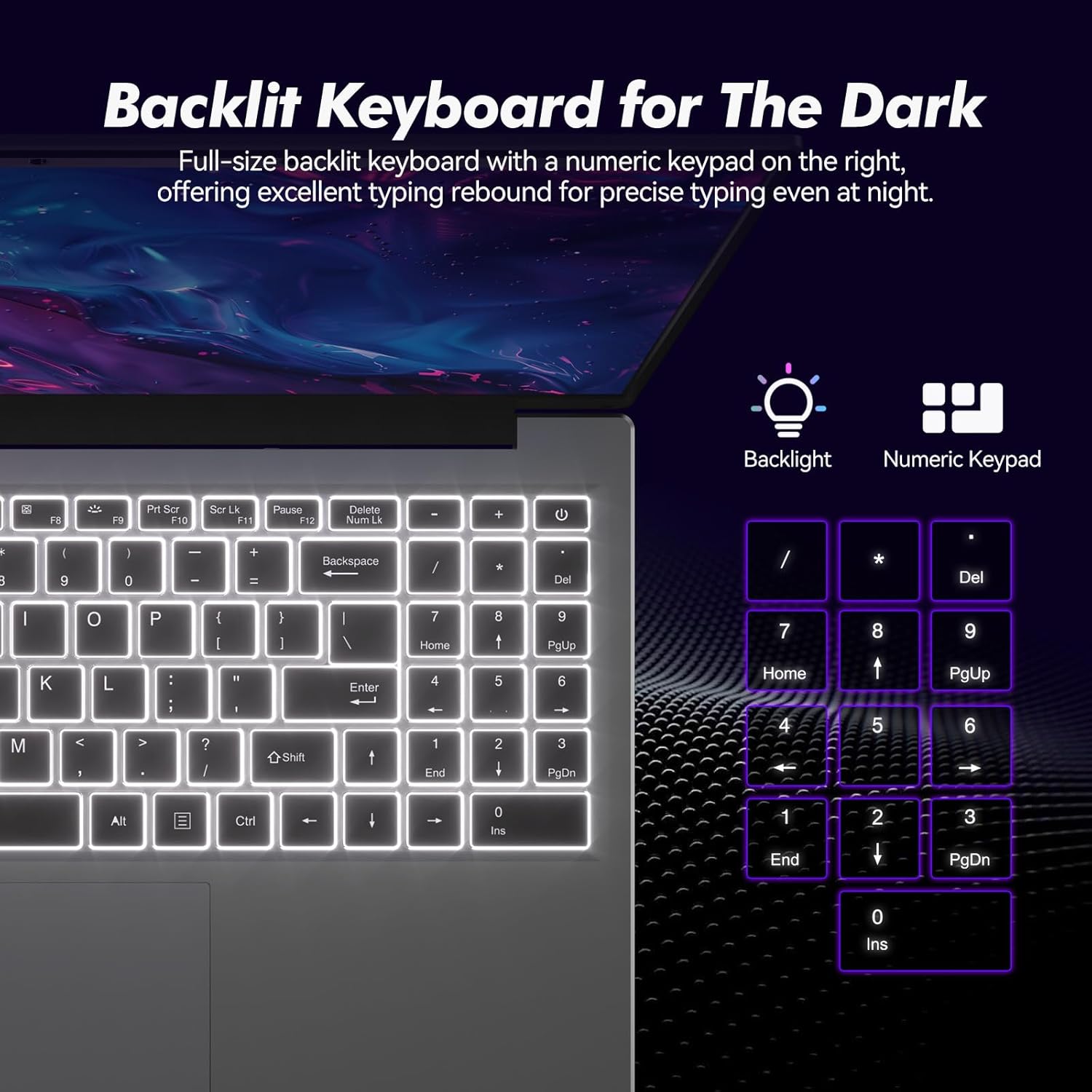
Irudia: Gertuko planoa view of the backlit keyboard and numeric keypad, highlighting their functionality.
5.2 hatz-marken irakurgailua
The integrated fingerprint reader provides a secure and fast way to unlock your laptop. To set up fingerprint recognition:
- Joan Windows Ezarpenak > Kontuak > Saioa hasteko aukerak atalera.
- 'Windows Hello hatz-marka' atalean, egin klik 'Konfiguratu' atalean.
- Follow the on-screen prompts to register your fingerprint.
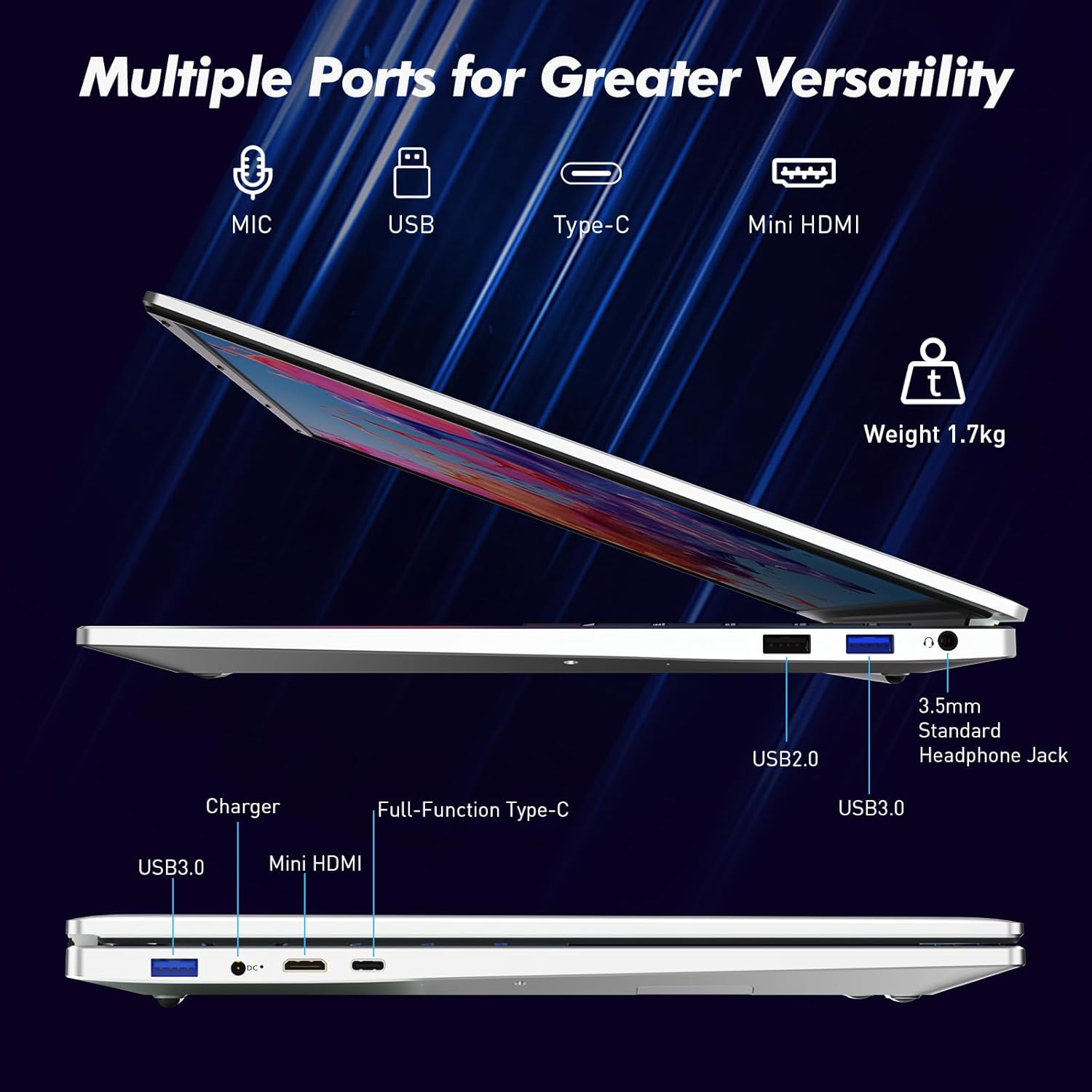
Image: A visual representation of the fingerprint reader location and its quick unlock capability.
5.3 Type-C Connectivity
The full-function Type-C port offers versatile connectivity options:
- Datuen transferentzia: Connect compatible devices for high-speed data exchange.
- Pantaila islatzea: Output video to an external display using a compatible Type-C to HDMI/DisplayPort adapter (sold separately).
- Kargatzen: Charge the laptop using a compatible Type-C power delivery charger.
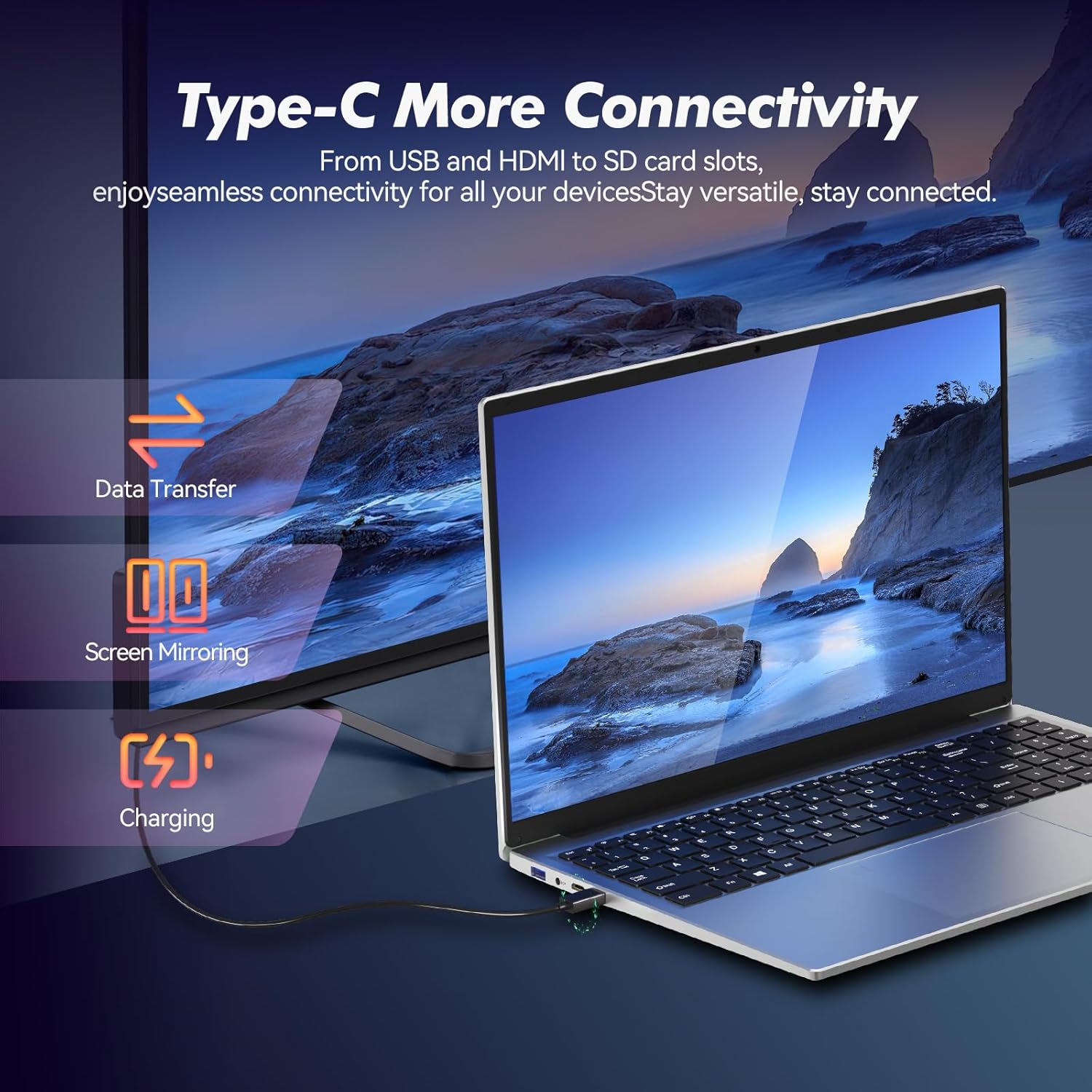
Image: Illustrates the multi-functional capabilities of the Type-C port, including data transfer, screen mirroring, and charging.
5.4 Wi-Fi 6 and Bluetooth 5.3
The laptop supports Wi-Fi 6 for faster and more stable wireless internet connections and Bluetooth 5.3 for connecting wireless peripherals.
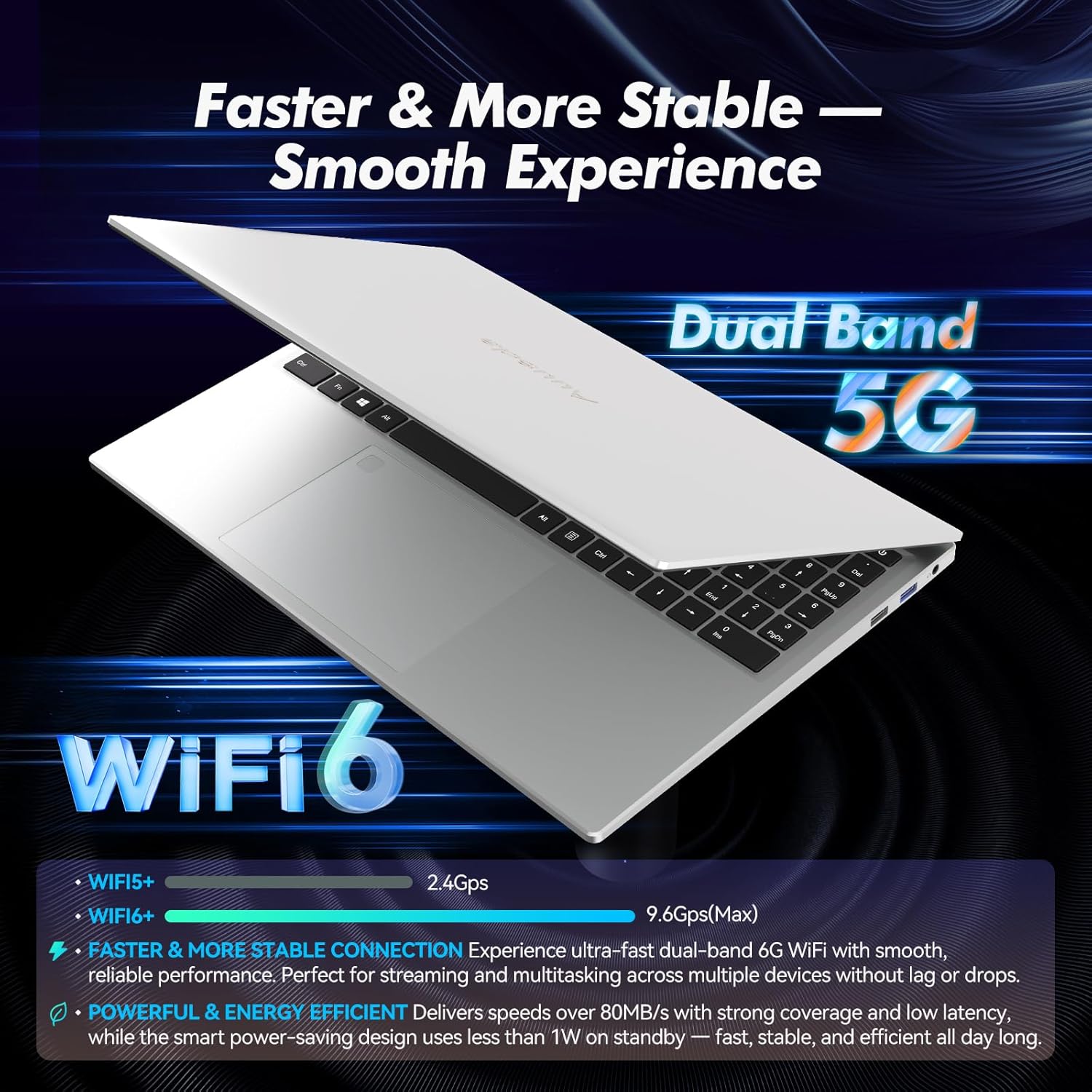
Image: Highlights the advanced wireless connectivity of the laptop, including Wi-Fi 6 and Dual Band 5G support.
6. Zehaztapenak
Below are the detailed technical specifications for the Auusda 16-inch FHD Laptop T161N:
| Ezaugarri | Zehaztapena |
|---|---|
| Modelo zenbakia | T161N |
| Pantailaren tamaina | 16 hazbete |
| Pantailaren bereizmena | 1920 x 1080 pixel (FHD) |
| Prozesadorea | Intel Core i3-1000NG4 (1.09 GHz, up to 3.2 GHz) |
| RAM | 16 GB DDR4 SDRAM |
| Disko gogorra | 1 TB SSD (PCIe) |
| Koprozesadore grafikoa | Iris Plus Graphics G4 48EUs (Integrated) |
| Sistema eragilea | Windows 11 Pro |
| Haririk gabeko mota | 802.11ax (Wi-Fi 6), Bluetooth 5.3 |
| USB 3.0 Portuak | 2 |
| USB 2.0 Portuak | 1 |
| Elementuaren pisua | 5.21 kilo |
| Produktuaren neurriak | 14.17 x 10.83 x 0.71 hazbete |
| Kolorea | Zilarrezkoa |
| Pilak | 12V-ko bateria (barne) |
7. Mantentzea
Regular maintenance helps ensure the optimal performance and longevity of your laptop.
7.1 Garbiketa
- Erabili zapi leun eta lihorik gabeko bat pantaila eta kanpoko gainazalak garbitzeko. Orban egoskorrak izanez gero, garbitu apur batampGarbitu oihal bat urarekin edo pantailarentzat segurua den garbitzaile batekin.
- Saihestu likidoak zuzenean ordenagailu eramangarrian ihinztatzea.
- Erabili aire konprimatua teklatuko tekletako eta aireztapen-saretetako hautsa kentzeko.
7.2 Software eguneraketak
- Egiaztatu eta instalatu aldizka Windows eguneraketak sistemaren egonkortasuna eta segurtasuna bermatzeko. Joan Ezarpenak > Windows Eguneratzea atalera.
- Keep your drivers updated. Windows Update typically handles this, but you may occasionally need to check the Auusda support website for specific driver updates.
7.3 Bateria zaintzea
- Saihestu bateria maiz erabat deskargatzea.
- Denbora luzez erabiltzen ez baduzu, gorde ordenagailu eramangarria leku fresko eta lehor batean.
8. Arazoak
Atal honek zure ordenagailu eramangarriarekin izan ditzakezun arazo ohikoenei buruzko informazioa ematen du.
8.1 Ordenagailu eramangarria ez da pizten
- Ziurtatu korronte-egokitzailea ondo konektatuta dagoela ordenagailu eramangarrira eta funtzionatzen duen entxufe batera.
- Egiaztatu entxufea funtzionatzen duela beste gailu bat konektatuz.
- If the battery is completely drained, allow it to charge for at least 15-30 minutes before attempting to power on again.
8.2 Wi-Fi konexio arazoak
- Check if Wi-Fi is enabled in Windows settings (Settings > Network & internet > Wi-Fi).
- Berrabiarazi zure bideratzailea eta modema.
- Ziurtatu zure Wi-Fi sarearen irismenean zaudela.
- Update your Wi-Fi drivers if necessary.
8.3 Keyboard or Touchpad Not Responding
- Berrabiarazi ordenagailu eramangarria.
- Check for any physical obstructions or debris under the keys or on the touchpad.
- Ensure the touchpad has not been accidentally disabled (some laptops have a function key or a setting to toggle the touchpad).
Laguntza gehiago lortzeko, jo beheko laguntza atalera.
9. Bermea eta Laguntza
Auusda provides customer support and warranty services for its products.
9.1 Bermearen informazioa
Auusda laptops typically come with a two-year after-sales service period. Please retain your proof of purchase for warranty claims.
9.2 Bezeroarentzako laguntza
If you encounter issues or require technical assistance, please contact Auusda customer support:
- Posta elektronikoko laguntza: Send your order number and a video demonstrating the problem to Auusda.ltd@gmail.com.
- Amazon Buyer Account: Log in to your Amazon buyer account, find your order, and click "Get Help" or "Ask questions" for direct support.


