
Sarrera
Welcome to the user manual for your new TABWEE T50 11-inch Android Tablet. This guide provides essential information on setting up, operating, maintaining, and troubleshooting your device. The TABWEE T50 combines the latest Android 16 system with Gemini AI for a fast, intelligent, and smooth user experience. It features an Unisoc T7250 Octa-Core processor, 24GB RAM, 128GB ROM (expandable to 2TB), an 8000mAh battery, a 90Hz HD+ display, and 13MP rear and 8MP front cameras.
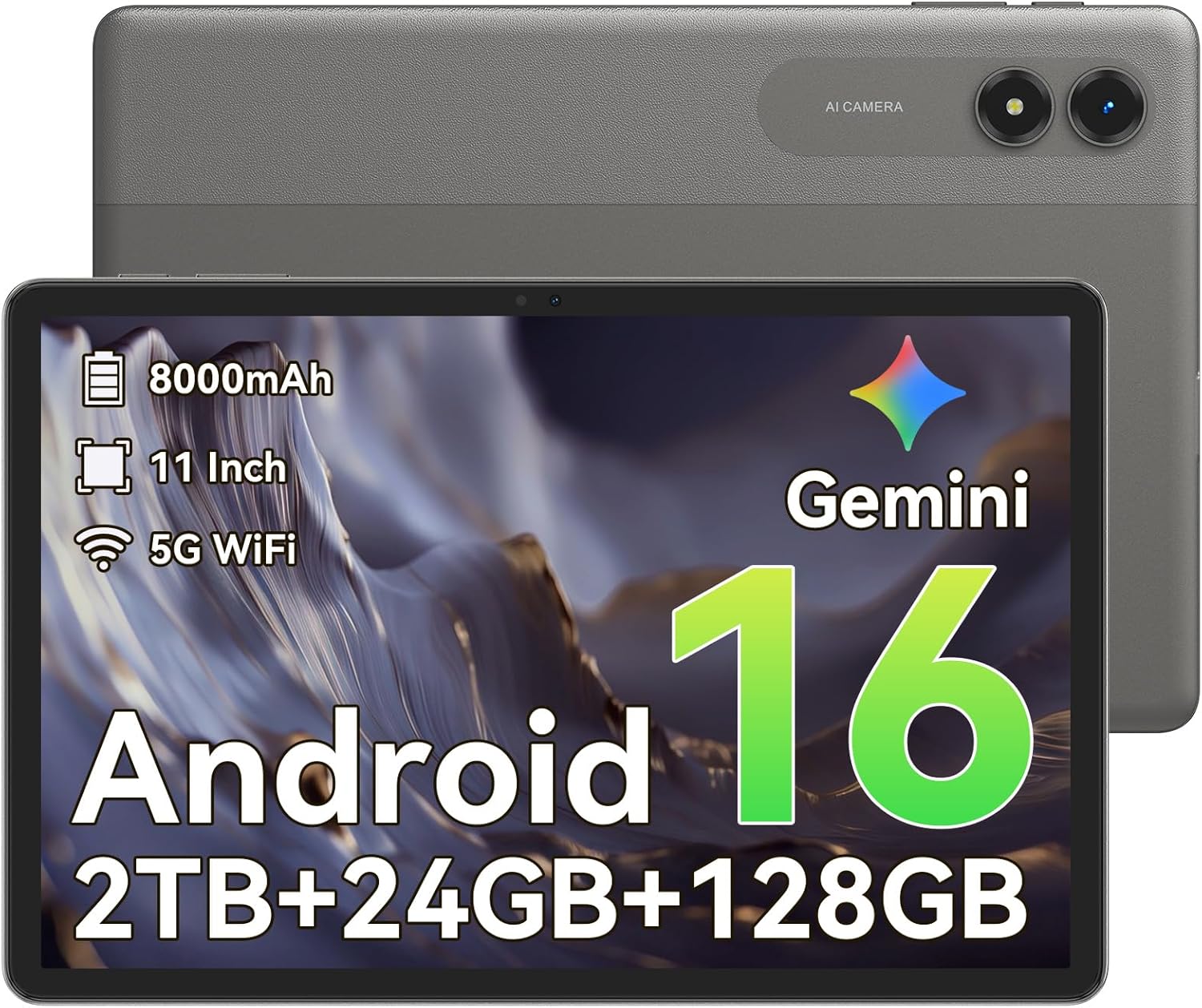
Irudia: Aurrealdea view of the TABWEE T50 Tablet.
Paketearen edukia
Paketea irekitzean, ziurtatu elementu guztiak bertan daudela:
- TABWEE T50 Tablet
- USB kargatzeko kablea
- SIM kanporatzeko tresna
- Hasierako gida azkarra (eskuliburu hau)
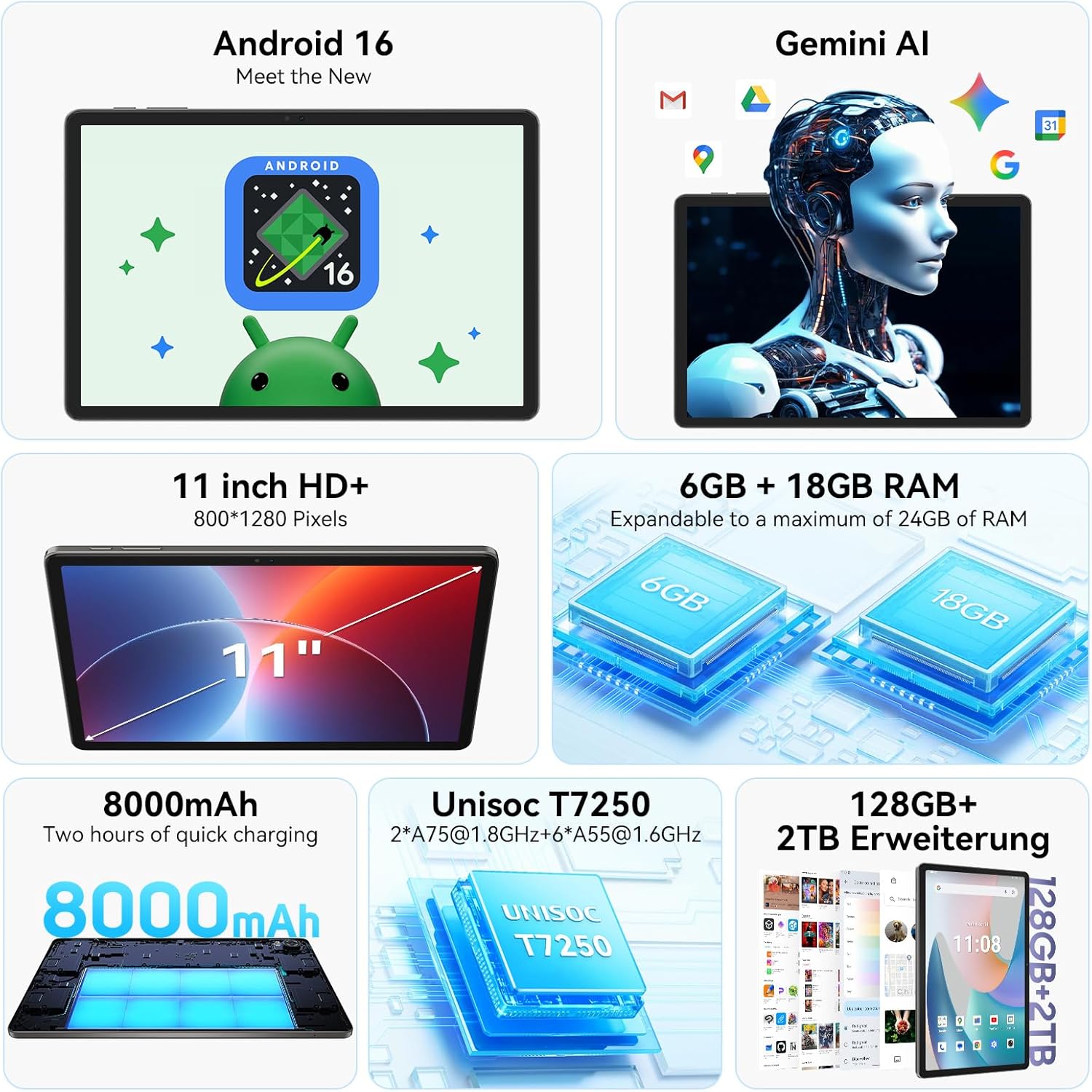
Image: The TABWEE T50 Tablet along with its standard accessories, including a charging cable and SIM ejector tool.
Konfigurazioa
1. Hasierako kargatzea
Before first use, fully charge your TABWEE T50 Tablet.
- Connect the USB charging cable to the tablet's charging port.
- Connect the other end of the cable to a compatible USB power adapter (not included) and plug it into a power outlet.
- Allow the tablet to charge until the battery indicator shows 100%. This may take approximately 5 hours for a full charge.

Image: Illustration of the tablet's 8000mAh battery and charging process.
2. Piztea eta hasierako konfigurazioa
Press and hold the power button until the TABWEE logo appears. Follow the on-screen prompts to complete the initial setup:
- Hautatu zure hizkuntza.
- Konektatu Wi-Fi sare batera.
- Hasi saioa zure Google kontuarekin edo sortu berri bat.
- Review eta baldintzak eta zehaztapenak onartu.
- Set up screen lock (PIN, pattern, password, or facial unlock).
3. MicroSD txartel bat sartzea (aukerakoa)
To expand storage up to 2TB, insert a microSDXC card.
- Bilatu SIM/microSD txartelaren erretilua tabletaren alboan.
- Erabili SIM txartelaren kanporatzeko tresna erretilua irekitzeko.
- Place the microSD card into the designated slot with the gold contacts facing down.
- Sartu erretilua tabletaren barrura astiro-astiro, klik egin arte.
Funtzionamendu-argibideak
Pantaila eta nabigazioa
The TABWEE T50 features an 11-inch HD+ IPS display with a 1280x800 resolution and a 90Hz refresh rate for smooth visuals. It includes eye protection features to reduce blue light and minimize eye strain.

Image: The tablet's 11-inch HD+ display showcasing a vibrant mountain landscape.
- Ukipen-pantailaren keinuak: Tap, swipe, pinch-to-zoom, and long-press for various interactions.
- Hasierako pantaila: Pertsonalizatu widgetekin, aplikazioen lasterbideekin eta horma-paperekin.
- Jakinarazpenen panela: Irristatu hatza pantailaren goialdetik behera ezarpen azkarrak eta jakinarazpenak atzitzeko.
Android 16 with Gemini AI
Your tablet runs on Android 16, offering enhanced privacy controls, adaptive battery optimization, and an intuitive user interface. Gemini AI provides intelligent assistance for tasks, content creation, and learning.

Image: The tablet displaying the Gemini AI interface with various AI-powered features.
- Multiataza: Utilize split-screen mode for running multiple applications simultaneously.
- Pribatutasun-kontrolak: Manage app permissions and data access through system settings.
- Bateria moldagarria: The AI-powered battery management optimizes power consumption based on your usage patterns.
Kameraren funtzionaltasuna
The TABWEE T50 is equipped with an 8MP front camera and a 13MP rear camera.
- Ireki Kamera aplikazioa hasierako pantailatik edo aplikazioen tiraderatik.
- Aldatu aurreko eta atzeko kameren artean kameraren ikonoa erabiliz.
- Tap the shutter button to take photos or the video icon to record videos.
- Arakatu kamera modu eta ezarpen desberdinak emaitza optimoak lortzeko.

Image: The tablet's screen displaying the camera interface, capturing a selfie.
Konektibitatea
The tablet supports WiFi 5G and Bluetooth 5.0 for seamless connectivity.
- Wi-Fi: Joan Ezarpenak > Sarea eta internet > Wi-Fi atalera eskuragarri dauden sareetara konektatzeko.
- Bluetootha: Go to Settings > Connected devices > Bluetooth to pair with Bluetooth accessories like headphones or keyboards.
- OTG (Edonora Eramateko): The tablet supports OTG for connecting USB devices or for reverse charging other devices.

Image: Visual representation of the tablet's Bluetooth 5.0 and 5G WiFi connectivity features.

Image: The tablet connected to a smartphone, illustrating its power-sharing capability via OTG.
Mantentzea
- Garbiketa: Erabili zapi leun eta lihorik gabeko bat pantaila eta gorputza garbitzeko. Saihestu material urratzaileak edo produktu kimiko gogorrak.
- Software eguneraketak: Egiaztatu aldizka sistemaren eguneraketak Ezarpenak > Sistema > Sistemaren eguneraketa atalean, errendimendu eta segurtasun optimoak bermatzeko.
- Bateria zaintzea: Bateriaren iraupena luzatzeko, saihestu tenperatura altuenak eta ez utzi bateria maiz erabat agortzen.
- Biltegiratze kudeaketa: Aldian-aldian garbitu beharrezkoak ez direnak files and apps to maintain performance. Go to Settings > Storage to manage your storage.
Arazoak konpontzea
- Tableta ez da pizten: Ensure the tablet is sufficiently charged. If it doesn't respond, press and hold the power button for 10-15 seconds to force a restart.
- Aplikazioak kraskatzen/izozten: Itxi aplikazioa eta ireki berriro. Arazoak jarraitzen badu, garbitu aplikazioaren cachea (Ezarpenak > Aplikazioak > [Aplikazioaren izena] > Biltegiratzea eta cachea > Garbitu cachea).
- Wi-Fi konexio-arazoak: Berrabiarazi tableta eta Wi-Fi bideratzailea. Ahaztu sarea eta konektatu berriro.
- Errendimendu motela: Close background apps, clear cache, or consider a factory reset if issues persist (backup data first).
- Pantailak ez du erantzuten: Restart the tablet. If the problem continues, contact customer support.
Zehaztapenak
| Ezaugarri | Xehetasuna |
|---|---|
| Ereduaren izena | TABWEE T50 |
| Sistema eragilea | Android 16 with Gemini AI |
| Prozesadorea | Unisoc T7250 zortzi nukleokoa |
| RAM | 24 GB (6 GB fisikoa + 18 GB birtuala) |
| Barne Biltegiratzea | 128 GB |
| Biltegiratze zabalgarria | Up to 2 TB via microSDXC |
| Bistaratzeko tamaina | 11-inch HD+ IPS |
| Bistaratzeko ebazpena | 1280x800 pixel |
| Freskatze tasa | 90 Hz |
| Atzeko kamera | 13 MP |
| Aurrealdeko kamera | 8 MP |
| Bateria Edukiera | 8000 mAh |
| Bateria mota | Litio Polimeroa |
| Bateriaren batez besteko iraupena | Up to 8 hours (video streaming) |
| Konektibitatea | WiFi 5G (802.11ac), Bluetooth 5.0, GPS, OTG |
| Pisua | 640 gramo |
| Kolorea | Grisa |
| Eredu Urtea | 2026 |
| UPC | 721718099727 |

Image: Diagram illustrating the Unisoc T7250 Octa-Core processor architecture.

Image: The tablet displaying its storage and RAM specifications, including 24GB RAM and 128GB ROM with 2TB expansion.
Bermea eta Laguntza
The TABWEE T50 Tablet comes with a 2 urteko berme mugatua. TABWEE also provides bizitza osorako bezeroarentzako laguntza izan ditzakezun galdera edo arazoekin laguntzeko.
- Bermearen estaldura: Covers manufacturing defects for two years from the date of purchase.
- Bezeroarentzako laguntza: For technical assistance, troubleshooting, or warranty claims, please contact TABWEE customer service. Refer to the official TABWEE webharremanetarako datuak lortzeko gunea.
- Ordezko piezak: EU spare part availability is guaranteed for 2 years.

Image: A badge indicating TABWEE's warranty and lifetime support. Please note that the warranty duration is 2 years as per product specifications.