
1. Sarrera
This manual provides essential information for setting up, operating, maintaining, and troubleshooting your Fusion5 FWIN232 PRO N5 10.1-inch Windows 11 Professional Tablet PC. Please read this guide thoroughly to ensure optimal performance and longevity of your device.

Image: The Fusion5 FWIN232 PRO N5 tablet, showcasinbere diseinu dotorea eta pantaila g.
2. Hasteko urratsak (konfigurazioa)
2.1 Kutxatik ateratzea eta hasierako ikuskapena
- Kontu handiz kendu osagai guztiak ontzitik.
- Verify that all included items are present: Fusion5 FWIN232 PRO N5 Tablet PC, 36W Fast Charger, and this Manual.
- Inspect the tablet for any physical damage. If damage is found, contact customer support immediately.
2.2 Tableta kargatzea
- Connect the included 36W Type-C fast charger to the tablet's USB-C port.
- Entxufatu kargagailua korronte-hartune batera.
- Utzi tableta guztiz kargatzen lehen aldiz erabili aurretik. Pantailan dagoen bateriaren adierazleak kargatze-egoera erakutsiko du.
2.3 Powering On and Initial Windows 11 Setup
- Press and hold the Power button until the Fusion5 logo appears.
- Follow the on-screen instructions to complete the Windows 11 Professional setup process. This includes selecting your language, region, connecting to a Wi-Fi network, and creating a user account.
2.4 Bermearen Erregistroa
- Scan the QR code provided in the packaging or on the device to register your tablet. This activates your 2-year full warranty, including accidental damage cover.
Bideoa: Amaiera batview of the Fusion5 Windows 11 Pro Tablet, highlighting its features and performance.
3. Tabletaren erabilera
3.1 Osagai fisikoak
Familiarize yourself with the tablet's buttons and ports:
- Pizteko botoia: Located on the side, used to turn the tablet on/off or put it to sleep.
- Bolumen-botoiak: Doitu audio irteera.
- Mikro SD zirrikitua: Biltegiratzea 512 GB-ra arte zabaltzeko.
- Mikro HDMI ataka: Kanpoko pantailetara konektatu.
- USB 3.0 ataka: USB-A gailuak konektatzeko.
- USB C motako ataka: For charging and connecting USB-C peripherals.
- Aurikularretarako Jack (3.5 mm): Audio irteera entzungailuetara edo kanpoko bozgorailuetara bidaltzeko.
- Dual FHD Cameras: Front and rear cameras for video calls and photography.
- Bozgorailu bikoitza: Audio irteerarako integratua.
Irudia: Albokoa view of the Fusion5 FWIN232 PRO N5 tablet, illustrating the location of various ports and buttons.
3.2 Ukipen-pantailaren erabilera
The 10.1-inch Full HD IPS touchscreen supports multi-touch gestures. Use taps, swipes, and pinch-to-zoom for navigation and interaction with applications.
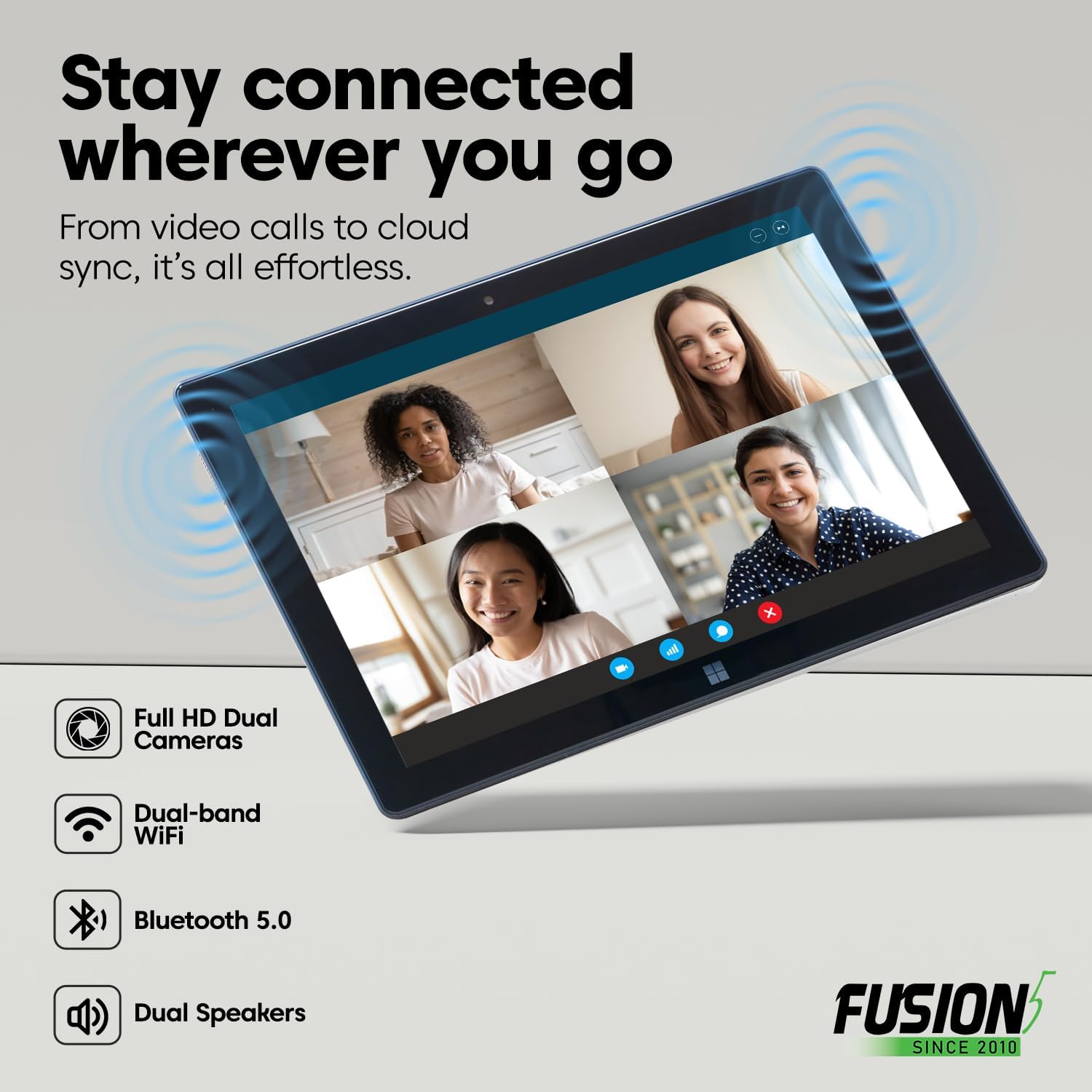
Image: A user interacting with the Fusion5 FWIN232 PRO N5 tablet's touchscreen display.
3.3 Konektibitatea
- Wi-Fi: Connect to 2.4GHz or 5GHz Wi-Fi networks for internet access. Navigate to Windows Settings > Network & Internet > Wi-Fi to manage connections.
- Bluetooth 5.0: Pair with Bluetooth-enabled devices such as keyboards, mice, and headphones. Go to Windows Settings > Bluetooth & devices to manage pairings.
- Kanpoko pantailak: Use the Micro HDMI port to connect your tablet to a monitor or TV.
- USB gailuak: Connect USB-A and USB-C peripherals like flash drives, external hard drives, or docking stations.

Image: Diagram showing the various ports on the Fusion5 FWIN232 PRO N5 tablet, including USB-C, USB-A, and Micro HDMI.
3.4 Funtzionamendu moduak
- Tablet modua: Ideal for touch-based interaction, browsing, and media consumption.
- Ordenagailu eramangarriaren modua: Connect an optional docking keyboard (sold separately) to transform your tablet into a laptop for typing and multitasking.

Image: The Fusion5 FWIN232 PRO N5 tablet connected to an external keyboard, demonstrating laptop mode functionality.
4. Mantentzea eta Zainketa
4.1 Tableta garbitzea
- Erabili zapi leun eta lihorik gabeko bat pantaila eta gorputza garbitzeko.
- Orban egoskorretarako, arinki garbituampGarbitu oihalak urarekin edo pantaila garbitzeko soluzio batekin.
- Saihestu produktu kimiko gogorrak, material urratzaileak edo gehiegizko hezetasuna erabiltzea.
4.2 Bateria zaintzea
- Bateriaren iraupena luzatzeko, saihestu tenperatura altuenak.
- Ez utzi bateria maiz erabat deskargatzen.
- Use only the original 36W Type-C fast charger provided with the tablet.
4.3 Software eguneraketak
- Regularly check for and install Windows updates to ensure optimal performance, security, and access to the latest features.
- Go to Windows Settings > Windows Update to manage updates.
4.4 Biltegiratze kudeaketa
- Aldian behin berriroview eta beharrezkoak ez direnak ezabatu files biltegiratze lekua askatzeko.
- Utilize the MicroSD card slot for additional storage of media and documents.
- Consider cloud storage solutions like OneDrive for backup and access across devices.
5. Arazoak
Tabletarekin arazoak badituzu, jo ezazu honako ohiko irtenbide hauetara:
5.1 tableta ez da pizten
- Ziurtatu tableta kargatuta dagoela. Konektatu kargagailua eta itxaron minutu batzuk berriro pizten saiatu aurretik.
- Press and hold the Power button for 10-15 seconds to perform a hard reset.
5.2 Wi-Fi konexio arazoak
- Check if Wi-Fi is enabled in Windows Settings.
- Berrabiarazi Wi-Fi bideratzailea eta tableta.
- Ahaztu sarea eta konektatu berriro.
- Ziurtatu Wi-Fi seinalearen eremuan zaudela.
5.3 Errendimendu motela
- Itxi atzeko planoan exekutatzen ari diren beharrezkoak ez diren aplikazioak.
- Begiratu eta instalatu zain dauden Windows eguneratzeak.
- Ziurtatu biltegiratze espazio libre nahikoa dagoela.
- Berrabiarazi tableta.
5.4 Ukipen-pantailak ez du erantzuten
- Berrabiarazi tableta.
- Ziurtatu pantaila garbi dagoela eta hondakinik edo hezetasunik gabe.
- Arazoak jarraitzen badu, jarri harremanetan bezeroarentzako laguntza-zerbitzuarekin.
6. Zehaztapenak
Key technical specifications for the Fusion5 FWIN232 PRO N5 Tablet PC:
| Ezaugarri | Xehetasuna |
|---|---|
| Ereduaren izena | FWIN232 PRO N5 |
| Sistema eragilea | Windows 11 Professional |
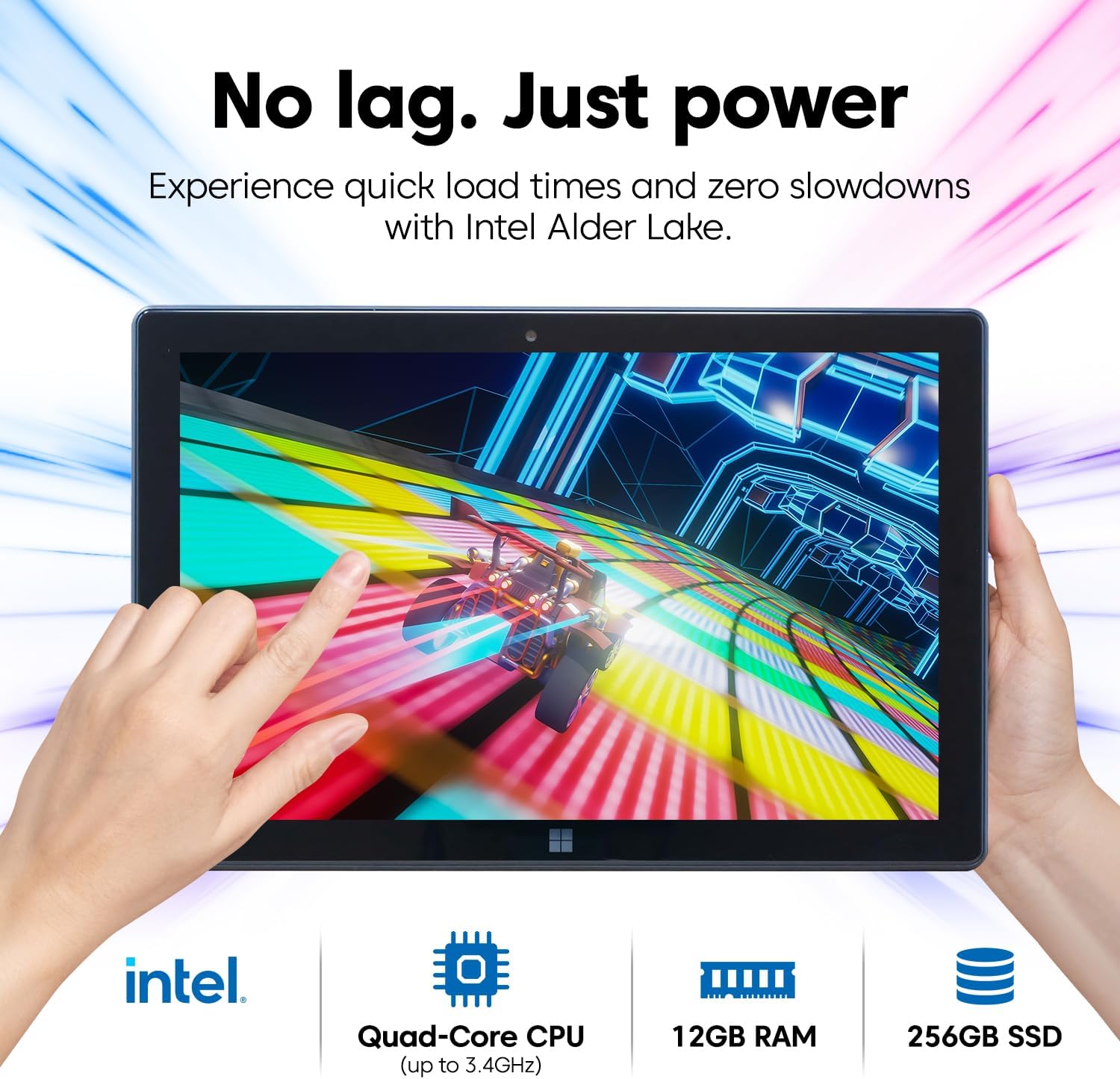
| Prozesadorea | Intel Alder Lake 13th Gen N100 Quad-Core CPU (up to 3.4 GHz) |
| Grafikoak | Intel UHD grafikoak (integratuak) |
| RAM | 12 GB |
| Biltegiratzea | 256 GB SSD |
| Biltegiratze zabalgarria | MicroSD card slot (up to 512 GB) |
| Pantailaren tamaina | 10.1 hazbetekoa |
| Bistaratzeko ebazpena | 1920 x 1080 pixel (Full HD IPS) |
| Maximum Display Brightness | 500 nit |
| Konektibitatea | Dual-Band Wi-Fi (2.4GHz & 5GHz), Bluetooth 5.0 |
| Portuak | USB-C, USB-A, Micro HDMI, 3.5mm Headphone Jack |
| Kamerak | Dual FHD Cameras (Front & Rear 2MP) |
| Bateria Edukiera | 6000 mAh (litio polimeroa) |
| Pisua | 636 g (gutxi gorabehera 23 ontza) |
| Neurriak (L x Z x L) | 10.03" x 6.69" x 0.43" |

Image: A visual summary of the Fusion5 FWIN232 PRO N5 tablet's key specifications.
7. Bermea eta Laguntza
7.1 2-Year Full Warranty with Accidental Damage Cover
Your Fusion5 FWIN232 PRO N5 tablet comes with a comprehensive 24-month full warranty. This includes protection for up to two (2) accidental damage incidents, covering issues such as drops and liquid spills. To activate your coverage, please register your device by scanning the QR code provided with your product.

Image: Details of the 2-year full coverage and accidental screen damage protection for the Fusion5 tablet.
7.2 Bezeroarentzako laguntza
For technical assistance, warranty claims, or any other inquiries, please refer to the contact information provided during your warranty registration or visit the official Fusion5 support website. Scanning the QR code offers zero-contact support.

Image: Illustration emphasizing the tablet's assembly in the USA, highlighting quality and support.
