
Sarrera
Thank you for choosing the Salange 2026 Mini Projector. This portable smart projector is designed to deliver a high-quality visual experience with its 4K support, Android 14 operating system, and advanced connectivity features like WiFi 6 and Bluetooth 5.4. This manual provides essential information for safe and efficient use of your device. Please read it thoroughly before operation and retain it for future reference.
Segurtasun Informazioa
- Ez begiratu zuzenean proiektorearen lenteari l dagoenean.amp piztuta dago.
- Ziurtatu proiektorearen inguruan aireztapen egokia gehiegi berotzeko.
- Erabili proiektorearekin batera datorren korronte-egokitzailea soilik.
- Mantendu proiektorea uretatik, hezetasunetik eta material sukoietatik urrun.
- Saihestu proiektorea gainazal ezegonkorren gainean jartzea.
- Ez saiatu proiektorea zeuk desmuntatzen edo konpontzen. Jarri harremanetan zerbitzu-langile kualifikatuekin.
Konfigurazioa
1. Kutxa irekitzea eta hasierako kokapena
Carefully remove the projector and all accessories from the packaging. Place the projector on a stable, flat surface. For optimal viewing, position the projector perpendicular to the projection surface. The projector features a 270° rotatable design for flexible placement.
2. Energia-konexioa
Connect the power cord to the projector's power input port and then plug it into a power outlet. The projector will typically power on automatically or can be turned on using the power button on the device or remote control.

Irudia: Atzealdea view of the Salange 2026 Mini Projector with power, HDMI, and USB ports.
3. Fokua eta Keystone doikuntza
The Salange 2026 Mini Projector supports manual focus adjustment. Rotate the focus ring on the projector to achieve a sharp image. It also features automatic vertical keystone correction (±45°) to eliminate image distortion, ensuring a rectangular picture even when the projector is not perfectly aligned. For more precise adjustments, 4-point correction may be available in the settings.

Image: Automatic vertical keystone correction and manual focus adjustment.
4. Sare konexioa (WiFi 6)
Navigate to the settings menu on the projector. Select 'Network' or 'Wi-Fi' and choose your desired network from the list. Enter the password if prompted. The projector supports dual-band (2.4 GHz + 5 GHz) Wi-Fi 6 for stable and fast connections.
5. Bluetooth parekatzea
To connect Bluetooth audio devices, go to the settings menu and select 'Bluetooth'. Turn on Bluetooth and search for available devices. Select your device from the list to pair. This allows for wireless audio output to speakers or headphones.
Funtzionamendu-argibideak
1. Piztu/Itzali
Press the power button on the projector or the remote control to turn the device on or off. A short press typically puts the projector into standby mode, while a long press performs a full shutdown.
2. Android 14 interfazean nabigatzea
The projector runs on Android 14.0, providing access to a wide range of applications. Use the remote control to navigate through the home screen, app drawer, and settings. The interface is similar to a smart TV, allowing for intuitive use.
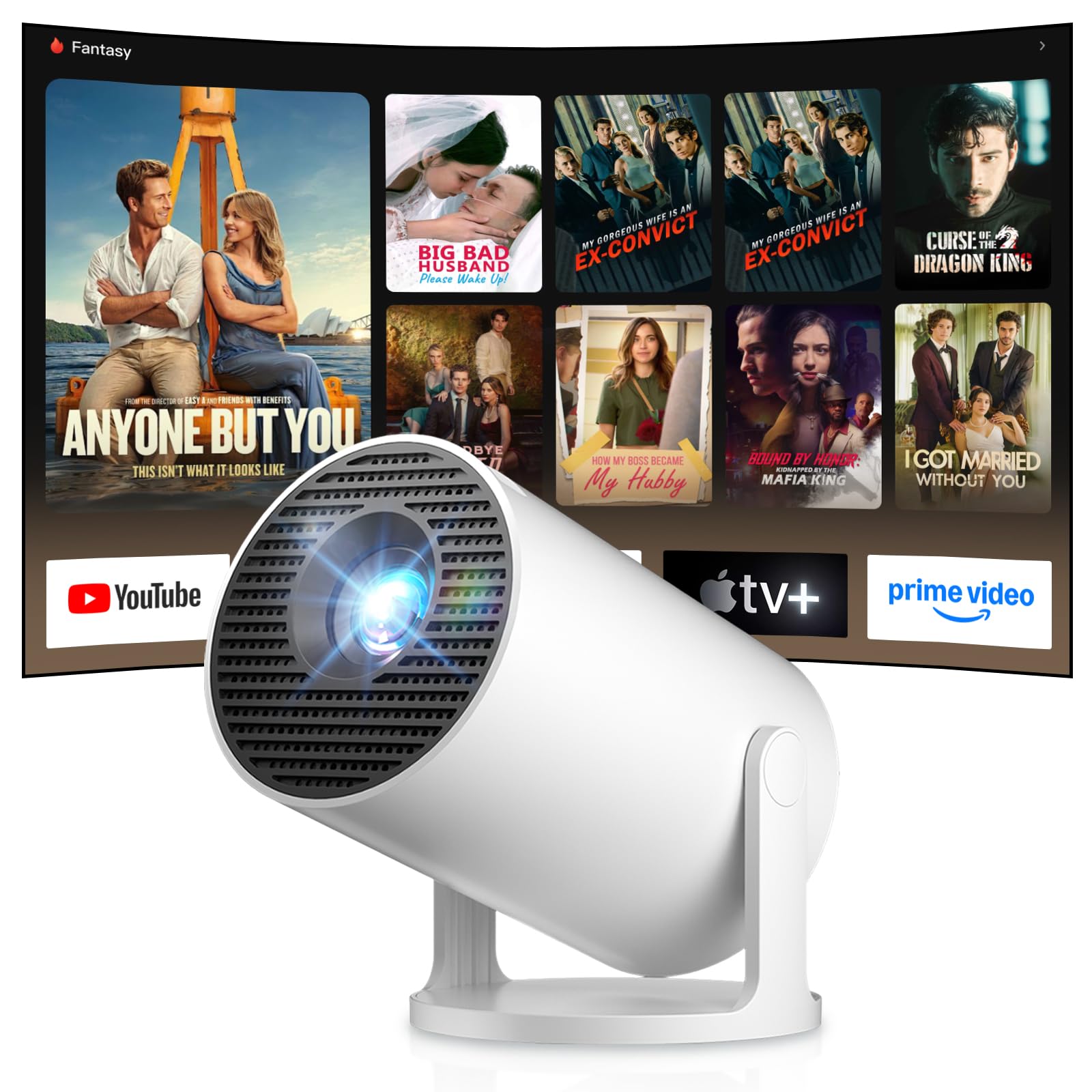
Image: Android TV 14.0 interface with streaming applications.
3. Aplikazioaren instalazioa
With Android 14, you can install over 8,000 applications directly onto the projector. Access the app store (e.g., Google Play Store) from the home screen, search for desired apps (video players, games, office software), and install them.
4. Screen Mirroring (iOS/Android)
The projector supports screen mirroring for both iOS and Android devices. Ensure your mobile device and the projector are connected to the same Wi-Fi network. On your mobile device, activate the screen mirroring function (e.g., AirPlay for iOS, Cast for Android) and select the projector from the list of available devices.

Image: Wireless casting from mobile devices to the projector.
5. Connecting External Devices (HDMI, USB)
Use the HDMI port to connect devices such as laptops, game consoles (PS5, Switch), or TV sticks. Use the USB port to connect USB drives for media playback or other peripherals. Select the appropriate input source from the projector's input menu.
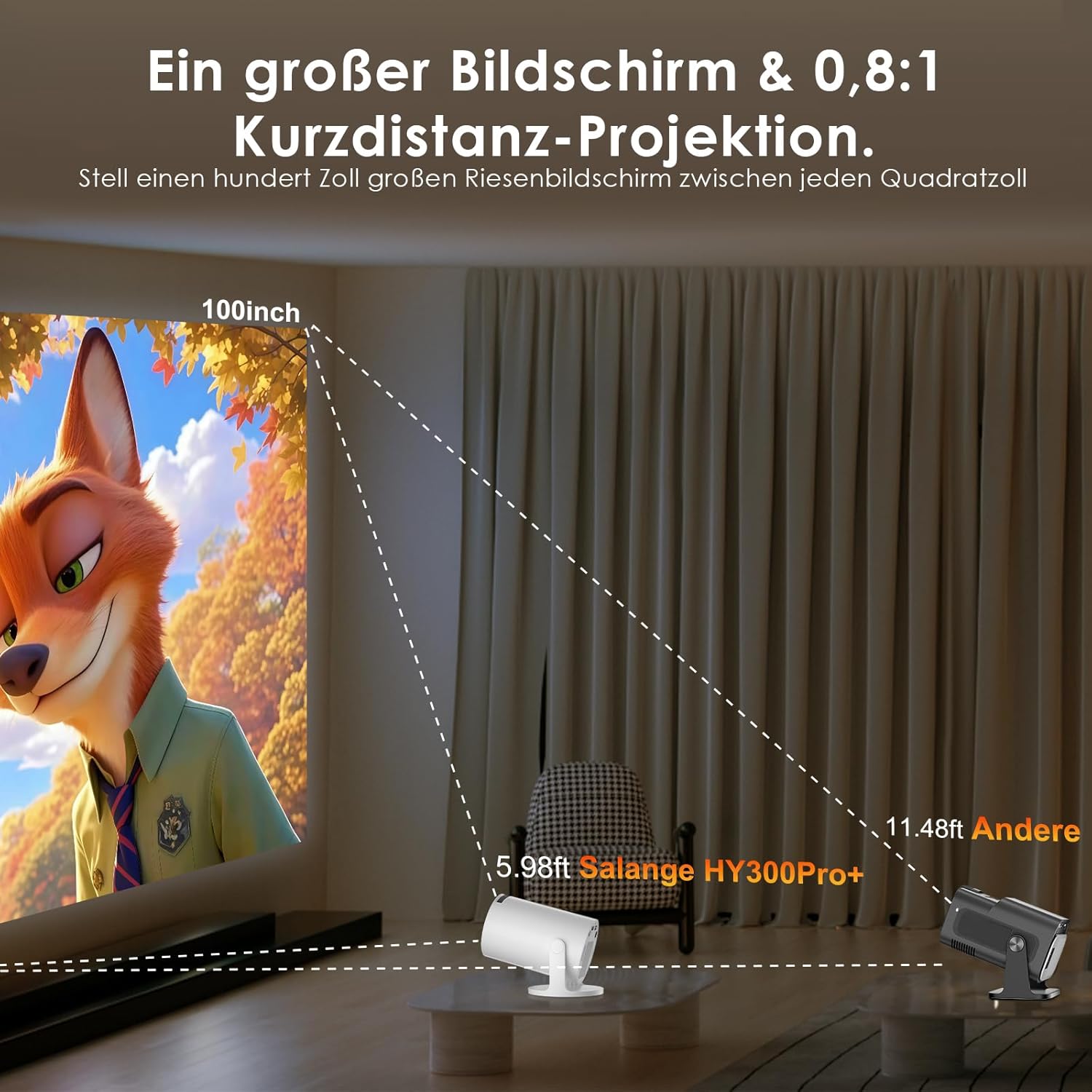
Image: Connectivity options for HDMI, Audio, and USB devices.
6. Audio irteera
The projector has built-in speakers. For enhanced audio, connect external speakers or headphones via Bluetooth or the 3.5mm audio jack.
Mantentzea
1. Lentea garbitzea
Use a soft, lint-free cloth specifically designed for optical lenses to gently wipe the projector lens. Avoid using abrasive cleaners or excessive pressure, which can scratch the lens.
2. Kanpoaldea garbitzea
Garbitu proiektorearen kanpoaldea oihal leun eta lehor batekin. Zikinkeria egoskorra bada, garbitu pixka bat.amp zapi bat erabil daiteke, eta ondoren zapi lehor bat. Ez erabili produktu kimiko edo disolbatzaile gogorrik.
3. Biltegiratzea
Denbora luzez erabiltzen ez duzunean, gorde proiektorea leku fresko, lehor eta hautsik gabeko batean. Erabili jatorrizko ontzia edo babes-zorro bat kalteak saihesteko.
Arazoak konpontzea
- Potentziarik gabe: Ziurtatu kablea ondo konektatuta dagoela proiektoreari eta entxufeari. Saiatu beste entxufe batekin.
- Irudirik ez: Check if the projector is powered on. Verify the input source is correctly selected (e.g., HDMI 1, USB). Ensure the lens cap is removed.
- Irudi lausoa: Adjust the manual focus ring until the image is sharp. Check if the projector is too close or too far from the screen.
- Image Distortion (Trapezoid): The projector has automatic keystone correction. If manual adjustment is needed, check the display settings for keystone correction options.
- Soinurik ez: Check the volume level on both the projector and the connected source device. Ensure external audio devices are correctly connected and selected as the output.
- Wi-Fi/Bluetooth konexio arazoak: Ensure the projector is within range of your router or Bluetooth device. Restart the projector and your network devices. Re-pair Bluetooth devices.
- Urruneko kontrolak ez du erantzuten: Egiaztatu urrutiko agintearen bateriak. Ziurtatu ez dagoela oztoporik urrutiko agintearen eta proiektorearen IR hargailuaren artean.
Produktuaren zehaztapenak
| Ezaugarri | Zehaztapena |
|---|---|
| Fabrikatzailea | Salange |
| ASIN | B0G43FF84L |
| Jatorrizko Herrialdea | Txina |
| Gomendatutako Erabilerak | Negozioak, Etxeko Zinema, Jokoak, Hezkuntza |
| Ezaugarri bereziak | Wi-Fi Compatible, Digital Keystone Correction, Lightweight, Portable |
| Konektibitate Teknologia | Bluetooth, HDMI, USB, Wi-Fi |
| Berezko pantailaren bereizmena | 1280 x 720 pixel |
| Gehienezko pantailaren bereizmena | 3840 x 2160 pixels (4K supported) |
| Bistaratzeko mota | LCDa |
| Produktuaren neurriak (L x W x H) | 10.1 x 10.1 x 17 cm |
| Forma-faktorea | Eramangarria |
| Muntatze Mota | Mahai-muntaia |
| Distira | 8000 lumen |
| Kolorea | Zuria |
| Gailu bateragarriak | Game Console, Speaker, Laptop, Smartphone, Television |
| Kontraste-erlazioa | 1500:1 |
| Irudiaren Gehieneko Tamaina | 150 hazbete |
| Irudiaren gutxieneko tamaina | 30 hazbete |
| Bideo-kodeketa | H.265 |
| Irudia Hobetzeko Teknologia | HDR |
| Kutxaren edukia | 1 Projector, 1 Power Cord, 1 Remote Control, 1 User Manual |
Bermearen informazioa
The Salange 2026 Mini Projector comes with a standard manufacturer's warranty. Please refer to the warranty card included in your product packaging for specific terms, conditions, and duration. Keep your proof of purchase for warranty claims.
Bezeroarentzako Arreta
For technical assistance, troubleshooting, or any questions regarding your Salange 2026 Mini Projector, please contact Salange customer support. Contact details can typically be found on the official Salange website or in the warranty information provided with your product.


