
1. Sarrera
The Homey Pro (2026) is a smart home hub designed to unify and manage various smart devices from different brands and technologies. It enables users to control and automate their smart home environment through a single application. This manual provides instructions for setting up, operating, maintaining, and troubleshooting your Homey Pro device.
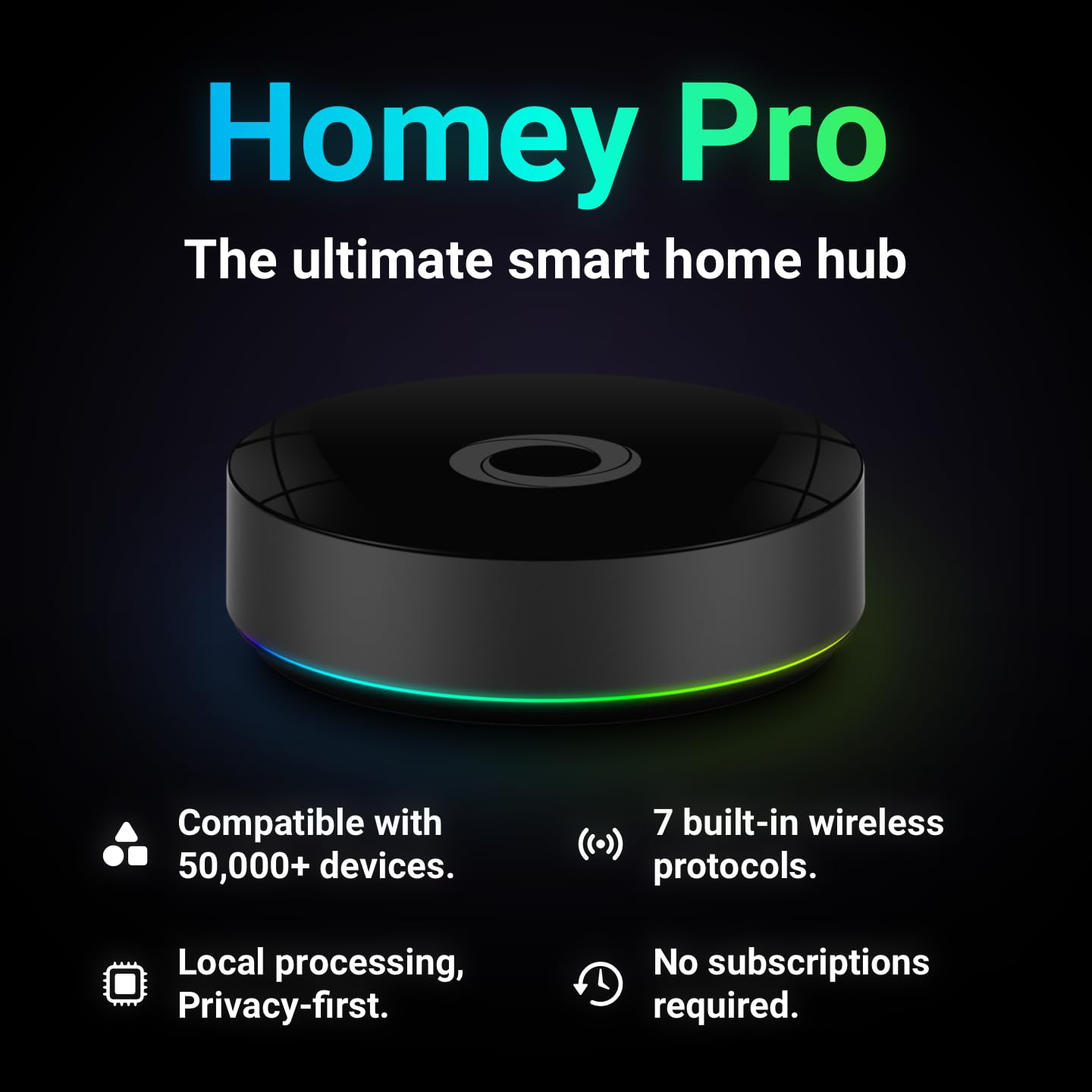
Image 1.1: The Homey Pro (2026) Smart Hub. This device integrates over 50,000 devices using 7 built-in wireless protocols, offering local processing and privacy-first operation without subscriptions.
2. Konfigurazioa
2.1 Kutxa irekitzea eta paketearen edukia
Hasi aurretik, ziurtatu osagai guztiak paketean daudela:
- Homey Pro (2026) Smart Hub
- Elikatze-moldagailua
- Ethernet Cable (may vary by region/package)
2.2 Kokapen fisikoa
Place your Homey Pro in a central location within your home to ensure optimal signal coverage for all connected devices. Avoid placing it near large metal objects, electronics that emit strong electromagnetic interference, or inside enclosed cabinets. The device dimensions are approximately 4.9 x 4.9 x 1.5 inches (L x W x H).
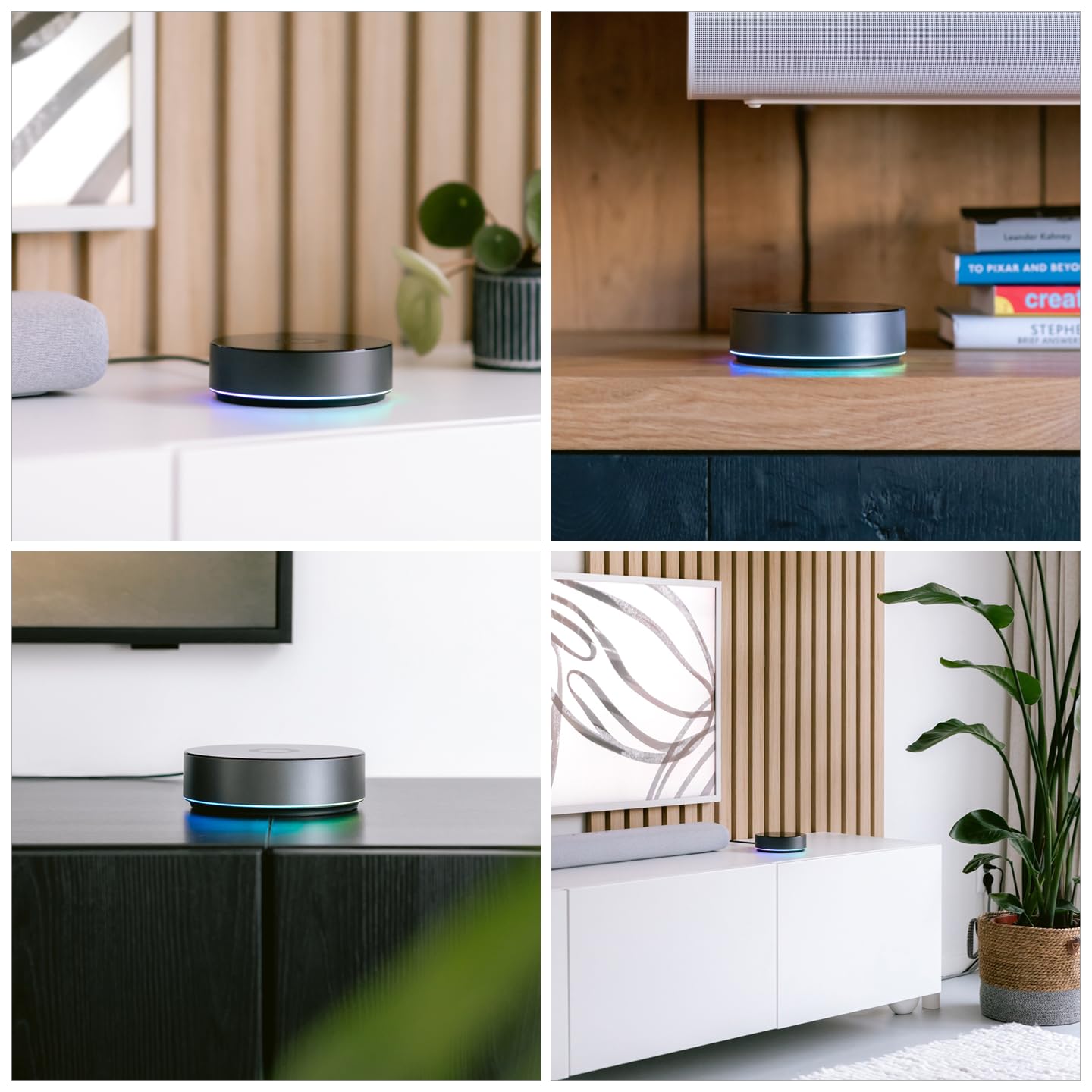
2.1 irudia: Adibideaamples of Homey Pro placement in a home environment. Optimal placement ensures broad coverage for smart devices.
2.3 Piztea
- Connect the power adapter to the Homey Pro device.
- Entxufatu korronte-egokigailua hormako entxufe batera.
- The LED ring on the Homey Pro will illuminate, indicating it is powering on.
2.4 Initial App Setup and Network Connection
- Download the Homey app from your device's app store (iOS or Android).
- Open the Homey app and follow the on-screen instructions to create a new account or log in.
- The app will guide you through connecting your Homey Pro to your home network. You can connect via Wi-Fi or directly via an Ethernet cable for enhanced stability.
- Once connected, the app will prompt you to begin adding your smart home devices.
3. Operating Your Homey Pro
3.1 Homey App and Web Aplikazioa amaituview
The Homey app (mobile) and Homey Web App (desktop) serve as your primary interfaces for managing your smart home. From these platforms, you can add devices, create automations, monitor energy usage, and control your entire setup.

Image 3.1: Homey's user interfaces across various devices, demonstrating control and management capabilities.
3.2 Gailuak konektatzea
Homey Pro supports a wide range of smart home technologies, including Wi-Fi, Zigbee, Z-Wave Plus, BLE (Bluetooth Low Energy), Infrared, Matter, and Thread. To add a device:
- Open the Homey app.
- Joan "Gailuak" atalera.
- Sakatu "+" ikonoa gailu berri bat gehitzeko.
- Select the brand and type of device you wish to add and follow the specific pairing instructions provided in the app.
Homey Pro is compatible with over 50,000 products from more than 1,000 brands. For a comprehensive list of compatible brands, refer to the official Homey webgunea.

Image 3.2: A selection of compatible smart home brands, including Philips Hue, IKEA, Sonos, Yale, and Ring.

Image 3.3: Homey Pro's internal components highlighting its support for multiple smart home protocols.
3.3 Creating Flows (Automations)
Homey Flow allows you to create custom automations that make your devices work together. Flows can be simple or complex, triggered by various conditions (e.g., time of day, sensor input, arrival home) and performing specific actions (e.g., turning off lights, playing music).
- Mugikorretarako aplikazioa: Create basic Flows directly on your smartphone.
- Web Aplikazioa: Utilize the Advanced Flows editor for more complex automation scenarios.
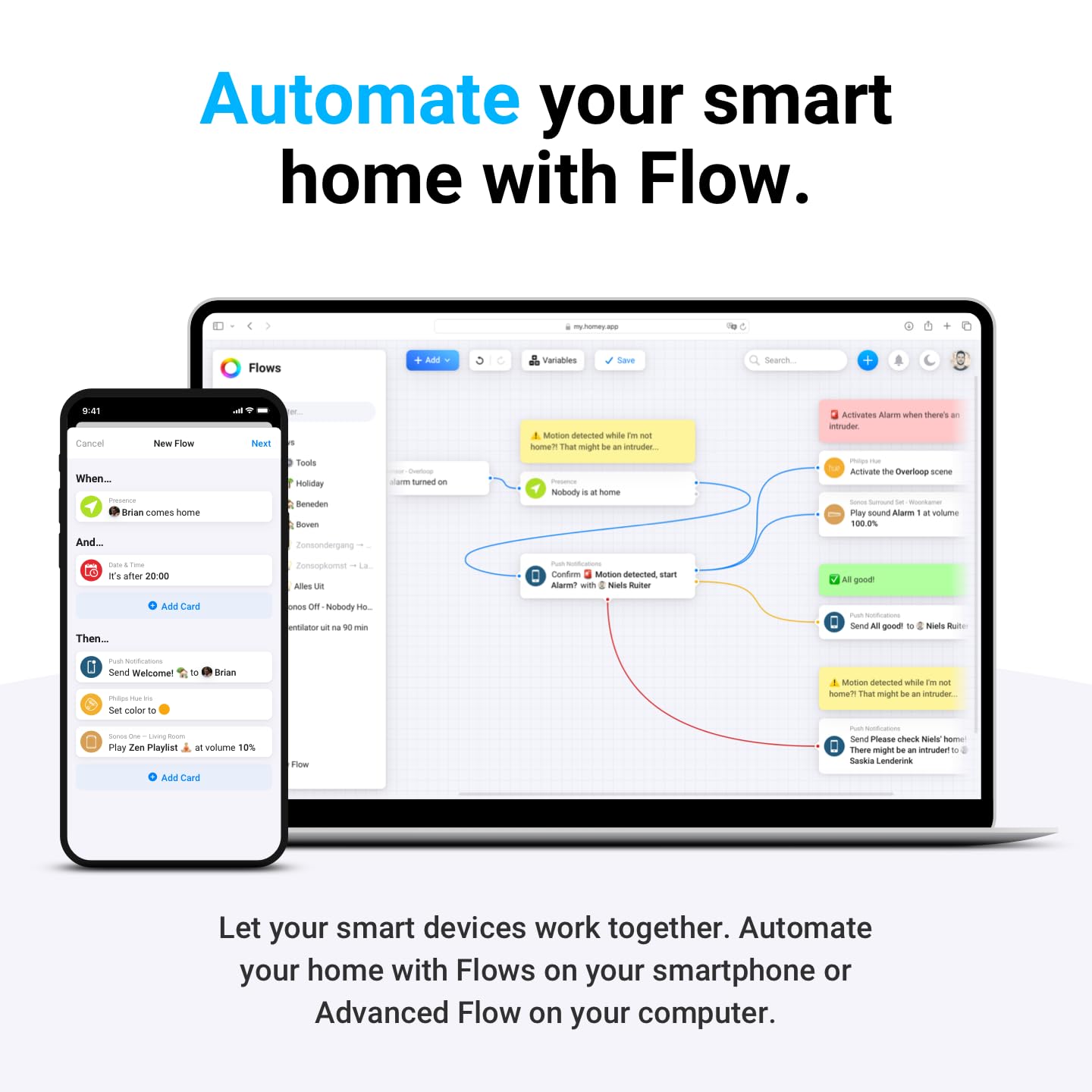
Image 3.4: The Homey Flow interface, illustrating how to set up automated actions based on specific conditions.
3.4 Ahots-kontrolaren integrazioa
Homey Pro is compatible with popular voice assistants such as Siri, Alexa, and Google Home. After linking your Homey account to your preferred voice assistant, you can control devices and activate Flows using voice commands.

Image 3.5: Voice assistant compatibility with Homey Pro, enabling control via spoken commands.
3.5 Energy Monitoring with Homey Energy
The Homey Energy feature provides insights into your home's energy consumption and generation. You can monitor historical data, track usage patterns, and create automations to optimize energy savings, such as scheduling device usage during off-peak hours or based on solar generation.

Image 3.6: The Homey Energy interface displaying detailed energy consumption and generation data.
4. Mantentzea
4.1 Software eguneraketak
Homey Pro regularly receives software updates to improve performance, add new features, and enhance security. Ensure your device is connected to the internet to receive these updates automatically. You can check for and initiate updates manually through the Homey app settings.
4.2 Gailua garbitzea
To clean your Homey Pro, gently wipe the exterior with a soft, dry cloth. Avoid using liquid cleaners, aerosols, or abrasive materials, as these can damage the device.
4.3 Datuen kudeaketa
Homey Pro processes data locally, minimizing cloud dependency. For information on data backup and restoration procedures, consult the Homey support documentation available on their official webgunea.
5. Arazoak
This section addresses common issues you might encounter with your Homey Pro.
5.1 Device Pairing Issues
- Egiaztatu gailuen bateragarritasuna: Verify that your device is officially supported by Homey Pro. Refer to the Homey website for a list of compatible devices and brands.
- Hurbiltasuna: Ensure the device you are trying to pair is within range of Homey Pro. For Zigbee and Z-Wave devices, closer proximity during pairing is often beneficial.
- Potentzia-zikloa: Try power cycling both the Homey Pro and the device you are trying to pair.
- Berrezarri gailua: Some devices require a factory reset before they can be paired with a new hub. Consult the device's own manual for reset instructions.
5.2 Konexio arazoak
- Wi-Fi/Ethernet Connection: Ensure your Homey Pro has a stable internet connection. Check your router and network settings. If using Wi-Fi, try moving Homey Pro closer to your router or connecting via Ethernet.
- Interferentzia: Other wireless devices or large metal objects can interfere with signals. Adjust placement if necessary.
- Aplikazioen konexioa: If the Homey app cannot connect to your Homey Pro, ensure both your phone and Homey Pro are on the same local network (if applicable) or that Homey Pro has internet access for remote control.
5.3 Automations (Flows) Not Working
- Review Flow Logic: Double-check the "When," "And," and "Then" conditions and actions in your Flow to ensure they are configured correctly.
- Gailuaren egoera: Verify that all devices involved in the Flow are online and functioning properly.
- Aplikazioaren eguneraketak: Ensure both the Homey Pro firmware and the Homey app are updated to the latest versions.
5.4 Resetting Homey Pro
If you encounter persistent issues, a factory reset may be necessary. Abisua: A factory reset will erase all your settings, devices, and automations. Consult the official Homey support documentation for detailed instructions on how to perform a factory reset safely.
6. Zehaztapenak
| Ezaugarri | Xehetasuna |
|---|---|
| Eredua | ETXEKO-PRO-AEB-04 |
| Marka | Etxekoa |
| Konexio-protokoloak | Bluetooth, Infrared, Matter, Wi-Fi, Z-Wave, ZigBee, Thread |
| Kontrol-metodoa | Aplikazioa, Ahotsa |
| Gailu bateragarriak | Over 50,000 devices from over 1,000 brands |
| Neurriak (L x W x H) | 4.9 x 4.9 x 1.5 hazbete |
| Materiala | Metala |
| Muntatze Mota | Wall Mount (optional, not explicitly stated but implied by form factor) |
| Dakarten osagaiak | Homey Pro (2026) |
| Fabrikatzailea | Athom BV |
7. Bermea eta laguntza
7.1 Produktuaren bermea
For detailed information regarding the product warranty, including terms, conditions, and duration, please refer to the official Homey website or the warranty card included with your purchase. Warranty policies may vary by region.
7.2 Bezeroarentzako laguntza
If you require further assistance, encounter issues not covered in this manual, or need technical support, please visit the official Homey support portal. You can typically find FAQs, troubleshooting guides, and contact information for customer service on their webgunea.
Fabrikatzailea: Athom BV
Lineako laguntza: homey.app/support (Adibample link, please verify official support URL)


