
1. Sarrera
This manual provides essential information for setting up, operating, maintaining, and troubleshooting your CHUWI Hi10 X2 2-in-1 Laptop Tablet. Please read it thoroughly before using your device.
Kutxan dagoena
- Hi10 X2 Tablet
- Teklatu magnetikoa
- Soportedun kaxa
- Kargagailu multzoa
- Erabiltzailearen eskuliburua (dokumentu hau)

Image 1.1: CHUWI Hi10 X2 Tablet with Magnetic Keyboard and Case.
2. Konfigurazioa
2.1 Hasierako karga
Before first use, fully charge your CHUWI Hi10 X2 tablet using the provided charger set. Connect the charger to the Type-C port on the tablet and plug it into a power outlet. The charging indicator light will illuminate.
2.2 Attaching the Magnetic Keyboard and Case
Align the tablet with the magnetic connectors on the keyboard. The magnets will secure the tablet in place. The case with stand can be adjusted to your preferred viewangelua.
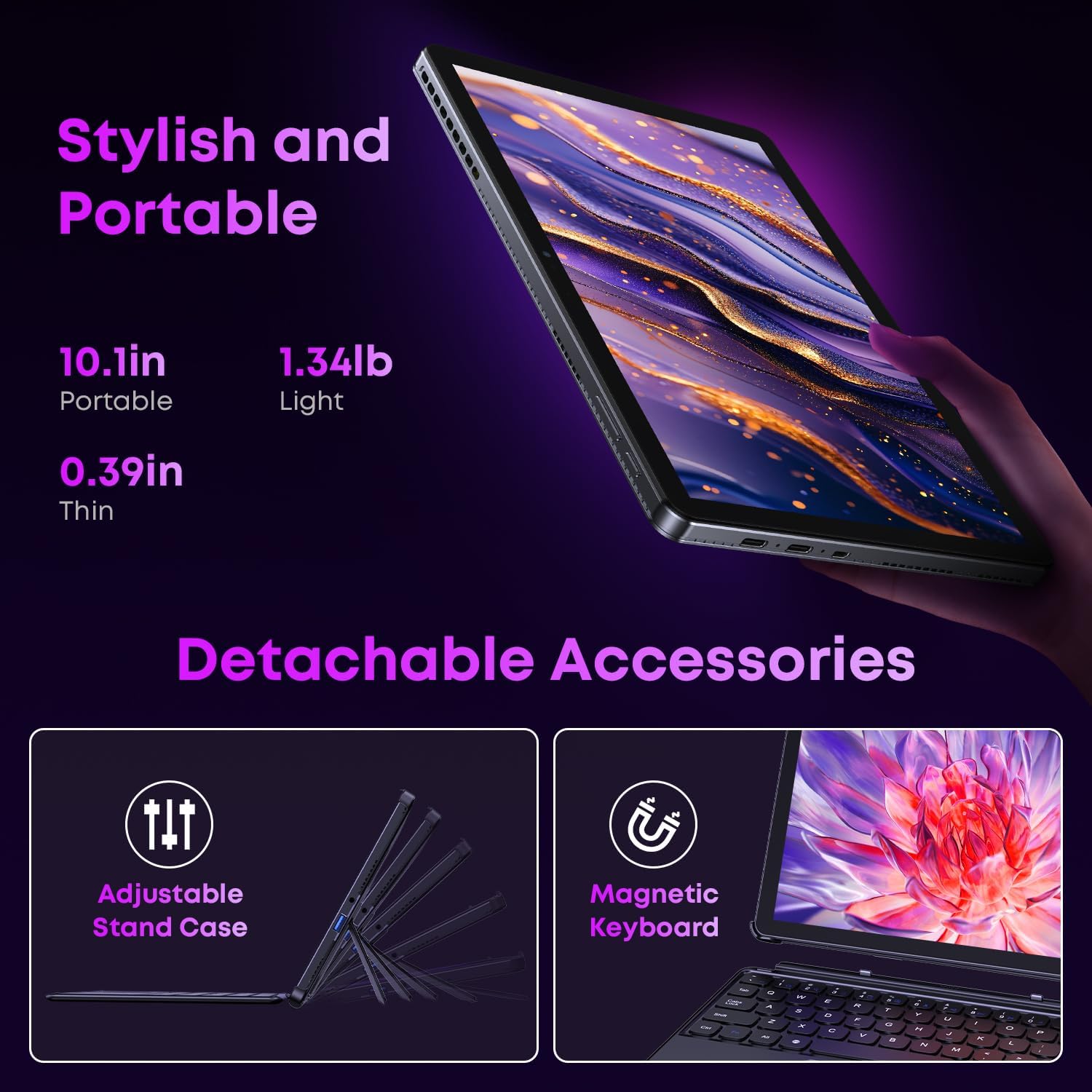
Image 2.1: Detachable accessories including the magnetic keyboard and adjustable stand case.
2.3 First Boot-Up and Windows Activation
Press and hold the power button until the screen turns on. Follow the on-screen instructions to complete the initial Windows 11 setup. If your Windows system arrives unactivated, please send the serial number (located on the back of the device) to CHUWI support via Amazon for your activation key.
2.4 Wi-Fira konektatzea
During setup, you will be prompted to connect to a Wi-Fi network. Select your network and enter the password. The device supports Wi-Fi 6 for fast and stable connections.
3. Funtzionamendu-argibideak
3.1 Piztea/Itzaltzea eta lo modua
- Piztu: Sakatu eta eutsi pizteko botoia pantaila piztu arte.
- Itzali: From the Windows Start menu, select Power > Shut down.
- Lo egiteko modua: Briefly press the power button to enter or exit sleep mode.
3.2 Ukipen-pantaila erabiltzea
The 10.1-inch HD touchscreen supports 10-point multi-touch gestures. Use taps, swipes, and pinches for navigation and interaction with applications.

Image 3.1: The 10.1-inch HD touchscreen display.
3.3 Ordenagailu eramangarri eta tablet moduak
The magnetic keyboard allows for seamless switching between laptop and tablet modes. Attach the keyboard for typing and productivity, or detach it for a pure tablet experience.
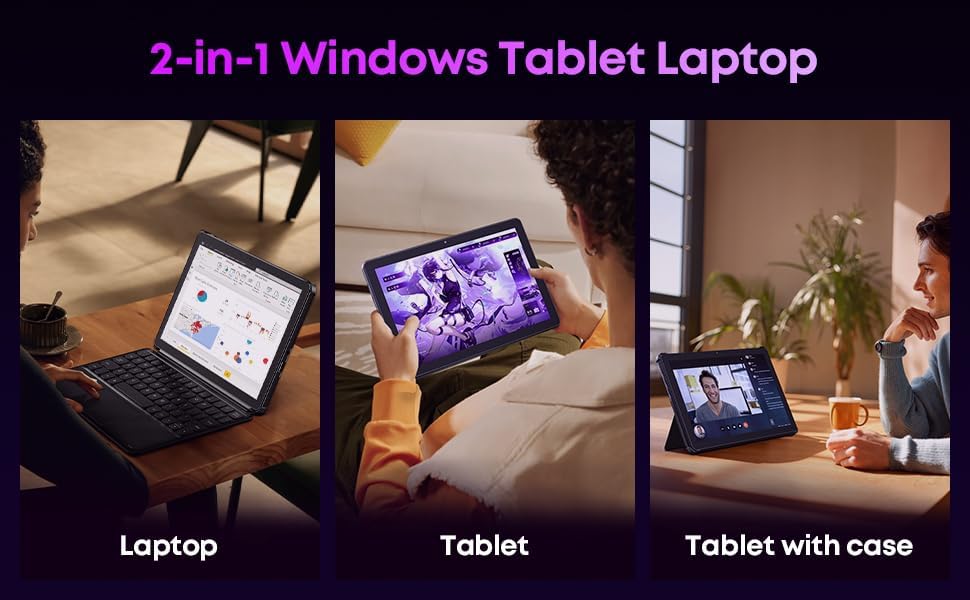
Image 3.2: Usage scenarios demonstrating laptop, tablet, and tablet with case modes.
3.4 Konektibitatea
- USB atakak: The tablet features a full-featured Type-C port and a USB 3.2 Gen1 port for data transfer and connecting peripherals.
- Mikro HDMI: Connect to external monitors or TVs using the Micro HDMI port for extended display options, supporting up to 4K video output.
- Bluetooth 5.3: Pair with wireless headphones, mice, and other Bluetooth accessories.
- Wi-Fi 6: Enjoy high-speed internet connectivity for streaming and browsing.
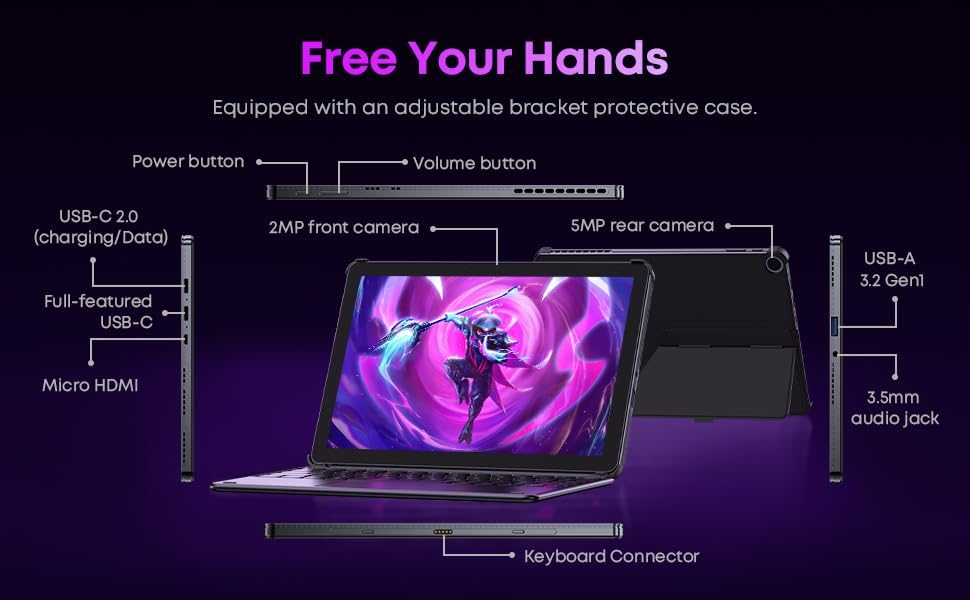
3.3 irudia: Xehetasun zehatza view of the tablet's ports and connectors.
3.5 Kameraren erabilera
The tablet is equipped with a 5MP autofocus rear camera for capturing photos and videos, and a 2MP front camera for video calls and selfies.

Image 3.4: Camera and wireless connectivity features.
3.6 Processor and Storage
Powered by a 10th Gen Intel Core i3 processor (up to 3.9GHz) and 8GB RAM, the tablet handles multitasking efficiently. The 256GB SSD provides ample storage and fast access to your files.

Image 3.5: Intel 10th Gen Core i3 Processor details.
3.7 Produktua gainditzeaview Bideoa
3.6. bideoa: Over batview of the CHUWI Hi10 X2 2-in-1 Laptop Tablet, highlighting its features and functionality.
4. Mantentzea
4.1 Gailua garbitzea
Erabili zapi leun eta lihorik gabeko bat tabletaren pantaila eta gorputza garbitzeko. Orban egoskorrak izanez gero, garbitu apur batampGarbitu zapi bat urarekin edo pantaila garbitzeko soluzio batekin. Saihestu produktu kimiko gogorrak edo material urratzaileak.
4.2 Bateria zaintzea
To prolong battery life, avoid exposing the tablet to extreme temperatures. It is recommended to keep the battery charge between 20% and 80% for optimal longevity. Avoid fully discharging the battery frequently.
4.3 Software eguneraketak
Egiaztatu eta instalatu aldizka Windows eguneraketak zure sistemak azken segurtasun-adabakiak eta errendimendu-hobekuntzak dituela ziurtatzeko. Joan Ezarpenak > Windows Eguneratzea atalera.
4.4 Biltegiratze kudeaketa
Aldian behin berriroview eta beharrezkoak ez direnak ezabatu files and applications to free up storage space on the 256GB SSD. This helps maintain optimal device performance.
5. Arazoak
5.1 Gailua ez da pizten
- Ensure the device is fully charged. Connect the charger and wait a few minutes before attempting to power on.
- Berrezarpen gogorra egiteko, sakatu eta eutsi pizteko botoia 10-15 segundoz.
5.2 Wi-Fi konexio arazoak
- Berrabiarazi Wi-Fi bideratzailea eta tableta.
- Egiaztatu ea beste gailu batzuk Wi-Fi sare berera konekta daitezkeen.
- Forget the network in Windows settings and reconnect.
5.3 Screen Not Responding to Touch
- Berrabiarazi tableta.
- Ziurtatu pantaila garbi eta hondakinik gabe dagoela.
5.4 Keyboard Not Working
- Ensure the tablet is correctly aligned and securely connected to the magnetic keyboard.
- Berrabiarazi tableta.
For further assistance, please refer to the Support section.
6. Zehaztapenak
| Ezaugarri | Zehaztapena |
|---|---|
| Marka | TXUWI |
| Ereduaren izena | Hi10 X2 |
| Prozesadorea | Intel Core i3 (10th Gen, up to 3.9 GHz) |
| Sistema eragilea | Windows 11 Home |
| RAM | 8 GB |
| Biltegiratzea | 256 GB SSD |
| Pantailaren tamaina | 10.1 hazbete |
| Bistaratzeko ebazpena | 1280x800 pixel |
| Konektibitatea | Wi-Fi 6, Bluetooth 5.3 |
| Portuak | Full-featured Type-C, USB 3.2 Gen 1, Micro HDMI, 3.5mm Audio Jack |
| Kamerak | 5MP Autofocus Rear, 2MP Front |
| Pisua | 1.3 libra (gutxi gorabehera 0.59 kg) |
| Neurriak (L x Z x L) | 9.6" x 6.49" x 0.39" |
| Bateria Edukiera | 3400 mAh |
7. Bermearen informazioa
The CHUWI Hi10 X2 2-in-1 Laptop Tablet comes with a 1 urteko berme mugatuaBerme honek fabrikazio akatsak eta erabilera normalaren ondoriozko matxurak estaltzen ditu. Gorde erosketaren egiaztagiria bermearen erreklamazioak egiteko.
For detailed warranty terms and conditions, please refer to the official CHUWI webwebgunean edo jarri harremanetan bezeroarentzako laguntzarekin.
8. Laguntza
If you encounter any issues not covered in the Troubleshooting section, or require assistance with Windows activation, please contact CHUWI customer support. You can typically find support contact information on the official CHUWI website or through your purchase platform (e.g., Amazon seller messaging).
Laguntzarekin harremanetan jartzean, eduki eskura zure gailuaren serie-zenbakia eta erosketaren frogagiria.