
Bigme B751C S
Bigme B751C S Ebook Reader User Manual
Model: B751C S
1. Sarrera
The Bigme B751C S is a versatile 7-inch color e-paper tablet designed for an enhanced reading and note-taking experience. Running on Android 14 OS, it offers broad application compatibility and features a stylus for natural writing and annotation.
Ezaugarri nagusiak hauek dira:
- 7-inch Color E-Paper Display: Provides an eye-friendly reading experience with no glare, suitable for various lighting conditions.
- Arkatzaren euskarria: Enables note-taking, drawing, and handwriting-to-text conversion for improved productivity.
- Android 14 sistema eragilea: Allows installation of a wide range of applications, extending functionality beyond traditional e-reading.
- AmpBiltegiratzea: Equipped with 4GB RAM and 64GB internal storage, expandable up to 1TB via TF card.
- Integrated Productivity Tools: Features like live audio recording and transcription enhance workflow for lectures or meetings.
2. Zer dago kutxan
Please check the contents of your Bigme B751C S package. If any items are missing or damaged, contact customer support.
- Bigme B751C S Ebook Reader Device
- Babes-zorroa
- Capacitive Pen (Stylus)
- Kargatzeko kablea (USB)
- Erabiltzailearen gida (eskuliburu hau)
- TF Card Removal Tool
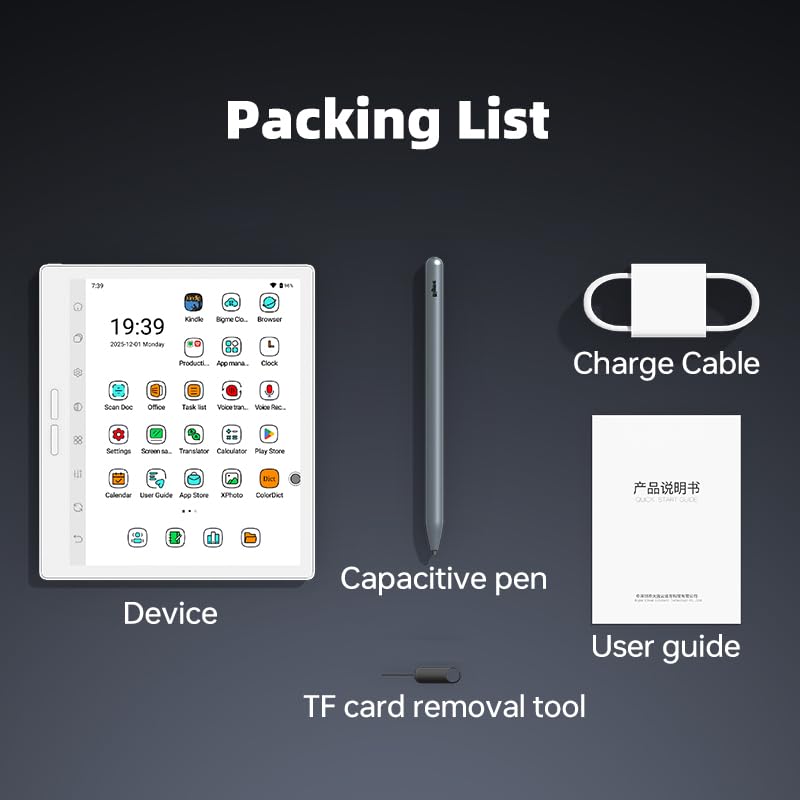
Image: The packing list showing the Bigme B751C S device, capacitive pen, charge cable, user guide, and TF card removal tool.
3. Hasierako konfigurazioa
3.1 Gailua kargatzea
Before first use, fully charge your Bigme B751C S. Connect the provided USB charge cable to the device's charging port and a compatible USB power adapter (not included) or computer USB port. The charging indicator will show the charging status.
3.2 Piztu/Itzaltzea
- Pizteko: Press and hold the power button (usually located on the side or top edge) for a few seconds until the screen lights up.
- Itzaltzeko: Sakatu eta eutsi pizteko botoia pantailan itzaltzeko menua agertu arte. Hautatu 'Itzali'.
- Berrabiarazteko: From the power-off menu, select 'Restart'.
3.3 Hasierako konfigurazioa
Upon first power-on, follow the on-screen prompts to configure basic settings:
- Aukeratu nahi duzun hizkuntza.
- Konektatu Wi-Fi sare batera Interneterako sarbidea eta software eguneratzeko.
- Ezarri data eta ordua.
- Hasi saioa zure Google kontuarekin Play Store eta beste Android zerbitzu batzuetara sartzeko.
3.4 TF txartela sartzea (aukerakoa)
To expand storage, insert a TF (microSD) card into the designated slot. Use the provided TF card removal tool to open the tray if necessary. Ensure the card is inserted correctly.
4. Zure gailua funtzionatzea
4.1 Android 14 sistema eragilean nabigatzea
The Bigme B751C S runs on Android 14, providing a familiar interface. Use the touchscreen for navigation:
- Sakatu: To select items or open applications.
- Pasatu hatza: To scroll through pages or menus.
- Zoom egiteko apur bat egin: To adjust text or image size.
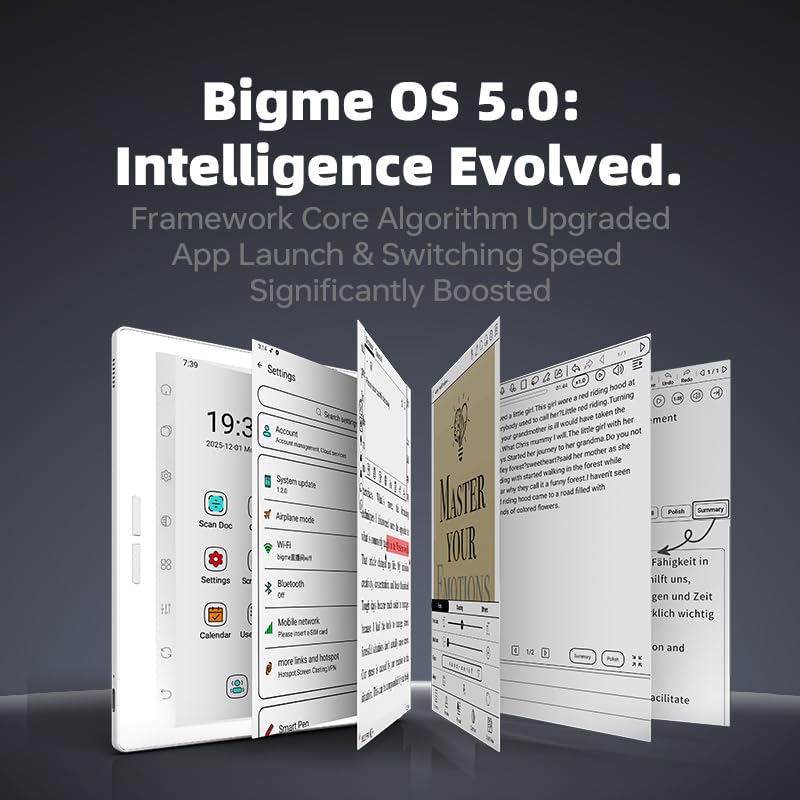
Image: The Bigme B751C S displaying its Android 14 OS interface, showing various applications and system information.
4.2 Reading eBooks
The device supports EPUB and other common eBook formats. You can transfer eBooks to the device's internal storage or TF card, or download them directly via installed reading applications.

Image: The 7-inch HD Color ePaper Screen of the Bigme B751C S, showcasing its ability to display both black & white (300PPI) and color (150PPI) content for comfortable, paper-like reading.
4.3 Note-Taking with the Stylus
Use the included capacitive pen for a natural writing experience. Open a note-taking application to:
- Write or draw directly on the screen.
- Annotate documents and eBooks.
- Convert handwriting to text.
- Utilize various tools like lasso, templates, canvas, layers, and toolbars within the note-taking app.

Image: A user demonstrating note-taking on the Bigme B751C S with the stylus, highlighting features like Lasso, Templates, Canvas, Layers, Toolbar, and Sync.

Image: The Bigme B751C S providing a paper-like writing experience, with a stylus annotating text using a 16-color tool.
4.4 Display Settings and Front Light
Doitu pantailaren ezarpenak optimorako viewing comfort. The device features an adjustable front light with 36 levels of warm and cold light. Access these settings through the quick settings panel or the main settings menu.

Image: The Bigme B751C S displaying its adjustable front light interface, offering 36 levels of warm and cold light for various reading environments.
4.5 Audio Recording and Transcription
Utilize the device's audio recording feature to capture lectures or meetings. The integrated transcription function can convert spoken words into searchable text, enhancing your workflow.

Image: The Bigme B751C S displaying its recording and transcription feature, showing how it can enhance workflow by converting spoken content into text.
5. Mantentzea
5.1 Pantaila garbitzea
To clean the e-paper screen, gently wipe it with a soft, lint-free cloth. For stubborn smudges, slightly dampen the cloth with water. Avoid using harsh chemicals or abrasive materials, as these can damage the screen.
5.2 Bateria zaintzea
- Saihestu gailua muturreko tenperaturen eraginpean jartzea.
- Kargatu gailua aldizka, baina saihestu denbora luzez guztiz deskargatuta uztea.
- Use only the provided charging cable or a certified compatible cable.
5.3 Software eguneraketak
Periodically check for software updates in the device's settings menu. Updates can provide new features, performance improvements, and security enhancements. Ensure your device is connected to Wi-Fi and has sufficient battery life before starting an update.
6. Arazoak
6.1 Gailuak ez du erantzuten
If the device becomes unresponsive, try a forced restart. Press and hold the power button for approximately 10-15 seconds until the device powers off and then restarts.
6.2 Bateriaren iraupen laburra
Battery life can be affected by various factors. To optimize battery performance:
- Reduce screen brightness or front light intensity.
- Desgaitu Wi-Fia eta Bluetooth erabiltzen ez dituzunean.
- Itxi atzeko planoan dauden aplikazioak.
- Ziurtatu gailuaren softwarea eguneratuta dagoela.
6.3 Screen Appears Too Dark
The e-paper display may appear darker in low light conditions compared to backlit LCD screens. Adjust the front light settings to your preference. Ensure the front light is enabled and set to an appropriate level for your environment.
6.4 Errendimendu motela
If the device feels slow, try the following:
- Itxi atzeko planoan exekutatzen ari diren beharrezkoak ez diren aplikazioak.
- Garbitu maiz erabiltzen diren aplikazioen cachea.
- Ziurtatu biltegiratze espazio libre nahikoa dagoela.
- Perform a software update if available.
- As a last resort, consider a factory reset (back up your data first).
7. Zehaztapenak
| Ezaugarri | Xehetasuna |
|---|---|
| Marka | Bigme |
| Ereduaren izena | US-B751C S |
| Modelo zenbakia | B751C S |
| Bistaratzeko Teknologia | Electronic Ink (Color E-ink Screen) |
| Pantailaren tamaina | 7 hazbete |
| Bistaratzeko ebazpena | 1024x768 |
| Memoria Biltegiratzeko Ahalmena | 64 GB |
| RAM memoria instalatuta | 4 GB |
| Biltegiratze zabalgarria | TF Card slot (up to 1TB) |
| Konektibitate Teknologia | USB, Wi-Fi, Bluetooth |
| Onartua File Formatua | EPUB (and others via Android apps) |
| Human Interface Types | Ukipen-pantaila |
| Bateria deskribapena | Litio-Ioia |
| Kolorea | Zuria |
| Sistema eragilea | Android 14 OS |
| Ezaugarri bereziak | Note-taking with Stylus, Color E-ink Screen, Android OS Support, Adjustable Front Light, Audio Recording/Transcription |
8. Bermea eta Laguntza
For information regarding warranty coverage, technical support, or service, please refer to the warranty card included with your product or visit the official Bigme website. Contact details for customer service are typically provided in these resources.
Mesedez, gorde zure erosketa-froga berme-erreklamazioetarako.
Lotutako dokumentuakB751C S


Ask a question about this manual
Ask about setup, troubleshooting, compatibility, parts, safety, or missing instructions. Manuals+ will review the question and use this page’s manual context to help answer it.