
1. Sarrera
Thank you for choosing the Gawfolk 32-inch 4K 144Hz Gaming Monitor. This monitor is designed to provide an immersive visual experience with its 4K UHD resolution, high refresh rate, and adaptive synchronization technology. This manual provides essential information for setting up, operating, maintaining, and troubleshooting your monitor to ensure optimal performance and longevity.
2. Segurtasun informazioa
- Read all instructions carefully before using the monitor.
- Mantendu monitoreak uretatik, hezetasunetik eta muturreko tenperaturetatik urrun.
- Ez blokeatu aireztapen baoak.
- Use only the power adapter provided with the monitor.
- Ez jarri objektu astunak korronte-kablean.
- Deskonektatu entxufea entxufetik monitoreak denbora luzez erabiliko ez badu.
- Jarri zerbitzu-zerbitzu guztiak zerbitzu-pertsonal kualifikatuari.
3. Konfigurazioa
3.1 Kutxa irekitzea eta paketearen edukia
Kontu handiz atera osagai guztiak paketetik. Ziurtatu behean zerrendatutako elementu guztiak daudela:
- Gawfolk 32-inch 4K 144Hz Monitor
- Monitorearen euskarria (oinarria eta lepoa)
- Elikatze-moldagailua
- HDMI kablea
- DisplayPort kablea
- Erabiltzailearen eskuliburua
3.2 Euskarriko muntaketa
- Jarri monitorearen aurpegia behera gainazal leun eta garbi batean, marradurak saihesteko.
- Attach the stand neck to the back of the monitor using the provided screws. Ensure it is securely fastened.
- Attach the stand base to the stand neck, tightening the screw at the bottom of the base.
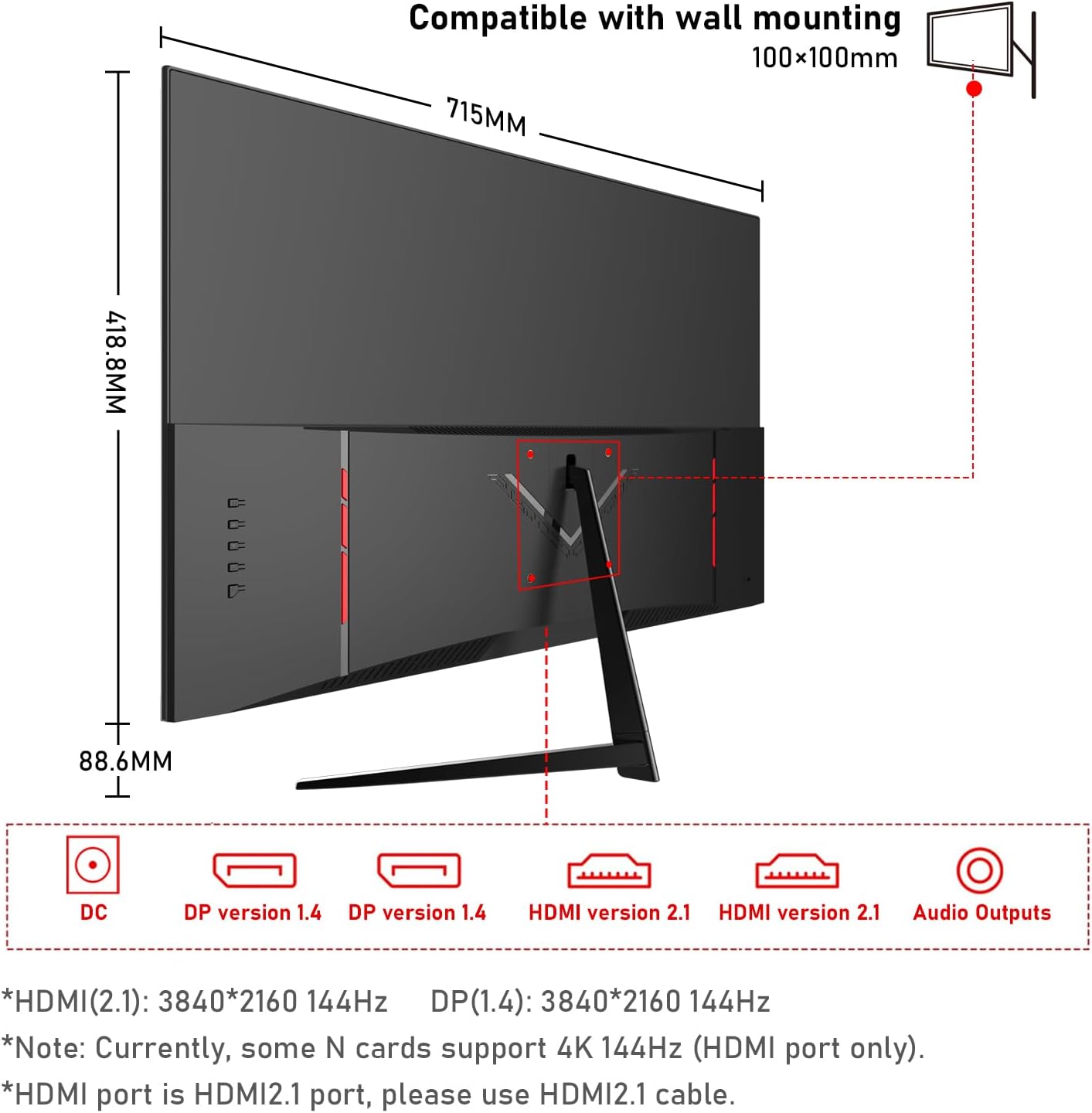
3.3 Monitorea konektatzea
Konektatu monitorea zure ordenagailura edo beste gailu batzuetara kable egokiak erabiliz.
- Potentzia-konexioa: Konektatu korronte-egokitzailea monitorearen DC sarrera-atakara, eta ondoren entxufe batera.
- Bideo-konexioa:
- For 4K@144Hz, use an HDMI 2.1 cable (if your graphics card supports it) or a DisplayPort 1.4 cable.
- Connect one end of the HDMI or DisplayPort cable to the corresponding port on your monitor and the other end to your computer's graphics card.
- Audio konexioa: If you wish to use external speakers or headphones, connect them to the 3.5mm audio output port on the monitor.
3.4 Hasierako piztea
Press the power button on the monitor. The monitor should display the Gawfolk logo and then your computer's desktop. If no image appears, ensure all cables are securely connected and the correct input source is selected in the monitor's On-Screen Display (OSD) menu.
4. Monitorea funtzionatzea
4.1 Pantailan bistaratzeko (OSD) menua
The OSD menu allows you to adjust various monitor settings. Typically, buttons are located on the back or bottom edge of the monitor. Use these buttons to navigate the menu and select options.
4.2 Pantailaren ezarpenak
- Ebazpena: The monitor supports 4K UHD (3840 x 2160) resolution. Ensure your computer's display settings are configured to this resolution for the sharpest image.
- Freskatze-tasa: For smooth visuals, especially in gaming, set the refresh rate to 144Hz in your computer's display settings.
- Kolore ezarpenak: This monitor offers 100% sRGB coverage and 16.7 million colors for vibrant and accurate color reproduction. Adjust brightness, contrast, and color temperature via the OSD menu to suit your preference.

4.3 Jokoen Ezaugarriak
- 1ms-ko erantzun-denbora: The monitor features a 1ms response time (GTG), minimizing motion blur and ghosting for a more responsive gaming experience.
- Sinkronizazio moldagarria (FreeSync): This technology synchronizes the monitor's refresh rate with your GPU's frame rate, eliminating screen tearing and stuttering. Enable FreeSync in your graphics card settings and the monitor's OSD menu.

4.4 Begien Zainketa Teknologia
The monitor incorporates low blue light and flicker-free technology to reduce eye strain during prolonged use. These features are designed to enhance viewerosotasuna.
4.5 Built-in Dual Speakers
The monitor includes built-in dual speakers, providing convenient audio without the need for external speakers. You can adjust the volume through your computer's audio settings or the monitor's OSD menu.

5. Mantentzea
- Pantaila garbitzea: Erabili lipurrik gabeko zapi leun bat dampUrarekin edo pantaila-garbitzaile espezializatu batekin garbitu. Ez ihinztatu garbitzailea zuzenean pantailan.
- C garbiketaasing: Erabili zapi leun eta lehor bat monitorearen c garbitzeko.asing. Saihestu garbitzaile edo disolbatzaile urratzaileak erabiltzea.
- Aireztapena: Ensure the ventilation openings on the monitor are clear and not obstructed to prevent overheating.
6. Arazoak
- Potentziarik gabe: Check if the power cable is securely connected to both the monitor and the power outlet. Ensure the power adapter is functioning.
- Irudirik ez: Egiaztatu bideo-kablea (HDMI/DisplayPort) behar bezala konektatuta dagoela monitoreari eta ordenagailura. Ziurtatu sarrera-iturri zuzena hautatuta dagoela OSD menuan.
- Pantaila keinukaria: Check the video cable connection. Ensure the refresh rate is set correctly in your computer's display settings. Enable Adaptive Sync if supported by your graphics card.
- Irudiaren kalitate eskasa: Adjust resolution, brightness, contrast, and color settings via the OSD menu. Ensure the video cable is not damaged.
- Soinurik ez: Check the audio cable connection (if using external speakers/headphones). Adjust volume settings on both the monitor and your computer. Ensure the correct audio output device is selected on your computer.
7. Zehaztapenak
| Ezaugarri | Zehaztapena |
|---|---|
| Marka | Gawfolk |
| Modelo zenbakia | GF320L |
| Pantailaren tamaina | 32 hazbete |
| Ebazpena | 4K UHD 2160p (3840 x 2160 Pixels) |
| Freskatze tasa | 144 Hz |
| Erantzun Denbora | 1 Millisecond (GTG) |
| Aspektu-erlazioa | 16:9 |
| Bistaratzeko mota | LED (VA Technology) |
| Pantailaren gainazalaren deskribapena | Distiratsua |
| Ezaugarri Berezia | Kurbatua |
| Viewangelua | 178 gradu |
| Distira | 320 cd/m² |
| Kolore Gamut balioa | %120 sRGB |
| Irudiaren kalitatea hobetzea | Eye-Care + Adaptive Sync |
| Hardware Konektibitatea | 2x HDMI, 2x DisplayPort, 3.5mm Audio |
| Adaptive Synchronization | FreeSync |
| Kolorea | Beltza |
| Elementuaren pisua | 6.34 kilogramo |
| Elementuaren neurriak (L x W x H) | 50.7 x 71.5 x 19 zentimetro |
8. Bermea eta Laguntza
Gawfolk provides a 12-month after-sales service for this monitor. If you encounter any issues during use, please do not hesitate to contact our customer support for assistance. Our team is dedicated to ensuring your satisfaction.